How to Customize Place Labels in TravelAnimator
 Jaseel S6 min read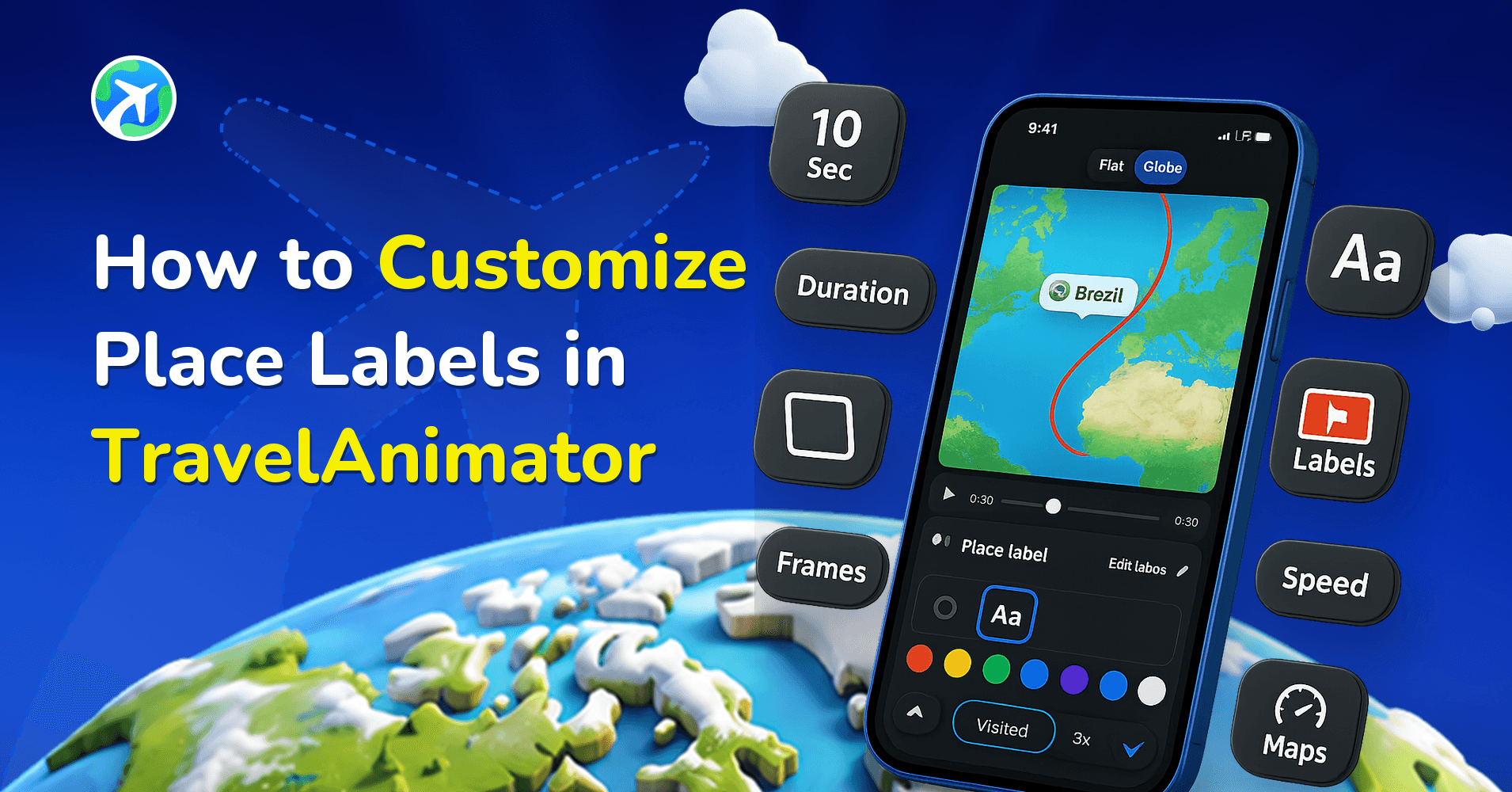
In this article 6 sections
TravelAnimator’s place label customization feature gives you complete control over how location names appear in your travel animations. From turning place labels on or off to choosing frame styles and colors, this feature helps you keep your videos clean, readable, and visually engaging.
Imagine you’ve created a stunning travel animation using all of TravelAnimator’s powerful features. Your route lines look perfect, your text and images are well aligned, and every transition feels smooth, but the location names still look plain or don’t match your video’s style. Even a small detail like this can break the visual flow of an otherwise polished animation. That’s where place label customization becomes essential.
In this guide, you’ll learn exactly how to customize place labels in TravelAnimator, what each styling option does, and how to use them effectively to create professional-looking travel animations that feel thoughtfully designed from start to finish.
What Are Place Labels in TravelAnimator?
Place labels in TravelAnimator are visual markers that display the names of locations you add to your route. These locations can come from manual searches within the app, imported GPX files or routes created using Google Maps.
Once a place is added to your route, TravelAnimator automatically generates a label for that location. These labels typically appear as framed text elements placed near the stop, making it easy for viewers to quickly recognize destinations.
Place labels help answer key questions for your audience, like
- Where does the journey start and end?
- Which cities, towns, or landmarks are included?
- How does the route progress geographically?
Without labels, a route can feel incomplete. With labels, the story becomes clearer and more meaningful.
Step-by-Step Guide to Customize Place Labels in TravelAnimator
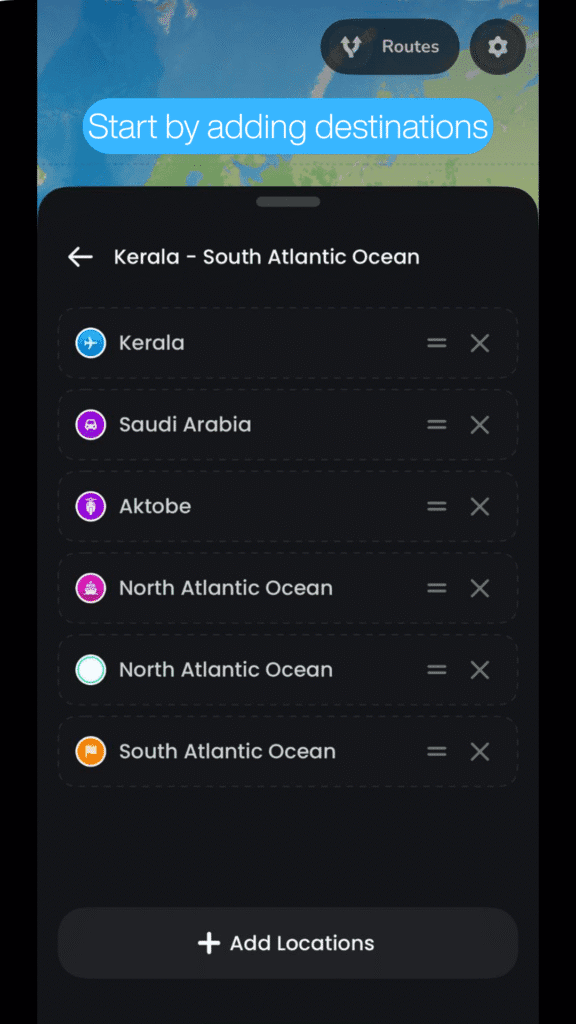
1. Start by adding destinations using the search function, a GPX file, or a Google Maps route. Once added, a place label is automatically created.
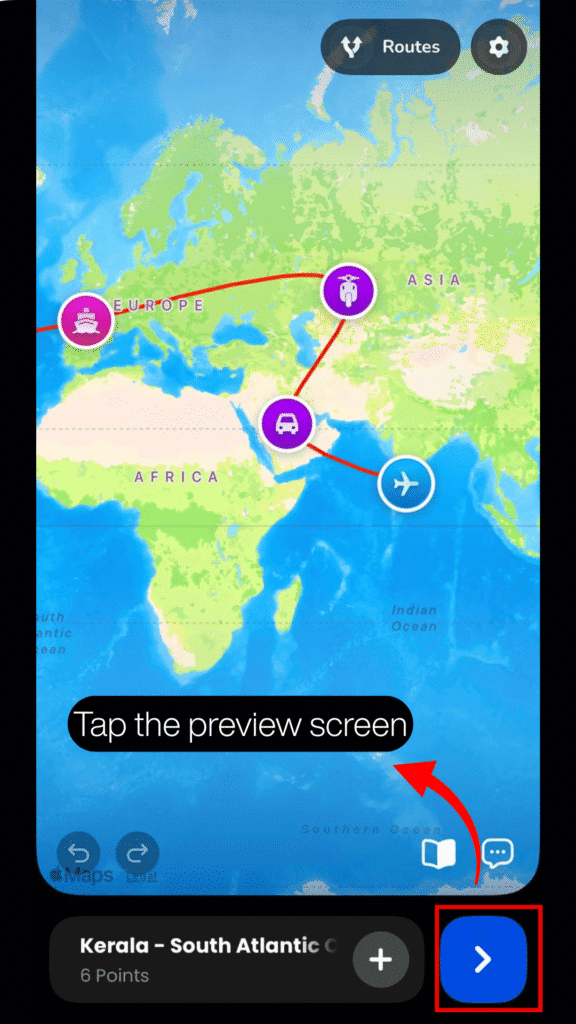
2. Tap the blue arrow to go to the preview screen and customize the place labels.
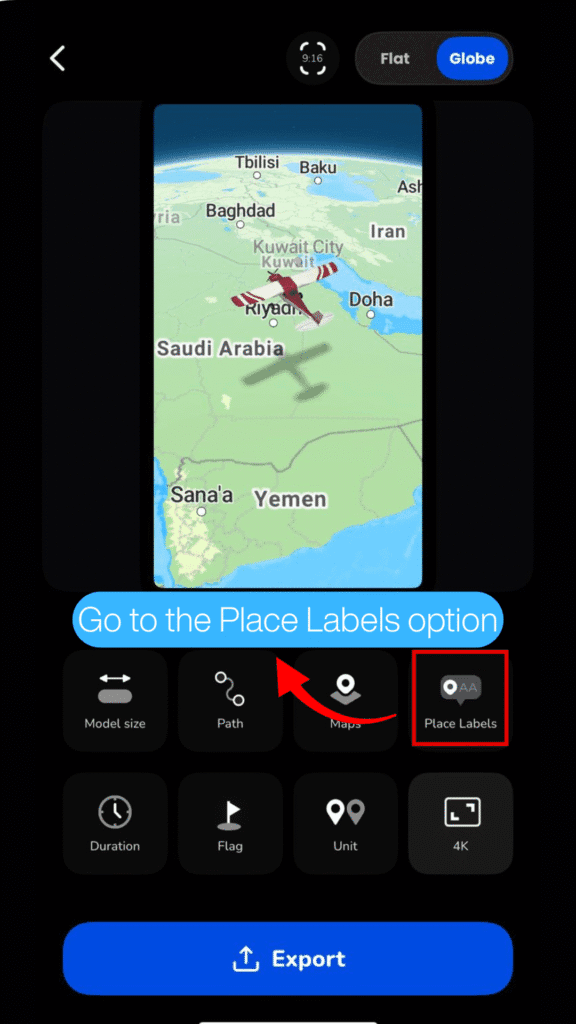
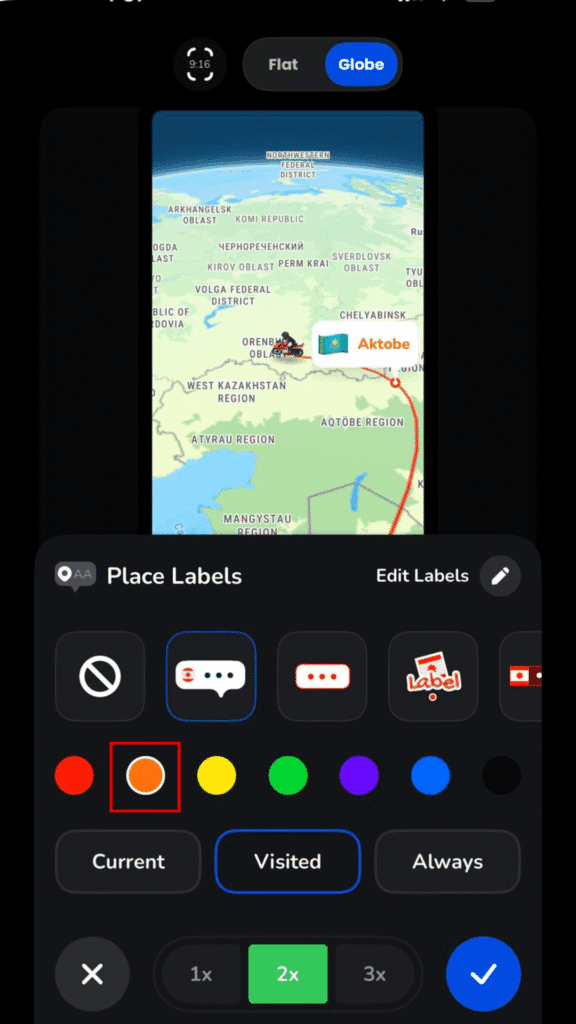
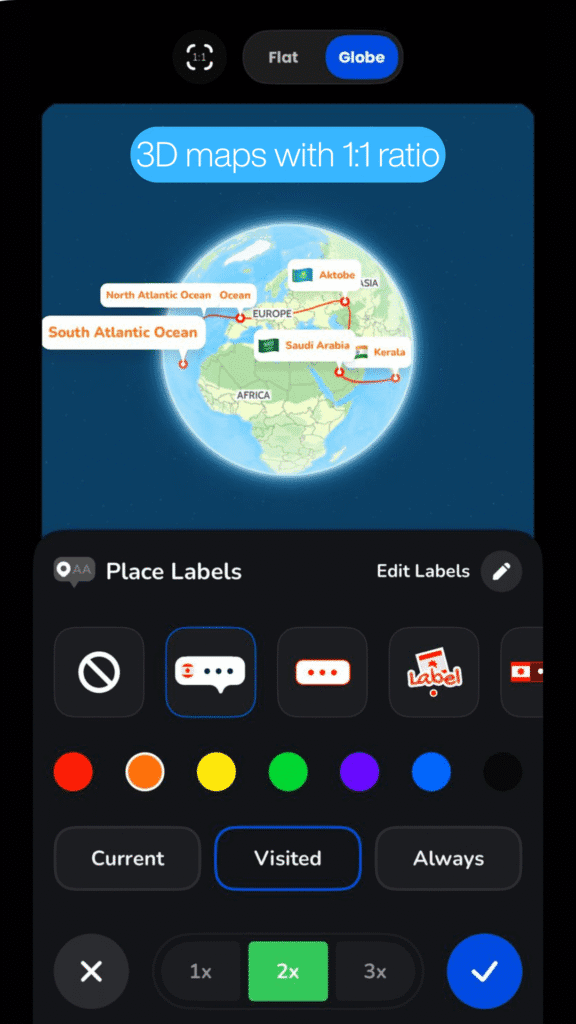
3. Tap the Place Labels option on the preview screen to open the customization options. It displays all styling and control features in one place.
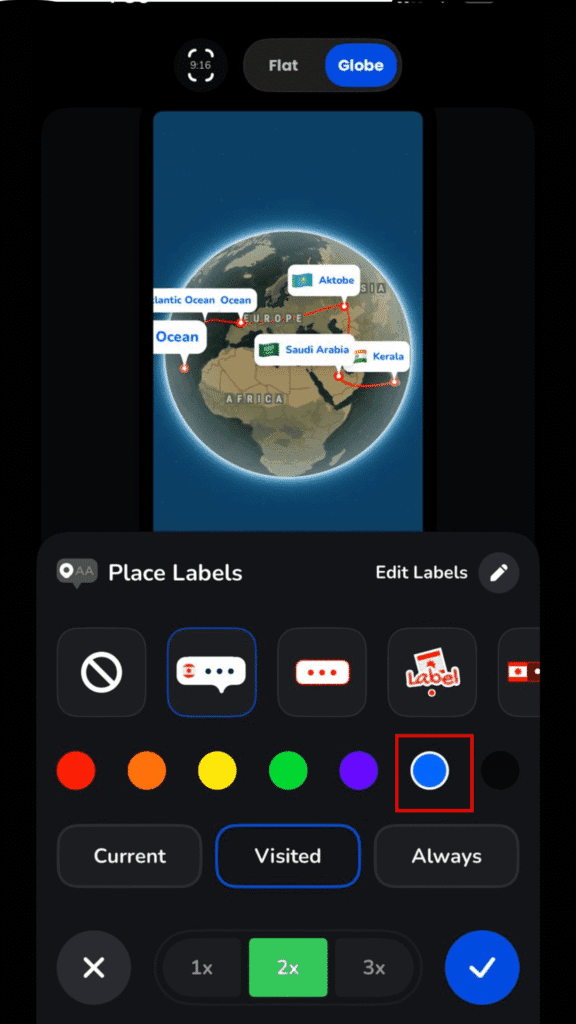
4. Choose frame styles, their colors, and toggle place label visibility settings based on your animation’s needs.
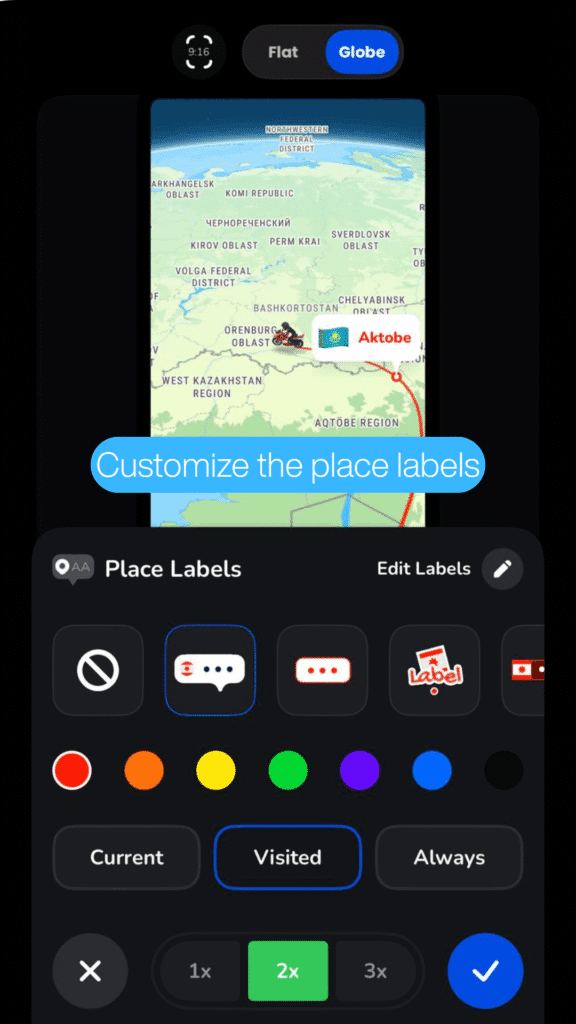
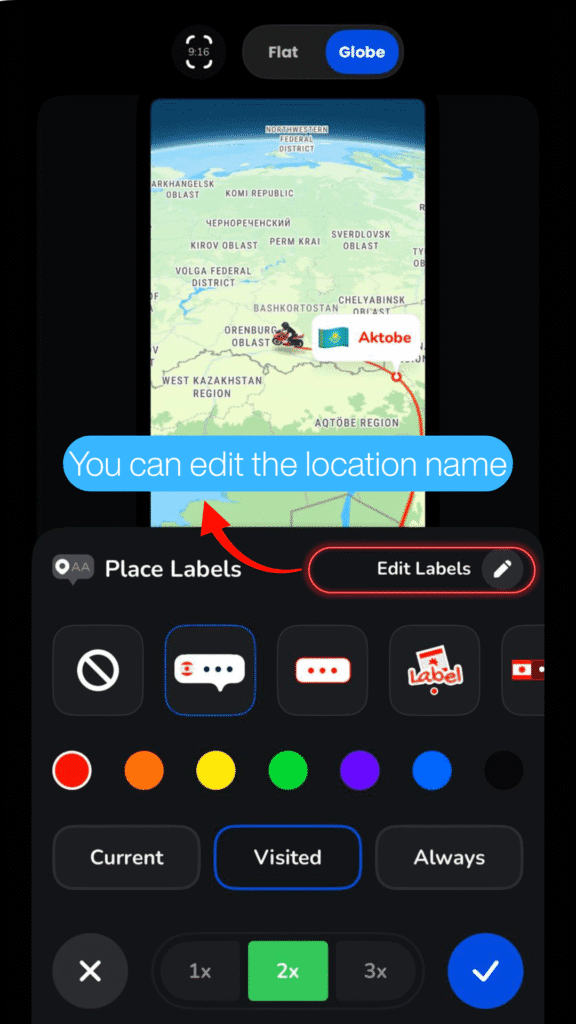
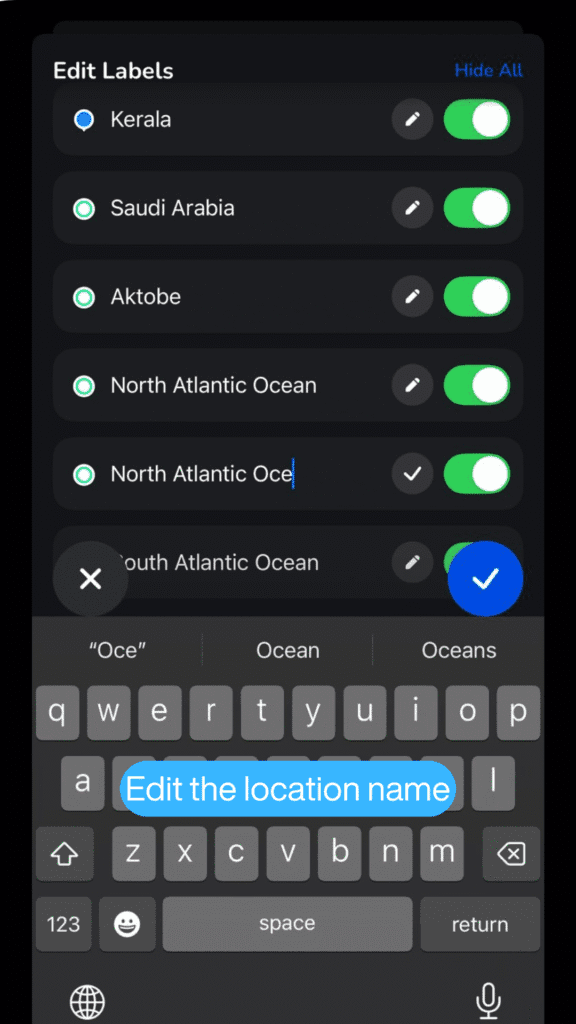
5. You can also edit the label of the locations from the Edit labels icon.
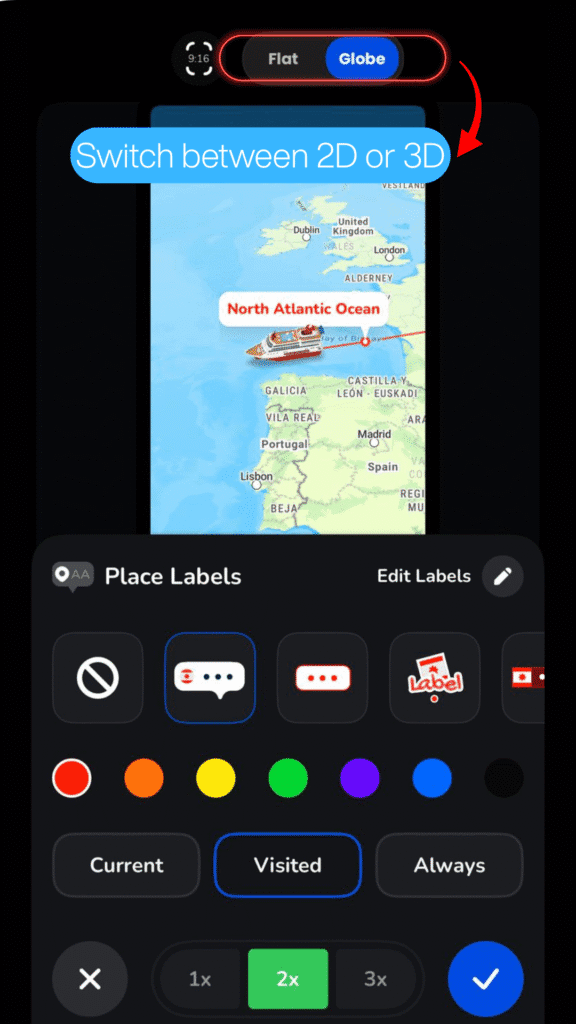
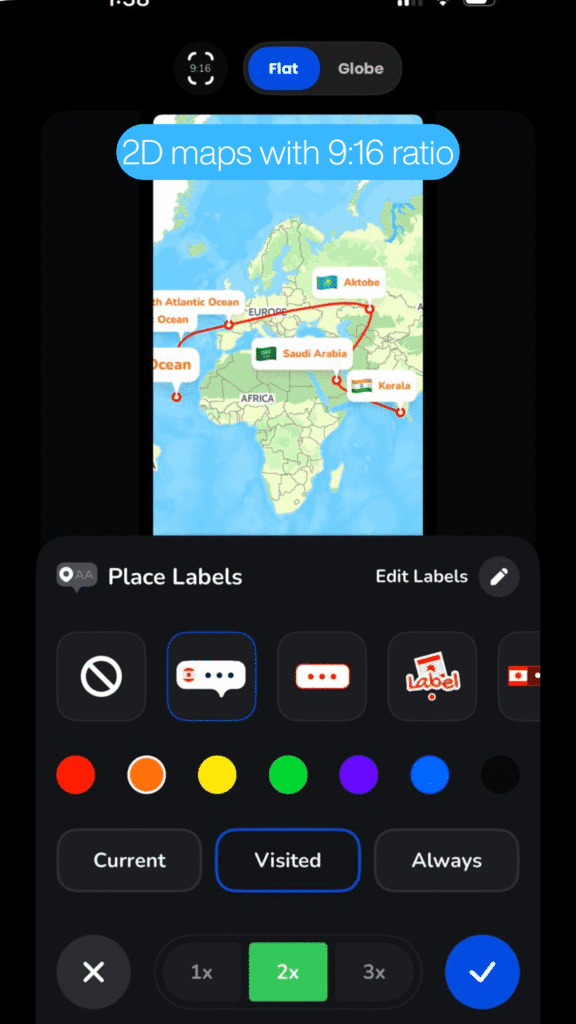
6. You can also switch between Flat or Globe views and change the video ratio to check alignment and spacing.
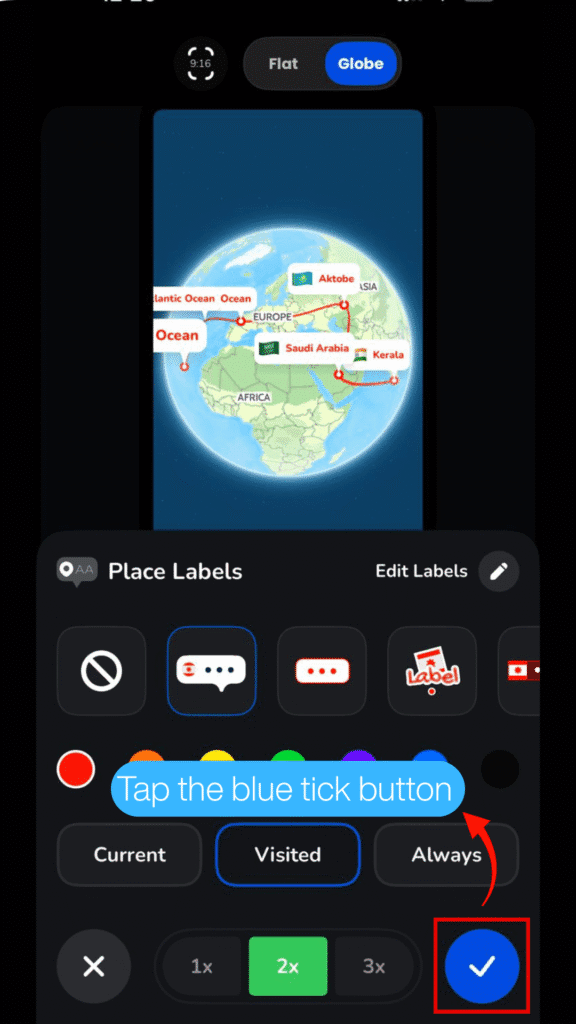
7. Once satisfied, tap the blue tick button to apply your label styling to confirm your changes.
Place Label Customization Features in TravelAnimator
TravelAnimator offers multiple features to help you style and manage place labels effectively. Each option is designed to balance clarity and visual appeal.
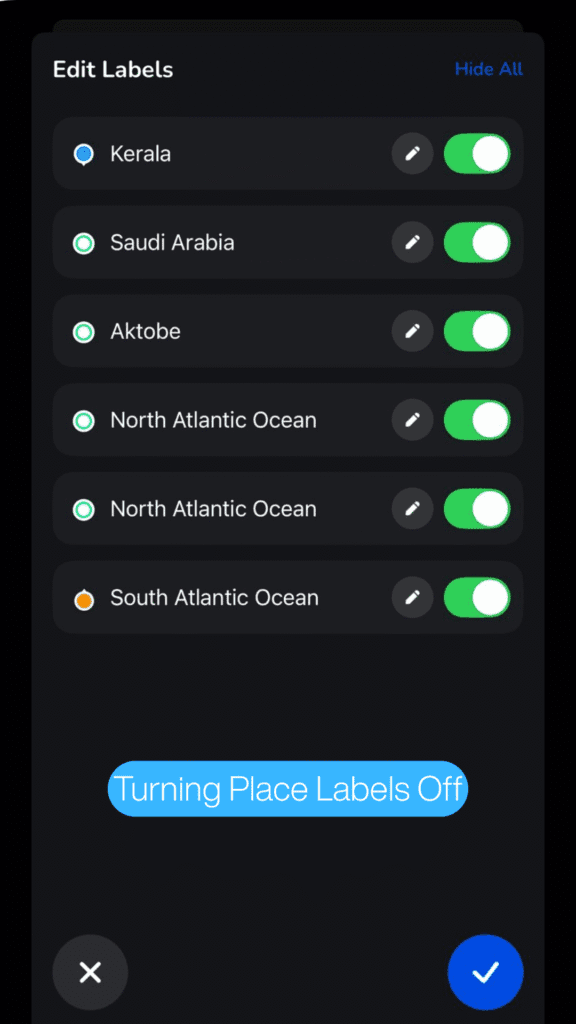
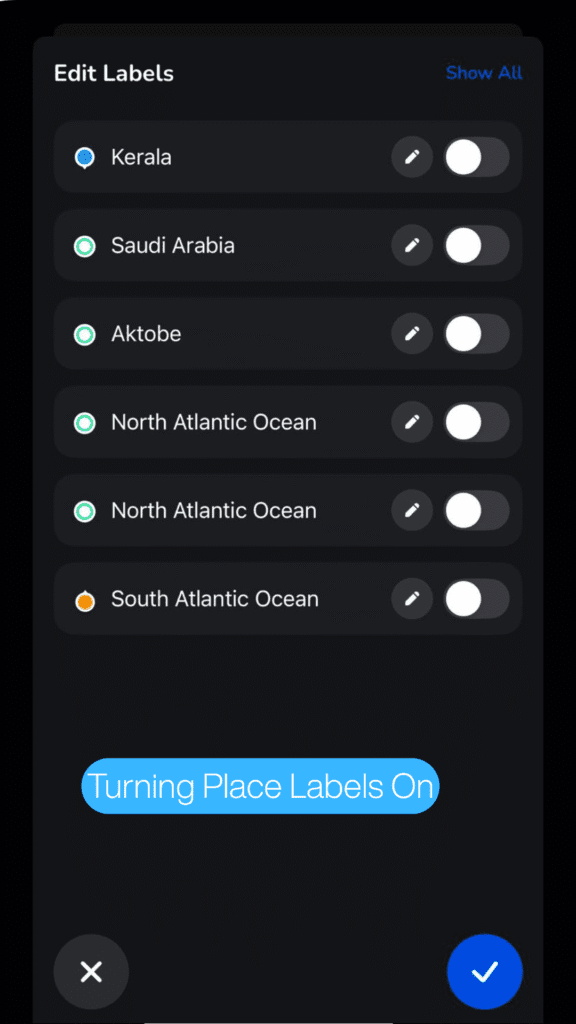
Turning Place Labels On or Off
Not every animation needs visible labels at all times. With a simple toggle, you can turn place labels on to highlight destinations or off to create a clean, minimalist route view.
This is especially useful when you want the route line to stand out, too many labels make the map look cluttered, or you plan to explain destinations using voiceover or captions. The ability to toggle labels helps you control how much information appears on screen.
Choosing the Place Label Frame Style
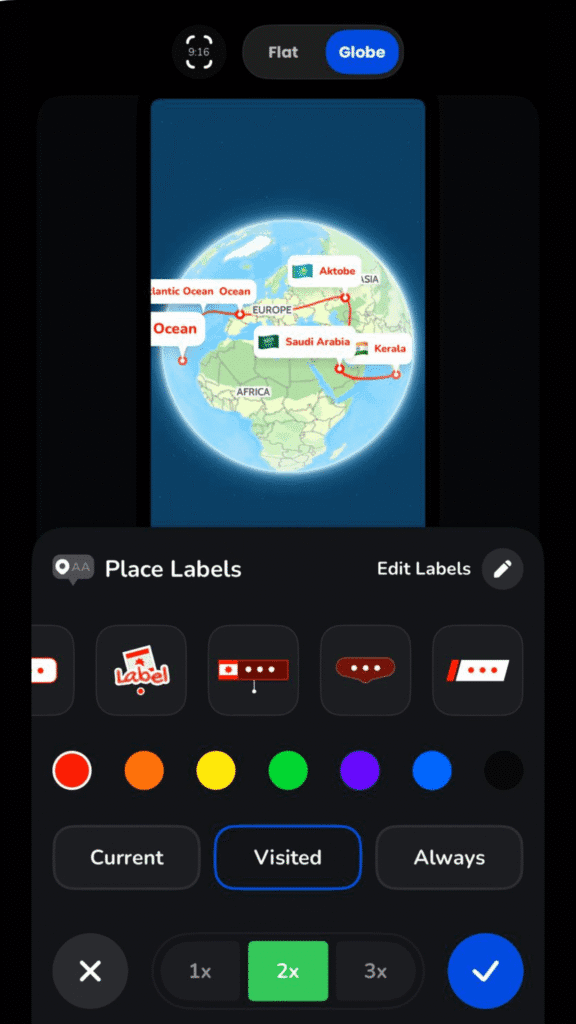
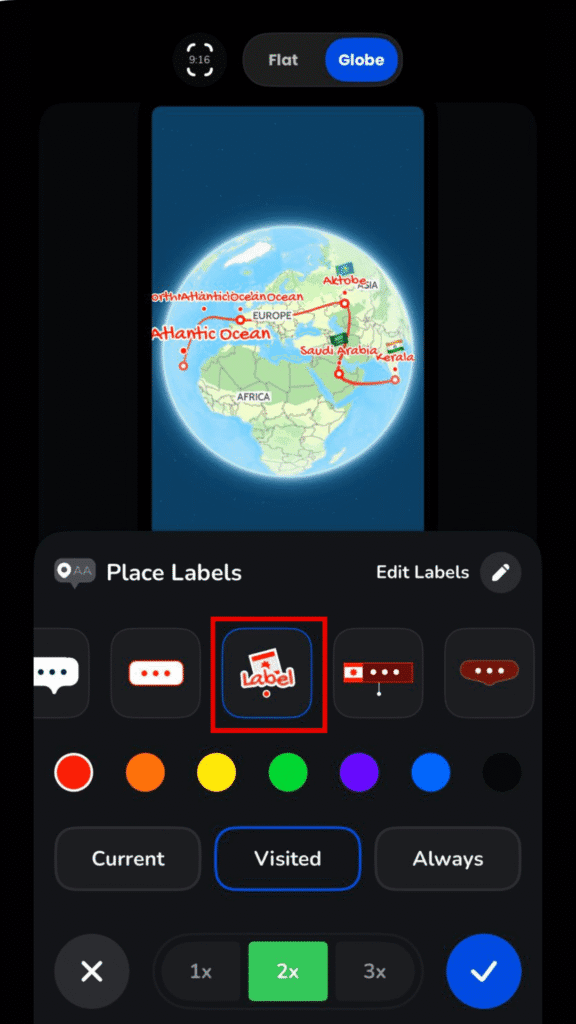
Frames define how your label looks visually. TravelAnimator offers multiple frame styles, such as rounded speech-bubble styles, minimal rectangular frames, and decorative label designs.
Each frame style serves a different purpose, like clean frames work well for professional or business content, decorative frames suit casual travel vlogs, minimal frames help keep attention on the route, and so on. Choosing the right frame style improves readability and matches your video’s tone.
Changing the Frame Color
Color plays a significant role in making labels stand out or blend in. TravelAnimator allows you to select different frame colors, match label colors with route lines or icons, and use contrast to improve visibility on various map backgrounds.
For example:
- Bright colors work well for dark maps
- Softer tones suit minimalist designs
- Consistent colors across all labels create visual harmony
Editing Place Label Content
For now, it’s enough to know that labels are flexible and editable, not locked or permanent.
Place labels aren’t static. You can edit label content to adjust place names, refine wording, and customize how destinations are displayed. While this guide focuses on styling and customization, TravelAnimator also supports deeper label editing.
Adjusting Map View and Video Ratio While Styling Labels
One powerful aspect of the place label panel is the ability to preview labels in different views and ratios.
You can switch between Flat (2D) and Globe (3D) map views and change video ratios, such as 1:1, 9:16, or 16:9, in the place label option. These options help you check if labels overlap routes, ensure labels fit well on vertical or horizontal videos, and align labels properly for social media formats.
Adjusting these settings before finalizing ensures your animation looks polished on any platform.
Best Practices for Clean and Readable Place Labels
- Avoid overcrowding the map with too many labels
- Keep label text short and readable when editing is required
- Use consistent frame styles across the animation
- Choose colors that contrast with the map background
- Preview labels in the final video ratio before exporting
- Hide labels temporarily if they distract from the route
Make Your Travel Routes Clear with Styled Place Labels
Place labels are a small detail that makes a big difference in travel animations. With TravelAnimator, you’re not locked into default designs – you’re free to style, adjust, and control how locations appear in your video. By customizing place labels, you can keep your map clean and readable, highlight important destinations, match labels with your video’s style and platform, and improve overall storytelling quality. And if a label doesn’t fit perfectly, you always have the flexibility to turn it off, edit it, change the color, or adjust the map view until everything feels right.
Start experimenting with place label customization in TravelAnimator today and turn your routes into clear, engaging travel stories that viewers can instantly understand.
Frequently Asked Questions
What Are Place Labels in TravelAnimator?
Place labels in TravelAnimator are visual markers that display the names of locations you add to your route. These locations can come from manual searches within the app, imported GPX files or routes created using Google Maps.
How do I customize Place Labels in TravelAnimator?
Open Preview and tap Place Labels. Choose the frame style and color, toggle visibility or edit individual label names, then confirm with the blue tick. Preview the selected map view and video ratio to check spacing.
How can I turn place labels on or off?
Use the visibility controls in Place Labels to show or hide labels. Hide less important names when the map is crowded, while keeping the locations themselves in the route.