How to Add Images and Travel Models to GPX & Google Maps Routes in Travel Animator
 Jaseel S4 min read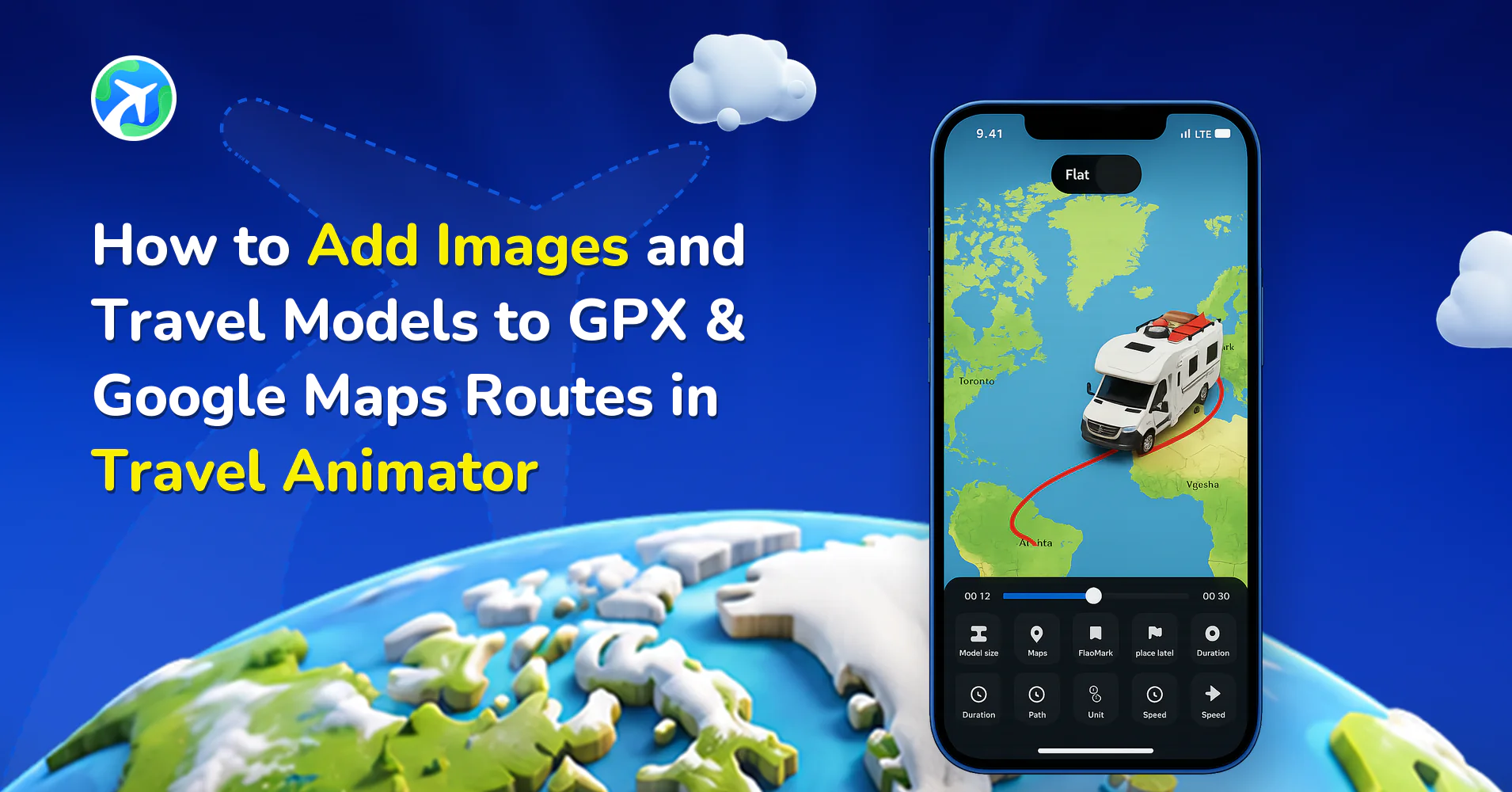
Now in Travel Animator, you can customize imported routes with images and travel models to personalize your animation with your own creative choices.
Whether you’ve uploaded a GPX file from your hiking trip or pasted a Google Maps link for a long road journey, the app gives you the freedom to transform a simple path into a cinematic travel story.
We will guide you through why customizing imported routes matters, how to add images and travel models in GPX and Google Maps routes in Travel Animator, and share tips to make your animations stand out.
Why Customizing Imported Routes Matters
When you import a GPX file or a Google Maps route into Travel Animator, the app automatically plots your journey with accurate paths, stops, and directions. While this is convenient, the default view can sometimes feel a little plain or generic. That’s where customization comes in.
By adding models and images to your imported routes, you can transform a technical path into a personalized story. A car model immediately shows it’s a road trip, while a plane highlights an international journey. Adding photos of key stops, landmarks, or moments helps your audience connect emotionally with the journey, instead of just watching a line move across the map.
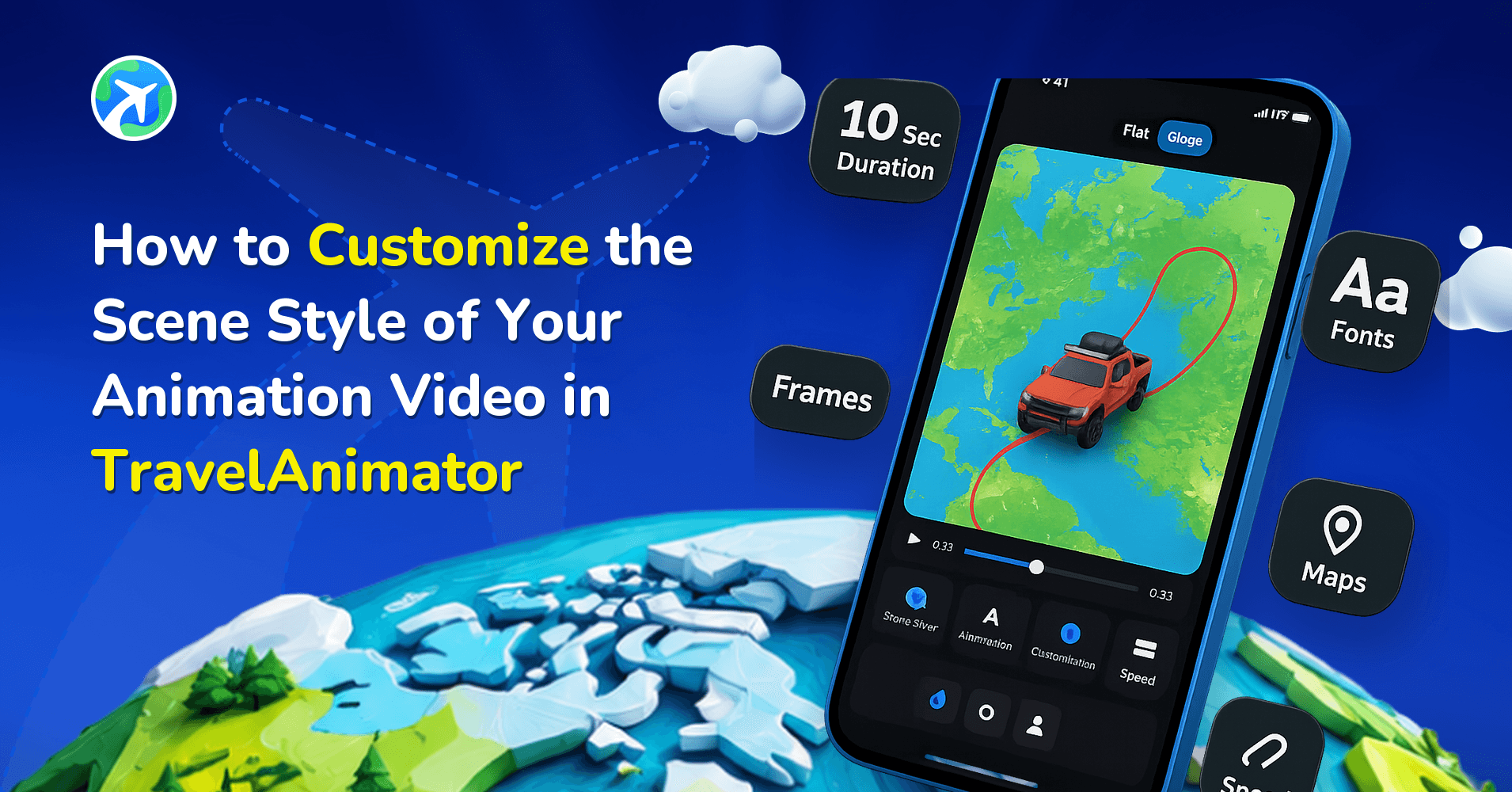
Customization also gives you more control over how your animation looks. You can match your video’s map style, video duration, etc, to your personal brand, making it more engaging for social media.
How to Change Models to GPX & Google Maps Routes
- Import your route via Add GPX or Paste Google Maps link from the route menu, located at the top right of the screen.
- To view the points to change travel models in imported routes, zoom the route to the maximum level till the points are visible on the path.
- Long-press on the point where you need to change the model.
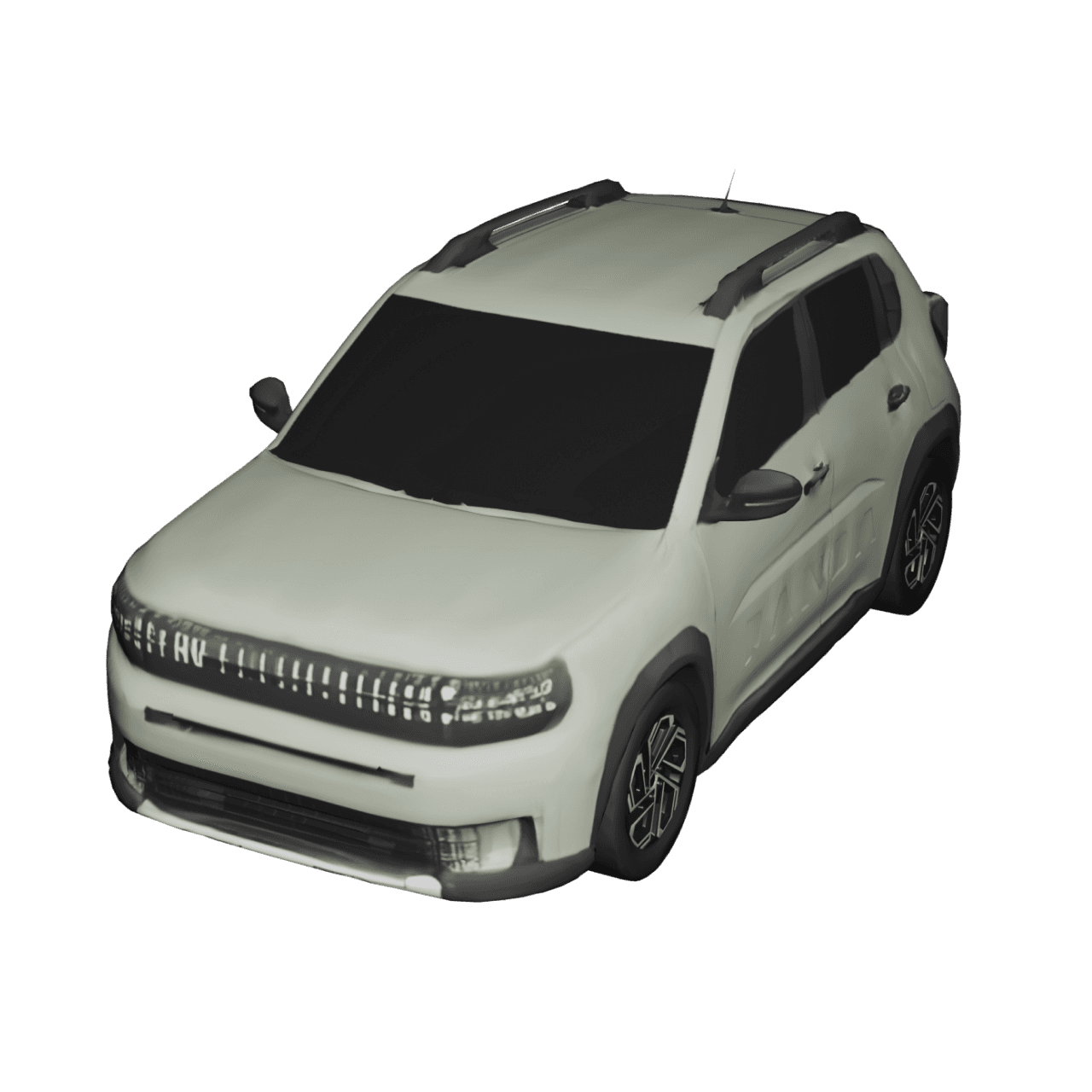
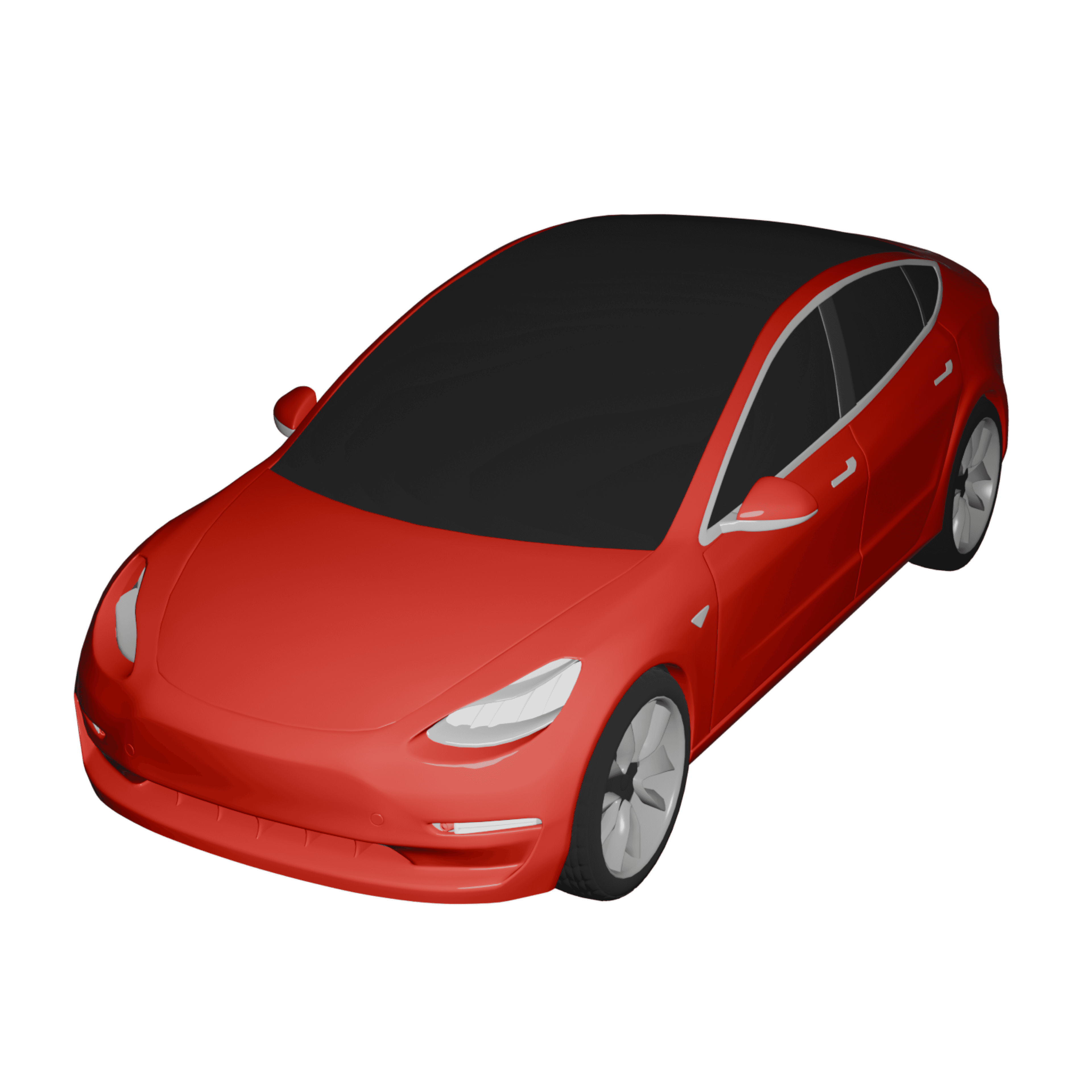
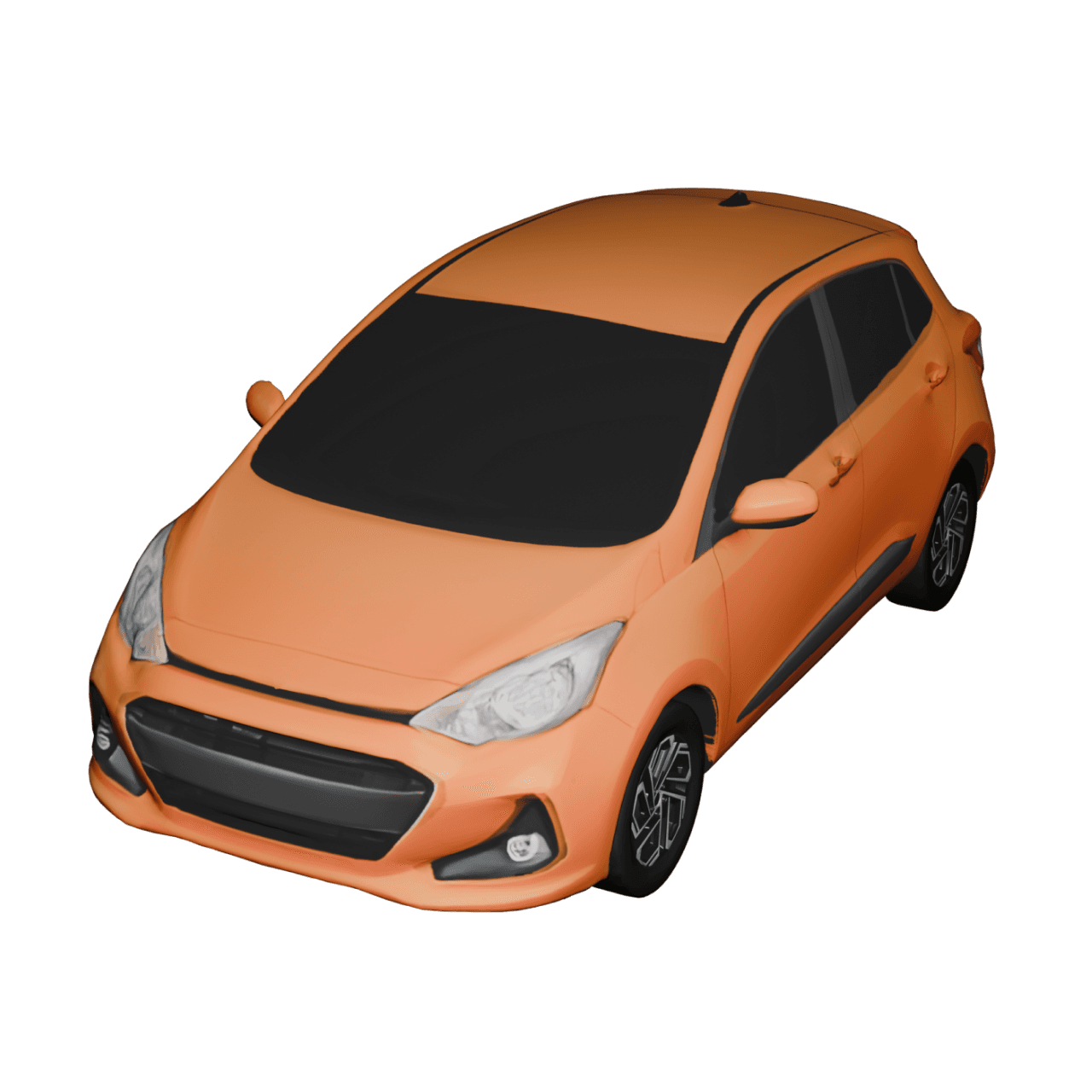
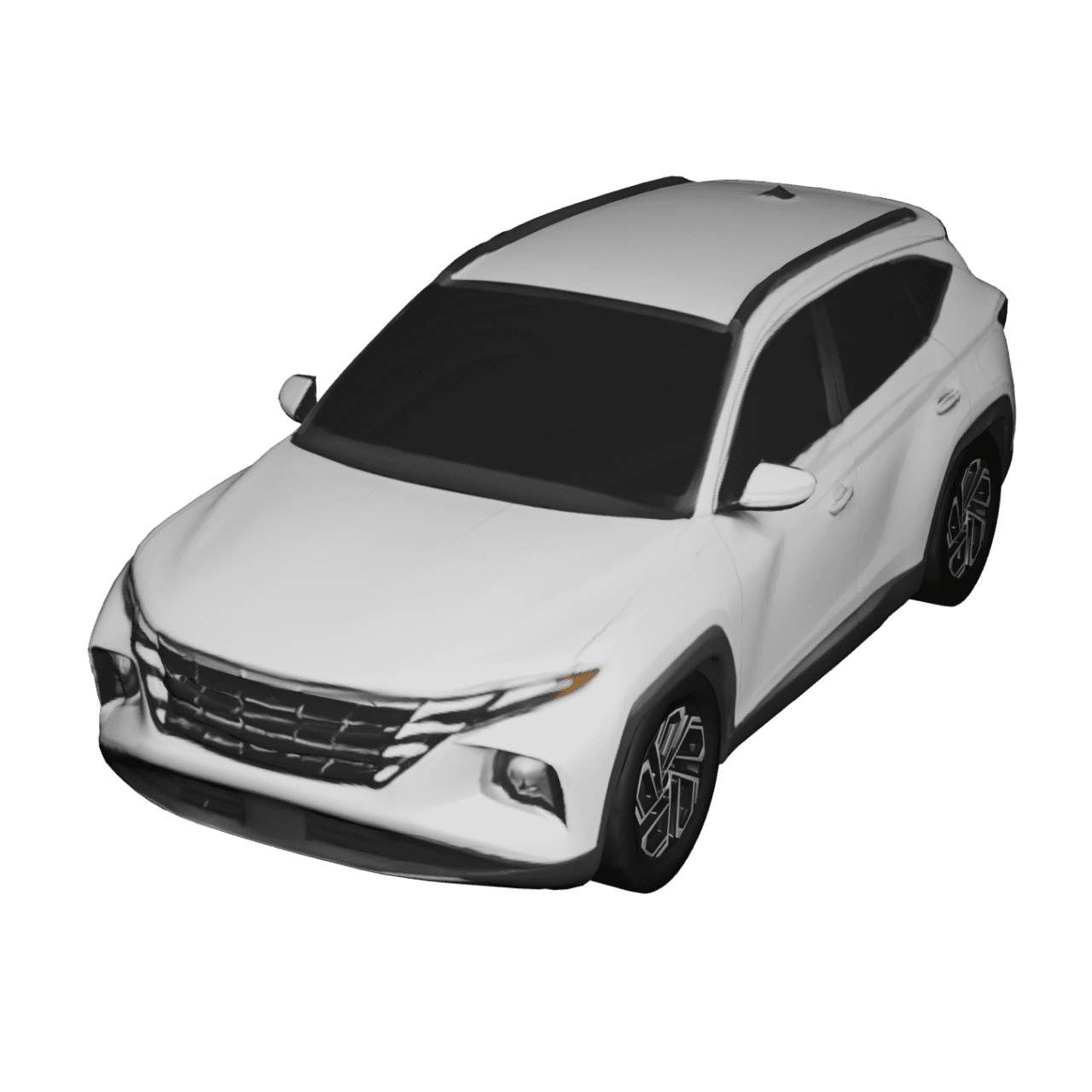
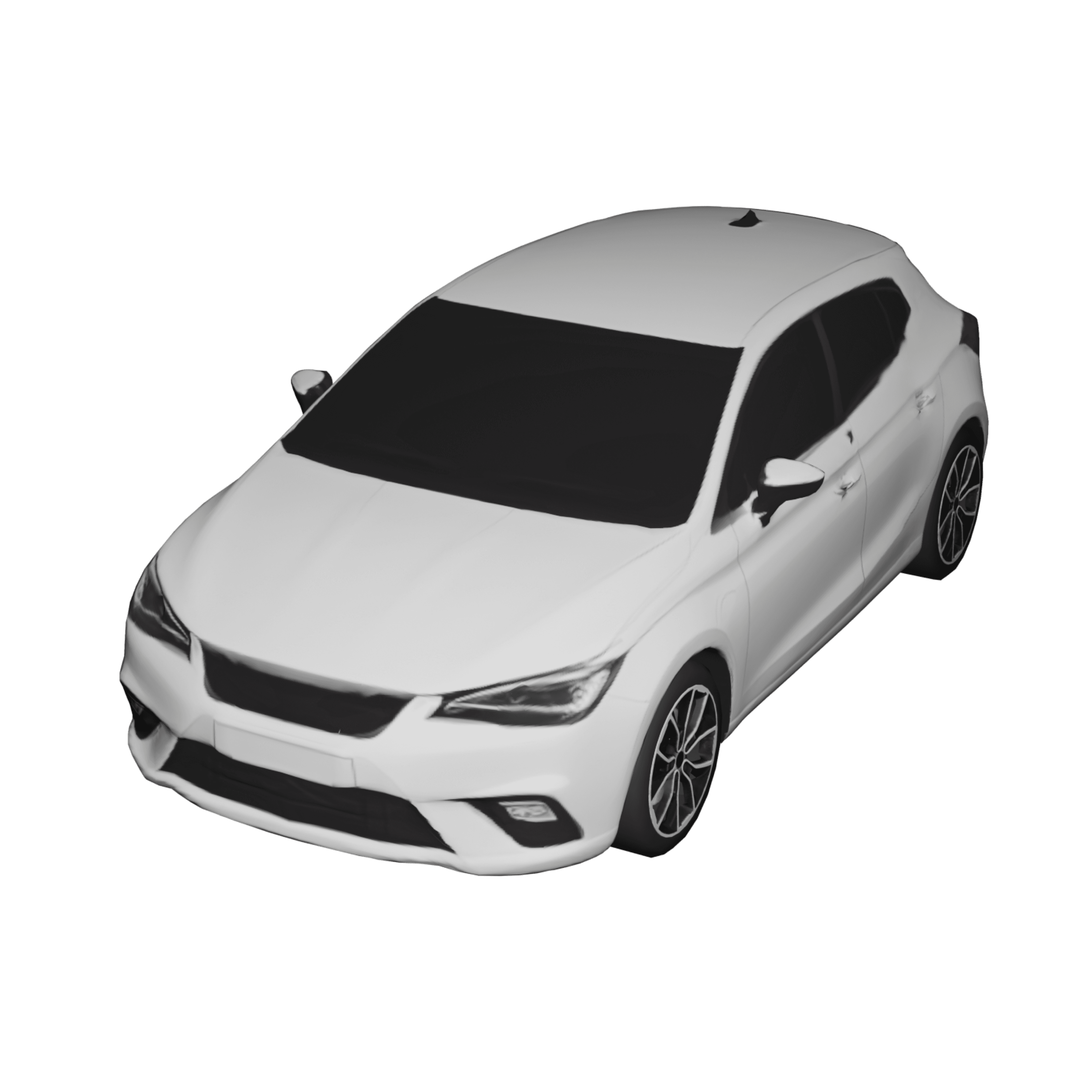
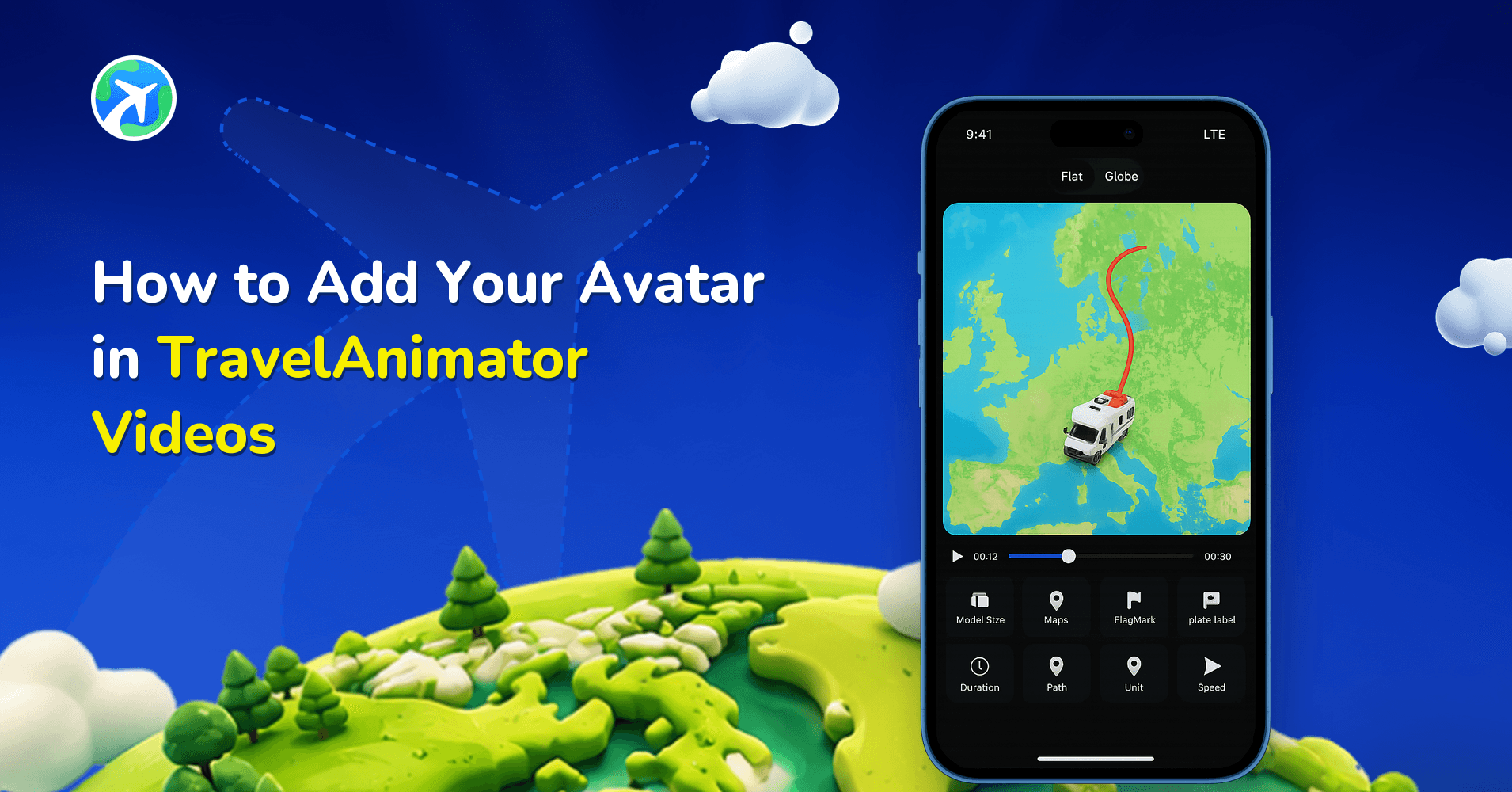
- Select the model from the huge collection of Indian, Free, Real, and Pro Models. You can also choose a blank model to get a path with no travel models.
- After selecting the model, preview the video to ensure the imported routes and models are aligned.
- Repeat this process on each point that you need to change in the model.
How to Add Images to GPX & Google Maps Routes
- To add images, import your route through Add GPX or Paste Google Maps link from the route menu.
- You can’t see any points on the route.
- To see the points, zoom the route at the highest level till the points are visible.
- Long-press on the point you need to add the image.
- Tap on the Add image located in the top right corner of the model menu.
- Add the image from your device. You can also add text below the picture.
- After selecting the image, preview the video to see how your image is showing in your travel video.
- Repeat the process in the points where you need to add an image.
Tips for Enhancing Imported Routes in Travel Animator
Use relevant transport models based on your travel theme. Use various bike models for GPX hikes, a variety of road models like cars, trucks, etc, are available for road trips, and a plane for flights.
Add landmark photos at key points in your routes to help viewers get clarity in your path and destinations.
Keep balance while adding images because adding too many photos or pictures in nearby points may clutter the animation.
Try with different durations for smooth animation and choose the best to export.
Common Questions About Adding Models & Images
Q. Can I use multiple models on one imported route?
Yes, you can add multiple models in an imported route. But you can add a single route at a single point.
Q. Can I remove a model later?
Yes, you can change the current model to the blank model or any model you need.
Q. Do I need the Pro version to add images and travel models to GPX & Google Maps routes in the Travel Animator?
No, it is available in both the free and pro versions of Travel Animator.
Is It Better to Stick with Defaults or Add Your Own Style?
Customizing imported routes in Travel Animator takes your animation from simple to standout. Instead of just showing a line across a map, you’re able to tell a richer story with vehicles, images, and personal touches that reflect your real journey. For casual users, customization adds fun and personality to trip videos you share with friends and family. For professionals like travel vloggers, tourism agencies, or teachers, it helps create perfect, engaging content that connects with your audience on a deeper level.
So, next time you import a GPX file or a Google Maps route, don’t stop at the default path. Add models and insert photos before exporting your route design.