Terra Ink Cover Themes That Follow Your Route Color
 Jaseel S6 min read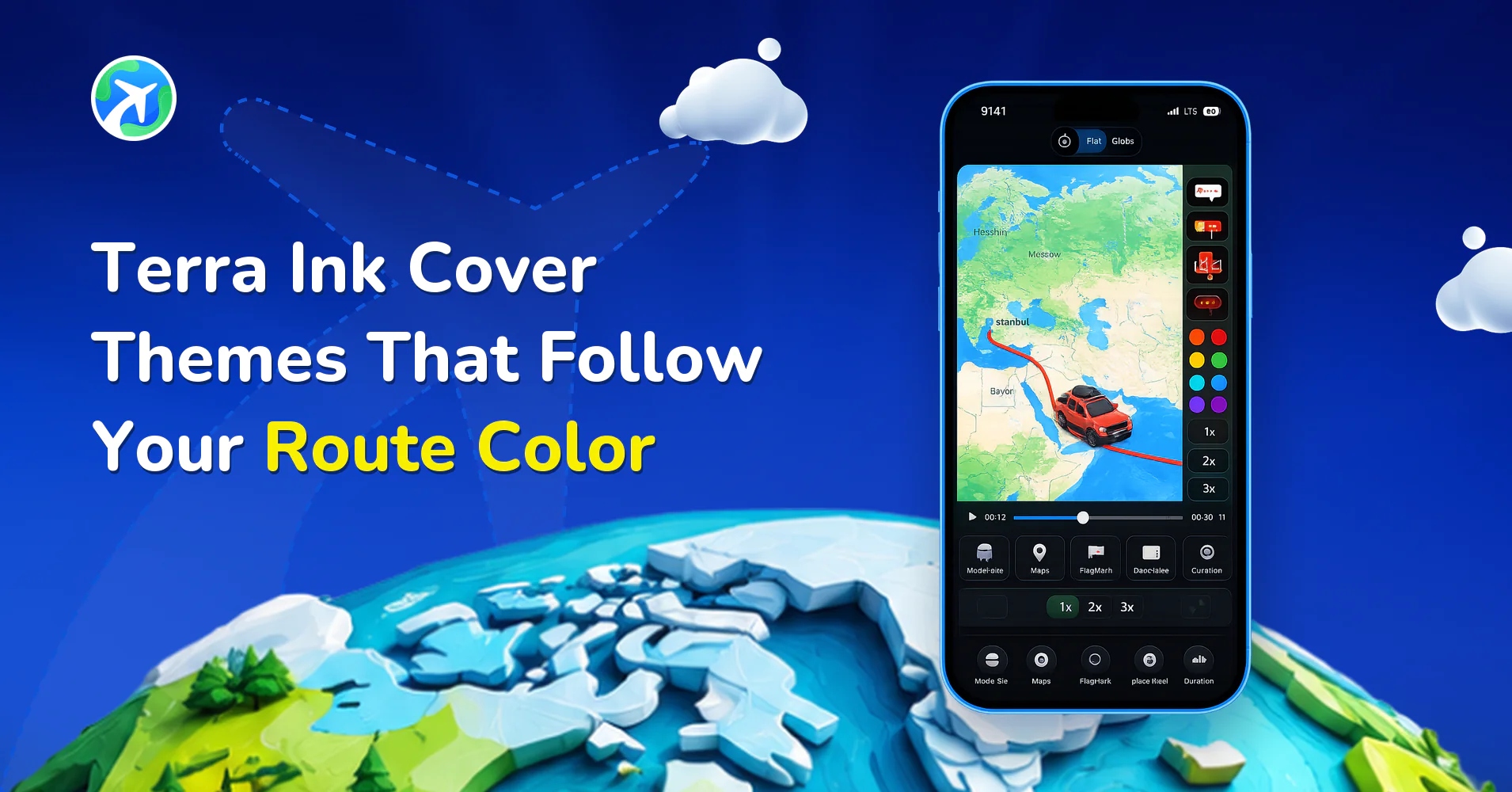
In this article 9 sections
You spent an hour on the route. The curve is smooth, the little train looks great, and the map style is exactly right. Then you reach the last step and the cover turns out to be a random frame that happened to be paused at the wrong moment.
We have all been there. The cover is the first thing anyone sees, and it is usually the part we give the least thought to. Terra Ink cover themes are built to fix that with very little effort: pick a color for your route and the cover follows it.
Why Your Route Video Cover Matters
Think about how you scroll. You are not reading descriptions, you are glancing. A cover gets a second, maybe less, to say what the video is and whether it is worth a tap.
For a route video, that second has a job to do. It should tell people where the trip goes, hint at the mood, and look like it belongs to the same story as the video underneath. A mismatched cover does the opposite. A pink title card on a blue route feels like two different projects stitched together.
In Travel Animator the cover image doubles as the opening frame of the video and as a still you can download. The cover image guide (https://www.travelanimator.com/hub/how-to-add-a-cover-image-to-your-travelanimator-video) covers the basics. Terra Ink is about making that cover feel like part of the route instead of an afterthought.
What Terra Ink Cover Themes Do
Here is the idea in one line: the cover takes its color from your route.
Draw a coral line across the map and you get a coral-toned cover. Switch to teal and the cover turns teal. You do not need to open a color picker for the cover and squint at shades until they look close enough. The two are tied together, so they match by default.
That sounds small, but it changes how you work. Instead of making two color decisions and hoping they agree, you make one. If you post trips often, it also gives your profile a quiet consistency. Each video has its own color, and every cover feels like part of the same family.
How To Set Up A Terra Ink Cover In Travel Animator
The order matters here, so do the color first.
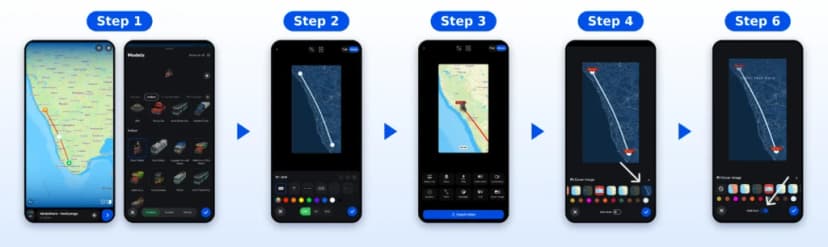
- Build the route. Add your stops, choose a vehicle and pick a map style. New to the app? The step-by-step app guide (https://www.travelanimator.com/hub/how-to-use-the-travel-animator-app) walks through every screen.
- Open Preview and set the route color. Adjust the thickness and style while you are there.
- Tap Cover Image in the settings panel.
- Choose the Terra Ink theme and a layout you like.
- Turn on Use cover as video intro if you want it at the start of the video.
- Add a title if you want one, then confirm.
- Preview the opening and export in HD or 4K.
Pick A Route Color That Survives The Map And The Cover
Your route color now does double duty, so it has to look good in two places. The map style guides in the Resource Hub offer a handy shortcut.
- Busy maps like Nova (https://www.travelanimator.com/hub/nova-map-in-travel-animator) already use bold shades for regions. Avoid any color the map is using. White is a safe fallback.
- Dark maps like Loki’s World (https://www.travelanimator.com/hub/lokis-world-map-in-travel-animator) swallow thin, dark lines. A bright color or the glowing line keeps the route readable.
- Vintage maps like Treasure Map (https://www.travelanimator.com/hub/treasure-map-in-travel-animator) and Pirates (https://www.travelanimator.com/hub/pirates-map-in-travel-animator) look best with deep reds and browns. A pale blue line gets lost in the sea.
- Black and White (https://www.travelanimator.com/hub/black-white-map-style-in-travelanimator) is the forgiving one. Nearly any color pops against it.
One more thing worth testing: very pale colors. They can look washed out behind white title text, so preview before you commit.
Line Style And Thickness
Color gets the attention, but style and thickness decide whether the route reads on a small screen. You can pick solid, dotted, dashed, glowing or hybrid lines, and the comparison with TravelBoast (https://www.travelanimator.com/hub/compare-travel-animator-and-travelboast) shows them side by side.
A glowing line suits a night-time or dark-map video. A dashed line feels like an old explorer’s chart. When in doubt, a solid, medium-thick line is the safest choice for phones. Choose the style that fits the story, then let the cover pick up the color.
Write A Title That Fits A Phone Screen
Most viewers will see your cover on a phone, and only briefly. So keep the title short enough to read at a glance: a place, how you got there and maybe a number. Kerala in 3 Days works. A whole sentence does not.
Two small habits help. Spell stops the same way your place labels do, and for flights use the city name instead of the full airport name. Also decide on your frame shape first, since a line that sits comfortably in a wide frame can feel squeezed in a tall one. Not sure which shape to pick? The aspect ratio guide (https://www.travelanimator.com/hub/how-to-choose-the-right-aspect-ratio-for-travel-animation-videos) will sort it out, and the text customization guide (https://www.travelanimator.com/hub/how-to-customize-text-in-travelanimator) covers the wording.
Make The Rest Of The Video Match
A good cover opens the door to a consistent look. A few other settings can echo the same color.
- Avatar frame: match it to the line, or choose contrast if the map is very light or very dark. The avatar guide (https://www.travelanimator.com/hub/how-to-add-your-avatar-in-travelanimator-videos) lists the frame shapes.
- Place labels: keep them readable and consistent with the cover. See place label customization (https://www.travelanimator.com/hub/how-to-customize-place-labels-in-travelanimator).
- Brand logo: if the video is for a business, add your logo with the brand logo guide (https://www.travelanimator.com/hub/how-to-add-your-brand-logo-to-travel-animator-videos).
- Camera: the scene style guide (https://www.travelanimator.com/hub/how-to-customize-the-scene-style-of-your-animation-video-in-travelanimator) covers how the view moves.
Four Places To Use Your Cover
Saving the cover as a still and using it as the video intro are separate choices, so you can do either or both.
- As the opening of a Reel or YouTube clip.
- As a Story or a teaser before a trip. The Instagram Stories and Reels guide (https://www.travelanimator.com/hub/how-to-create-a-travel-animation-for-instagram-stories-reels) and the WhatsApp Status guide (https://www.travelanimator.com/hub/how-to-use-travel-animator-for-creating-engaging-whatsapp-status-and-instagram-stories) cover vertical exports.
- As a series look, with the same color and layout across parts and a new title each time.
- As a cover page for a client proposal. Agencies will like the guide to presenting travel plans better than PDFs (https://www.travelanimator.com/hub/how-to-present-travel-plans-better-than-pdfs-using-travelanimator).
Mistakes That Quietly Spoil A Cover

- Picking the cover first, then changing the route color and forgetting to look again.
- Using a pale color that vanishes on the map or behind the title.
- Writing a long title that wraps awkwardly in a tall frame.
- Matching the cover to the line but not to the labels, avatar or logo.
- Skipping the preview.
Keep Reading
- How to Add a Cover Image to Your TravelAnimator Video: https://www.travelanimator.com/hub/how-to-add-a-cover-image-to-your-travelanimator-video
- How to Make an Animated Travel Map (Free, on Your Phone): https://www.travelanimator.com/hub/how-to-make-an-animated-travel-map
- Black & White Map Style in TravelAnimator: https://www.travelanimator.com/hub/black-white-map-style-in-travelanimator
FAQs
What is a cover image in the app?
It is the opening frame of your video, shown before the route starts moving. You can also download it as a separate picture.
What do Terra Ink cover themes do?
They take the cover’s colors from your route color, so the cover and the map match without extra settings.
Where do I find out what each plan includes?
The plans page (https://www.travelanimator.com/plans) lists the free and Pro plans.
Can I download the cover without putting it in the video?
Yes. Downloading it and using it as the intro are separate options.
Which route color works best?
One that contrasts with your map. White suits busy maps, bright colors suit dark maps, and deep reds or browns suit vintage ones.