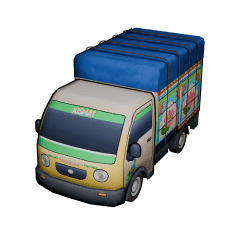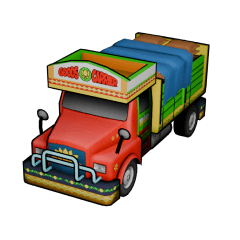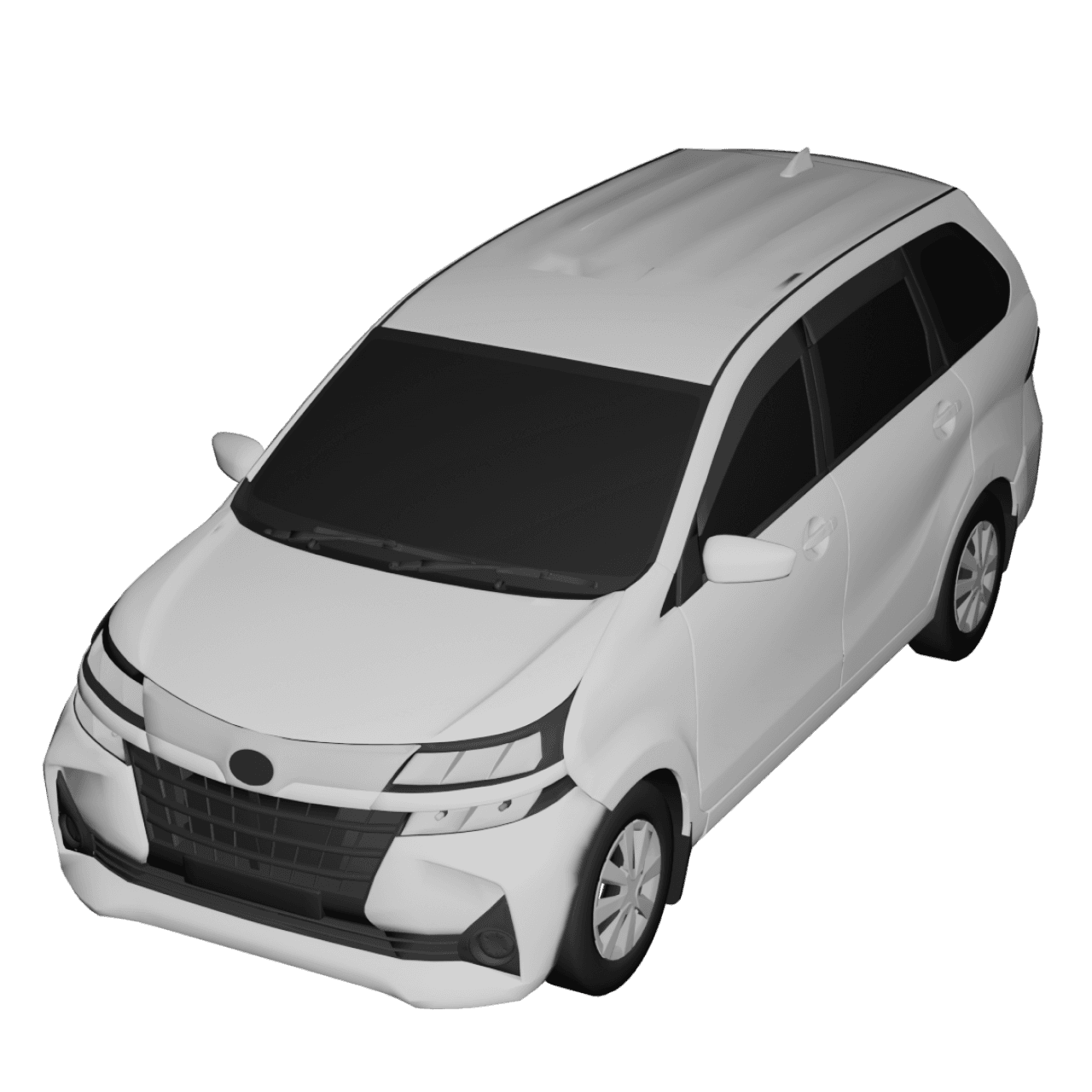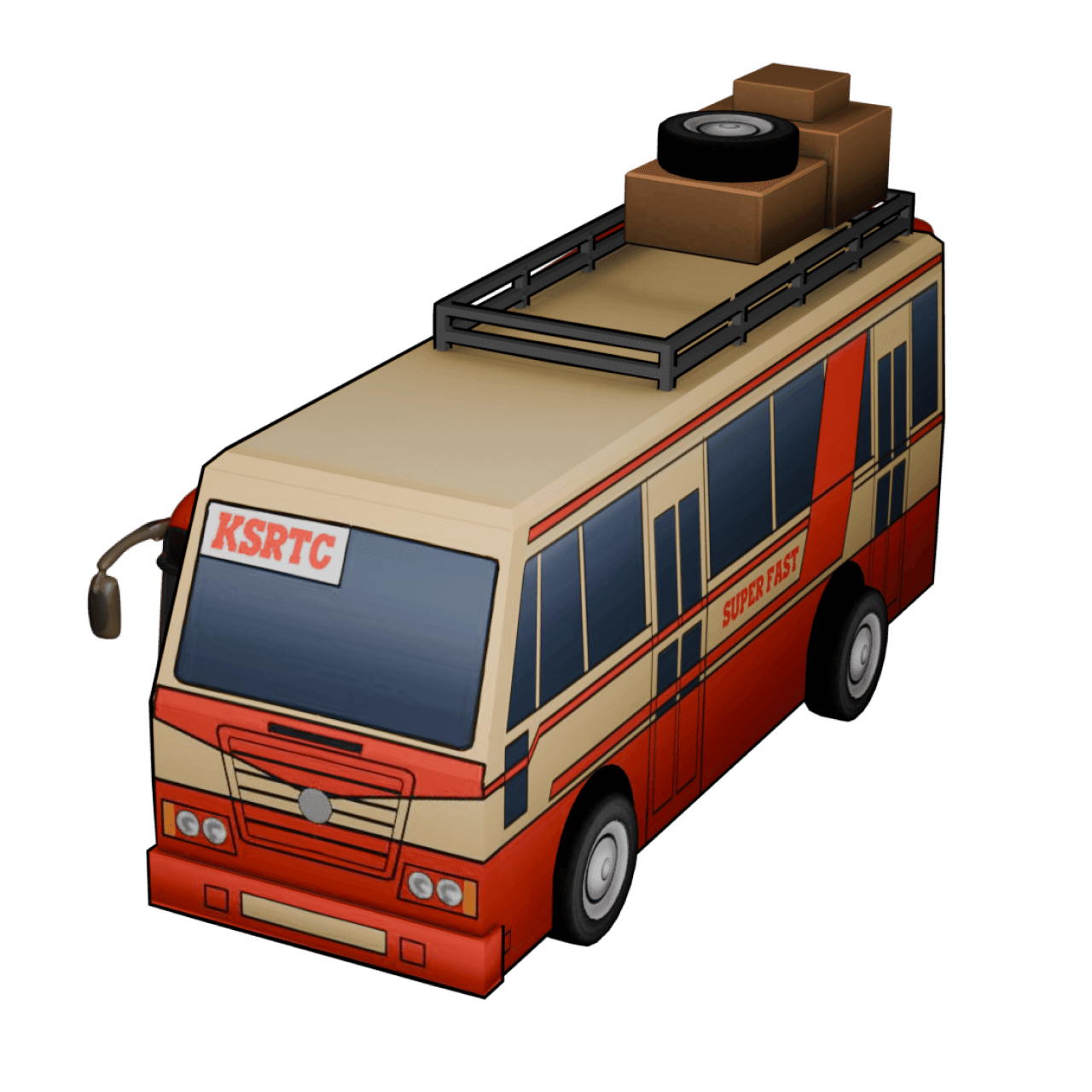
How to Customize Your Animation’s Scene Style in TravelAnimator
 Jaseel S4 min read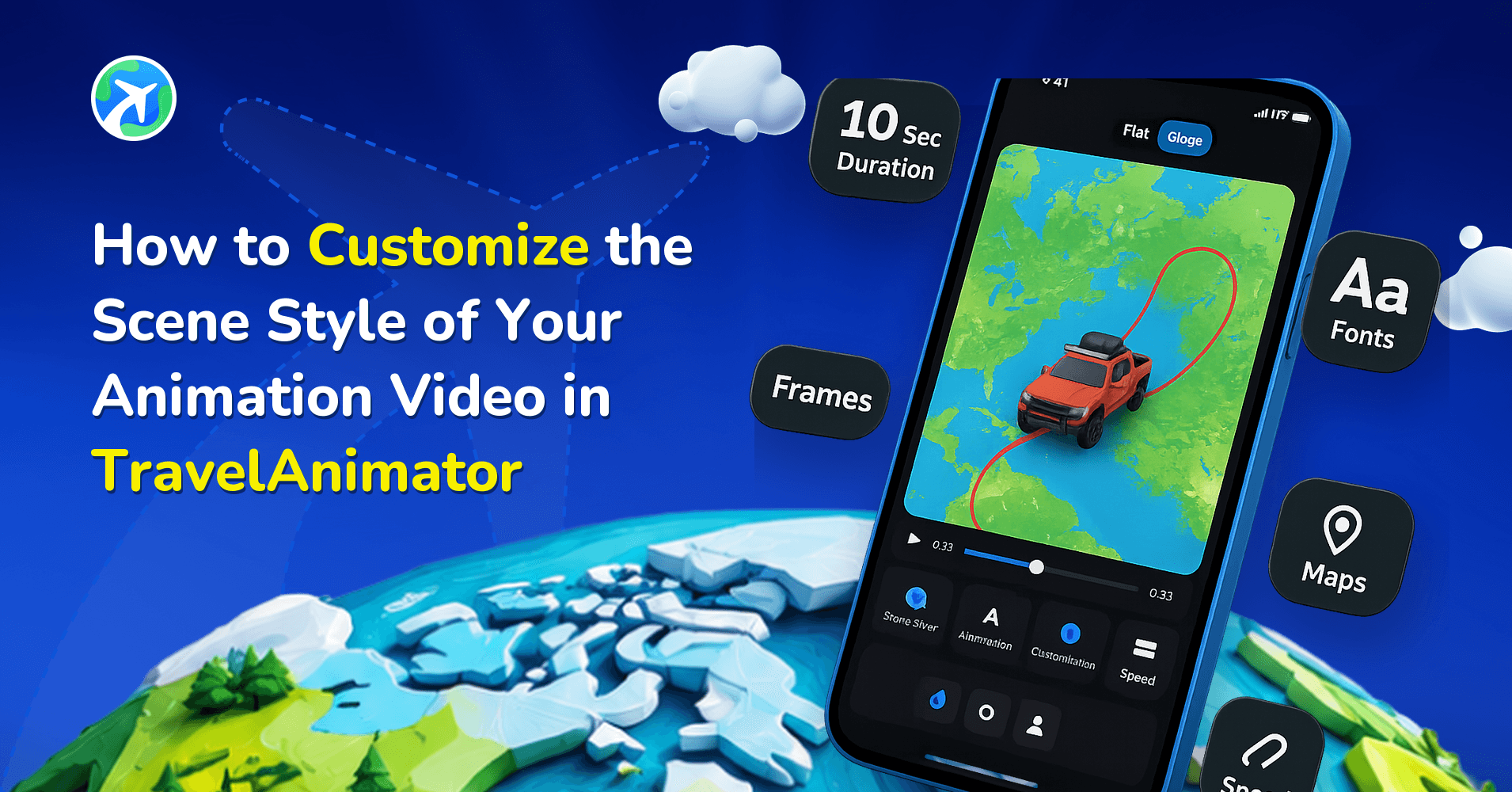
With the Scene Style feature in TravelAnimator, you can customize how the camera follows your route and model throughout the animation.
The way viewers see the journey can completely change the feel of the video. Whether you prefer a vehicle-following view, a forward-looking perspective, a flat atlas-style map, or a fun sticker effect, Scene Styles give you more creative control over how your journey is presented.
This guide explains how to change scene styles in TravelAnimator, understand Zoom and Intro Style settings, and choose the best perspective for your travel videos.
What is the Scene Style Feature in Travel Animator?
Scene Style is a customization feature available in the Preview screen that controls how your animation is viewed during playback. Instead of using a single camera angle for every route, you can select different perspectives to match the type of story you want to tell.
Each Scene Style creates a different viewing experience.
- Default – Default Style shows the vehicle from a side-angle view as it travels along the route. It provides a clear view of both the model and the journey, making it a simple and versatile option for most travel animations.
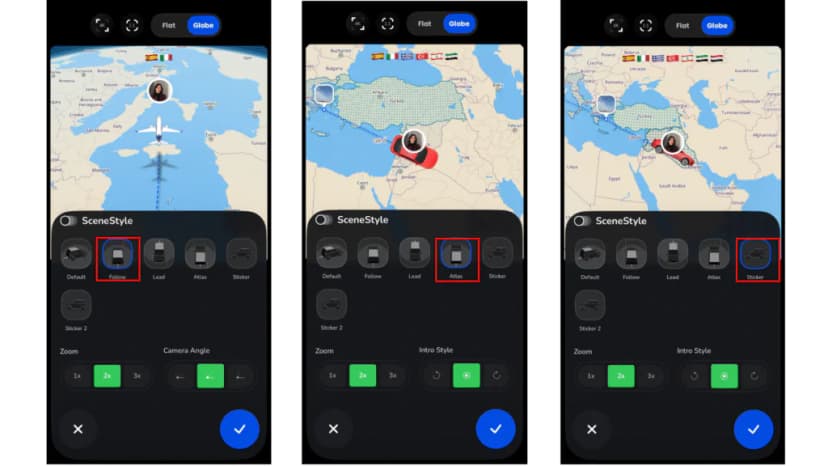
- Follow – The camera follows behind the vehicle as it moves along the route. This creates a natural travel experience, almost as if the viewer is travelling with the vehicle.
- Lead – The camera stays in front of the vehicle and looks back at it as it moves. This creates a more cinematic effect and makes the journey feel dynamic and engaging.
- Atlas – The camera remains directly 90 degrees above the vehicle in a flat, map-style perspective. This style focuses on the route itself and provides a clear overview of the journey.
- Sticker – The vehicle appears in a sticker-like side-view style, making the animation feel more playful and social-media-friendly.
- Sticker 2 – It offers an alternative sticker-style with a model-side-view appearance and a slightly different visual presentation, giving users another creative option for casual travel videos.
Step-by-Step: How to Change the Scene Style of Your Animation Video
Changing the Scene Style only takes a few steps.
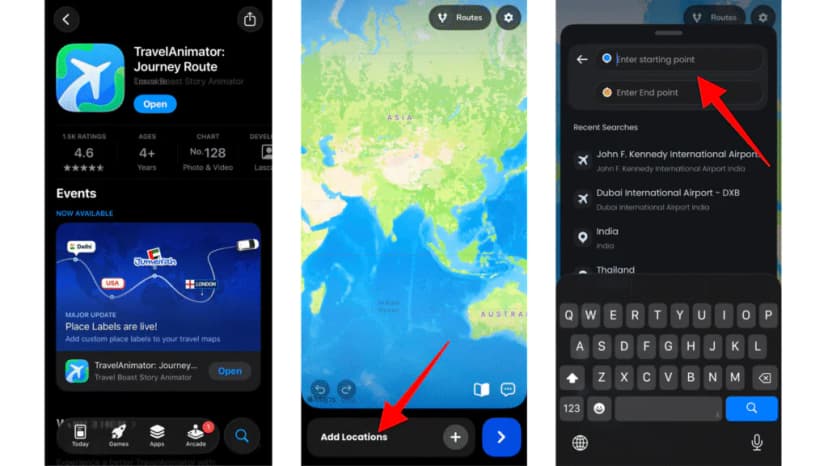
1.Create or Open Your Route – Open the TravelAnimator app and create a new route or open an existing travel animation route from the saved routes.
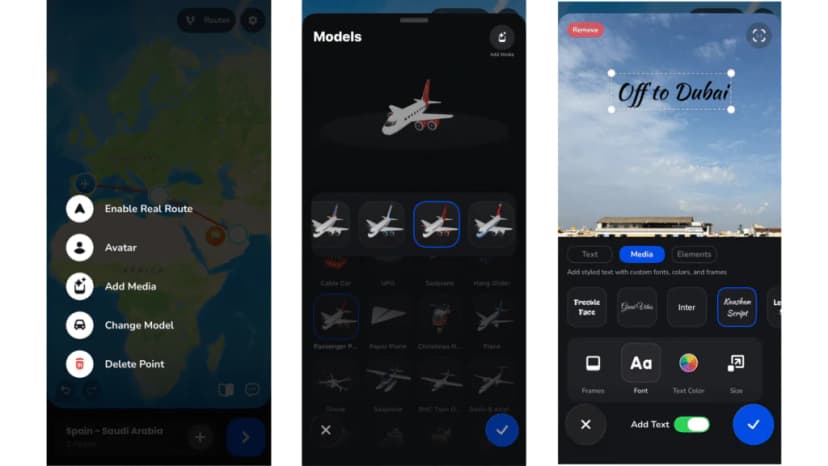
2. Complete Your Route Setup – Add destinations, choose your travel models, customize texts, images, & elements, and include any other features you want in the video.
3. Open the Preview Screen – Once your route is ready, open the Preview screen to review the final animation before exporting.
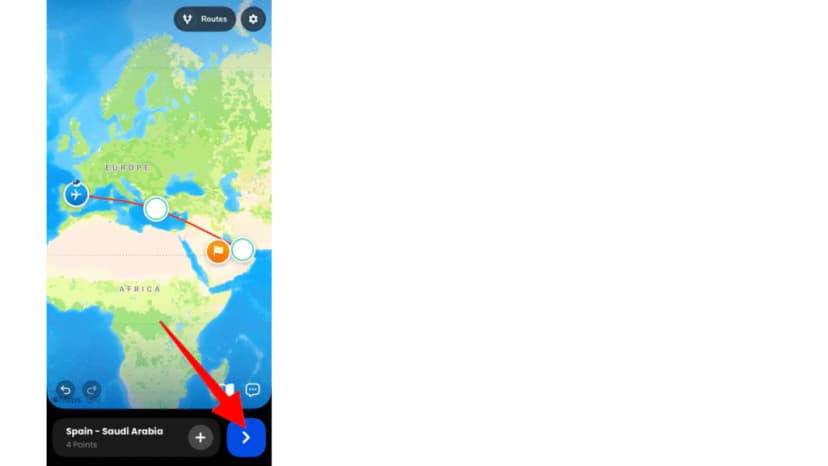
4. Tap Scene Style – In the Preview screen, tap the Scene Style option to open the Scene Style customization panel.
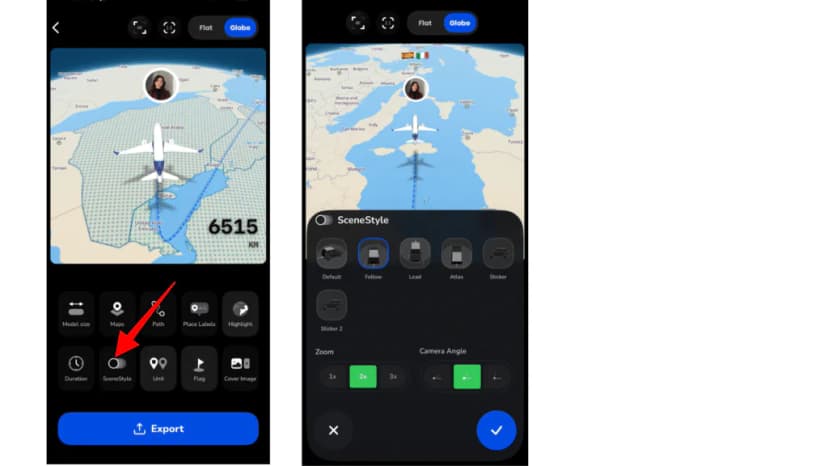
5. Choose Your Preferred Scene Style – Browse the available styles now, including Default, Follow, Lead, Atlas, Sticker, and Sticker 2. Tap any style to instantly preview how it affects the animation.
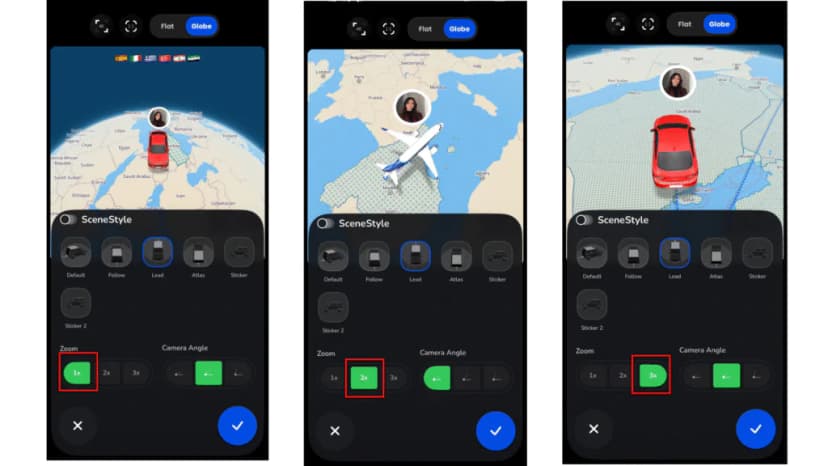
6. Adjust Zoom Settings – Choose between 1x, 2x, and 3x Zoom. Different zoom levels can completely change the feel of your animation.
7. Select an Intro Style – Choose how the animation begins when the video starts. Intro Style controls the vehicle’s initial movement and presentation before the route animation continues.
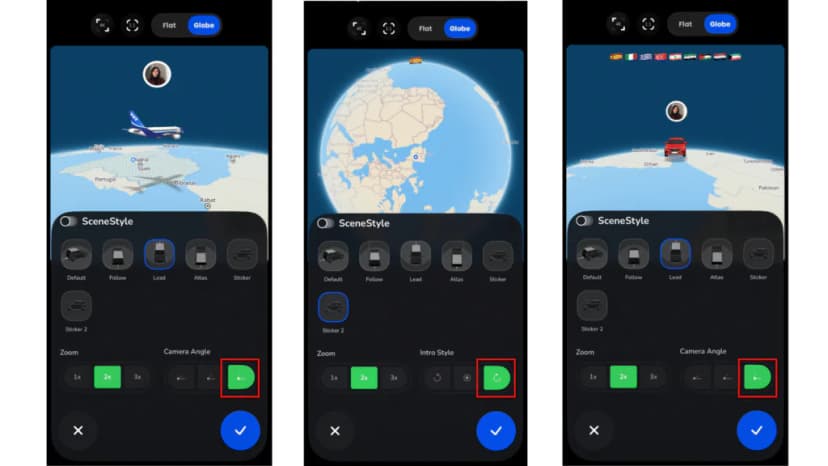
8. Save Your Settings & Preview – Once satisfied, confirm the changes and return to the Preview screen. Play the animation and observe how the Scene Style, Zoom, and Intro Style work together.
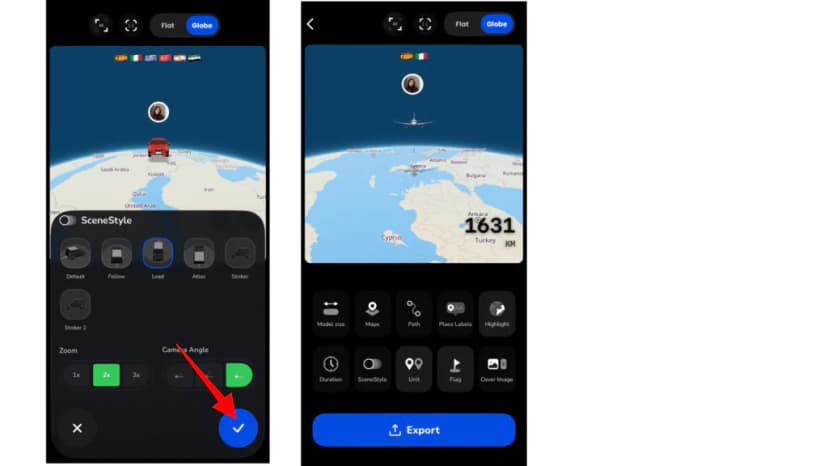
9. Export Your Video – Export the final animation in your preferred quality and share it with your audience.
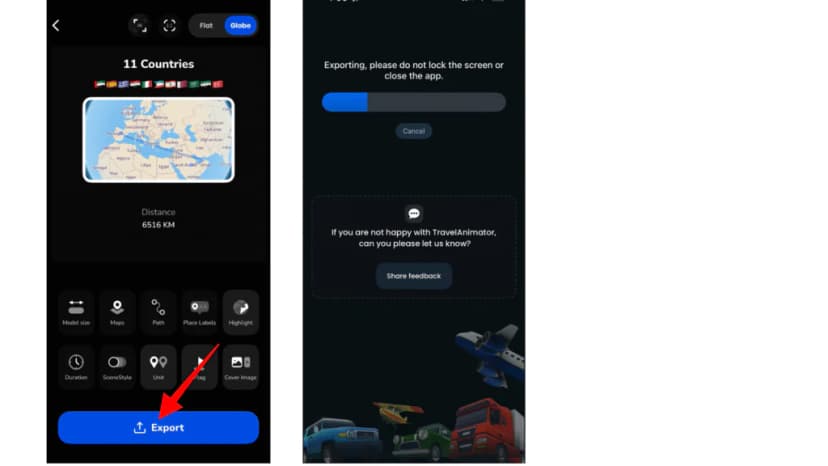
You can also read our detailed guide on how to create a travel animation video in TravelAnimator for a complete step-by-step walkthrough.
Understanding Zoom and Intro Style Settings
Scene Style works alongside Zoom and Intro Style settings to create the final viewing experience.
Zoom Settings
Zoom controls how close the camera appears to the route and vehicle.
- 1x Zoom setting shows more of the surrounding map and route.
- 2x Zoom provides a balanced view between the vehicle and the route. It works well for Most travel videos, Road trips, Social media content and Travel vlogs
- 3x Zoom setting focuses more closely on the vehicle and its movement.
Intro Style Settings
Intro Style determines how the animation begins when viewers first watch the video. Different Intro Styles create different first impressions and help set the tone for the journey. Some styles create a smooth entry into the route, while others emphasize the vehicle and destination before movement begins.
Choose the Perfect Perspective for Your Journey
The Scene Style feature gives you more control over how your travel animations look and feel. Instead of using a single viewing angle for every project, you can choose the perspective that best matches your route, story, and audience. Whether you prefer the engaging feel of Follow Style, the cinematic look of Lead Style, the clarity of Atlas Style, or the playful appearance of Sticker Styles, TravelAnimator makes it easy to customize the viewing experience.
By combining with Zoom and Intro Style settings, Scene Styles help transform simple route animations into engaging travel stories. Download the Travel Animator app from the App Store or the Play Store, explore different Scene Styles in TravelAnimator and discover the perfect perspective for your next travel animation.