How to Add Your Avatar in TravelAnimator Videos
 Jaseel S5 min read
In this article 4 sections
With the Avatar feature in the TravelAnimator app, you can upload your own photo and display it inside your travel animation. This helps you personalize your video, introduce yourself visually, and make your journey feel more expressive from the first frame.
Whether you are creating a travel reel, YouTube intro, trip recap, family travel memory, or itinerary video, adding an avatar gives your animation a human touch. Instead of showing only a moving vehicle on a map, you can show the person behind the journey.
This guide explains what the Avatar feature is, how to add your avatar in TravelAnimator, how to customize it, and how to use it effectively in your travel videos.
Step-by-Step: How to Add Your Avatar in TravelAnimator
1.Open the TravelAnimator app on your device and create a new travel animation project or open an existing route to add your avatar.
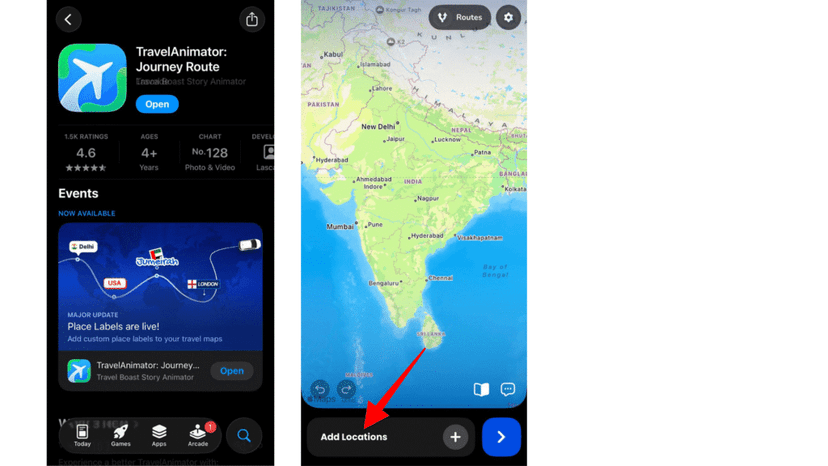
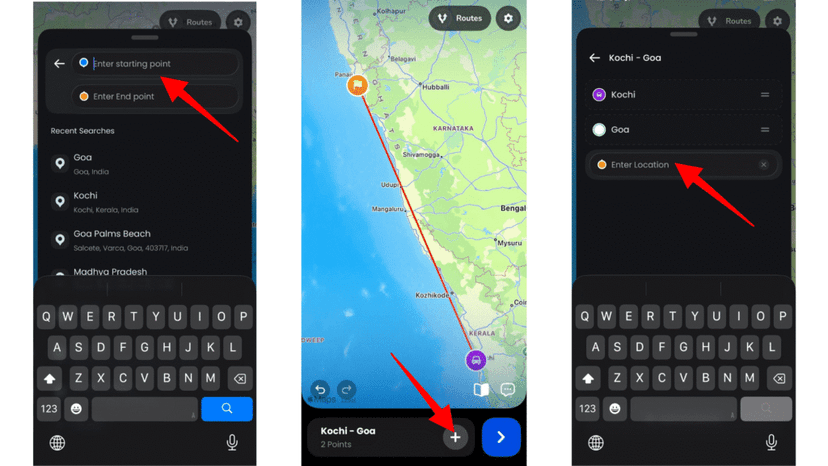
2. Add your destinations and set up your route as needed. You can create the route manually, import a route, or continue editing a saved project.
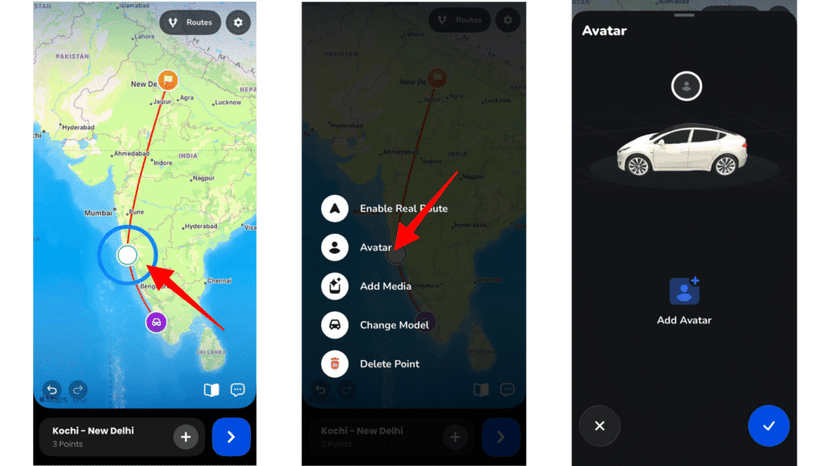
3. Select the point or section where you want to add your avatar. This can be the starting point, a destination point, or another important point in your journey.
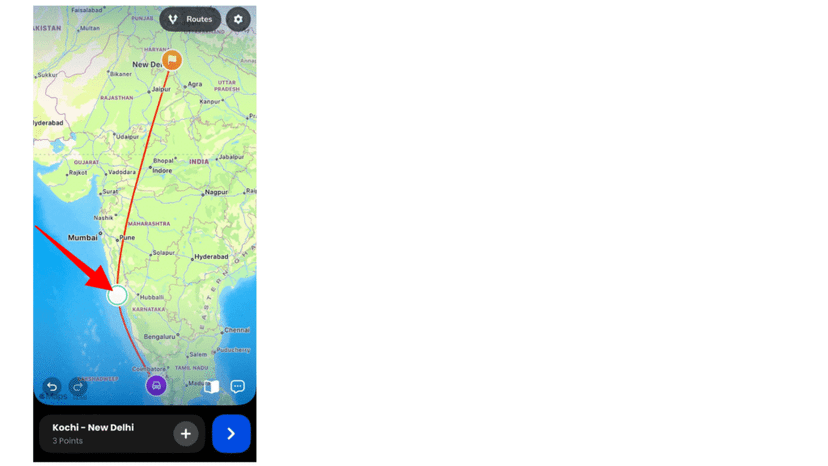
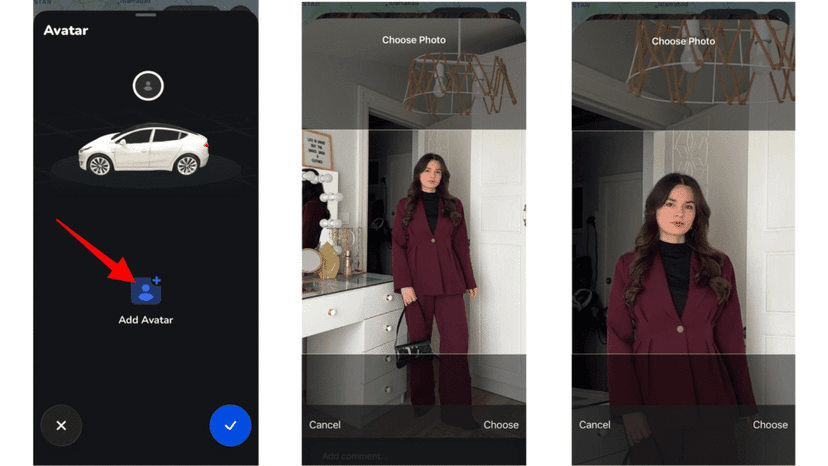
4. Long-press the point, then tap the Avatar to open the avatar customization option from the editing panel. This will take you to the Avatar screen, where you can upload or select your photo.
5. Choose your photo from your device. Select a clear image where your face is visible, because this will help the avatar look better inside the animation. You can zoom the selected image. After uploading the photo, preview how the avatar appears on the map. Check whether the image is clear, properly framed, and suitable for the video.
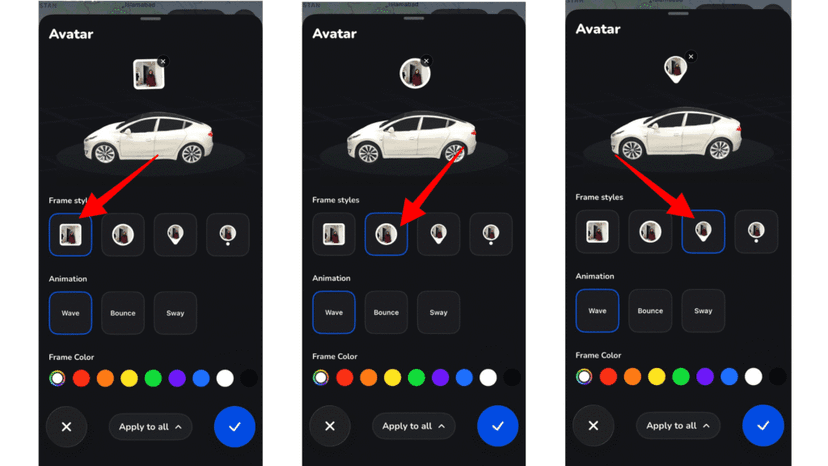
6. Choose a frame style for your avatar. TravelAnimator offers different frame styles, including square, circular, pin-style, and dot-style. Select the one that matches your video style.
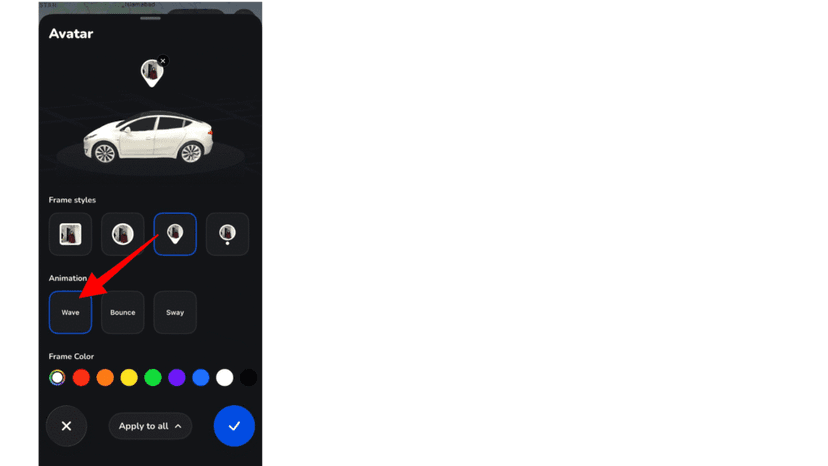
7. Choose an animation effect if available. For example, you can use an effect like Wave to make your avatar feel more lively and interactive.
8. Customize the frame colour. Pick a colour that matches your route, map style, or overall video theme.
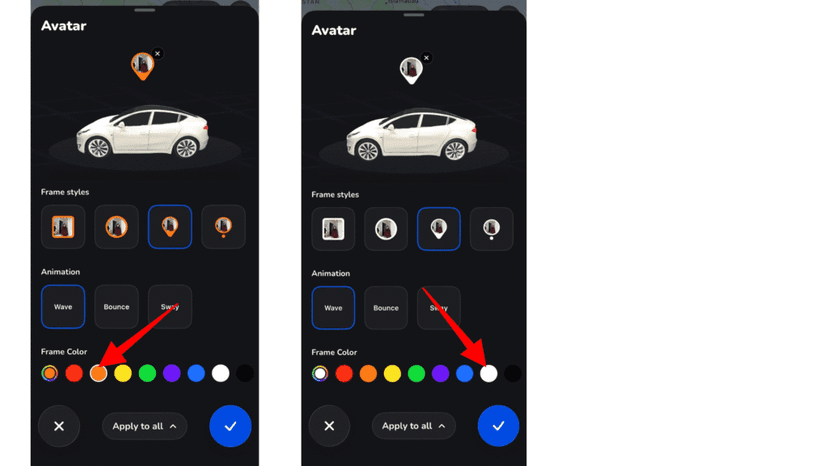
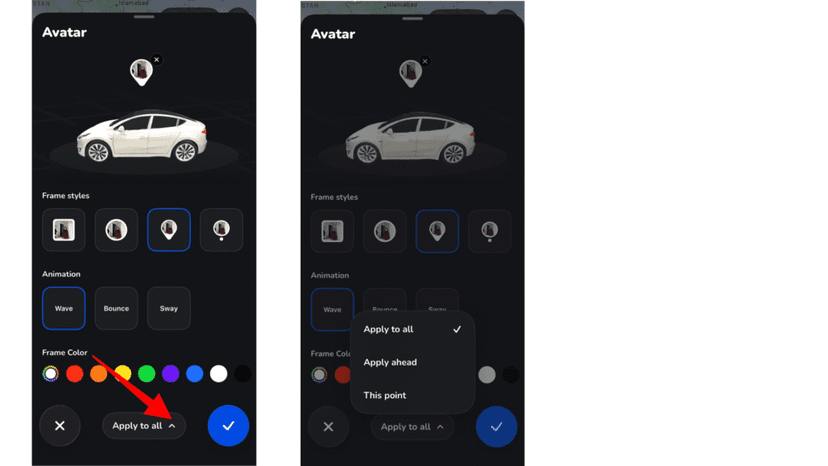
9. Choose how you want to apply the avatar. You can apply it to all points, apply it ahead of the selected point, or use it only for this point.
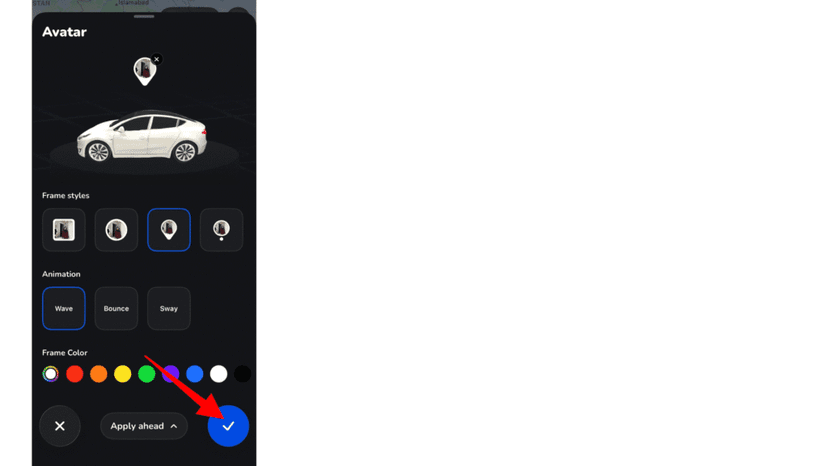
10. Tap the confirm blue button to save your avatar settings.
11. Preview the full animation before exporting. Make sure the avatar appears correctly and does not cover important route lines, labels, or models.
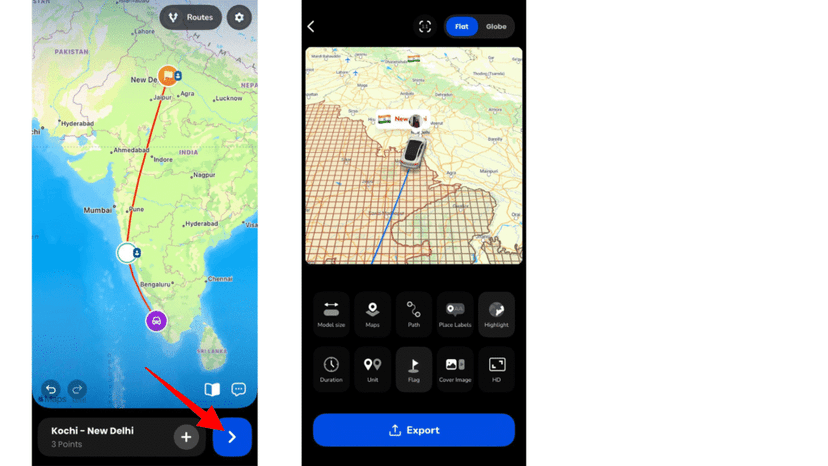
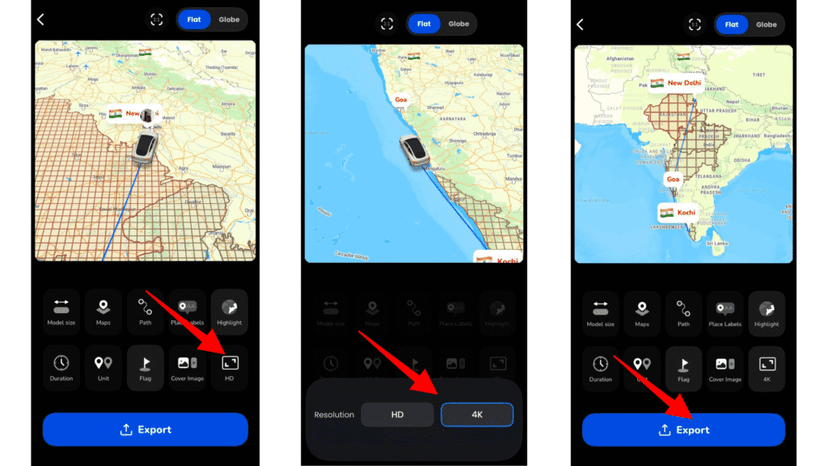
12. Once everything looks good, export your travel animation video in your preferred quality.
Avatar Customization Options Available
The Avatar feature offers customization options so you can control how your photo appears in the animation. These options help you match the avatar with your map style, route design, and overall video mood.
Frame Styles
Frame styles control the shape and appearance of your avatar. You can choose from different styles depending on how you want your avatar to look on the map.
- A square frame gives a clean and simple look. It works well when you want your photo to appear clearly and directly.
- A circular frame gives a modern and balanced appearance. It is suitable for most travel videos because it looks clean and does not take too much attention away from the route.
- A pin-style frame can make your avatar feel connected to a specific location. This is useful when you want to show yourself at a destination point.
- A dot-style frame gives a minimal look and works well when you want the avatar to be visible but not too dominant.
Animation Effects
Animation effects make your avatar feel more active inside the video. Instead of appearing as a static image, your avatar can have a small movement or interaction. Animation effects are useful for social media videos because they add motion and help catch attention.
For example, a Wave animation can make the avatar feel friendly and welcoming. This works well at the beginning of a video, especially when introducing a journey.
Frame Color
Frame colour helps your avatar stand out from the map background. You can choose a colour that matches your route line, model, brand style, or video theme.
For example, if your route line is blue, you can choose a blue or matching frame colour for consistency. If the map background is light, use a darker frame colour for better visibility. If the map is dark, use a brighter frame colour.
Apply Options
TravelAnimator also lets you decide where the avatar should appear in your animation. This is useful when you do not want the same avatar setting everywhere.
- Apply to all means the avatar style will be applied across the full route. Use this when you want the same avatar to appear consistently throughout the entire animation.
- Apply ahead means the avatar will be applied from the selected point onward. Use this when you want the avatar to appear only after a certain part of the journey begins.
- This point means the avatar will be applied only to the selected point. Use this when you want the avatar to appear at a specific destination or at a specific moment.
Make Your Travel Animation More Personal
The Avatar feature in TravelAnimator is a simple but powerful way to personalize your travel videos. By uploading your own photo, choosing a frame style, adding animation, and selecting where the avatar appears, you can make your route animation feel more connected to your story. Whether you are a traveller, content creator, vlogger, agency, or someone creating a memory video, avatars help add identity and emotion to your animation. They show viewers not just where the journey happened, but who was part of it.
If you want your travel videos to feel more personal, expressive, and memorable, try adding your avatar to your next TravelAnimator project. Download the app from the App Store or Play Store, open the app, upload your photo, customize the style, and turn your route into a travel story that feels truly yours.