How to Customize the Route Line in TravelAnimator
 Jaseel S6 min read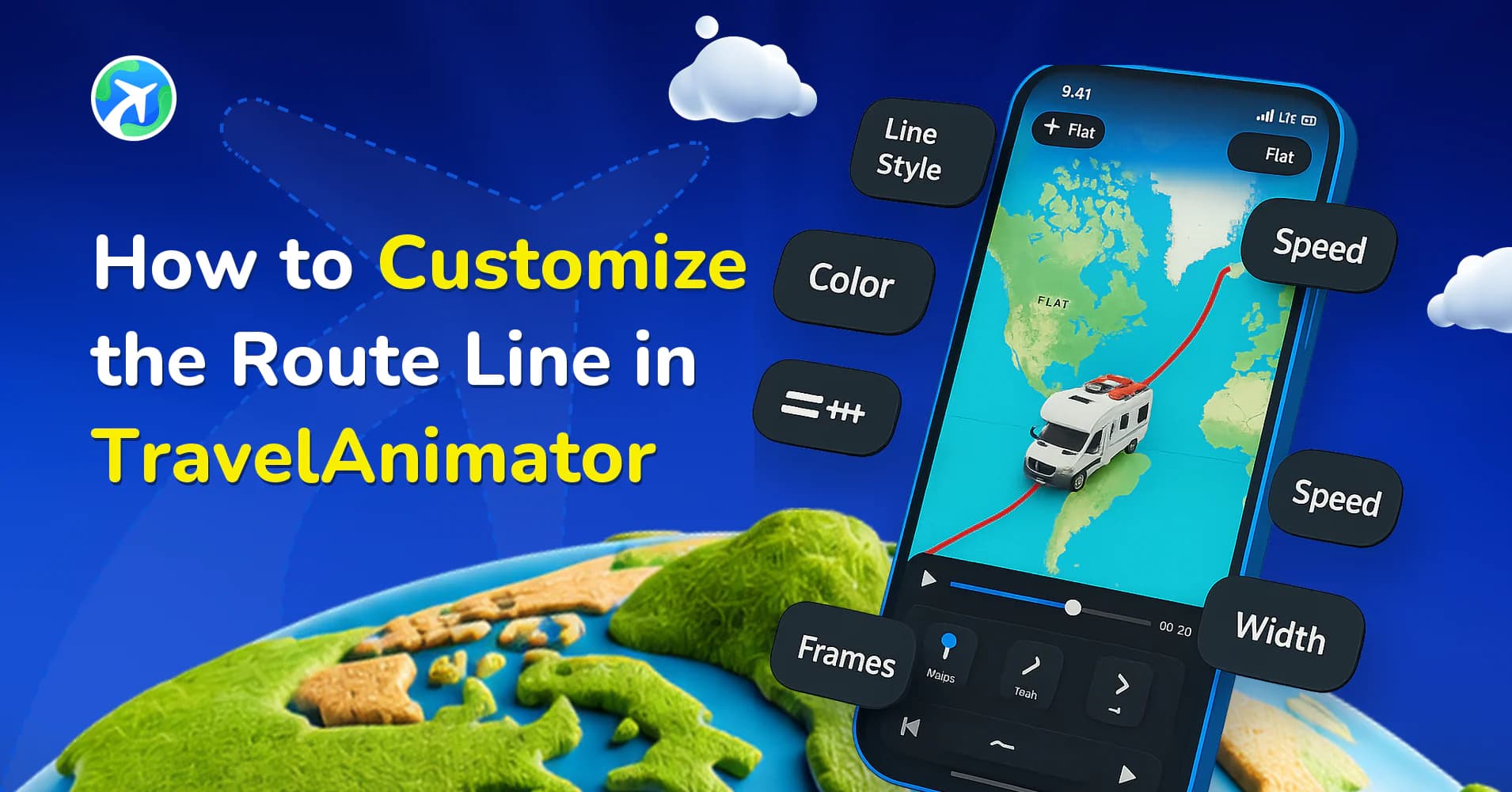
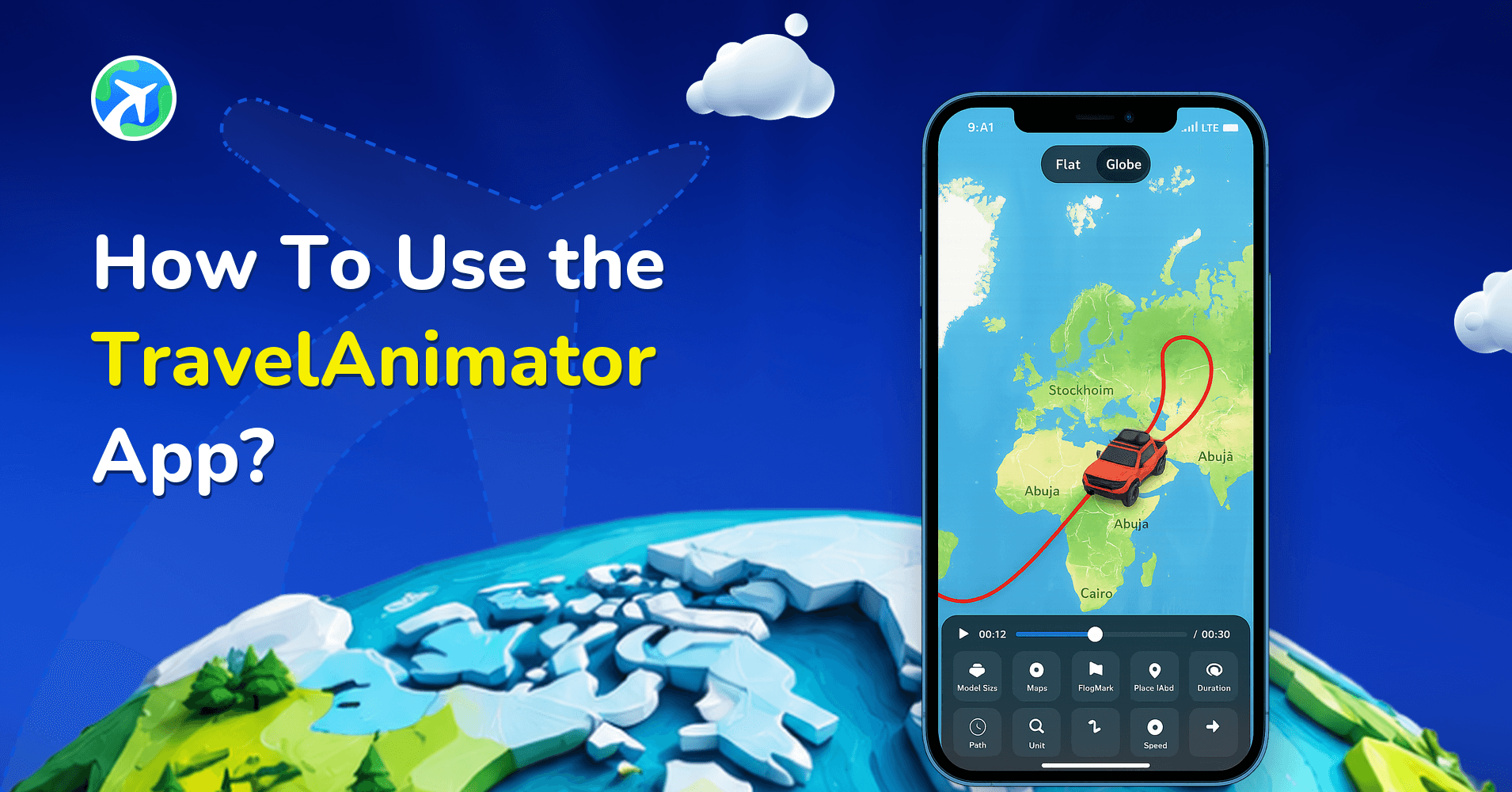
One of the most important visual elements in a travel animation is the route line. Now you can fully customize the route line in TravelAnimator to match your video’s theme or style.
This is the line that shows the journey you are taking on the map. It tells viewers where your trip starts, which direction you are heading, and how your chosen vehicle icon moves from one location to another. You can edit its color, thickness, visibility, and even the line style.
In this guide, you’ll learn everything you need to know about customizing your route line in TravelAnimator, such as what the route line is, when to use it, why customizing it matters, and exactly how to do it step-by-step.
What is Route Line in TravelAnimator?
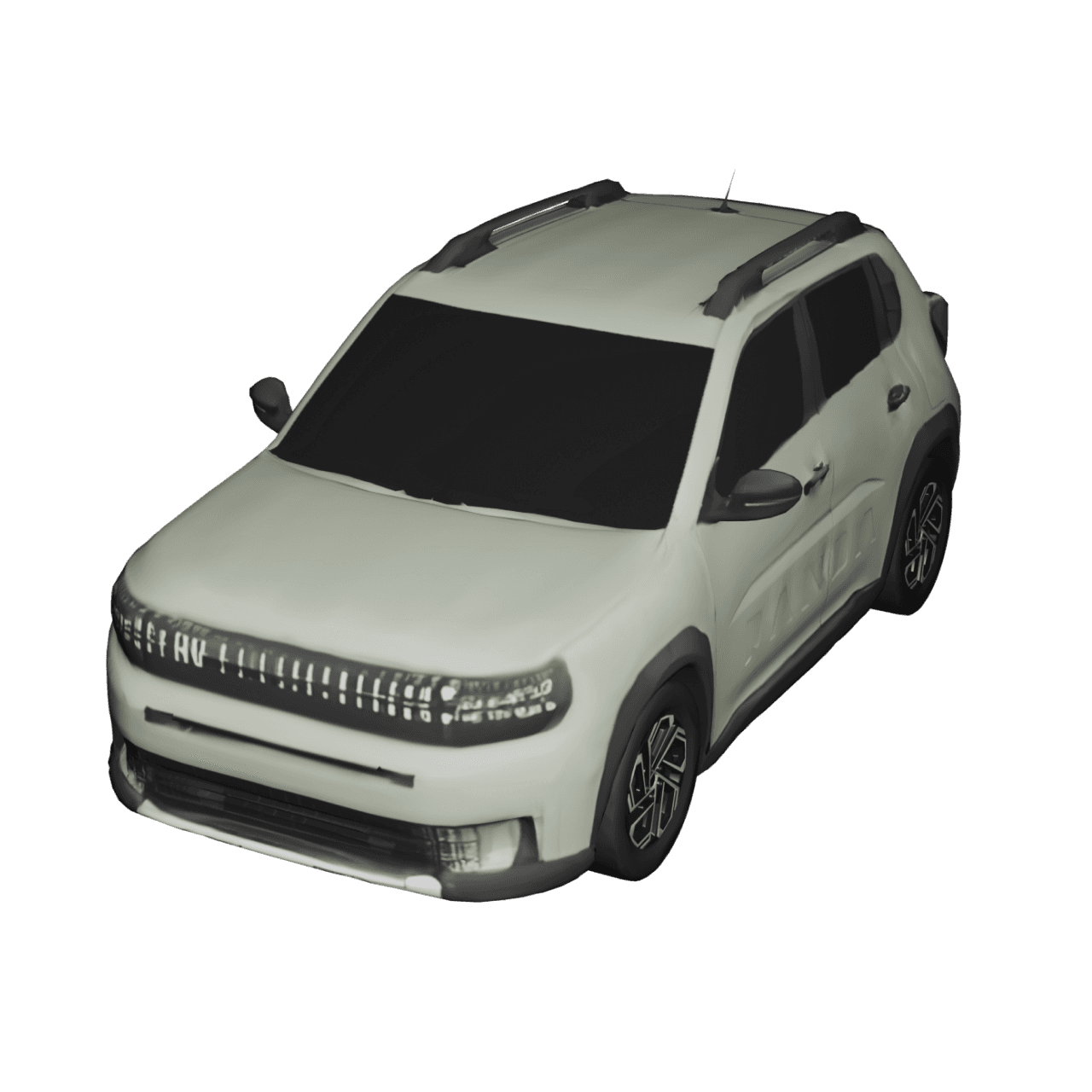
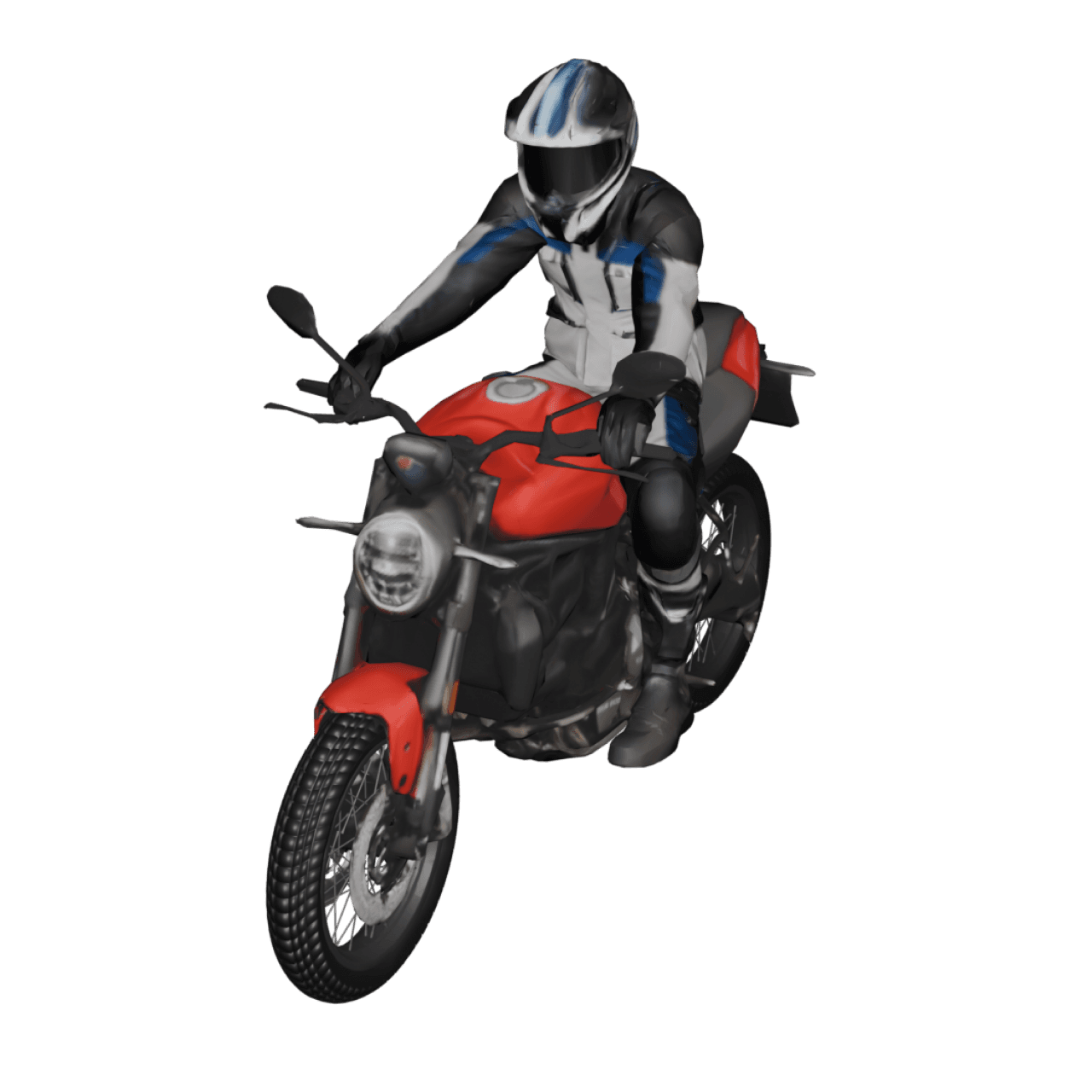
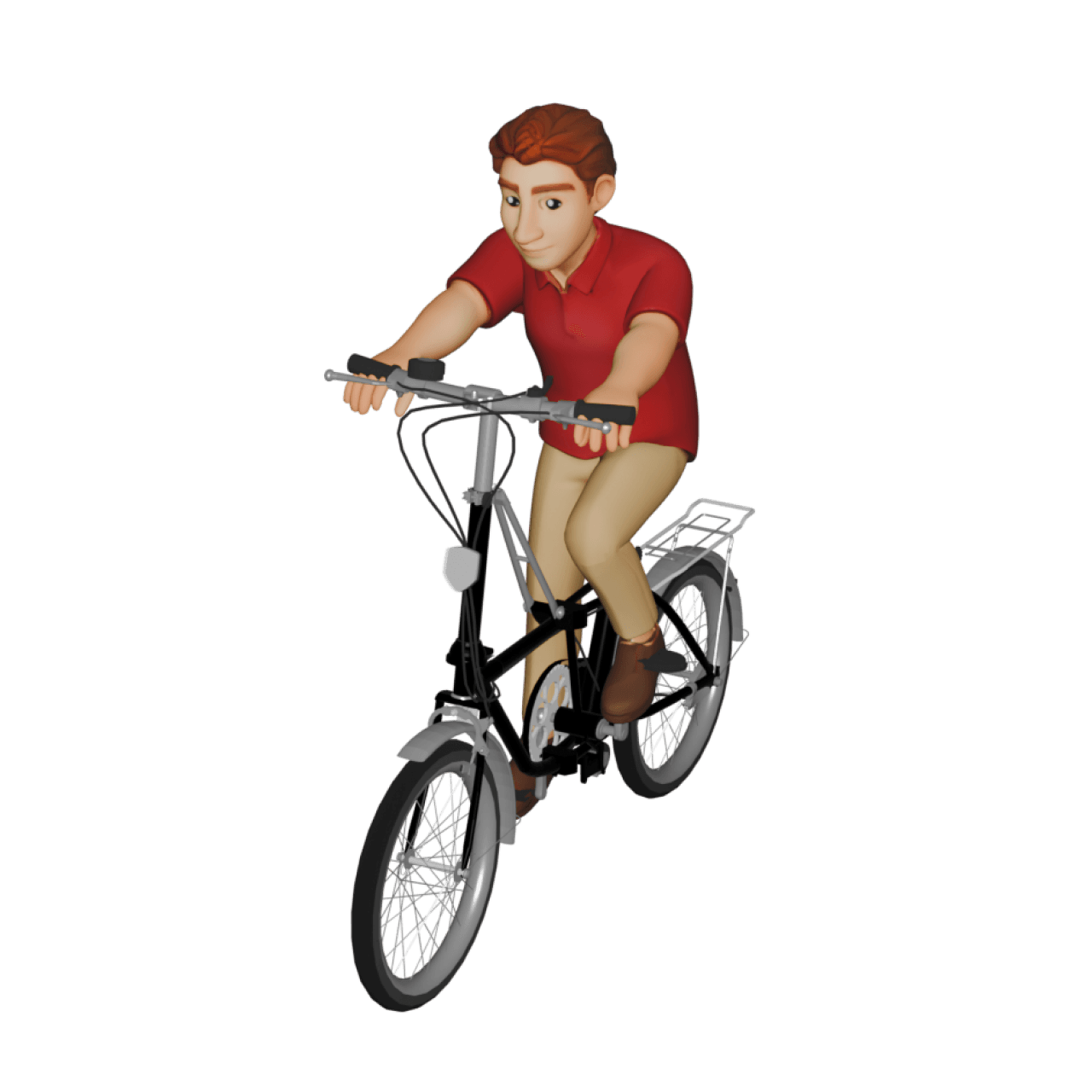
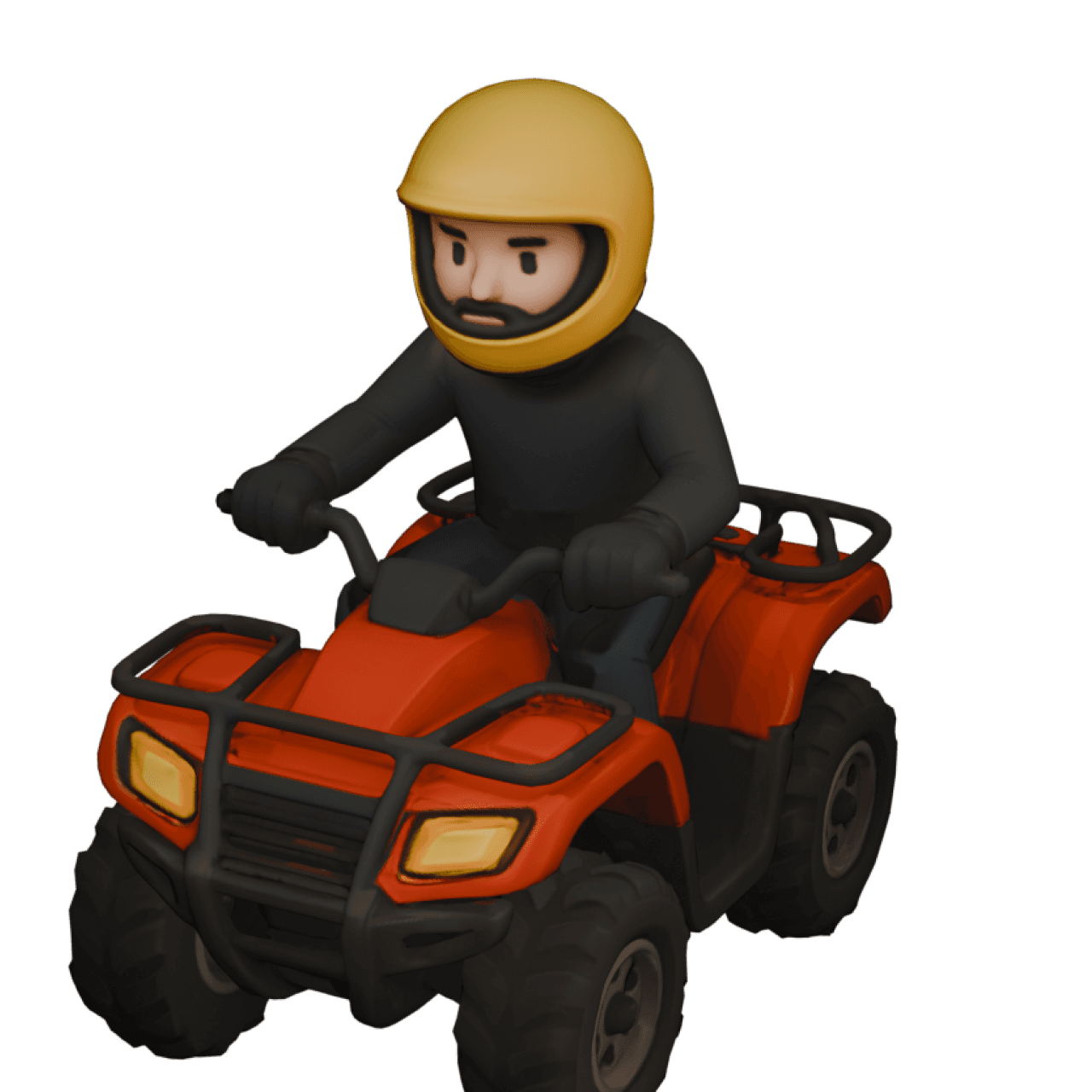
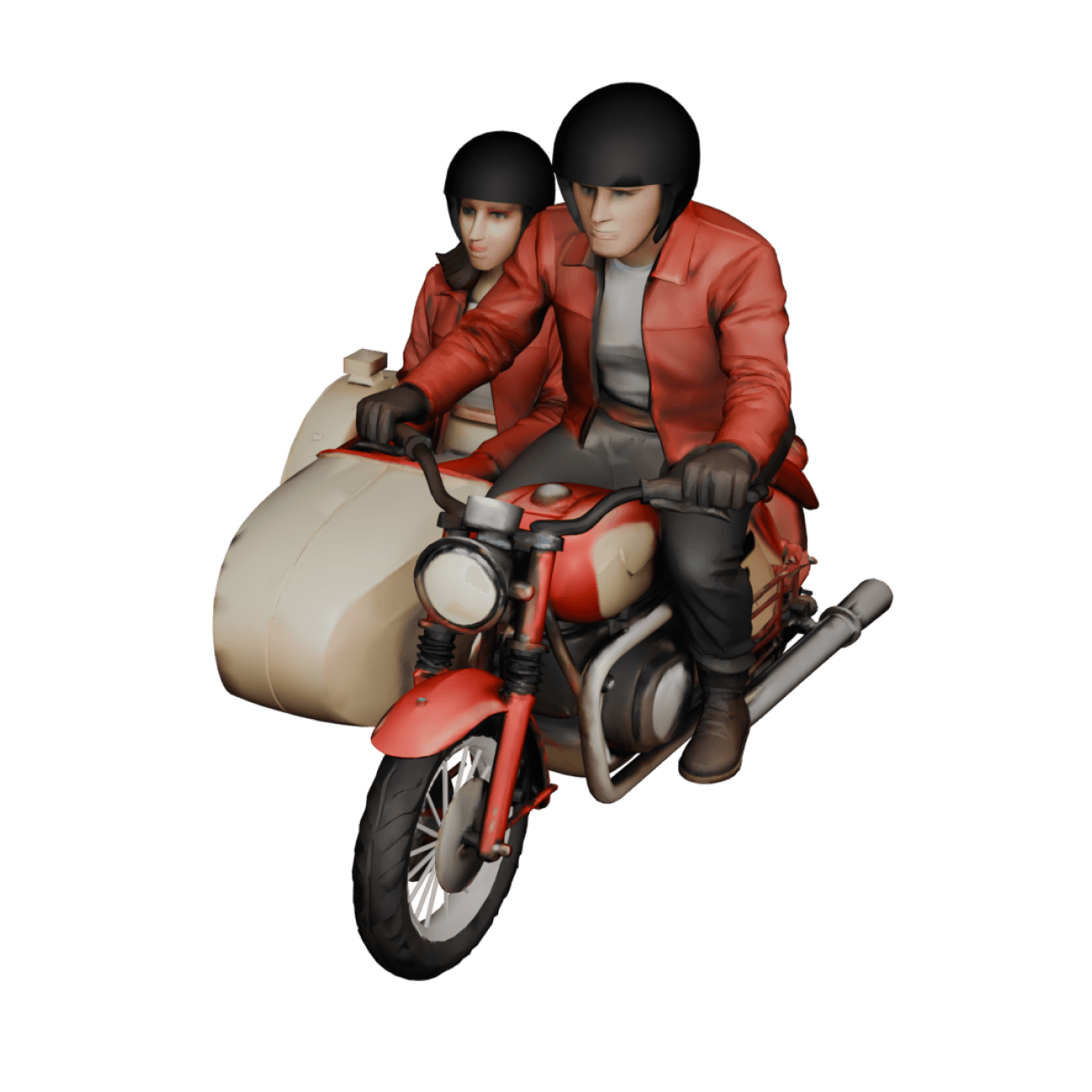
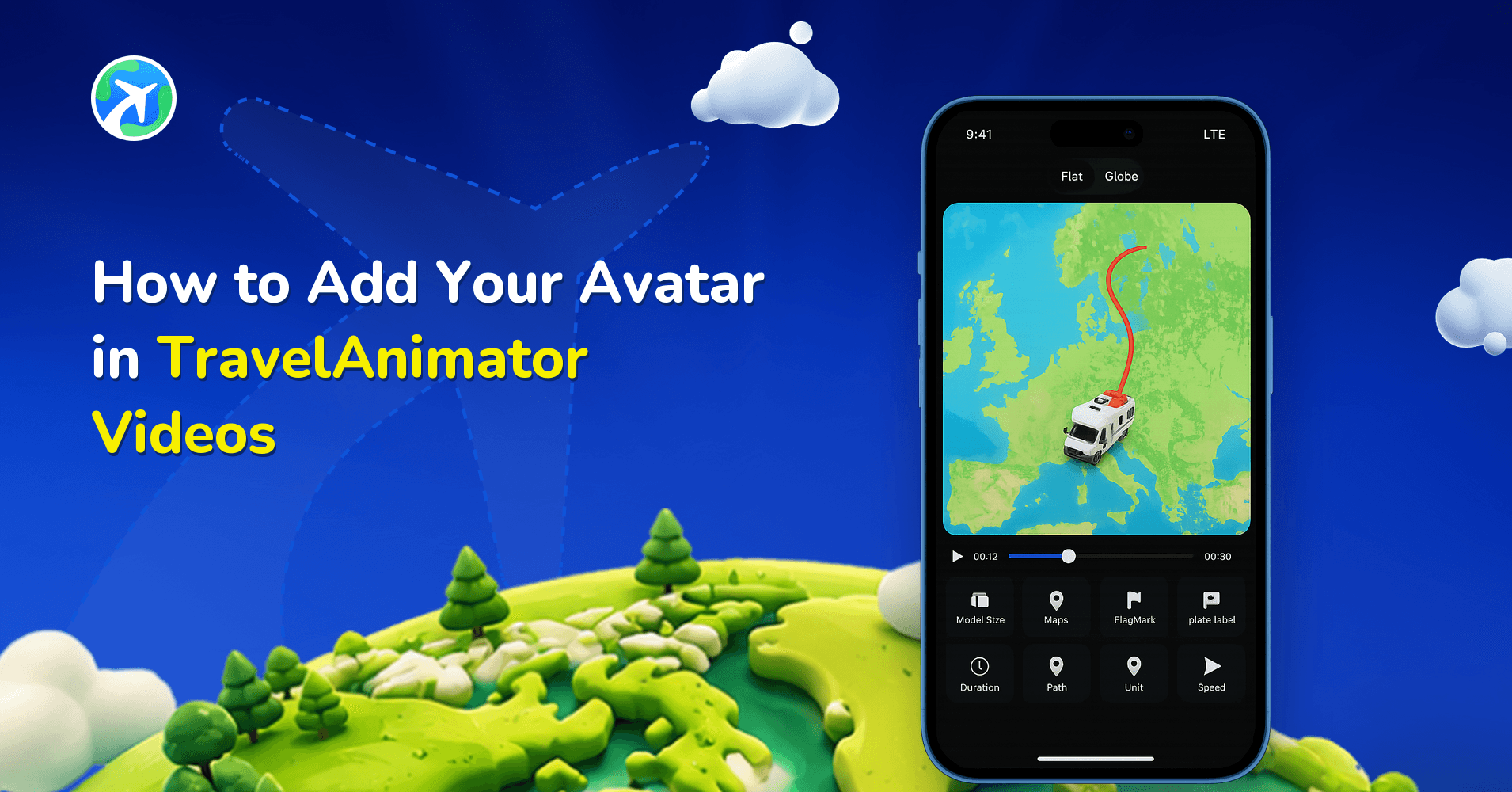
The route line is the animated path that connects travel points on your map. When you place two or more locations inside TravelAnimator, the app automatically draws a path between them. This path becomes the route that your vehicle icon, whether it’s a plane, car, bike, van, or ship, will follow during the animation.
Here is what the route line does:
- Shows your journey visually, representing the movement from one point to another.
- Creates clear direction and flow so viewers can understand where the trip started and how it progresses.
- As the icon moves, the route line animates along with it, creating a smooth storytelling effect.
- Enhances map clarity. Without the route line, only the moving icon is visible. With the line, the route becomes more structured and easier to follow.
- Keeps your travel story organized, especially when showing long-distance journeys or multi-stop trips.
When Do We Need to Create a Route Line in TravelAnimator?
If your animation has several stops, turning on the route line helps viewers see exactly how your trip unfolds.
Some travel animations look confusing if the path is off. The route line solves this by giving people a visual guide.
Travel vloggers, content creators, and travel brands use route lines to create clean storytelling sequences that match the narrative of their journey.
You want to highlight a unique travel pattern, such as a long road trip across multiple countries, a zig-zag mountain drive, a flight route crossing the ocean, or a cruise path along a coastline. These routes look stronger when a clear line shows the movement.
If you’re showing students, followers, or tourists how a specific journey works, a route line helps them visualize the path.
Professional travel animations almost always use route lines to let the viewer visually travel with the creator.
Why is Customizing the Route Line Color & Style Important?
Customizing the color and style of your route line might seem like a small detail, but it actually plays a major role in how your final video looks. Choosing the right color has both visual and storytelling benefits.
Here’s why it matters:
1. Better Visibility – Some colors blend into the map, especially if the map background is light or saturated. Customizing the color allows you to choose a shade that clearly stands out.
2. Enhanced Aesthetic Appeal – Matching your route line color with your icon, your brand colors, or your video theme creates a perfect look. Your animation feels planned and carefully designed.
3. Improved Storytelling – Colors send messages like red feels energetic, blue feels smooth, yellow feels cheerful, and white looks clean & elegant. So choosing the right color helps match the emotion of your journey.
4. Better Focus on the Route – A clear, visible route line helps the audience stay focused on the main path instead of getting distracted by map details.
5. Mobile-Friendly Videos – On mobile screens, thin or light route colors can disappear. A bold route color improves viewing on TikTok, Reels, and Shorts.
6. Brand Consistency – If you’re a travel creator with a personal brand, using your brand colors in the route line helps maintain consistency across your content.
7. Avoiding Confusion – If your map has multiple roads, rivers, or similar shapes, a strong customized color helps differentiate your route from the rest of the map.
Types of Route Line Styles in TravelAnimator
1. Hybrid Line
The hybrid line blends clarity with aesthetic enhancements, offering a balanced route style that works well for long journeys, mixed-terrain routes, and storytelling-focused travel animations.
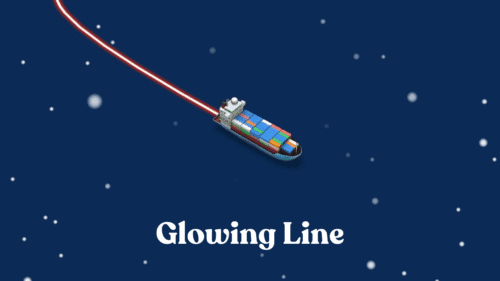
2. Glowing Line
The glowing line adds a bright, luminous effect to your path, making your animation eye-catching and ideal for high-energy travel videos, night-mode themes, and Instagram Reels that need extra visual pop.
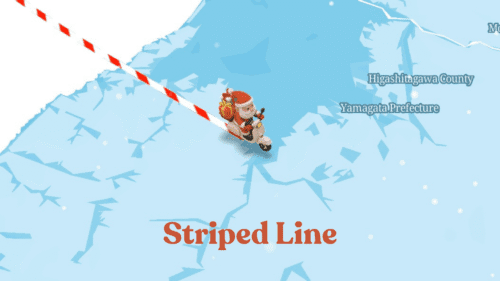
3. Striped Line
The striped line uses alternating patterns to make the route visually striking, which is great for adventurous journeys, standout edits, or unique travel experiences that you want to emphasize.
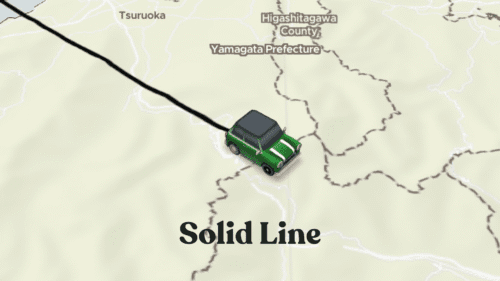
4. Solid Line
The solid line is a clean, continuous path with no breaks, making it ideal for road trips, simple routes, and professional-looking travel videos.
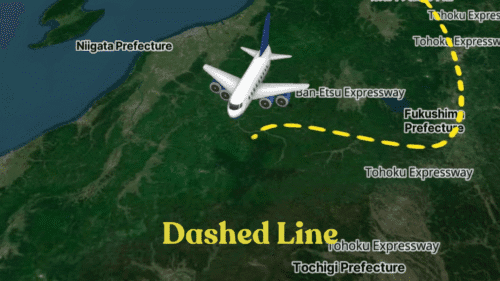
5. Dashed Line
The dashed line displays short, evenly spaced dashes, making it perfect for flight routes, cruise paths, and educational videos where clarity and direction are essential.
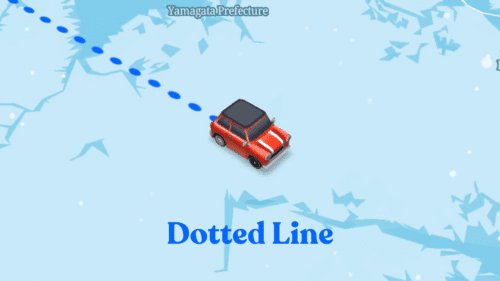
6. Dotted Line
The dotted line creates a spaced-out pattern of small dots, giving your animation a casual, modern, and minimal look that works well for hiking, backpacking, or relaxed travel edits.
Step-by-Step Procedure to Customize the Route Line Color
- Open the TravelAnimator app.
- Start by opening your existing project, or create a new one by selecting your start point and destination.
- You can also add multiple travel stops if your journey includes more locations.
- After adding models and images, preview the video to customize the route line.
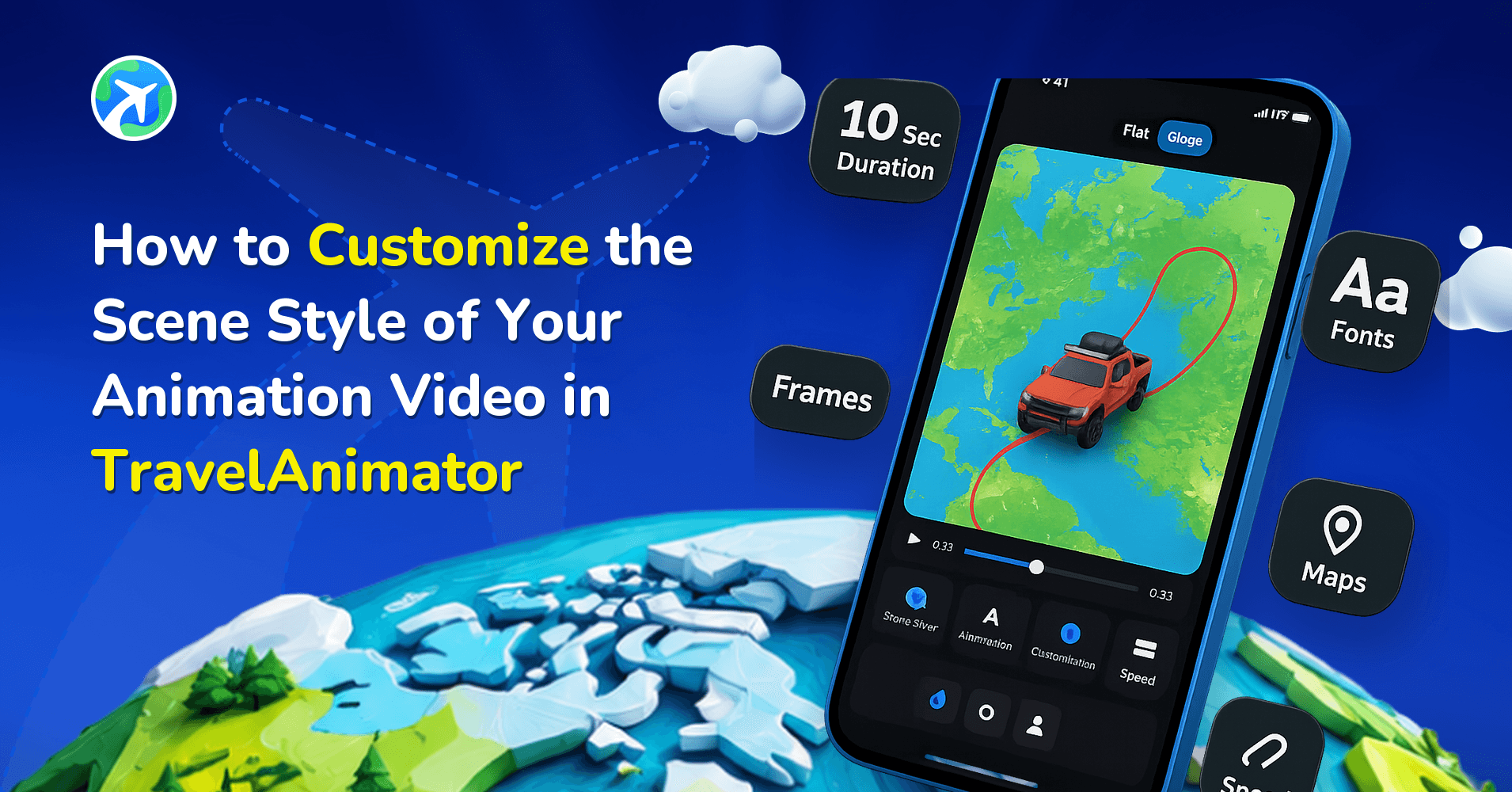
- Tap on the Path Color and choose the type of line.
- Then choose the line thickness (Thin, Medium, Thick).
- Select the route line Color from multiple colors. Select a color that stands out well on your map.
- Add the Final Adjustment and evaluate your animation with the selected color.
Preview your entire route before exporting your route animation.
Best Practices for Path Design in Common Use Cases
For road trips, use solid lines for clear direction, a medium or thick width, and bright colors like red, blue, or yellow. Because road maps usually have many details, you need a clear, strong visual path.
Use dashed or dotted lines, blue or white colors, and medium thickness for flights. Because dashed flight lines are widely recognized, and blue & white look clean on aviation-themed maps.
For backpacking or hiking routes, use thin or medium-width natural colors like green or yellow and dotted lines for adventure-style storytelling. The path should look light and organic, and its dotted lines feel casual and travel-blog-friendly.
Tourism or educational videos can use bright, transparent colors, medium or thick lines, and a solid style for clarity. The goal is to teach or explain, and clear visuals are more effective.
Want to Customize Your Route Line with TravelAnimator?
Customizing your route line in TravelAnimator is a simple but powerful way to improve your travel animation. Whether you’re creating a road trip story, a flight route, a cruise journey, or educational travel content, the color, style, and thickness of your route line can dramatically change how professional and engaging your final video looks. By choosing the right line style, ensuring good color contrast, matching the mood of your journey, and following the best practices in this guide, you can create a stunning travel animation that stands out on any platform.
So, if you’re ready to make your travel videos more beautiful and more personalized, open TravelAnimator now and start customizing your route line to create the perfect travel story.