Travel Mapping App: Animate Your Trip Route
 Jaseel S7 min read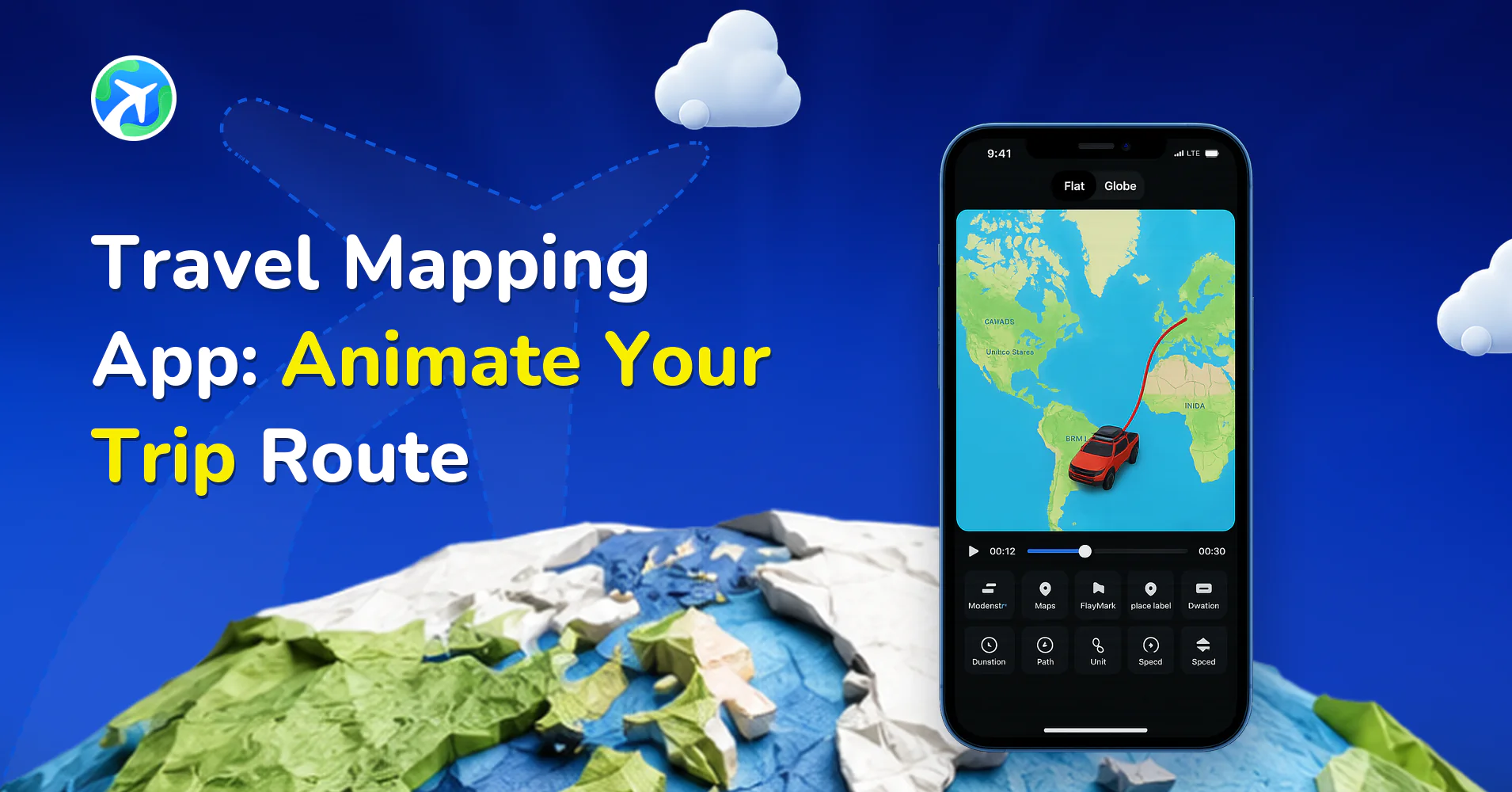
In this article 5 sections
Most trip maps are still-lifes: a pin, a screenshot, maybe a marker on a PDF. A travel mapping app does something different. It lets the route move, so the viewer watches the journey unfold from the first stop to the last.
This guide covers what that kind of app actually does, how to build a route in Travel Animator step by step, and which choices (vehicle, map look, export size) change the result most. If you only want the quick version, jump to the how-to section. If you are still deciding whether an animated route is worth the effort, start at the top.
WHAT A TRAVEL MAPPING APP DOES
At its simplest, a travel mapping app converts a list of places into a visual route. You give it a start, an end and whatever lies between. It draws the path, places the stops and, in an animated app, sends a marker or vehicle along the line while the camera follows.
That sounds small, but it replaces three separate jobs. You would otherwise plot the points in one tool, record or edit the movement in another and then fight a video editor to add labels. A mapping app folds those into one flow on your phone.
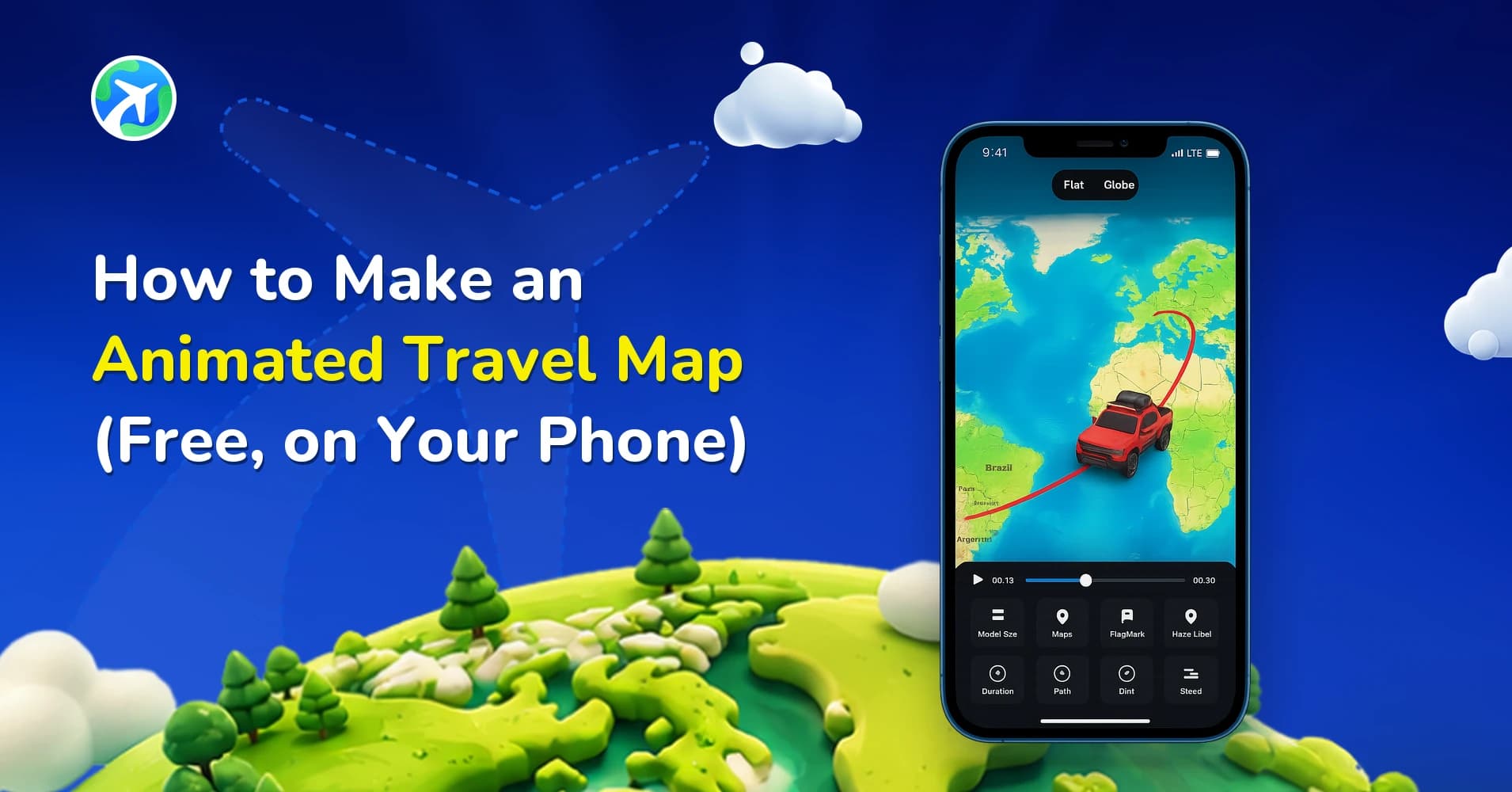
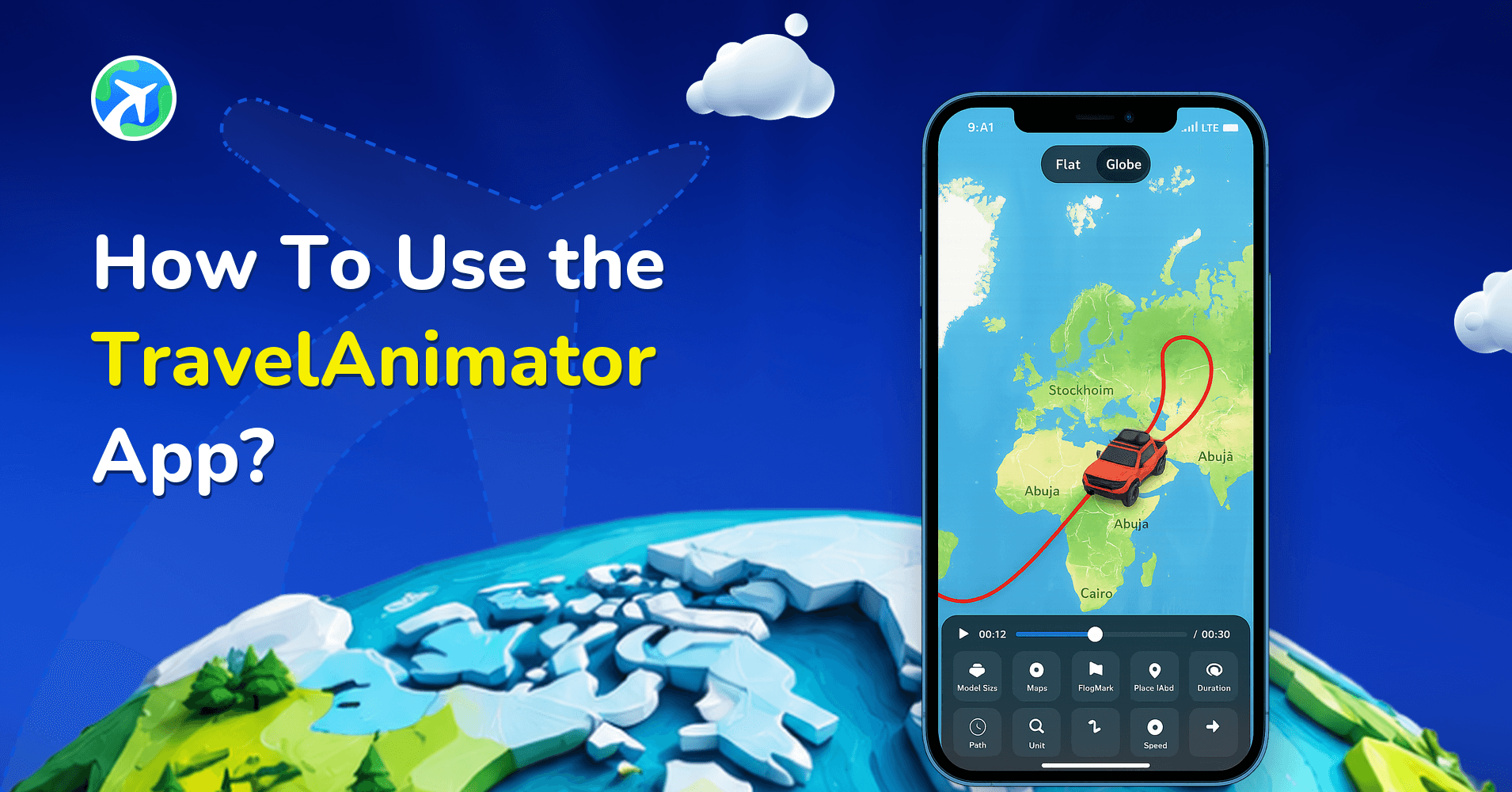
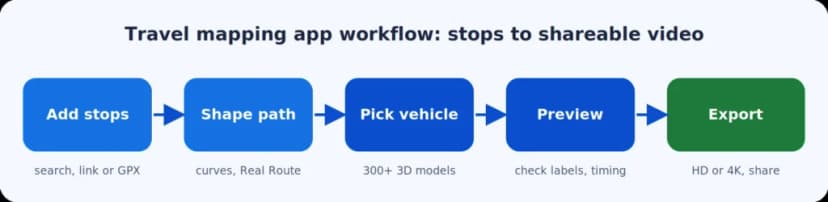
Travel Animator is built for iPhone and Android, and it has passed a million downloads. Its core loop is short: add stops, choose how the journey travels, preview, export. There is no timeline to manage and no keyframes to set. You can read the bigger picture on the Travel Animator home page (https://www.travelanimator.com/) or see how the format works in the map animation overview (https://www.travelanimator.com/travel-map-animation).
The pieces every route video is made of:
- Stops: the places in order, from a city to a single airport.
- A path: a straight arc, a hand-shaped curve or a line that follows real roads.
- A traveller: a car, plane, train, boat or even an avatar of you.
- A map look: flat, satellite, 3D globe, seasonal and more.
- Extras: photos, text, flags, landmarks and a cover frame.
TRAVEL MAPPING APP VS. SCREENSHOTS AND TRIP PLANNERS
People often ask whether they need an animated route at all. A screenshot is fine for a quick message. A planner is fine for organising bookings. The animated route earns its place when you want other people to watch the trip.
- Map screenshot: a still image with pins. Best for a quick “we’re here” message.
- Trip-planning app: lists, bookings and a pinned map. Best for organising a trip before you go.
- Animated travel mapping app: a short video of the route drawing itself. Best for recaps, previews, social posts and presentations.
They also work together. Plenty of people plan in one place and then bring the finished route into Travel Animator to turn it into something shareable. If you are weighing it against other route-video tools, the comparison hub (https://www.travelanimator.com/compare) lays the differences out side by side.
HOW TO USE TRAVEL ANIMATOR AS A TRAVEL MAPPING APP
Here is the full path from an empty screen to a finished video. Each step links to a deeper guide in the Resource Hub (https://www.travelanimator.com/hub) if you want the detail.
Step 1: Install the app and sign in (optional)
Download Travel Animator from the App Store or Google Play. Signing in with a Google account is optional, but it is worth doing if you want to save routes or upgrade later.
Step 2: Add your starting point and destination
Tap Add Locations and search. You can type a city or place name, enter latitude and longitude, or use an airport’s three-letter code such as DXB. The airport code search guide (https://www.travelanimator.com/hub/how-to-search-airports-using-iata-codes-in-travelanimator) shows how that works, and the manual location guide (https://www.travelanimator.com/hub/how-to-manually-add-a-location-in-travel-animator) covers the typed route.
Step 3: Plot the stops in between
Use the + button to add more places, then drag to reorder them. You do not have to type everything in. Two shortcuts can plot a whole route at once:
- Google Maps link: build the trip in Google Maps, copy the link and paste it in. See how to add a Google Maps link (https://www.travelanimator.com/hub/how-to-add-a-google-maps-link-directly-in-travel-animator), or the version for Google My Maps routes (https://www.travelanimator.com/hub/how-to-import-routes-from-google-my-maps-into-travelanimator).
- GPX file: upload a recorded track from a hike, ride or drive and the real path appears on the map. The GPX upload guide (https://www.travelanimator.com/hub/how-to-upload-and-use-gpx-files-in-travel-animator) walks through it, and the GPX page (https://www.travelanimator.com/gpx) explains the format.
For multi-stop trips, the multiple destinations guide (https://www.travelanimator.com/hub/how-do-you-add-multiple-destinations-within-travel-animator) is a useful companion.
Step 4: Shape the path
Drag the line between two points to bend it into a natural curve. Double-tap a point if you added it by mistake. If you want a line that follows actual roads instead of a straight arc, switch on Real Route at each stop. The real routes guide (https://www.travelanimator.com/hub/how-to-enable-real-routes-in-travelanimator) explains the setting.
Step 5: Pick a transport style, then preview
Press and hold a point to choose its vehicle. That choice is covered in the next section. Tap Preview Video to watch the whole thing before you commit to an export.
CHOOSING A TRANSPORT STYLE FOR YOUR ROUTE
The vehicle is the personality of the video. A small plane crossing an ocean reads differently from a campervan winding through mountains, even on the same map.
The library holds more than 300 3D models: cars, motorbikes, trains, boats, planes and a few playful extras. You can give each leg its own vehicle, so a trip that starts with a flight and ends on a train can show both. The model library (https://www.travelanimator.com/models) is browsable, and the change models guide (https://www.travelanimator.com/hub/how-to-change-models-in-travel-animator) shows the long-press menu in action.
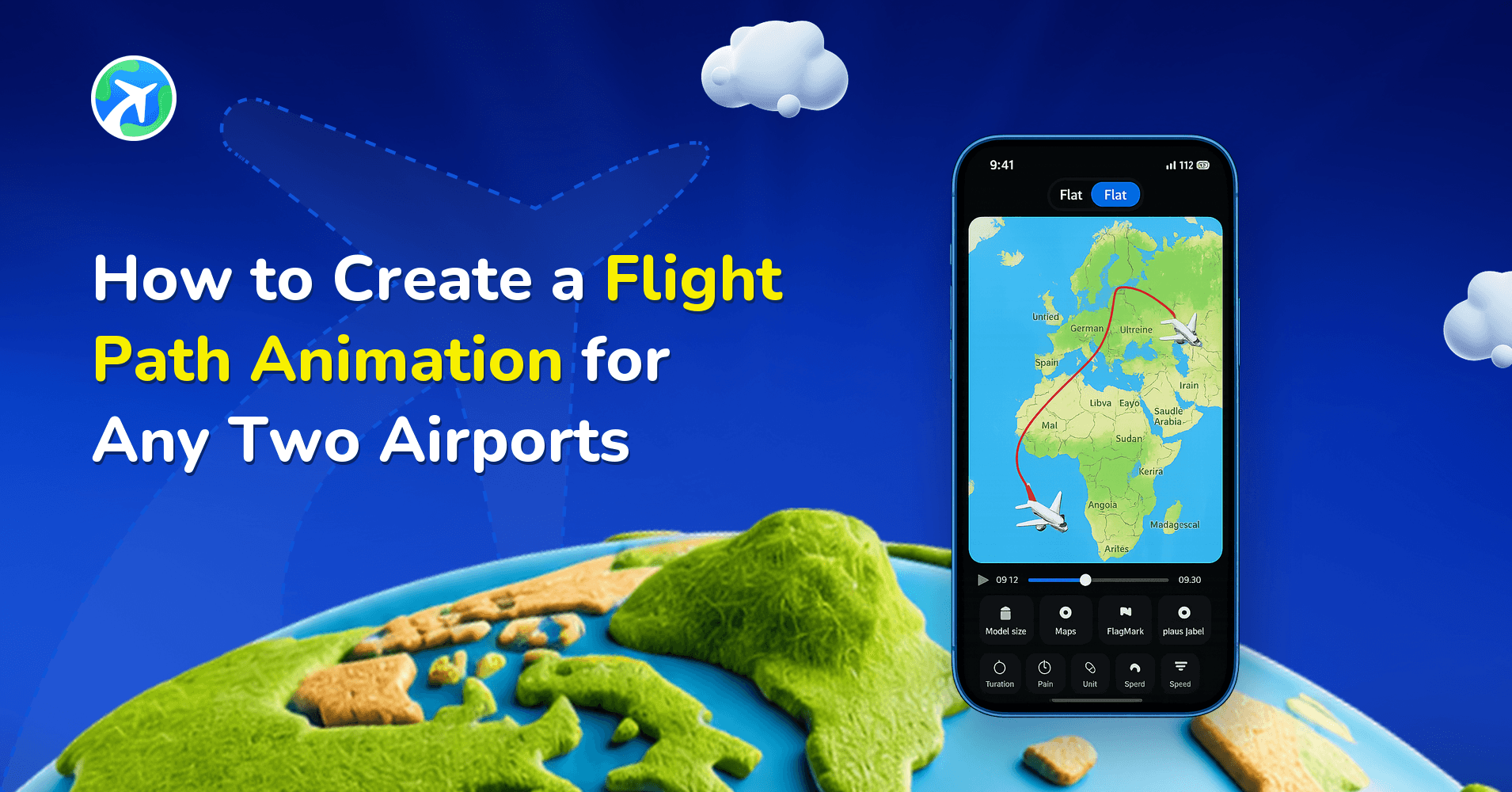
- Flights: pair a plane with airport codes. The flight path animation guide (https://www.travelanimator.com/hub/flight-path-animation) is the place to start.
- Rail journeys: see the train travel map animation walkthrough (https://www.travelanimator.com/hub/train-travel-animation-video-using-travel-animation-app).
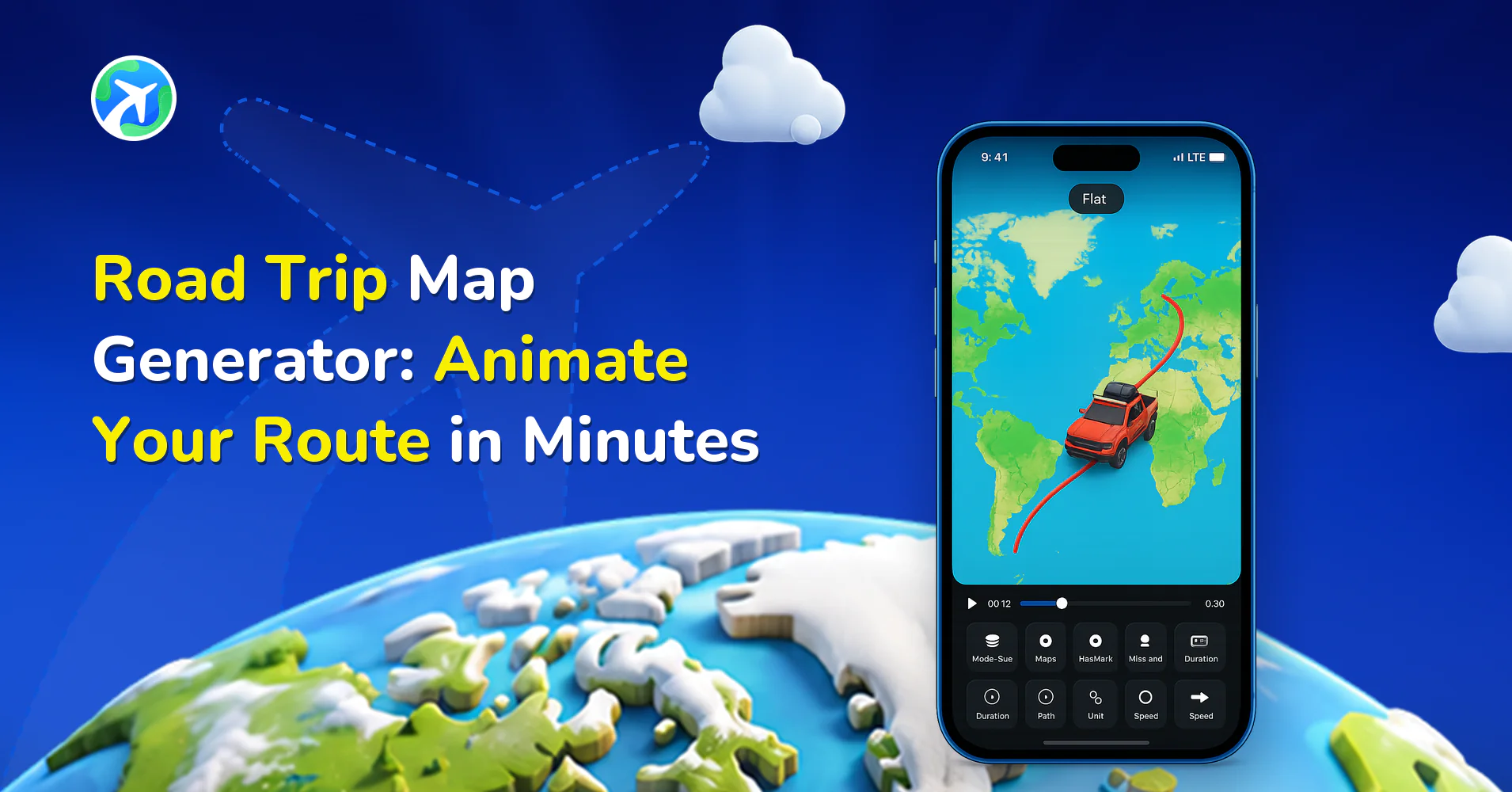
- Road trips: the road trip map guide (https://www.travelanimator.com/hub/road-trip-map-generator-animate-your-route-in-minutes) pairs well with Real Route.
- Yourself: upload a photo and ride the route as an avatar (https://www.travelanimator.com/hub/how-to-add-your-avatar-in-travelanimator-videos).
Over 80 landmark models, from towers to temples, can be dropped onto the map as well. The 3D elements guide (https://www.travelanimator.com/hub/how-to-add-3d-elements-to-your-travelanimator-videos) shows how.
MAP STYLES, LABELS AND CAMERA CHOICES
Once the route works, the look is mostly a matter of taste, but a few settings do real work.
- Map style: there are 30+ looks, including flat maps, satellite, a 3D globe and seasonal themes. Browse them on the maps page (https://www.travelanimator.com/maps).
- 2D or 3D: a tilted 3D view feels cinematic; flat is cleaner for long, busy routes.
- Place labels and flags: short labels help viewers follow along. See place label customization (https://www.travelanimator.com/hub/how-to-customize-place-labels-in-travelanimator).
- Scene style: controls how the camera moves and zooms. The scene style guide (https://www.travelanimator.com/hub/how-to-customize-the-scene-style-of-your-animation-video-in-travelanimator) has examples.
- Duration: short clips suit social posts; longer ones suit detailed trips. Details are in the video duration guide (https://www.travelanimator.com/hub/how-to-set-video-duration-in-travel-animator).
- Cover image: a strong first frame doubles as a thumbnail. See adding a cover image (https://www.travelanimator.com/hub/how-to-add-a-cover-image-to-your-travelanimator-video).
FREE VS. PRO AT A GLANCE
The free plan covers the full creation loop, so most people can make and post a video before spending anything. Pro costs $5.99 a month or $24.99 a year on the US storefront; prices in your country may differ.
- Route plotting, Google Maps link, GPX: included in Free and Pro.
- Vehicle models: a basic selection on Free, 300+ on Pro.
- Map styles: the default selection on Free, 30+ on Pro.
- Export: HD with watermark on Free, HD and 4K with no watermark on Pro.
- Saved routes: one at a time on Free, unlimited on Pro.
Full pricing sits on the plans page (https://www.travelanimator.com/plans), and the free vs. Pro breakdown (https://www.travelanimator.com/hub/difference-between-travel-animator-free-and-paid-subscription) goes feature by feature.
ANIMATE YOUR NEXT TRIP
Add your stops, pick a vehicle and export a route video today. The free plan covers the whole workflow.App Store and Google Play
FAQs
Is there a free travel mapping app that exports video?
Yes. Travel Animator is free to download and exports HD video on the free plan, with a watermark. Pro removes it.
Can I use it for a flight, a train or a road trip?
Yes. Choose a plane, train or car model for each leg, and turn on Real Route where you want the line to follow actual roads.
Can I import a route instead of adding stops by hand?
You can paste a Google Maps link or upload a GPX file from a recorded hike, ride or drive.
How many routes can I save?
Free users can keep one saved route at a time. Pro allows unlimited routes. To open them elsewhere, see accessing saved routes on another device (https://www.travelanimator.com/hub/access-routes-saved-on-one-device-from-another-device) and the save route guide (https://www.travelanimator.com/hub/how-to-use-the-save-route-features-in-travel-animator)