How to Add 3D Elements to Your TravelAnimator Videos
To add a 3D element in Travel Animator, long-press a destination point and choose Add Media. Open the Elements tab, select an object and apply it to the stop. Preview the animation to check its placement before exporting.
 Jaseel S7 min read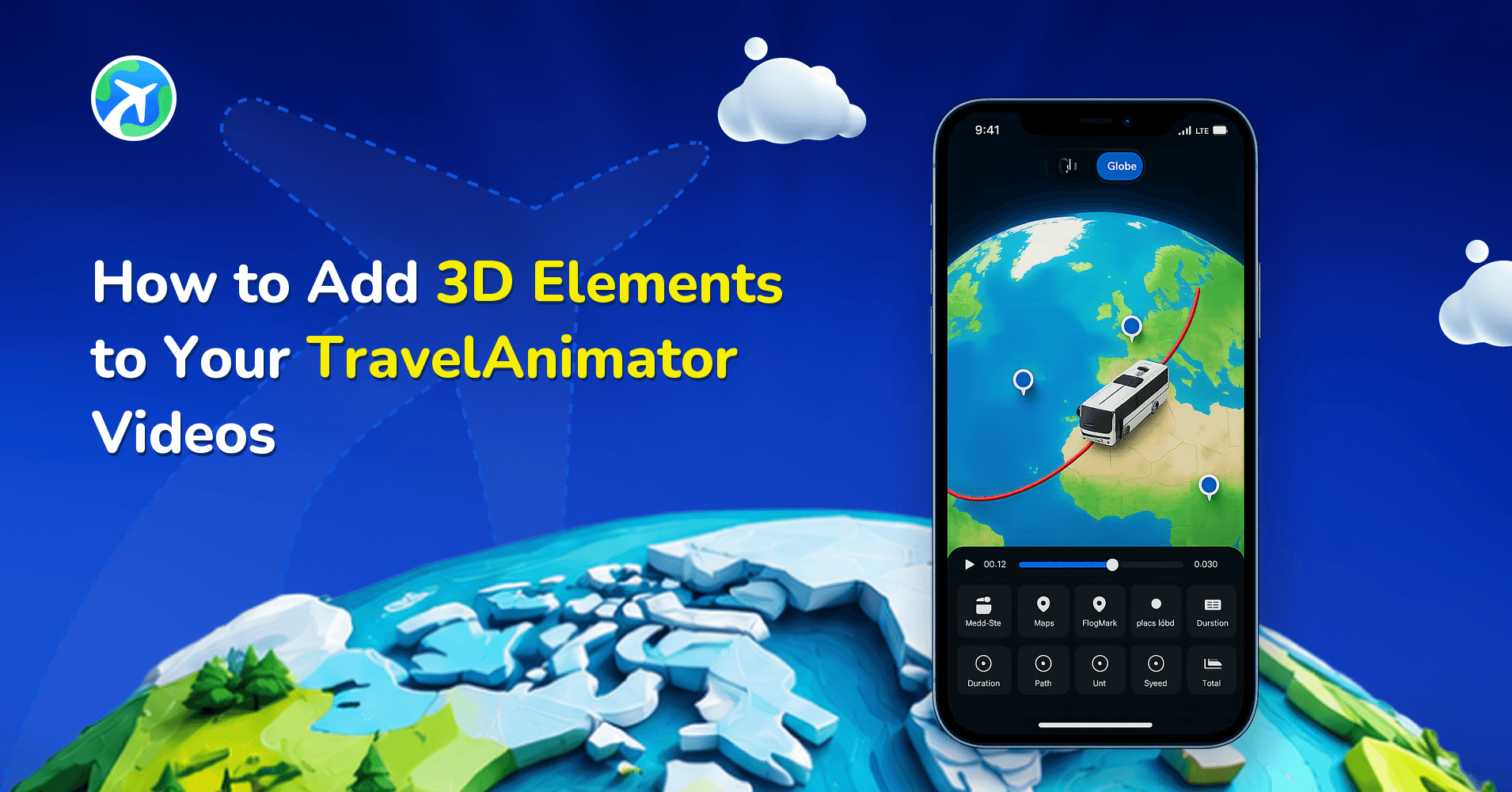
In this article 10 sections
TravelAnimator released the new 3D Elements feature in the Travel Animator app. This feature lets you place interactive, visually appealing 3D objects directly on your travel route, turning a simple animation into a more immersive, expressive experience.
Whether you want to show an airport for a flight, a beach for a vacation stop, or a landmark for a destination highlight, adding elements helps you bring your journey to life in a way that viewers can instantly understand and connect with.
Let’s explore how to add 3D elements to your TravelAnimator video, when to use them, and best practices for using elements effectively.
What is the Elements Feature in Travel Animator?
The Elements feature lets you add 3D objects at specific points along your travel route. These objects visually represent locations, activities, or experiences, making your animation more dynamic and meaningful.
Instead of relying only on lines and models, you can now enhance your map with elements such as Airports, Beaches, Buildings and landmarks, Cafes and lifestyle icons and Monuments and tourist attractions.
For example, if your journey includes a stop at a coastal destination, adding a beach element instantly conveys the location’s character without extra text.
Elements vs Models: What’s the Difference?
Step-by-Step: How to Add Elements in Travel Animator
1.Open the Travel Animator app and create a new project or open your travel animation project.
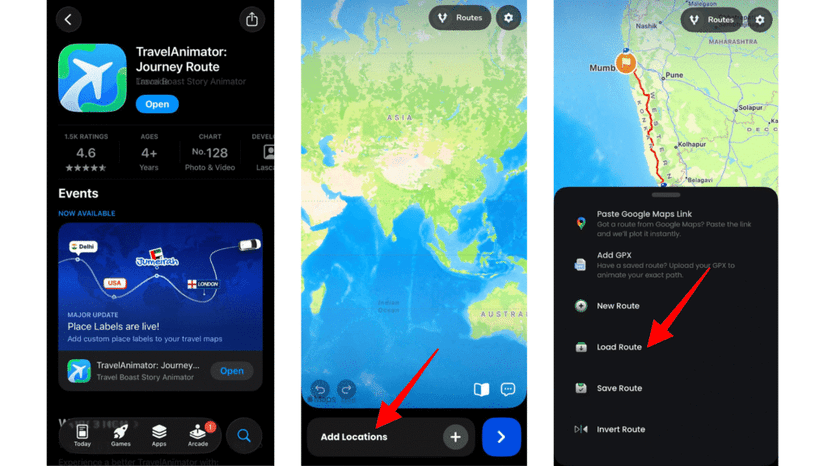
2. Add your destinations and complete your route setup.
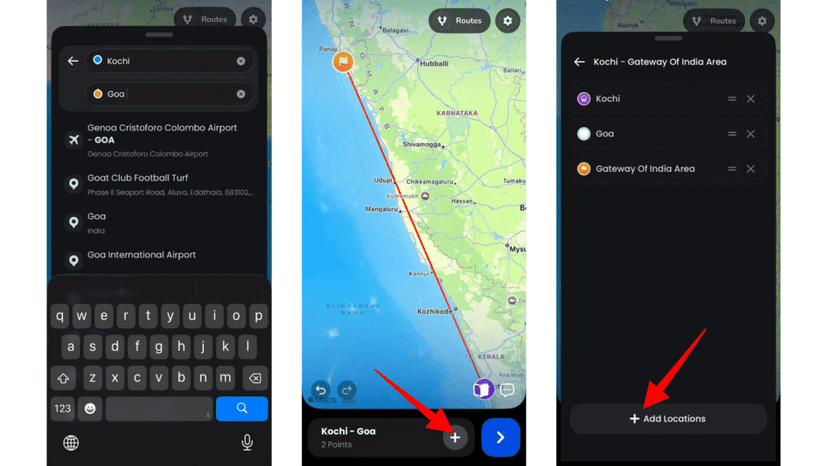
3. Find the specific destination point where you want to add an element.
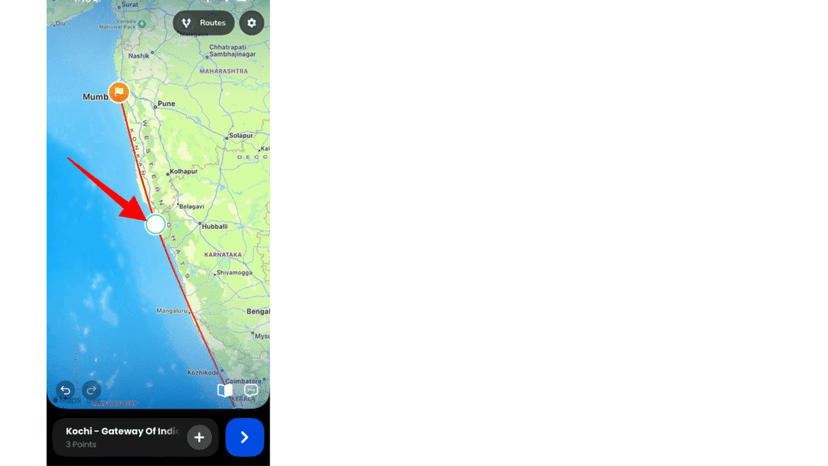
4. Long-press the point and tap Add Media to open the annotation/editing menu.
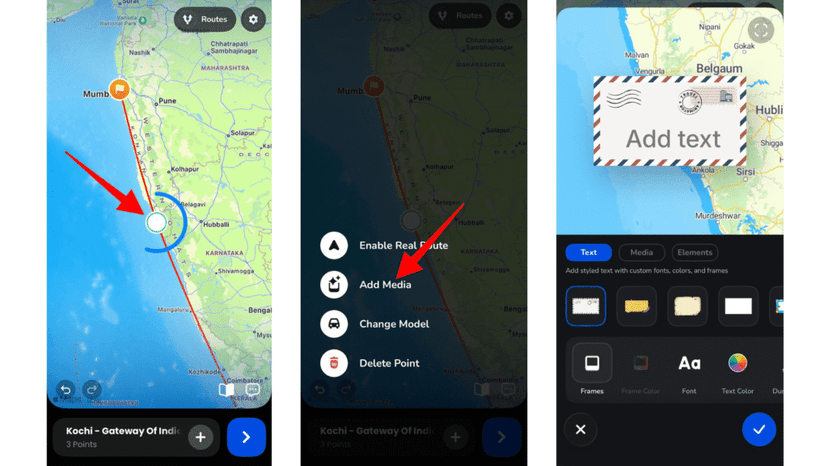
5. In the menu, navigate to the Elements tab (next to Text and Media) and browse the available 3D elements to find the one you want.
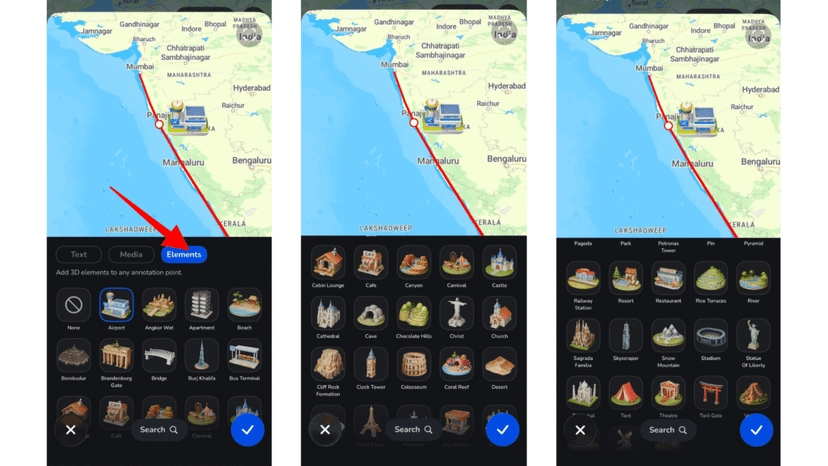
6. Tap on the element you want to use (e.g., airport, beach, landmark) and apply the element to the selected point. Repeat the process for other destinations if needed.
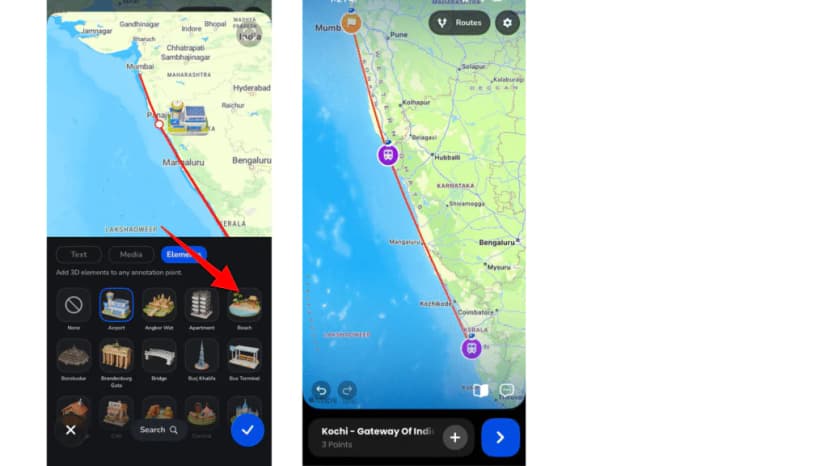
7. Preview your animation to see how the element appears during animation.
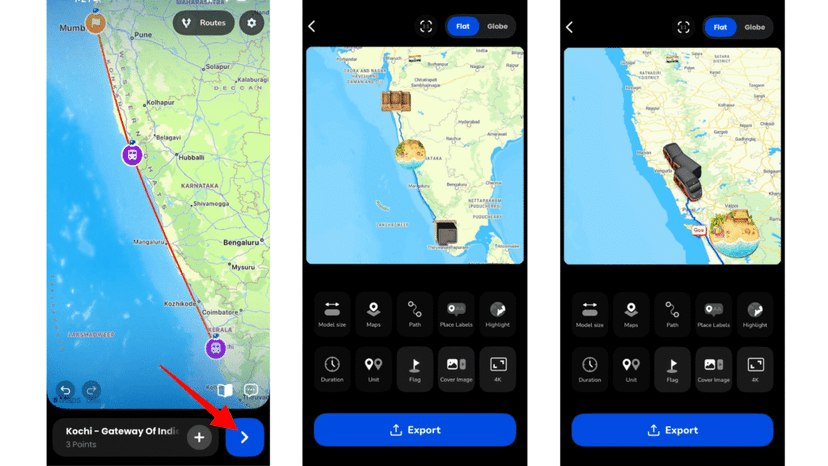
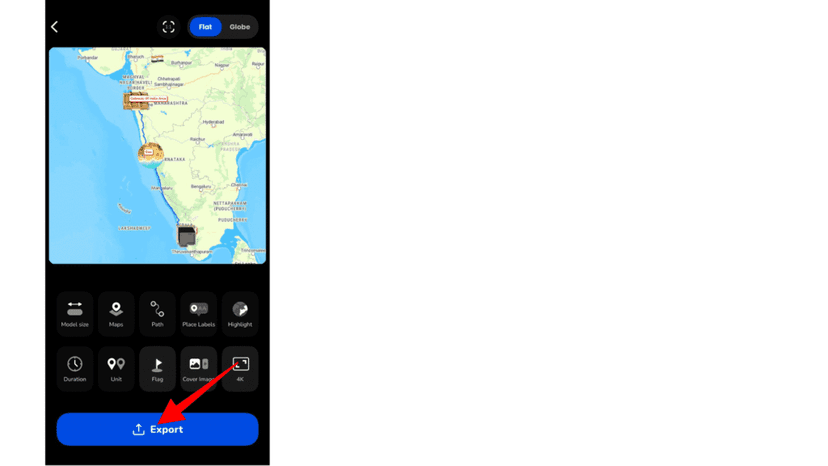
8. Once everything looks good, export your video in HD or 4K quality.
When to Use Elements in Your Travel Videos
The Elements feature is versatile and can be used in multiple scenarios depending on your storytelling goals.
- You can use elements to highlight important destinations, such as adding a landmark icon for famous tourist spots. This helps viewers instantly recognize a location’s significance.
- They are also useful for representing activities. For example, a beach element can indicate a relaxing coastal stop, while a café element can represent a food or leisure experience.
- If your journey includes flights, adding an airport element helps visually explain transitions between locations.
- Travel agencies can use elements to present itineraries more engagingly, showing clients what they can expect at each stop.
- Even for personal travel videos, elements add personality, making your content more relatable and visually appealing.
Common Mistakes to Avoid in TravelAnimator
While elements can enhance your animation, improper use can reduce its quality.
- Avoid adding too many elements, as this can clutter your map and distract viewers.
- Do not use irrelevant elements that do not match the location or story.
- Poor placement can make elements overlap with routes or labels, reducing clarity.
- Skipping the preview can result in misaligned or poorly visible elements.
- Using elements without a clear purpose can confuse viewers rather than improve storytelling.
- Keep your design intentional and aligned with your narrative.
Element Ideas for Real Itineraries
Elements work best at a few stops where they explain something a label can’t. Here’s how that looks on a couple of common trips.
A 3-day Kerala itinerary. Put an airport element at Kochi for the arrival, a beach at Varkala, and a landmark or monument at one heritage stop. Three elements across the whole route is plenty, and each one tells viewers what kind of day that was.
A Lisbon to Porto train trip. A landmark at each city and a café element at the lunch stop in between gives the video a shape: arrive, eat, arrive. The train model handles the travel part.
A client itinerary. Travel agencies can use the same element types for the same kind of stop across every proposal, airports for transfers and beaches for free days, so clients learn to read the map at a glance. Our guide on Travel Animator for travel agencies has more on building those videos.
Using Elements Alongside Photos, Text and Avatars
Elements sit in the same Add Media menu as Text and Media, so it’s easy to think of them as interchangeable. They do different jobs. An element tells viewers what kind of place a stop is. A photo shows what it actually looked like. Text gives the name or a short note.
A good pattern is an element at the stop as the camera arrives, then a photo for the moment you want people to remember. Adding a photo or text also makes the animation slow down at that point, which gives viewers time to take it in. If you want to appear in the video yourself, an avatar does that better than any element.
Make Your Travel Animations More Immersive
The 3D Elements feature in the Travel Animator app is a powerful addition that transforms how you create travel animations. It allows you to go beyond simple routes and build a richer, more engaging story. By adding meaningful elements to your journey, you can highlight destinations, represent experiences, and create visually compelling content that stands out. Whether you are a content creator, traveller, or agency, this feature helps you communicate your journey more effectively and creatively.
So the next time you create a travel animation, use the elements creatively to enhance storytelling. Download TravelAnimator now from the App Store or the Play Store.
Check placement before the final export
Preview the moment when the camera reaches each decorated stop. A landmark should help identify the destination without hiding the route or its label. If the scene feels crowded, use fewer elements and keep only those that explain something about the trip.
A stationary element and a moving vehicle have different roles. If you meant to change what travels along the line, use the model controls instead. For a written note at a stop, use the text-label instructions. Check your selected export quality against your plan before rendering.
Frequently Asked Questions
What is the Elements Feature in Travel Animator?
The Elements feature lets you add 3D objects at specific points along your travel route. These objects visually represent locations, activities, or experiences, making your animation more dynamic and meaningful.
Elements vs Models: What’s the Difference?
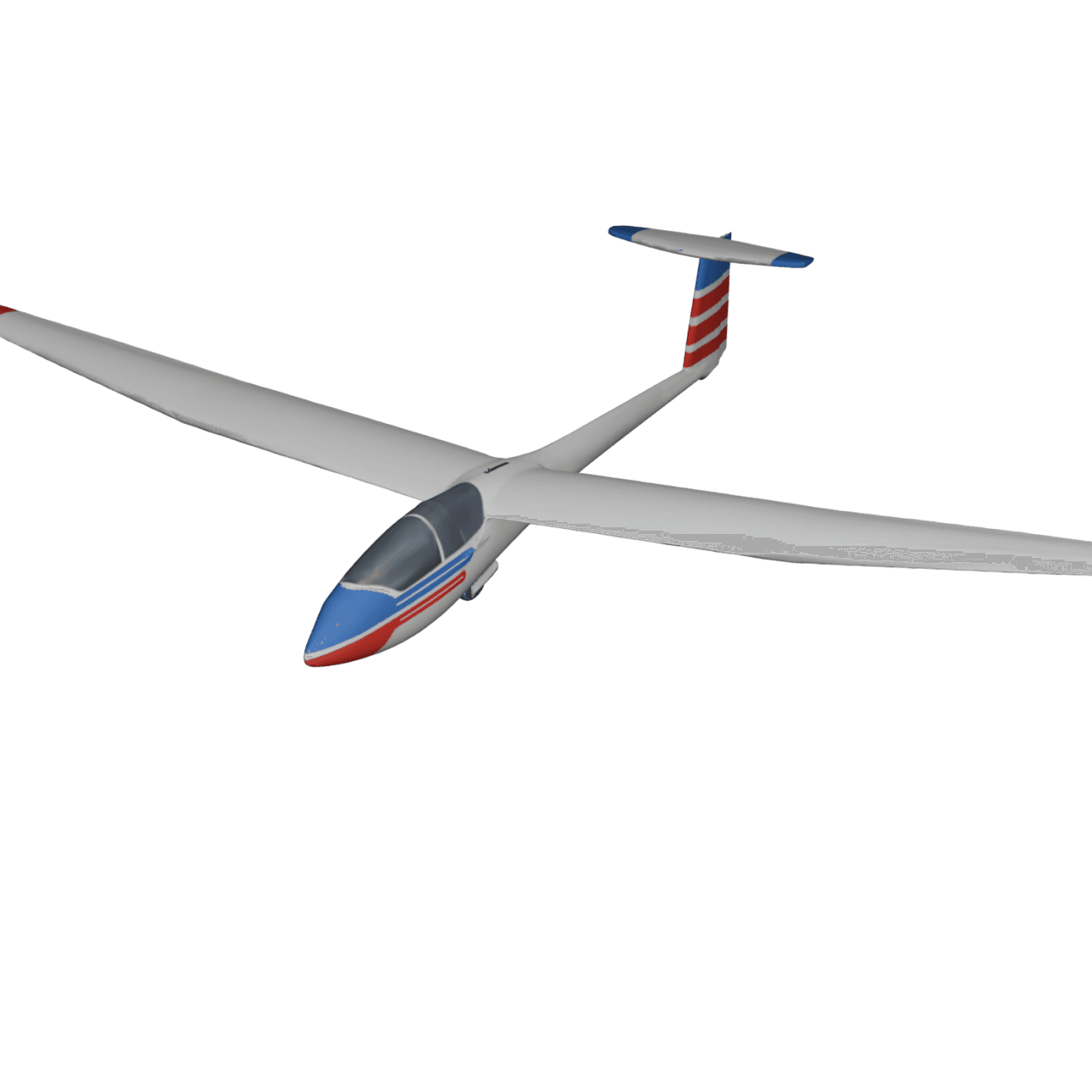
Models represent the movement of vehicles or transport modes, such as cars, planes, and trains. Elements represent locations or experiences, such as airports, beaches, cafés, etc.
How do I add Elements in Travel Animator?
Long-press the destination point, choose Add Media and open the Elements tab. Select a 3D element, apply it to the point and preview the animation. Repeat at other stops if needed.
Are 3D elements available on the free plan in Travel Animator?
Yes. Elements are available on both the Free and Pro plans, so you can add airports, beaches, landmarks and other 3D elements to your route without upgrading. Pro adds things like the full premium model library, more map styles, 4K export and watermark-free videos.
Why can't I find the Elements tab in Travel Animator?
Elements open from a point on your route, not from the preview screen. Long-press the stop, tap Add Media and look for the Elements tab next to Text and Media. If it still isn’t there, your app may be out of date, so update Travel Animator from the App Store or Google Play and try again.