How to Highlight Specific Areas in TravelAnimator Maps
To highlight an area in Travel Animator, open Preview and select Highlight. Choose Country or State, set the colour and pattern, select Current or Visited, and confirm. Preview the route to check that the highlight and labels remain readable.
 Jaseel S6 min read
In this article 7 sections
With the latest update in the Travel Animator app, you can now highlight countries, states, or regions directly on your map. This feature allows you to visually emphasize locations, making your animations more informative, engaging, and visually appealing.
Whether you’re showcasing visited countries, focusing on a specific region, or creating educational travel content, the highlight feature adds a new layer of storytelling to your videos.
In this guide, you will explore how to highlight specific areas of your Travel Animator Maps, when to use and some creative ideas to use this new feature.
What is the Highlight Feature in Travel Animator?
The Highlight feature allows you to visually mark specific areas on the map, such as countries, states, or regions. Instead of only showing a route line, you can now emphasize entire locations by applying colors, patterns, or styles to them. For example, if your journey includes multiple cities in India, you can highlight the entire country or specific states like Kerala or Tamil Nadu, helping viewers quickly understand the geographical context of your journey.
The 2026 update introduces a redesigned and powerful highlight system that gives you more control and flexibility.
- A dedicated Highlight panel in the editing interface
- Options to highlight by Country, State, or Region
- Toggle between Current and Visited views
- Multiple colour options, including solid and gradient styles
- Pattern styles such as filled, dotted, and grid effects
- A Solid toggle to switch between filled and styled highlights
- Real-time preview of changes before applying
Step-by-Step: How to Highlight Specific Areas in Travel Animator
Follow these steps to highlight areas in your travel animation.
- Open the Travel Animator app and complete your route setup.
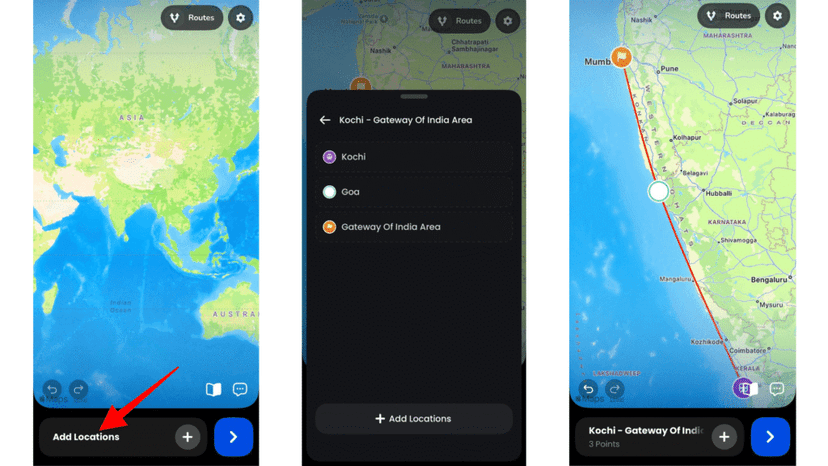
2. Navigate to the preview editing screen where customization options are available, then tap the Highlight option in the settings panel.
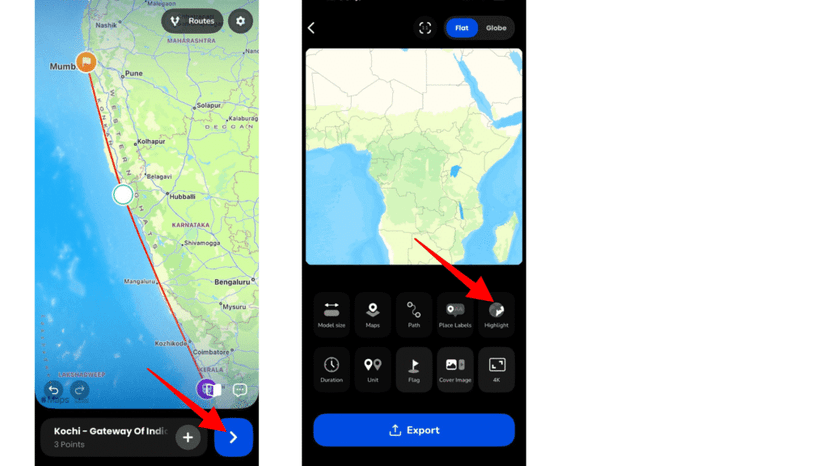
3. Choose the type of area you want to highlight – Country or State.
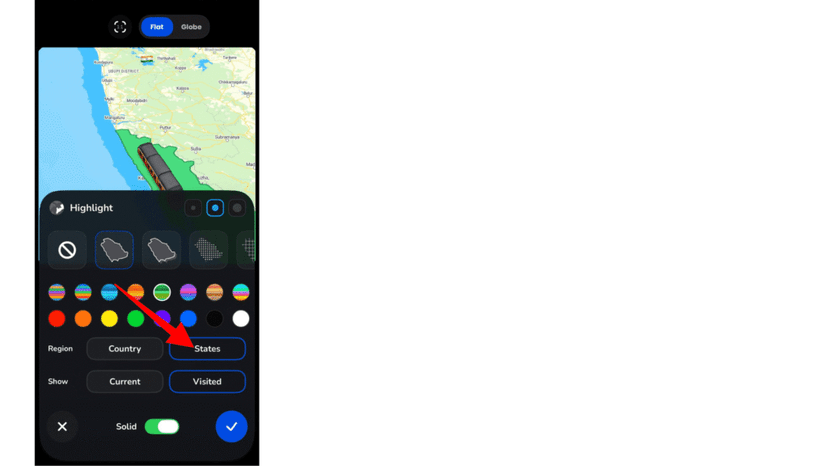
4. Choose a colour or style from the available palette.
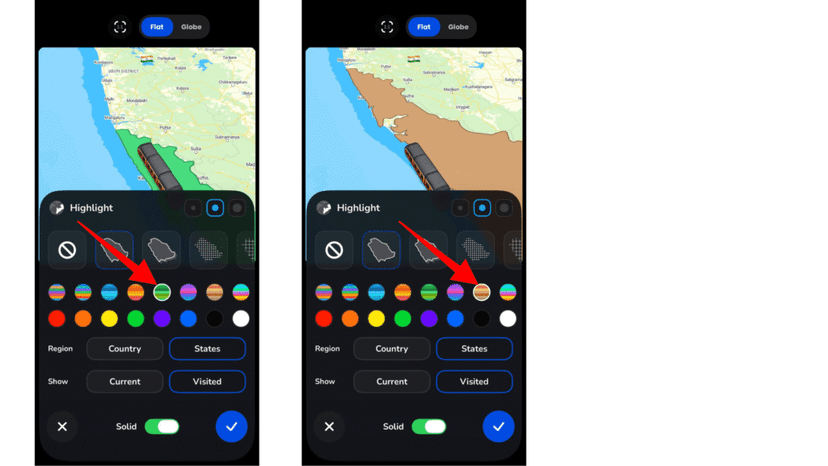
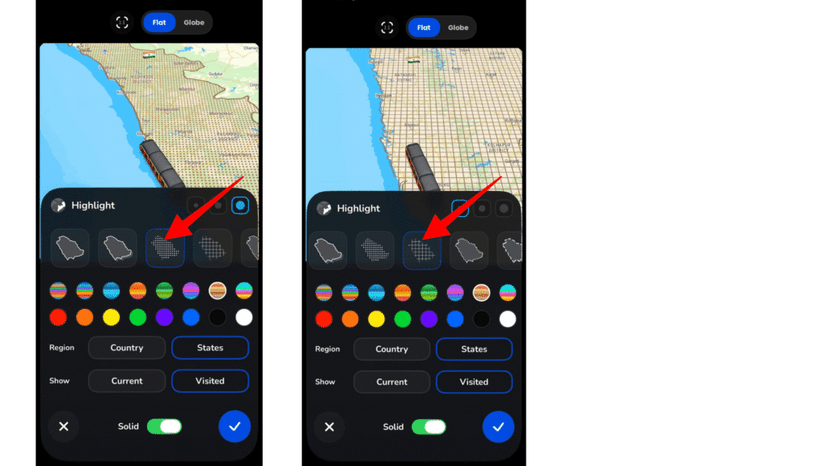
5. Apply a pattern, if needed, such as a dotted or grid style.
6. You can choose the border thickness from the available three options.
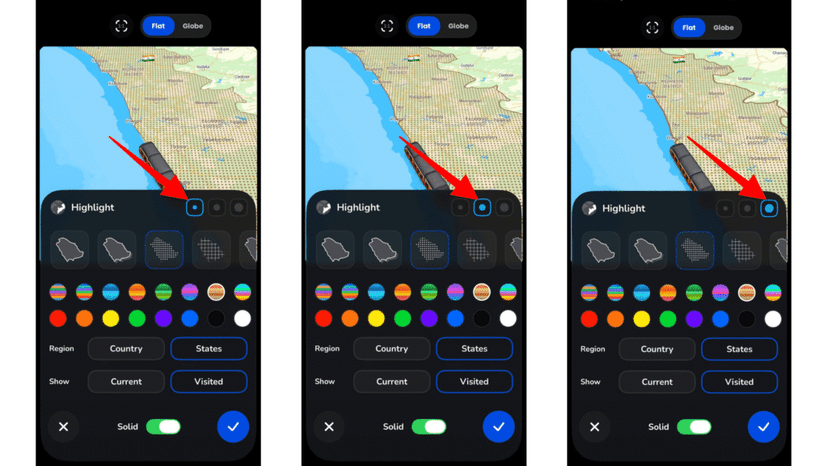
7. Use the Visited or Current toggle depending on your storytelling purpose.
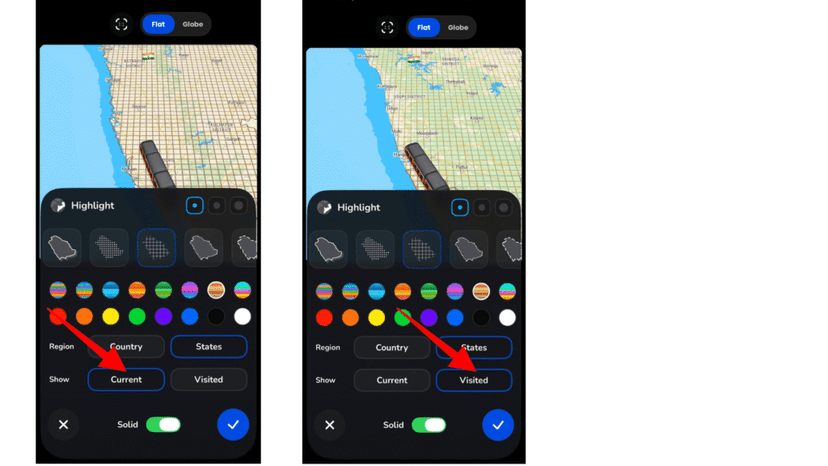
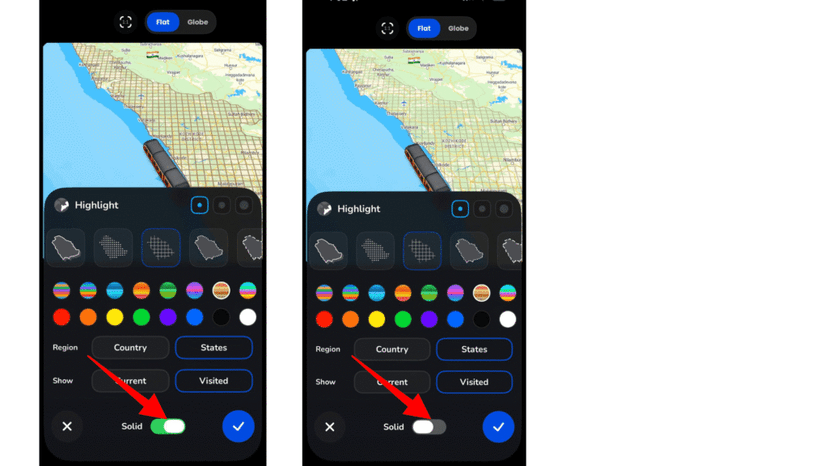
8. Turn on the Solid option for a fully filled highlight, or turn it off to use a patterned or textured fill style.
9. Tap the confirm button to apply the highlight and preview your animation to ensure the highlight looks correct.
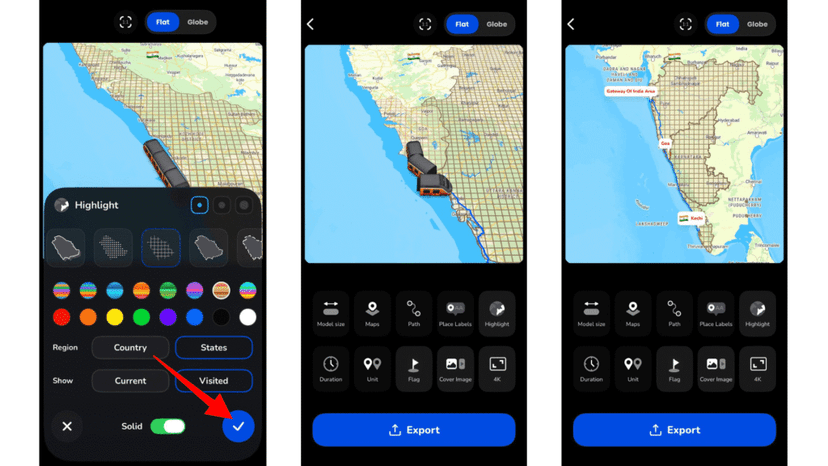
10. Make adjustments if needed, and then export your animation video.
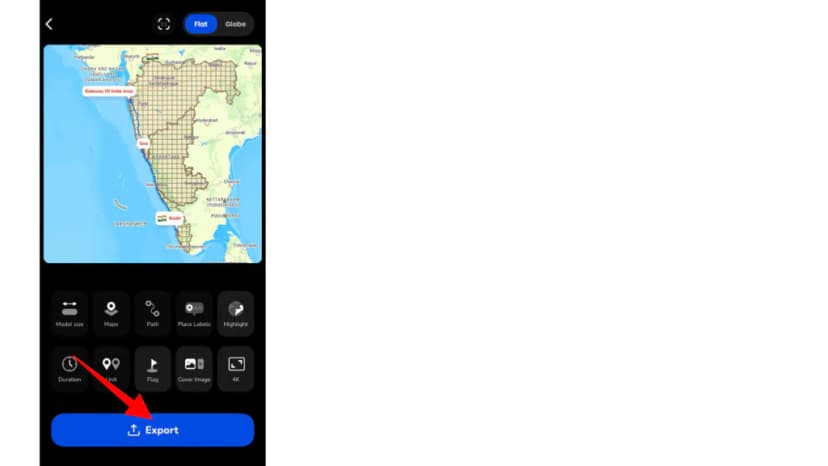
Tips: Avoid colours that blend into the map background, keep your style consistent across the animation, and always preview before exporting to catch any misaligned highlights.
Highlight Ideas That Work Well
Highlighting is most useful when the area itself is part of the story, not just the route through it. A few ways to use it:
- A state-by-state road trip. For a drive from Kochi to Chennai, highlight Kerala and Tamil Nadu by State so viewers see you crossed from one into the other.
- A “countries I’ve visited” reel. Use one consistent colour for every country so the map reads as a single collection rather than a patchwork.
- A school or history project. Highlight the regions an old trade route passed through, then add labels for the key cities. Our guide to school project travel maps covers the rest.
- A made-up country. Combine real countries or regions into one imaginary place and give it a bold highlight, which is the idea behind the #MadeUpCountry challenge.
Choosing Colour, Pattern and Border
Match the mood of the trip. Warm tones like orange and yellow suit summer holidays and beach trips, while cooler blues and greens fit mountain escapes and winter travel. A gradient adds a little polish for a social reel. A plain solid colour usually looks cleaner in a presentation.
Patterns change how much of the map shows through. A solid fill hides more of what’s underneath, while a dotted or grid pattern lets more of the map underneath stay visible. Turn Solid off if the highlighted area has stops inside it that viewers need to read.
Use the border to separate neighbouring areas. If you’re highlighting two states that share a border, a thicker outline keeps them distinct. For a single country, the thinnest option is often enough.
Make Your Travel Maps More Visual and Informative
The Highlight feature helps you go beyond simple route animations, adding context and clarity to your travel stories. Whether you’re a solo creator, educator, or travel agency, highlighting turns a plain route into a map that tells the bigger story. Try it in your next animation and see how it changes how viewers follow your journey.
Download the Travel Animator app from the App Store or the Play Store and try the app today to animate your journey. You can also read our detailed guide on how to create a travel animation video in Travel Animator for a complete step-by-step walkthrough to create your animation video.
Make the highlight readable
Preview the whole route after choosing Current or Visited. Check whether the highlighted area changes the way you expect as the animation moves. Use a colour that remains distinct from both the map background and the route line; a strong filled highlight can make labels harder to read.
Highlighting an area does not change your route or add a destination. Keep the route points accurate first, then use the highlight to explain their geographical context. If your goal is to rename a stop, use Place Labels instead.
Frequently Asked Questions
What is the Highlight Feature in Travel Animator?
The Highlight feature allows you to visually mark specific areas on the map, such as countries, states, or regions. Instead of only showing a route line, you can now emphasize entire locations by applying colors, patterns, or styles to them.
How do I highlight Specific Areas in Travel Animator?
Open Highlight in the preview controls, choose Country or State and set the color, pattern and border thickness. Select Current or Visited, adjust Solid fill if needed, confirm and preview the route.
How can I keep a highlighted area readable?
Use a highlight color that remains distinct from the map and route line. Preview the whole journey to check the Current or Visited behavior and make sure filled areas do not obscure labels.
Can I highlight a state instead of a whole country in Travel Animator?
Yes. When you open Highlight in the preview screen, choose State instead of Country and pick the area you want. That works well for regional trips, like showing Kerala and Tamil Nadu on a South India road trip. Set the colour, pattern and border, confirm, and preview the animation to check the highlight sits where you expect.
Why isn't my highlight showing in the exported Travel Animator video?
Often the highlight wasn’t confirmed. After choosing the area, colour and style, tap the confirm button, then play the preview to make sure it appears. Also check that the colour isn’t too close to the map style, which can make a highlight look missing. Once it shows clearly in the preview, export again.