How to Enable Real Routes in TravelAnimator
 Jaseel S5 min read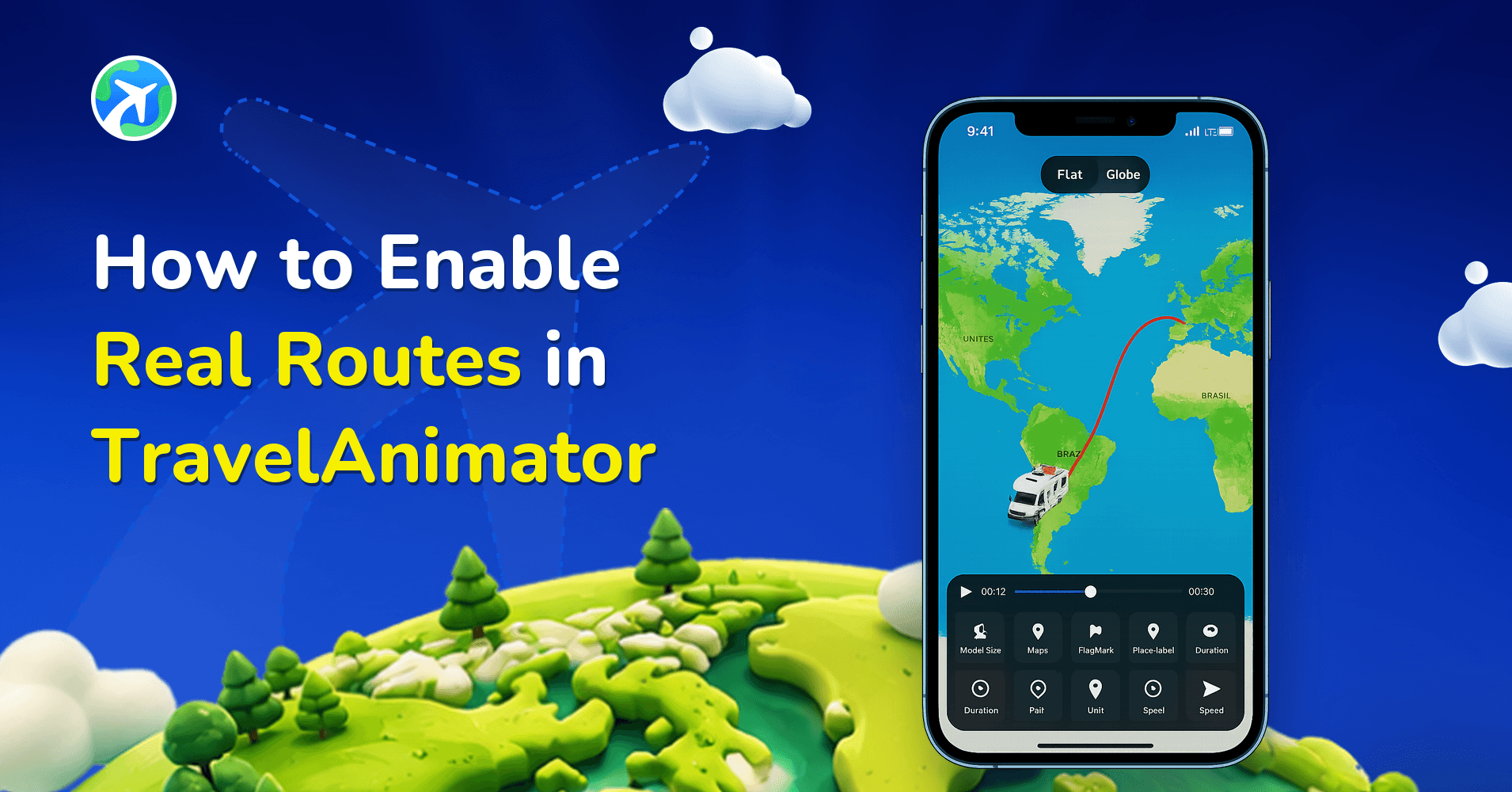
In this article 4 sections
TravelAnimator now allows you to enable Real Routes, a powerful feature that makes your travel animations follow actual road, rail, or navigation paths instead of simple straight lines between destinations.
If you’ve ever added multiple stops manually and noticed the route drawing as a direct line from one point to another, you may have wondered whether it’s possible to make the animation follow realistic roads and curves. With the Real Route feature, you can do exactly that.
In this guide, you’ll learn what Real Routes are, when to use them, how they work, and how to enable or disable them properly inside TravelAnimator. By the end, you’ll understand how to control route accuracy and create more realistic travel animations with confidence.
What Are Real Routes in TravelAnimator?
Real Routes are route paths that follow actual map-based navigation data instead of drawing a straight line between two destinations. By default, when you manually add stops in TravelAnimator, the route connects them directly. This is clean and fast, but not always realistic. Real Routes changes that behaviour by drawing the path along real-world roads or travel routes between two selected points, so the line curves naturally along roads, avoids unrealistic straight jumps across terrain, and looks closer to how you actually travelled.
Before enabling Real Routes, it’s important to understand one key concept: Real Routes are activated segment by segment, not automatically for the entire route. When you manually add multiple stops, the app connects them in order. If you enable Real Route at a specific stop, the segment between that stop and the next becomes a real route. If you want the entire journey to follow real routes, you must enable Real Route at each stop individually.
- Real Routes are ideal for road trip animations and long-distance driving journeys, where you want the path to follow actual highways and roads rather than straight lines
- A strong choice for client presentations, travel agency itineraries, and logistics planning previews, since an accurate route builds trust because viewers can see exactly how the journey connects between locations
- Travel recap videos add immersion for vloggers and storytellers, since the animated vehicle follows real road patterns instead of a straight shortcut, making the experience feel closer to how the trip actually happened
- Not necessary for simple storytelling videos where visual clarity matters more than route precision, or for animating a long international flight, where straight-line routes may still work perfectly fine
Step-by-Step: How to Enable Real Routes in TravelAnimator
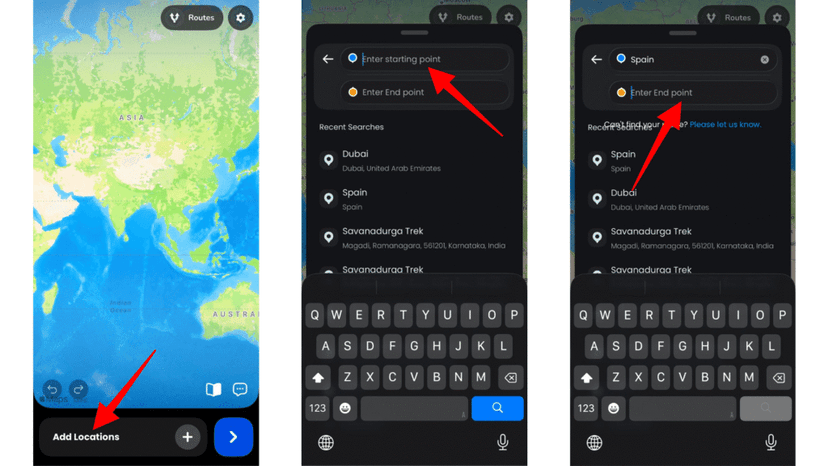
1.Start by manually adding your starting point and other stops to the map. You can insert stops manually by searching for locations by name and adding coordinates to build a multi-stop route.
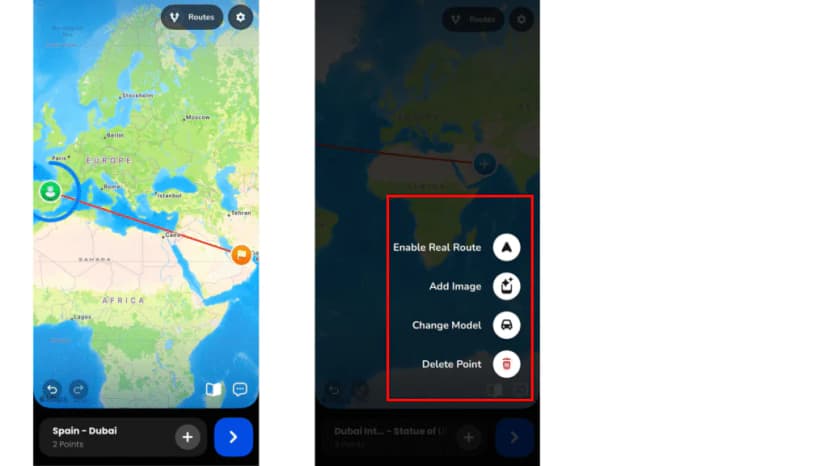
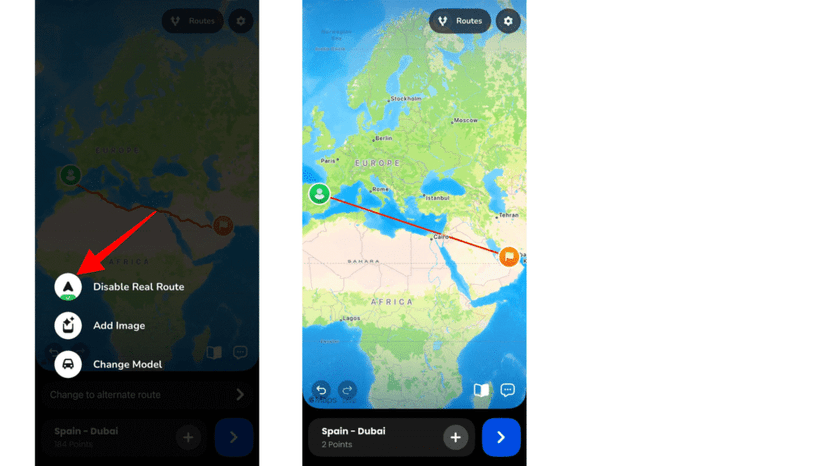
2. Choose the stop where you want the real route to begin. Long-press on that point to open the action menu. You will see options such as Enable Real Route, Add Image, Change Model, and Delete Point.
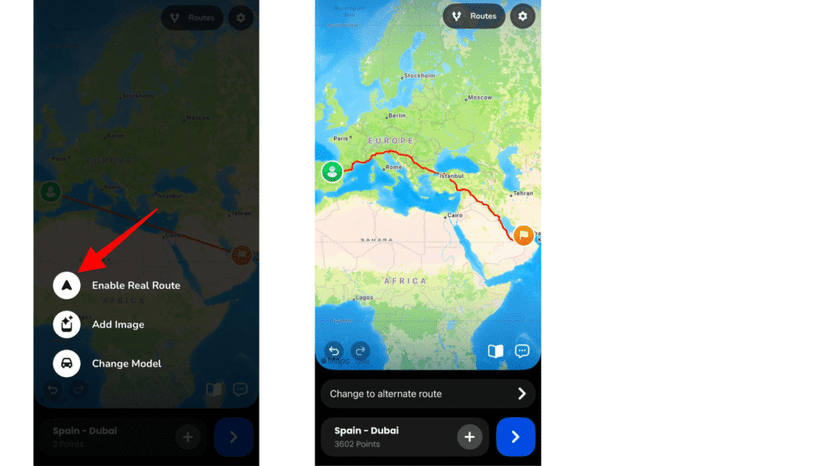
3. Tap on Enable Real Route. Immediately, you’ll notice the route from that stop to the next stop changes from a straight line into a curved, realistic road-based path.
4. If the path has alternative routes, you can see an option to choose the best route.
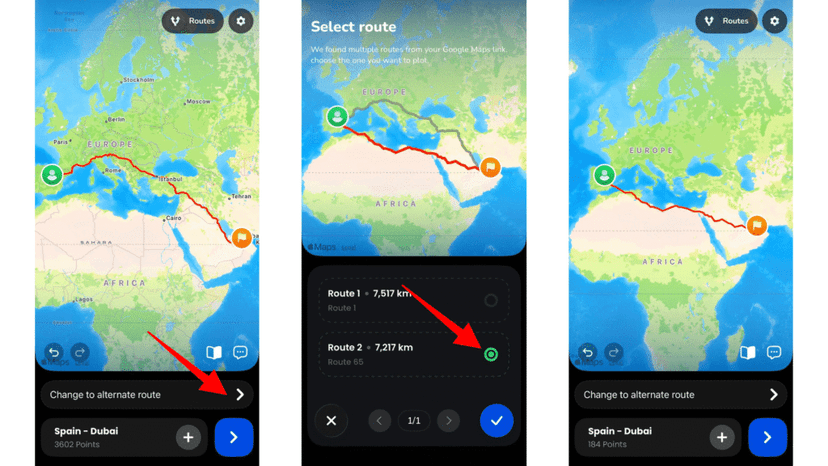
5. Repeat the process for every stop except the final destination if you want your entire journey to follow real routes.
6. After enabling Real Routes, tap preview to see how the route behaves during animation.
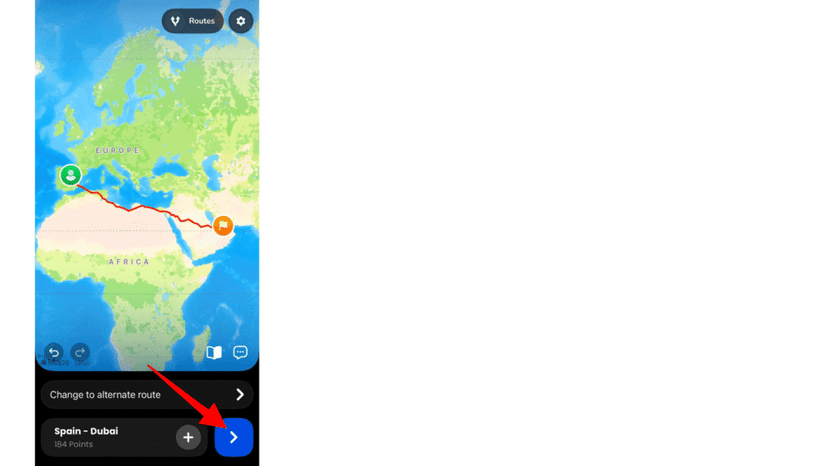
7. If the route looks too complex or crowded, you can disable it simply by long-pressing on the stop where Real Route is enabled. Tap the Real Route option again, and the segment returns to a straight-line connection.
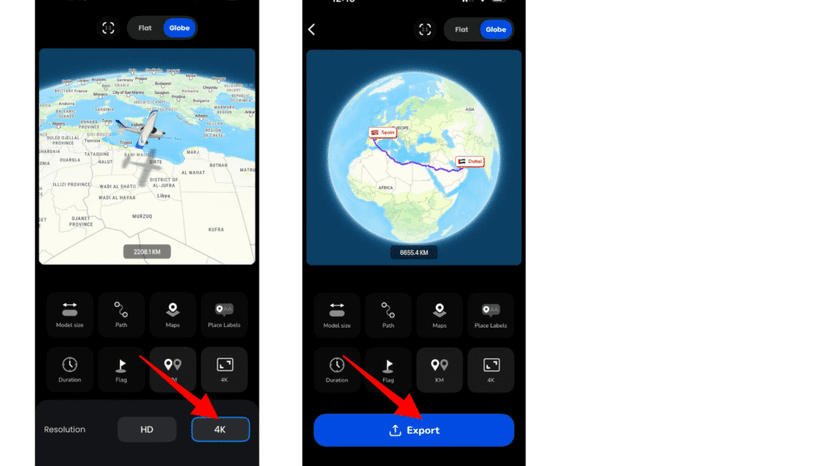
8. After adjusting all the other features, export the animation into HD or 4K quality.
Explore the article how to use the TravelAnimator app to get a complete picture of the animation video creation.
How Real Routes Change the Look of Your Animation
Real Routes are especially useful when you want your animation to reflect the actual roads taken during a journey. Instead of showing a straight line between two destinations, the route follows real highways, city roads, and natural curves, making the animation look more authentic and realistic. This is particularly valuable for road trips, long-distance drives, and cross-country journeys where the path itself is part of the story.
They are also a strong choice for professional use cases. If you’re creating route previews for clients, travel agencies, logistics planning, or itinerary presentations, enabling Real Routes makes your animation more accurate and credible. The realistic path builds trust because viewers can clearly see how the journey connects between locations.
For storytellers, vloggers, and content creators, Real Routes add immersion. When your animated vehicle moves along actual road patterns instead of a straight shortcut, the experience feels closer to how the trip happened in real life. This small detail can significantly enhance the visual quality and storytelling impact of your travel animation.
Make Your Travel Animations More Realistic with Real Routes
Real Routes in TravelAnimator give you greater control over how your journey appears on the map. Instead of simple straight connections, you can display accurate road-following paths that match real-world navigation. By understanding that Real Routes work segment by segment, you gain complete flexibility. You can enable them for specific parts of your trip, apply them to the entire route, or mix straight and realistic paths depending on your storytelling needs.
If you want your travel animations to look more authentic, download the TravelAnimator app from the App Store or Play Store and start experimenting with Real Routes in your next project.
Explore this article to learn how to use the TravelAnimator app.
Frequently Asked Questions
What Are Real Routes in TravelAnimator?
Real Routes are route paths that follow actual map-based navigation data instead of drawing a straight line between two destinations. By default, when you manually add stops in TravelAnimator, the route connects them directly.
How do I enable Real Routes in TravelAnimator?
Long-press a route point and use the Real Routes option to follow the available real-world path. Preview the result and check that the selected route matches your intended journey before exporting.
How do Real Routes change the look of an animation?
Real Routes follow available roads or paths between locations rather than simply drawing a direct line. This can make a driving journey easier to recognize; preview the result to check it matches the route you intended.