How to Plan a Trip with the Journey AI Route Assistant
 Jaseel S10 min read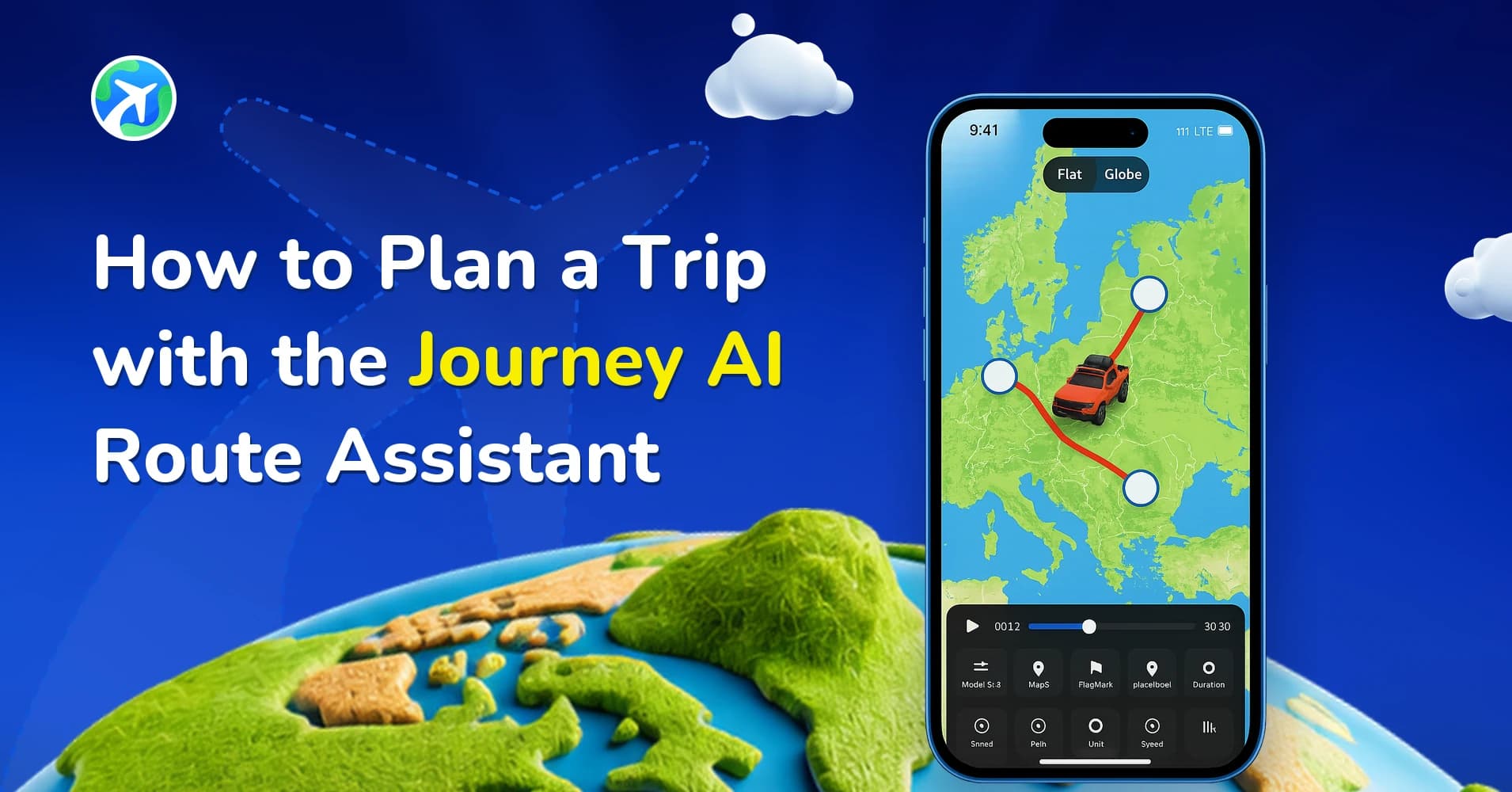
In this article 9 sections
Every trip starts as a loose idea. “A week in Italy.” “A road trip up the coast.” “Fly to Tokyo, then take the train to Kyoto.” The idea is the easy part. The slow part is turning those few words into an exact route, with the right start, the right stops and the right order.
That used to mean searching for every place, tapping to add it and dragging things around until the route looked right. TravelAnimator’s new Journey AI route assistant skips most of that. You describe the trip in a chat, the way you’d explain it to a friend who’s good with maps, and the assistant plots the route for you.
In this guide you’ll learn what the feature is, how to plan a trip with it and how to word your messages for better results. We’ll also cover when it’s smarter to build a route by hand.
Why planning a route feels like homework
A travel map animation is only as good as the route behind it. You need the right start, the right stops and the right order, and you need each pin on the right “Springfield” and not the other one.
For a simple A-to-B trip, that’s quick. For a multi-stop journey it gets tiring. You search, tap, scroll, add, reorder and sometimes undo, and by the time the route is ready the excitement has faded a little. You haven’t even picked a vehicle or a map style yet.
Most of us already plan trips in sentences, whether out loud or in a message to a friend. Journey AI lets you do that inside the app.
What is the Journey AI route assistant?
The Journey AI route assistant is a chat feature inside TravelAnimator. You type a description of your trip, and the assistant works out the places and plots the route on your map
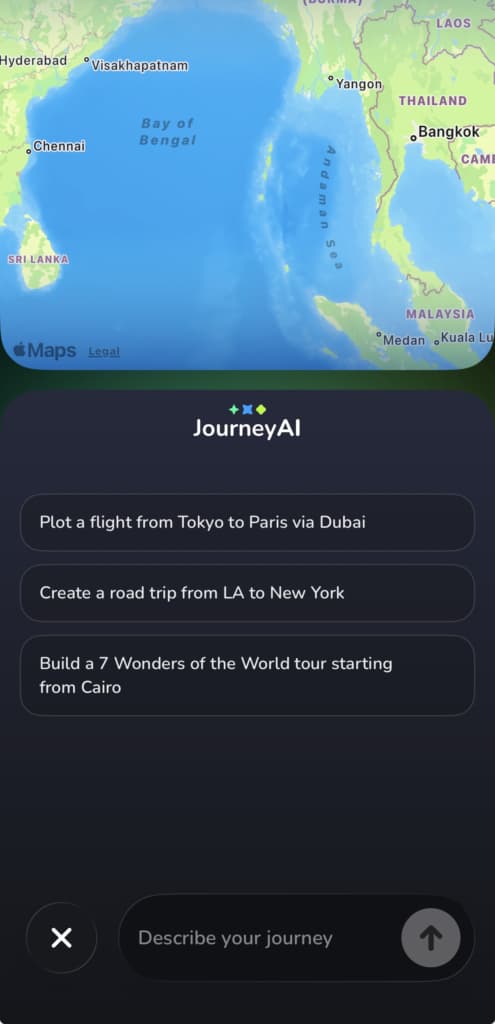
The idea is simple: describe the trip, get a route. You don’t have to know the exact name of every stop, and you don’t have to add each one yourself. The assistant does the plotting, and you decide what to keep, change or remove.
How to plan a trip with Journey AI, step by step
STEP – 1
Open TravelAnimator and start a new route.
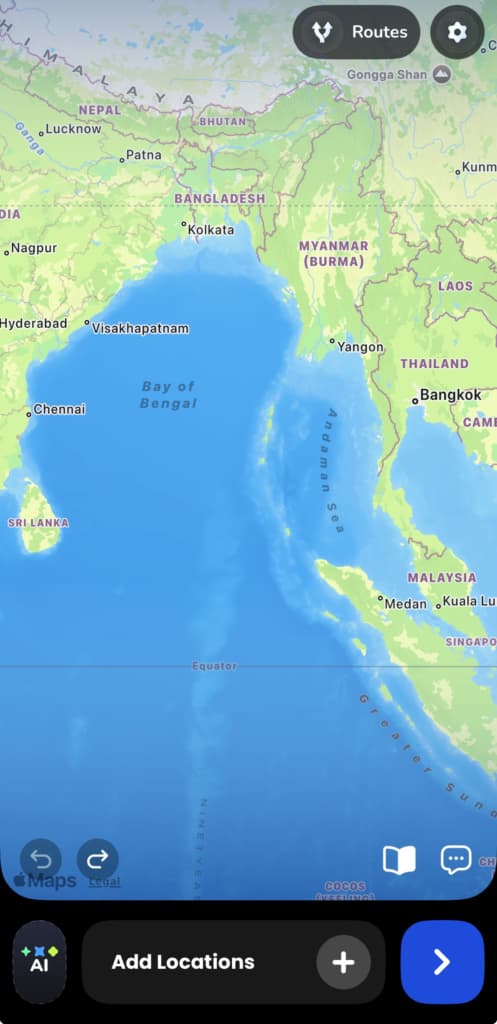
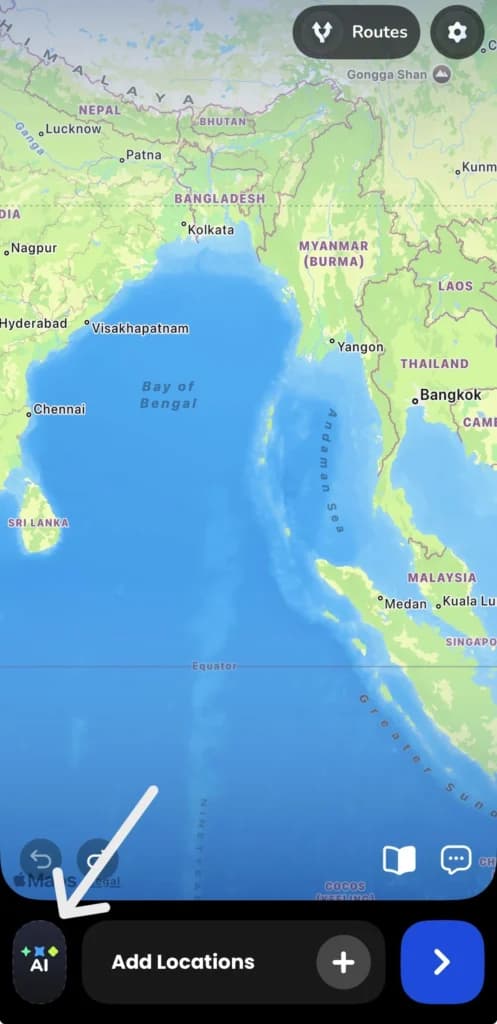
STEP – 2
Open the Journey AI assistant from the chat option.
STEP – 3
Describe your trip in plain words. Say where you start, where you’re going and any stops you already know.
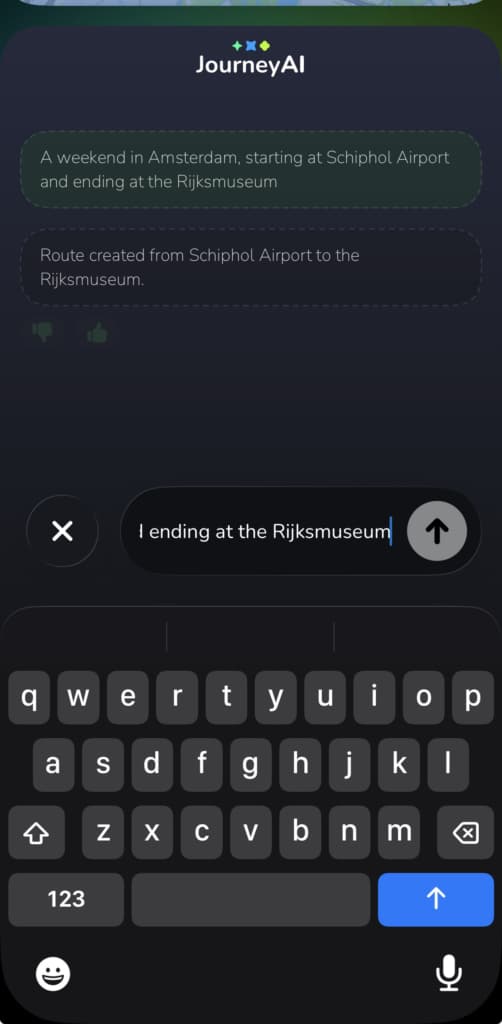
STEP – 4
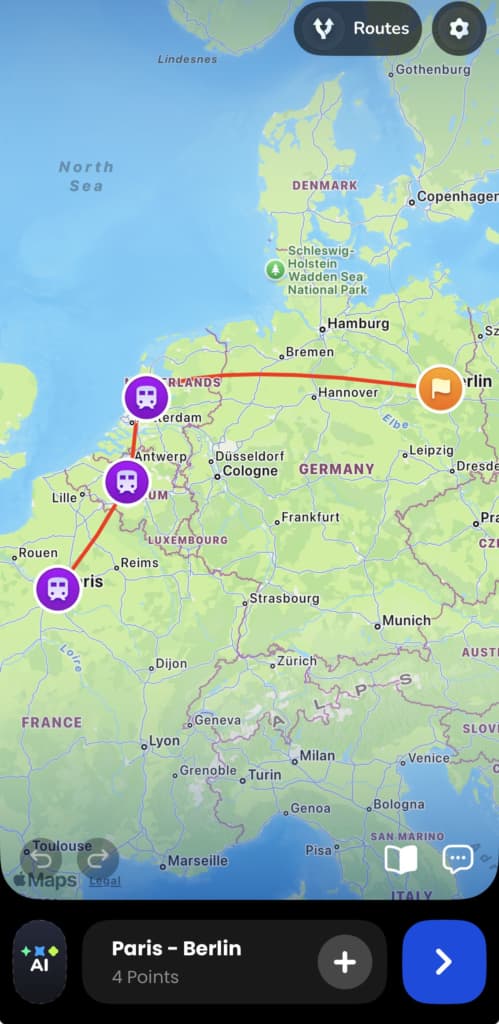
Wait for the route. The assistant plots it on your map.
STEP – 5
Review the result. Check that each point is where you meant and that the order makes sense.
STEP – 6
Adjust if needed. Change a stop or ask the assistant for a tweak
STEP – 7
Pick a vehicle and map style, then preview the animation.
What to type: prompts that work
The assistant does its best work when you give it something concrete. You don’t need a perfect brief, but a little detail helps. Here are some examples written the way people really talk.
For a simple A to B trip, you could type: “Road trip from Lisbon to Porto.” For a multi-stop journey: “Start in Rome, then Florence, then Venice, finishing in Milan.” For a trip that mixes ways of travelling: “Fly from London to Tokyo, then take the train to Kyoto and Osaka.” And for a trip described by feel: “A coastal road trip down the California coast, from San Francisco to San Diego.”
Look at what they share. Each one names a start, a finish and, where it matters, the stops in between. The more clearly you state those three things, the closer the first result will be to the trip you pictured.
Sample prompts for different kinds of trips
Trip type 1 : Weekend city break
Sample message : A weekend in Amsterdam, starting at Schiphol Airport and ending at the Rijksmuseum
Trip type 2 : Multi-country rail trip
Sample message : Train from Paris to Brussels to Amsterdam to Berlin
Trip type 3 : Long-haul flight with a stopover
Sample message : Fly from Mumbai to Dubai, then on to London
Trip type 4 : Coastal road trip
Sample message : Drive the Pacific Coast Highway from Seattle to Los Angeles
Trip type 5 : Island hopping
Sample message : Start in Athens, then ferry to Santorini, then Mykonos, then back to Athens
Trip type 6 : Group event or rally
Sample message : A convoy route from Denver to Moab, stopping in Grand Junction
Trip type 7 : Client itinerary
Sample message : A 6-stop tour of Rajasthan: Delhi, Jaipur, Jodhpur, Udaipur, Pushkar and back to Delhi
The examples earlier showed the basic idea. Here is a wider set, so you can borrow one that matches your own plans. Treat each as a starting point and swap in your own places
Getting better results from the chat
Think of Journey AI as a very quick helper, not a mind reader. A few habits make it much easier for the assistant to understand you.
- Name places clearly. “Portland” could be Oregon or Maine. Adding the state or country removes the guesswork, just as it would when you search by hand.
- Say the order. If the sequence matters, spell it out: “first Paris, then Lyon, then Marseille.”
- Keep it to one trip per message. One clear journey works better than several tangled together. Start a fresh route for a second trip.
- Review before you animate. AI can misread a name or pick a stop you didn’t mean. Spend ten seconds checking the pins before you export.
- Refine instead of restarting. If the route is close but not right, ask for one change rather than rewriting the whole message.
Common mistakes and how to fix them
Most disappointing results come down to a handful of small habits. The good news is that each one is easy to fix once you spot it.
Being too vague. A message like “a trip through Europe” gives the assistant almost nothing to plot. It’s like asking a taxi driver to take you “somewhere nice”. Add a start, an end and at least a few stops, and the result improves straight away.
Using place names that exist in many countries. “Cambridge” could be in the UK or in Massachusetts, and “Victoria” could be a city, a state or a station. Add the country or region the way you would if you were searching by hand.
Cramming several trips into one message. If you describe a summer road trip and a winter city break together, the assistant has to guess which pins belong to which route. Plot one trip at a time and start a new route for the next.
Forgetting to mention the order. If you list stops without a sequence, the route may not follow the order you imagined. A short “first, then, finally” makes the difference.
Skipping the review. This is the most common one and the easiest to fix. Before you pick a vehicle and style, zoom in and check every pin. A wrong stop is much quicker to correct now than after you’ve started styling the animation.
Chat, manual or import: which should you use?
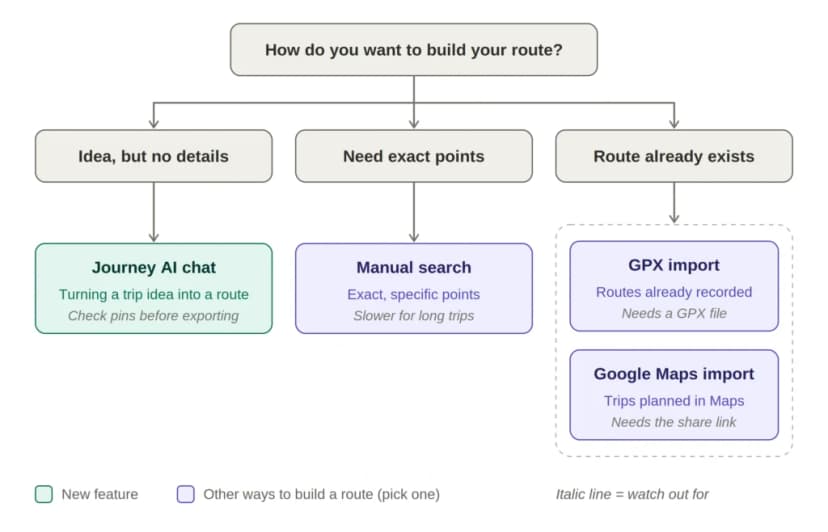
Chat isn’t always the best way to build a route. It depends on how much you already know about the trip.
Use Journey AI when you have the idea but not the details, or when a route has so many stops that adding them one by one would be a chore. Build by hand when you need exact control, such as a particular street corner or a spot with no clear name. Import when the route already exists somewhere else, like a GPX file from a hike or a shared Google Maps link.
If your trip begins right where you’re standing, our guide to starting a route from your location pairs nicely with chat.
Three trips that suit this feature
The multi-stop holiday
You’re planning two weeks across several cities, and you know the countries but not the exact path between them. Instead of adding ten places one at a time, you describe the trip in one message and let the assistant draw a first version. From there you can drop a stop, swap two cities or add a detour. It’s a fast way to see whether the plan feels right before you commit to it.
The creator on a deadline
You post a trip video every week, and the map intro is always the slowest part. With chat, you describe the route in a sentence, check it and move straight on to choosing a vehicle and style. If you share on social, the guide to travel animations for Instagram Stories and Reels shows the formats that work best.
The “here’s roughly where we’re going” share
A friend asks where you’re heading for the long weekend. Instead of explaining it across a few messages, you describe it to Journey AI and send them the animated route. It makes the conversation easier, and the plan starts to feel real. If part of your trip is in the air, the flight path animation guide is a good follow-up.
After the route is plotted
Once the route is on the map, the creative part begins. Choose a vehicle from the 3D model library that suits the journey, such as a car for a coastal drive or a plane for a long haul. Pick a look from the 30+ map styles, then fine-tune it with the guide to customizing your animation’s scene style.
If you use more than one phone, see how to access routes saved on one device from another. And if you’re curious about building videos with an AI assistant outside the app, the MCP server install guide is worth a look
Conclusion
Planning a trip used to mean a lot of searching, tapping and dragging before you had a route worth looking at. With the Journey AI route assistant, it starts with a sentence. You say where you’re starting, where you’re headed and which stops matter, and TravelAnimator plots the route for you.
The quickest way to see how it works is to try it. Update TravelAnimator, open the Journey AI assistant and describe your next trip in one message. If you don’t have the app yet,
Download TravelAnimator now from the App Store or Google Play and plan your next trip with Journey AI.
FAQs
What is the Journey AI route assistant in TravelAnimator?
It’s a chat assistant inside TravelAnimator. You describe a trip in your own words, and it plots the route on your map.
How do I plan a trip with Journey AI?
Open the assistant, type where your trip starts, where it ends and any stops you know, then review the route that appears on the map. Adjust anything that isn’t right before you animate it.
Do I need to know the exact names of my stops?
Not always. The assistant can work from a general description. For the best results, include the start, the finish and the order of the stops.
Can I edit the route after the assistant plots it?
Yes, you can review and adjust it before animating.
Is Journey AI free?
Check the plans page for what each tier includes, and read free vs paid in TravelAnimator if you’re deciding whether to upgrade.