How to Make an Animated Travel Map (Free, on Your Phone)
 Jaseel S11 min read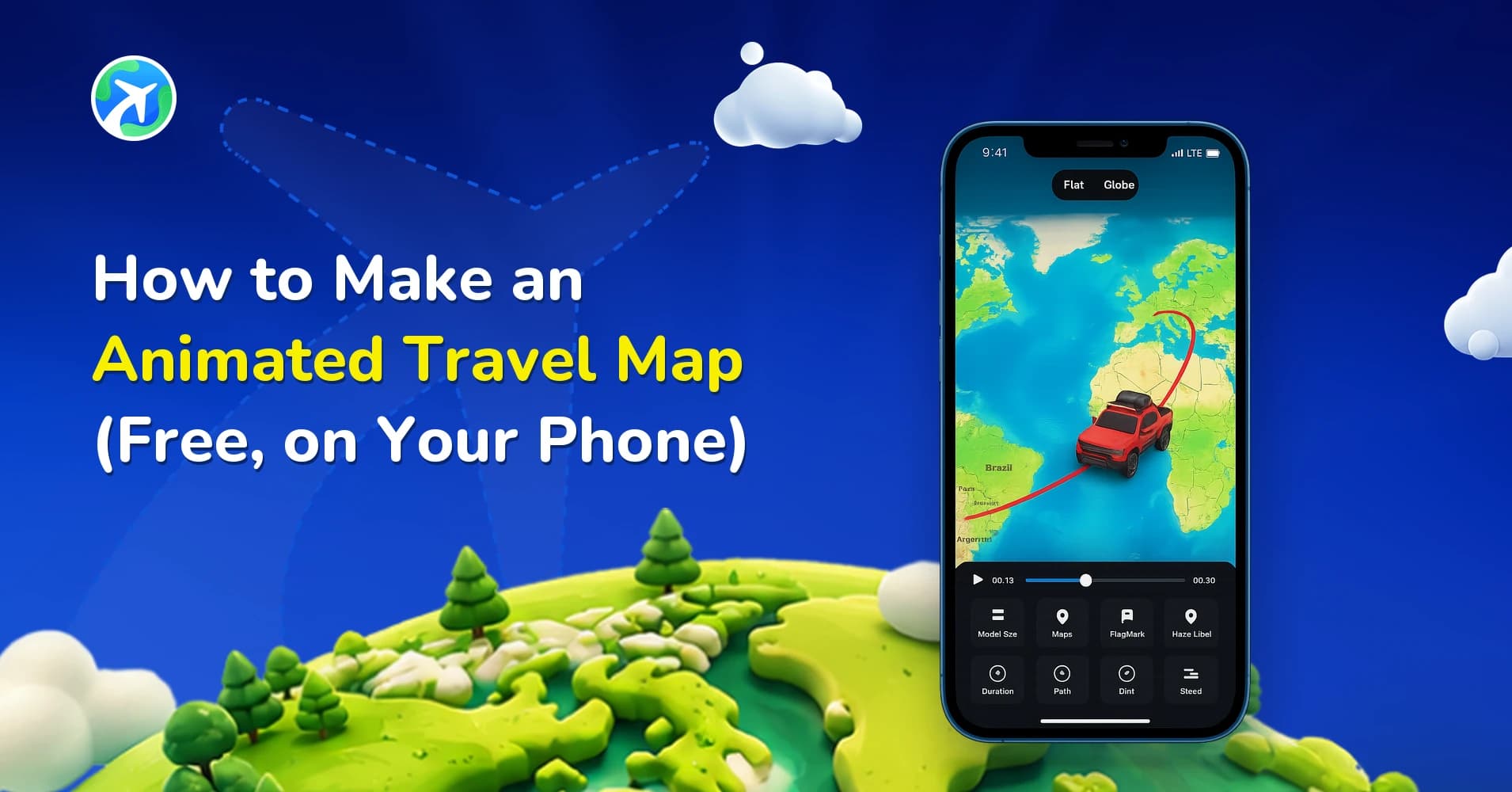
In this article 9 sections
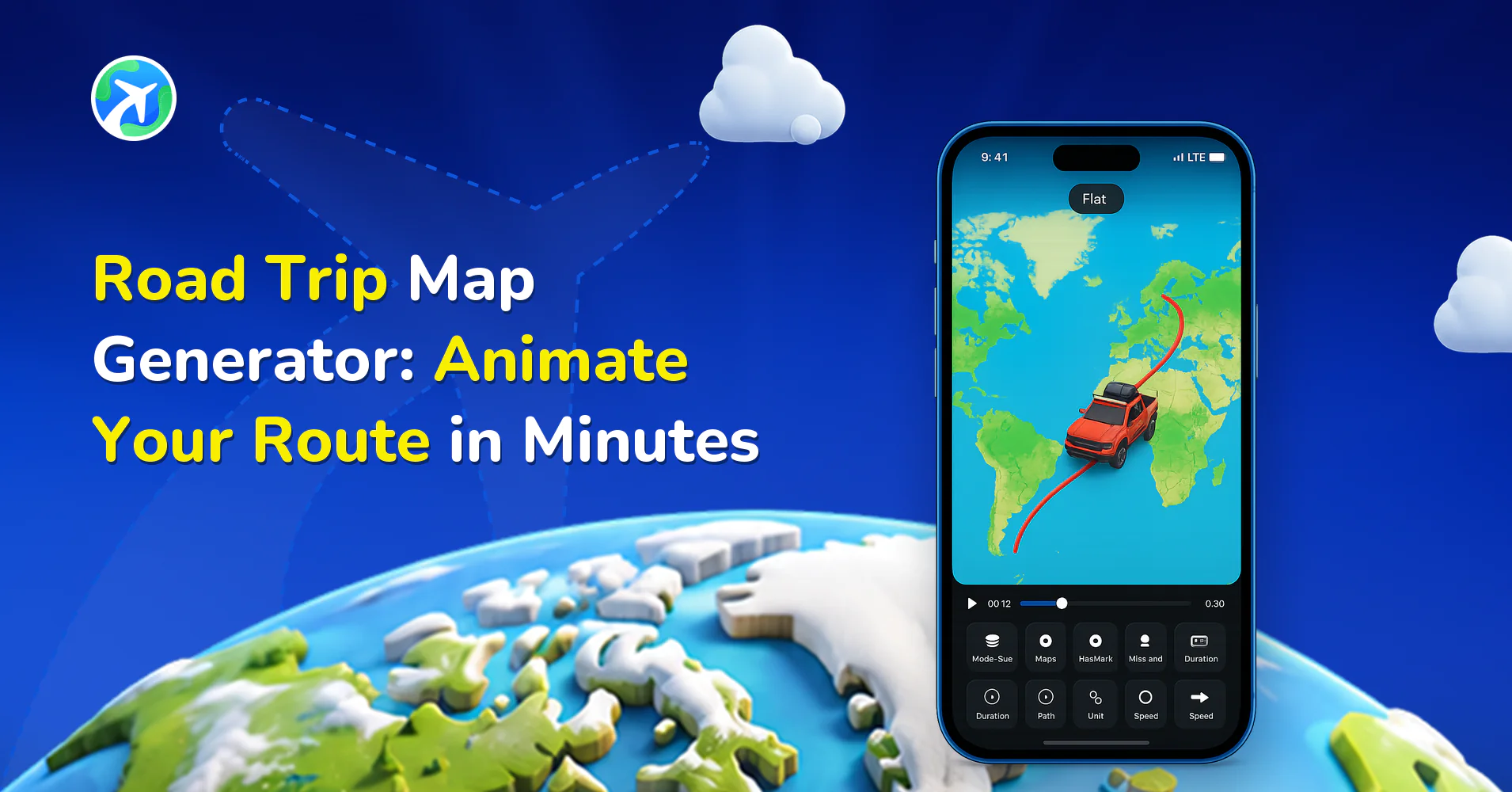
An animated travel map is the little video where a plane, car or dotted line crawls across a map from one place to the next. You have seen a hundred of them on Reels. They look like the work of a motion designer, and for years they mostly were.
They are not any more. You can build one on a phone in about the time it takes to queue for coffee.
This guide covers the whole thing: what you need before you start, the actual sequence of taps, the three settings that decide whether the result looks deliberate or amateur, and what you can and cannot do without paying.
What Is an Animated Travel Map?
It is a short video, usually five to thirty seconds, in which a route draws itself across a map while a marker travels along it. The marker might be a plane for a flight, a car for a road trip, a pair of boots for a hike. The map underneath can be flat, or a rotating globe, or a terrain view with hills you can actually see.
People make them for holiday recaps, itinerary previews sent to a group chat before a trip, YouTube and Reels intros, school geography projects, and cycling or running logs where the shape of the route is the point.
Length is what separates a good one from a boring one, and almost nobody gets that right first try.
What makes the format work is that a static map tells you where somewhere is, while an animated one tells you how the journey went. Direction, order, distance and pace are all in there without a word of narration.
What You Need Before You Start
Very little, which is the appeal. A phone and the place names.
You do not need video editing experience, a laptop, After Effects, or a GPS recording of the trip. If you happen to have a GPS track from a watch or a cycling computer, you can import it as a GPX file and animate the real recorded path instead of a straight line between towns, and TravelAnimator can also pull a route straight from a Google My Maps list you already built. Neither is required to make your first map.
What genuinely helps is deciding one thing in advance, before you open the app: which moment of the trip the video is about. A twelve-stop interrailing month crammed into eight seconds is a blur nobody watches twice.
How to Make an Animated Travel Map, Step by Step
This is the whole sequence in a free account.
- Install TravelAnimator on Android or iPhone and open it.
- Sign up, or skip straight to a new project if you only want to try it.
- Start a new route and search your first location by name. Airports also work by their IATA code, so LHR finds Heathrow.
- Add your destination. The app draws a path between the two points.
- Add any stops in between, in the order you actually travelled them.
- Choose the vehicle or marker that matches the journey: plane, car, train, boat, bike, or a plain dot.
- Pick the map style, and decide between the flat map and the globe view.
- Set the speed and duration so the whole animation lands somewhere between five and twenty seconds.
- Preview it, adjust anything that reads badly, then export the video to your camera roll.
The full step-by-step app guide goes deeper on each screen if you get stuck partway.
The Three Settings That Decide Whether It Looks Good
Most maps that look wrong are wrong in one of three places, and none of them is the map style everyone fiddles with first.
Pace. Too fast and the viewer cannot follow the line; too slow and they swipe away. A single hop wants a few seconds. A multi-country trip wants longer, but not proportionally longer, because the interesting part is the shape and not the mileage.
Path shape. A gentle curve reads as a flight. A straight line reads as a diagram. A real recorded road reads as a drive. The wrong one undermines the story: a curved arc between two towns forty minutes apart looks like you flew, and we have a whole comparison of straight versus curved paths because it matters more than it sounds.
Accuracy of the route. The default is a clean line from A to B. Turn on Real Routes and the marker follows actual roads instead, which is what you want for a road trip where the detour was the story. For a long-haul flight it is unnecessary, because nobody expects a plane to follow a motorway.
Multi-Stop Trips Without the Blur
Two points are easy. The interesting problem is the trip with nine stops.
The mistake is treating every stop as equal. If you drove Lisbon to Porto over ten days with six overnight stops, the animation does not need all six at the same weight. Give the two that mattered a pause, let the marker pass through the rest, and the video suddenly has rhythm instead of a uniform crawl. Reading pauses exist for exactly this, and our guide to planning multi-stop routes covers the ordering side.
If you already mapped the trip elsewhere, importing from Google My Maps saves retyping a dozen place names, and it usually catches the stop you forgot.
A useful test: play it back and see whether you can name the stops in order without pausing. If you cannot, there are too many of them or it is running too fast.
Can You Make an Animated Travel Map for Free?
Yes, and this is worth being precise about because the honest answer has one condition.
The free version gives you nearly every feature: routes, stops, vehicles, map styles, the globe view, real routes, export. What it adds is a watermark on the exported video. PRO removes it. Everything else you can explore before deciding whether the watermark bothers you, and for a video going to a family group chat it usually does not. For a client deliverable or a channel intro it does, and our breakdown of how watermarks work in Free versus PRO lays out the export differences.
The practical split:
- Free is enough for personal recaps, group chats, and testing whether the format suits your content at all.
- PRO earns its keep once the video carries your name, a client’s, or a channel’s.
So make your first few maps free and upgrade at the point you have a reason to, not before.
Animating a Route You Actually Recorded
Everything above builds a route from place names. There is a second way in, and for anyone who rides, runs or drives with a tracker it is the better one.
A GPX file is the trace your watch, phone or cycling computer saved: thousands of timestamped points following the road or trail you really took. Import one and the marker follows that, not an idealised line. A 60 kilometre ride through switchbacks looks like switchbacks. The climb is visible in the shape.
The catch is that raw GPS is messier than people expect. Tunnels drop out, tree cover scatters points sideways, and a stop for lunch shows up as a dense knot where you stood still. So there are two things worth doing after an import: smooth the track so the noise stops reading as swerving, and trim the ends where the recording started in a car park. We cover smoothing GPX routes and customising an imported GPX route separately, and there is a straight comparison of GPX against the Google Maps feature if you are deciding which route source to use.
For a flight or a city-to-city train, skip all of this. There is no recorded trace worth having and the clean line is more honest.
Choosing the Shape Before You Export
Where the video is going decides the frame, and it is easier to pick first than to re-export later.
- Reels, TikTok and Stories want vertical, and the route should stay in the middle band where the interface does not cover it.
- YouTube and anything embedded in a blog want horizontal, which also gives a wide route more room to breathe.
- A group chat does not care. Send whatever you have.
One thing worth checking before a long export: whether the resolution you have chosen matches where it is going. A vertical clip squeezed into a widescreen slot gets pillarboxed with grey bars down both sides, and the fix is a re-export rather than a crop.
You Do Not Need to Have Taken the Trip
Half the useful cases are not holiday recaps at all.
An itinerary preview sent round before a trip settles arguments about the order of stops faster than a paragraph does. Teachers and students use the same thing for geography and history projects, where the movement is the lesson. Estate and relocation agents animate the commute rather than describing it. Cyclists and runners animate the route because the shape of a long ride is the achievement, and a flat map of it says nothing.
The mechanics are identical in every case. Points, order, marker, pace.
Going Further: 3D Earth, Terrain and Styling
Once the basic route works, the upgrades that change the feel most are the globe and the styling. A route that zooms out to a rotating 3D Earth suits intercontinental trips in a way a flat rectangle never does, and 3D Earth route videos are their own short guide.
Terrain styling is the other one worth a look, because a mountain route on a flat political map loses the entire reason the route was hard. A terrain or satellite base puts the elevation back.
Beyond that: place labels you can rename, your own images pinned along the route, custom text, brand logos, terrain styles, and a horizontal export for YouTube rather than a vertical one for Reels. None of it is necessary for a good first map, and all of it is where the time goes on the fifth one.
Where People Get Stuck
- Cramming a month-long trip into one animation. Split it, or drop the stops that were only a night.
- Leaving the pace at the default for a two-hour drive, so the marker inches along while nothing happens.
- Using a curved flight arc for a journey that was obviously a train.
- Exporting vertical for a widescreen platform, then wondering why it is cropped.
- Expecting a GPX import to fix a sloppy route. It animates what your watch recorded, drift and all, though it can be smoothed.
Conclusion
An animated travel map is one of the few things in video that is genuinely quick and still looks considered, provided you pick the pace, the path shape and the route accuracy on purpose rather than leaving all three on default. Start with one trip, two points, and a marker that matches how you actually travelled.
FAQs
How can I create a free animated travel map?
Install TravelAnimator, add your start and end points, choose a vehicle that matches how you travelled, set the pace and export. The free version includes routes, stops, map styles, the globe view and real routes, so nothing about building the map is paywalled. The single difference is a watermark on the exported video, which PRO removes. For anything going to a family group chat that is usually irrelevant; for a client deliverable it is not.
How can I make animated maps without video editing software?
You do not need any. The whole sequence happens in the app: search your locations, pick a marker, set the pace, preview, export to your camera roll. There is no timeline to edit and nothing to render on a computer.
How can I create my own travel map from a trip I already took?
Add the stops in the order you travelled them, or import the route if you have it. A GPX file from a watch or cycling computer animates the path you actually recorded, and a Google My Maps list can be imported instead of retyping every place name.
How do I make animated Google Maps routes?
Import the route rather than rebuilding it. TravelAnimator reads a Google My Maps list, and turning on Real Routes makes the marker follow actual roads instead of a straight line between points.
How long should an animated travel map video be?
Five to twenty seconds for most trips.
Can I animate a route on a 3D globe instead of a flat map?
Yes, the globe view is built for exactly that.