How to Create and Plan Multi-Stop Routes in TravelAnimator
 Jaseel S6 min read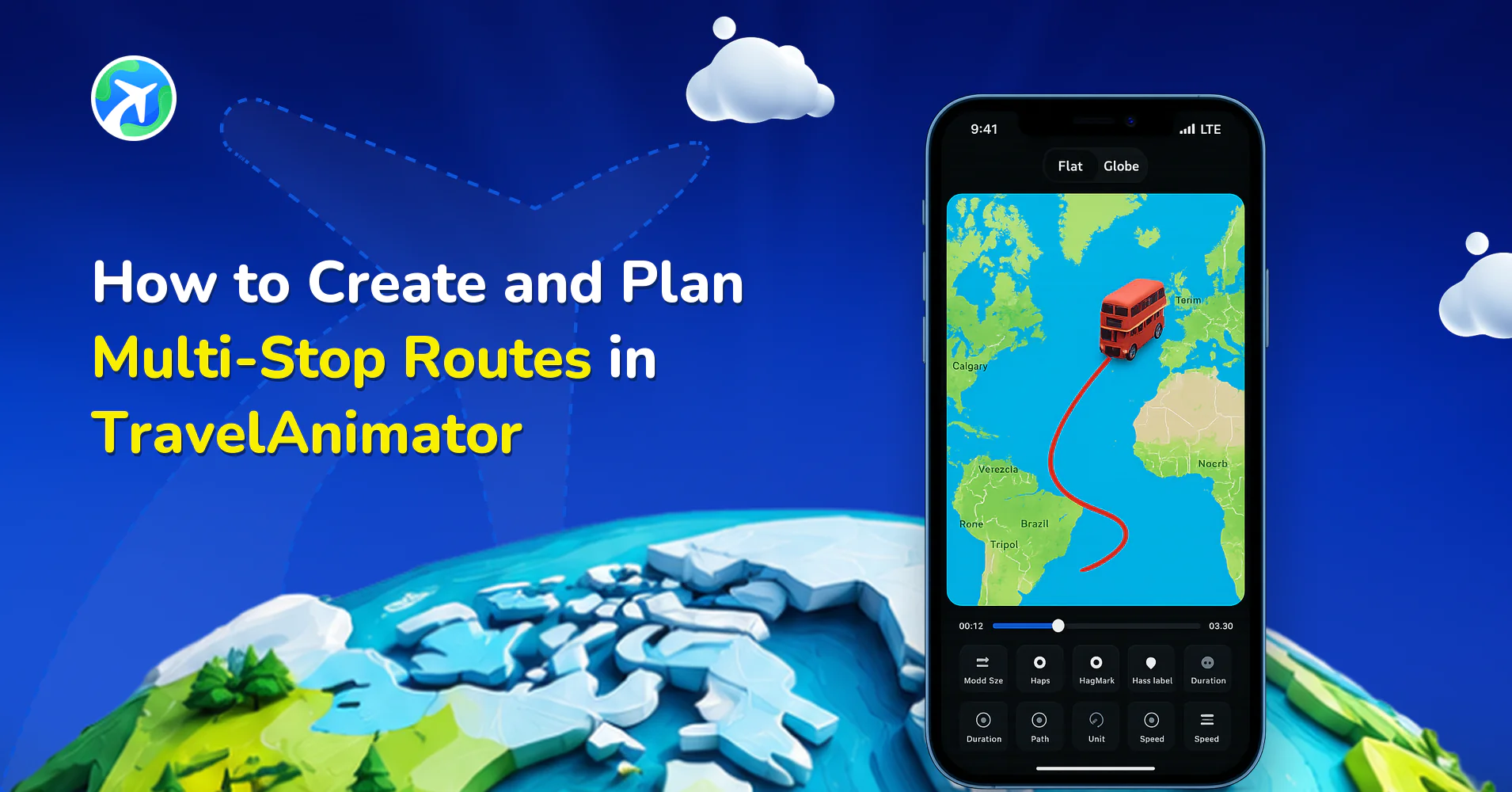
TravelAnimator makes this easier than ever. With the ability to add multiple points, adjust paths, customize looks, and animate your entire route, you can turn any multi-destination trip into a cinematic travel story.
Whether you’re documenting a cross-country road trip, mapping your European backpacking adventure, or planning an upcoming vacation, multi-stop routes help you visualize and remember your journey the way it truly happened. The best part is that you can use these multi-stop routes both before your trip for planning and after your trip for documenting your memories.
In this comprehensive guide, you’ll learn how to create multi-stop routes, how to plan multi-destination trips using the app, and how to customize your animations to look accurate and visually engaging.
What are Multi-Stop Routes in TravelAnimator
In TravelAnimator, every point you tap on the map becomes a destination. A multi-stop route is simply a route with two or more stops, anything from a simple two-city trip to a 20-destination world tour.
For example, a road trip with stops in multiple towns, a backpacking itinerary through several countries, a flight route with layovers, a cruise journey through multiple ports, a city exploration with various landmarks, a cross-continent adventure, and many more. If your journey has more than one destination, you’re creating a multi-stop route.
Why are Multi-Stop Routes Important for Travel Creators
A multi-stop route allows you to showcase the whole arc of your journey, including every flight, every stop, every road, and every new place. Whether you’re a travel creator, vlogger, tour planner, digital nomad, or casual traveler documenting memories, multi-stop routes help you to tell a complete story, not just the start and end. It helps to visually represent trip progression by adding captured images at every destination.
You can also plan travel more effectively by visualizing the entire route and sharing journeys online in a professional, cinematic format. TravelAnimator transforms these paths into fluid animations that bring your trip to life, something static maps can never achieve.
How to Create a Route With Multiple Stops in TravelAnimator (Step-by-Step)
1. Start a New Project & Add Your First Route Point
- Open TravelAnimator and start a fresh project.
- Tap anywhere on the map to place your first point. This becomes your starting location. Tap on another point to fix the end destination.
- You can use the search option to place your first point. You can add cities, landmarks, Islands, and different countries through the search option. This is your route’s foundation.
- The next option is to import a GPX file or a Google Maps link of your multiple destination route to plot the exact path you traveled.
2. Add Additional Stops (Your Multiple Destinations)
- Now, continue tapping between the starting and endpoint to add new stops or add destinations through the “+” icon above the preview video button. Every destination you add becomes part of your animated journey.
- If you placed a point in the wrong order, you can drag points to reorder and adjust their position.
3. Edit and Customize Each Point for Accuracy
Once all your stops are added, you can refine your route.
- Tap on the points and drag them to move them, fixing incorrect placements or adjusting for accuracy.
- Double-tap on the point to delete any extra points.
- Make your path flow naturally by adjusting curve points.
- If you are confused when adding points, zoom in for precision, especially helpful for dense city routes.
- Long-press on each point to add the model that you used to travel, add images that you captured while traveling, and labels if you need to add any text.
4. Preview and Adjust Your Route to Fit Your Story
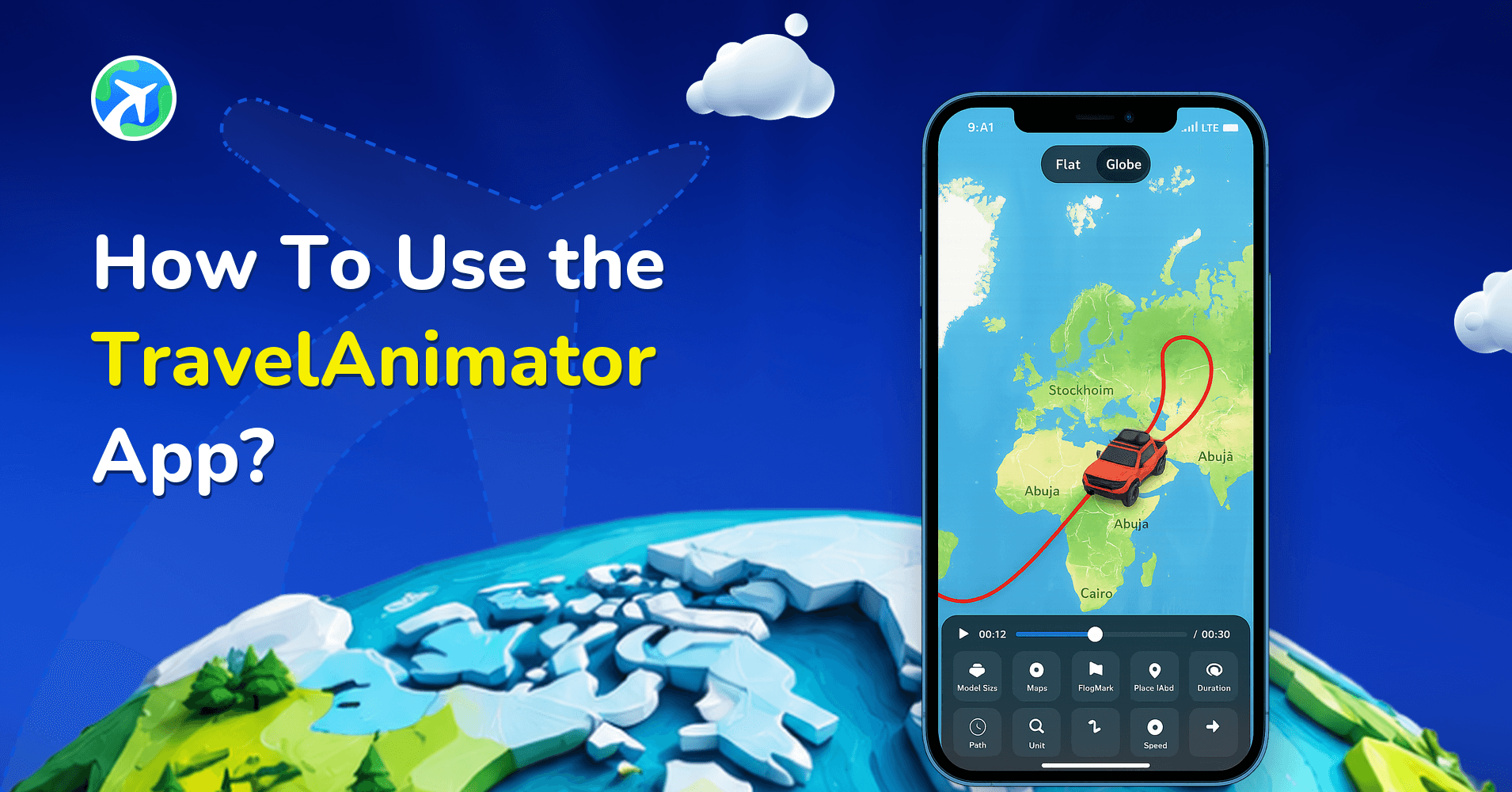
- Adjust the model size and video duration that fit your animation.
- Select the ratio according to your purpose, whether the video is intended for Instagram Stories, WhatsApp Status, or YouTube videos.
- Choose the most suitable path color.
- Tap on the flag to display the flag of the visited countries in that animation.
- Tap the unit to display distance in miles; tap again to switch to kilometers.
5. Choose the Map Style
- Go to the Maps and select the map that best suits your video’s purpose and theme.
- Toggle on or off to place labels in the background map and select.
- Switch to 2D or 3D maps from the top right corner of the screen.
6. Export the Animation
- Export the animation in HD or 4K quality.
- Share it directly on social media and keep it on your device.
How to Plan a Multi-Stop Trip Using TravelAnimator
- Open the TravelAnimator app and start creating your planning destinations.
- Add all your desired destinations in the best order to get a logical flow for your travel.
- Add travel models for each destination where you plan to travel.
- You can add images of the planned destination and use labels to mention the name of each destination.
- Preview to check if the planned route is ok.
- Tap on the units to determine the distance you plan to travel.
- Adjust model size, video duration, and other elements to get the perfect output.
- Export the animation to get your visual trip plan.
Tips for Making Multi-Stop Routes Look Engaged
Use curves to smooth the path and avoid sharp angles except in necessary cases. Curved paths look natural and cinematic.
Add labels for each stop, such as city names or landmarks to help viewers follow the journey clearly.
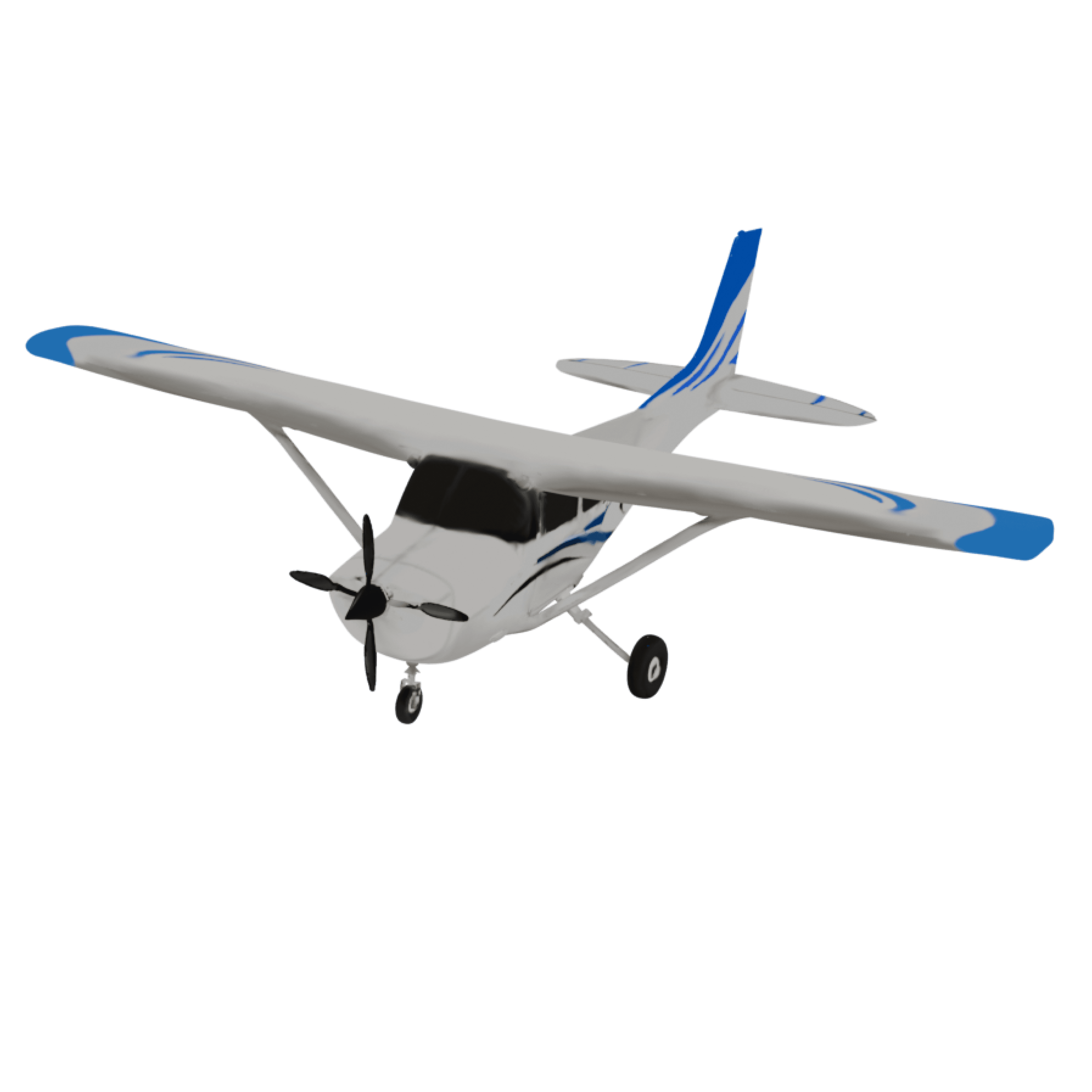
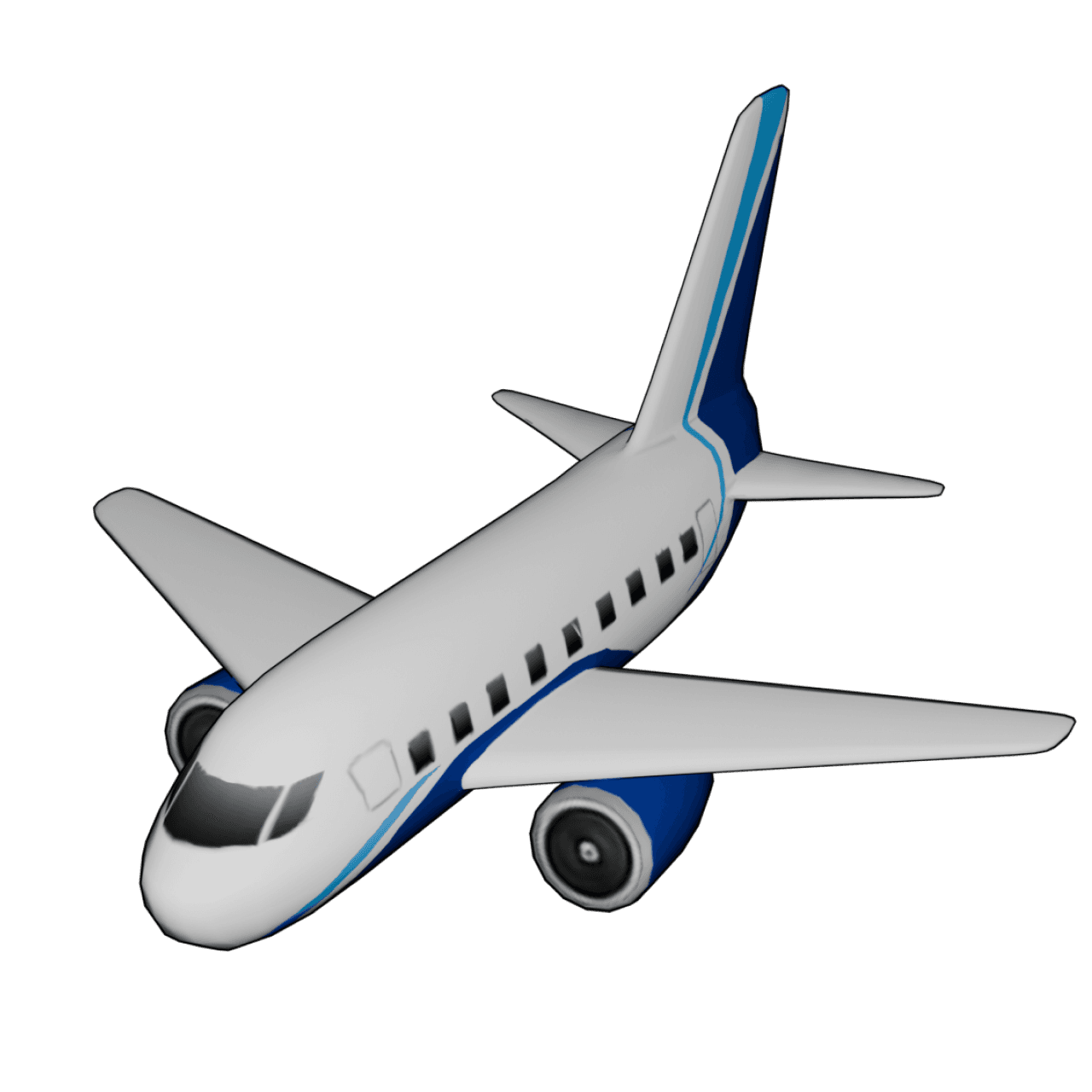
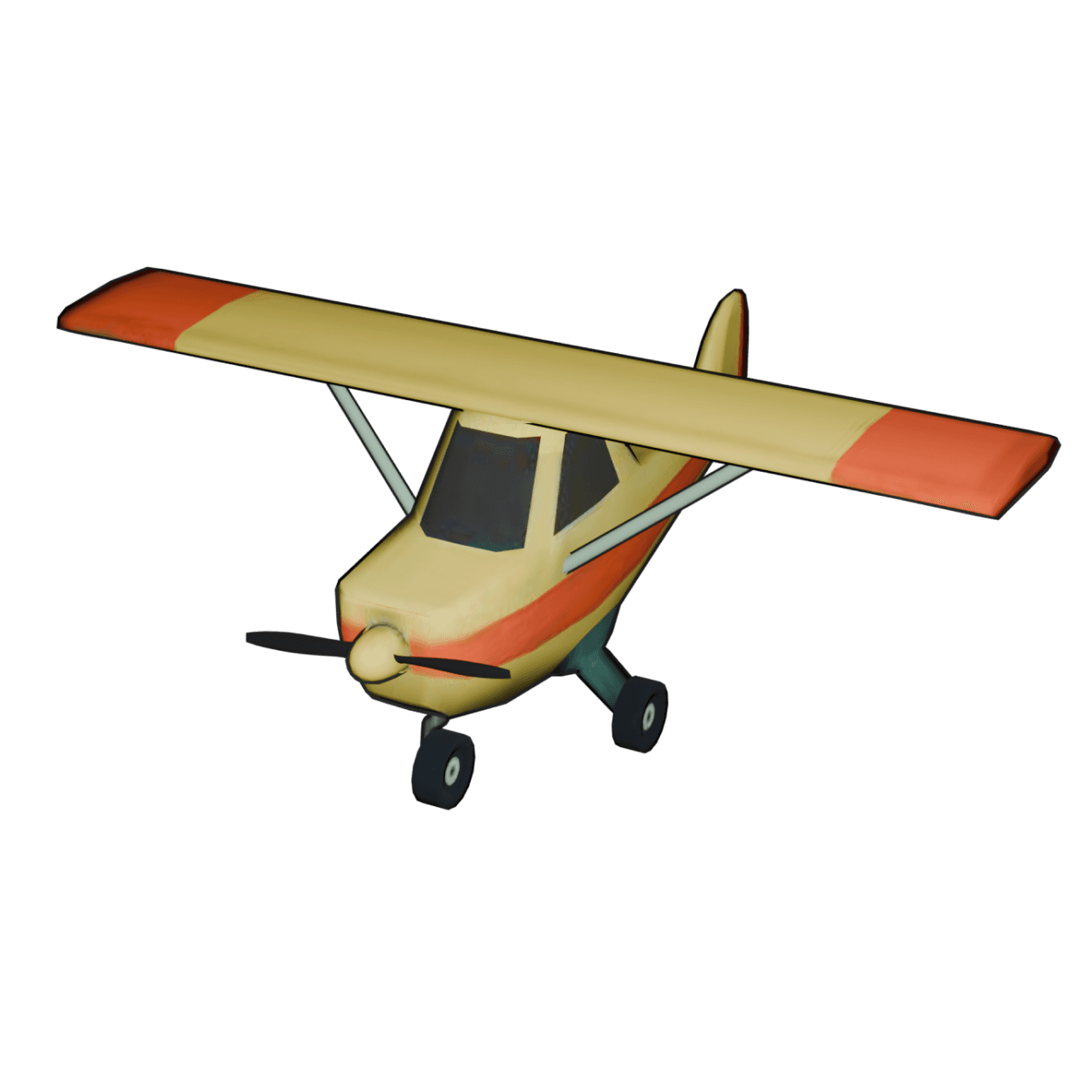
Choose models that match your story. For example, use cars for road trips, planes for flights, ships for cruises, and festive models for seasonal journeys.
Adjust the video duration to match the speed of the animation video. Use a longer duration for slightly slower speed and a shorter duration for quicker transitions.
Select the right map style, such as 2D for a minimalist and clean look, 3D Earth for global routes, Dark mode for a modern feel, winter maps for festive journeys, or Black & White maps for an elegant storytelling experience. The map sets the tone for your entire video.
Common Mistakes When Creating Multi-Stop Routes in TravelAnimator and How to Fix Them
- Stops are placed too close together, making it congested. So zoom in to place points accurately.
- Sharp angles and straight routes look unnatural, so use points to control the curve to smooth the path.
- The incorrect route order makes it confusing and causes it to collapse. Reorder stops for a logical flow.
- Crowded points or too many labels make the animation complicated. Keep your design clean and readable by adding labels at key points of interest.
- Mismatched map styles make the animation aimless. Choose a map that complements your trip.
- Forgetting to preview before exporting to make sure everything is fine.
Turn Your Multi-Stop Trips Into Beautiful Route Stories With TravelAnimator
Travel is full of moments, places, and memories, and multi-stop routes help you preserve them all in one beautiful animation. With TravelAnimator, you’re turning it into a visual story you can revisit anytime and share with anyone instead of just mapping your journey. Whether you’re planning a future trip or documenting one you’ve already taken, TravelAnimator gives you the freedom to design multi-destination routes that feel both professional and personal, making them memorable.
So start creating your multi-stop travel story today and turn your journey into an animation worth keeping.