How to Customize the GPX Route in Travel Animator
 Jaseel S4 min read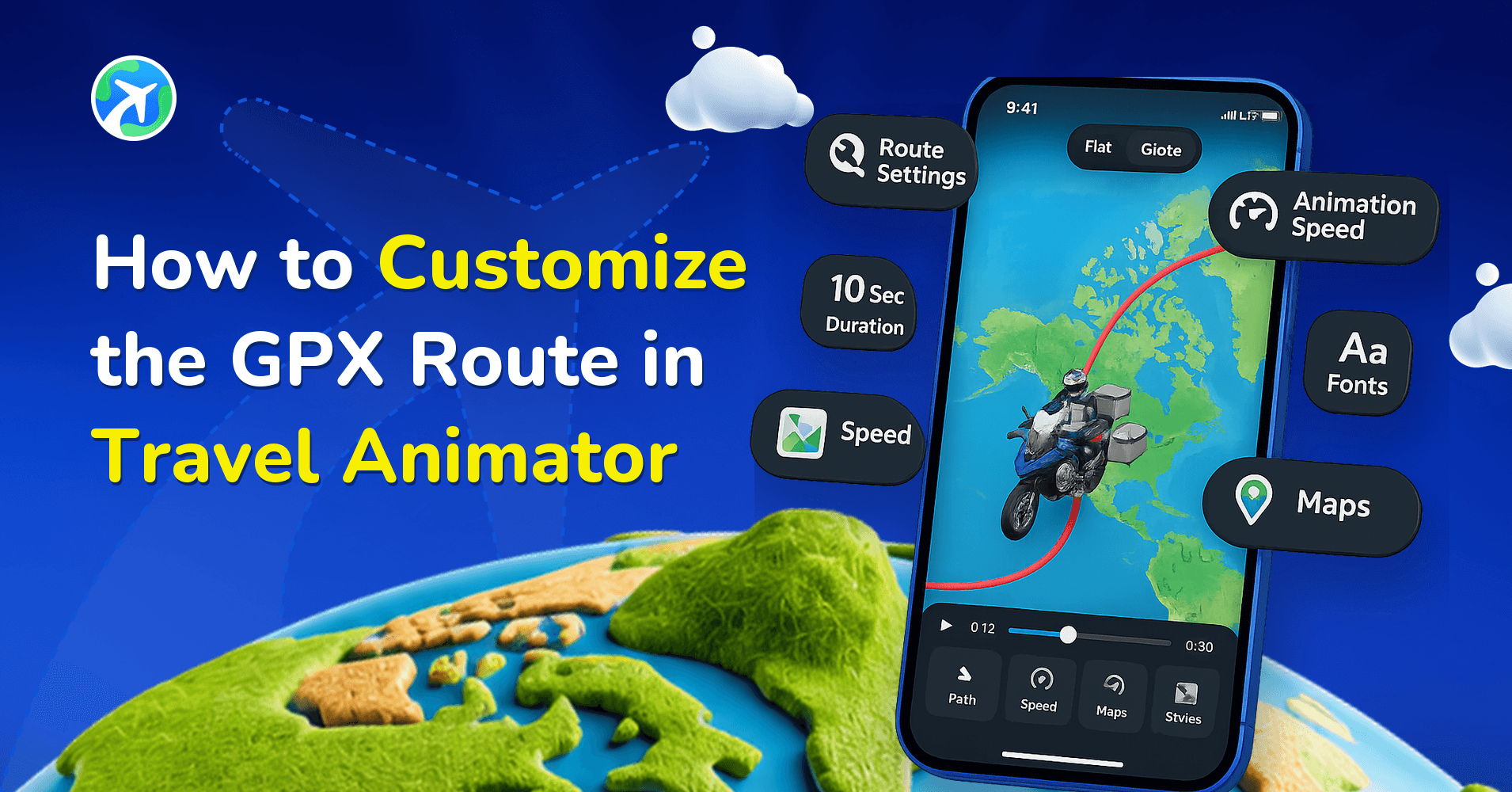
Travel routes imported from GPX files are now more powerful than ever in the Travel Animator app. With the latest updates, you can customize points across the entire GPX path just like you would with manual routes and Google Maps routes.
What used to be a static imported track can now be transformed into a smooth, detailed, and storytelling-driven animation. Whether you’re working with a hiking trail, a road trip, a cycling route, or a multi-country journey, GPX customization gives you full creative control now.
This guide will walk you through how to customize GPX routes step by step using the updated UI and features.
What is a GPX Route in TravelAnimator?
A GPX route is a file that contains real-world GPS data, including paths, coordinates, and stops recorded during a journey. When you import a GPX file into TravelAnimator, it automatically plots your exact route on the map. This is especially useful for Road trips, Cycling or bike routes, Hiking trails, Multi-stop travel journeys, etc. GPX files reflect the actual path taken, making your animation more accurate and realistic.
A raw GPX import is accurate but often too plain, since it may include only turns and paths with no storytelling elements. That’s where the latest update comes in, adding advanced editing capabilities so you can shape that raw track into a proper story:
- Zoom-Based Point Editing: You can now zoom into your route and edit individual GPX points
- Add Models on GPX Routes: Assign different transport models directly to points of your GPX route
- Media Integration: Add text, images and videos to specific points along the GPX path
- Add Destinations: Easily add manual routes with GPX and drag routes to make adjustments.
- Enhanced UI Controls: Faster editing with a cleaner, smoother interface
With these tools, you can add more destinations to complete the route, highlight key moments, add context with labels, images and videos, match models to different travel segments, and turn a rough GPS track into a clean, engaging animation that feels like a story rather than just a route.
Step-by-Step: How to Customize GPX Routes in Travel Animator
To Import the GPX Route
1.Open the Travel Animator app, then go to route settings.
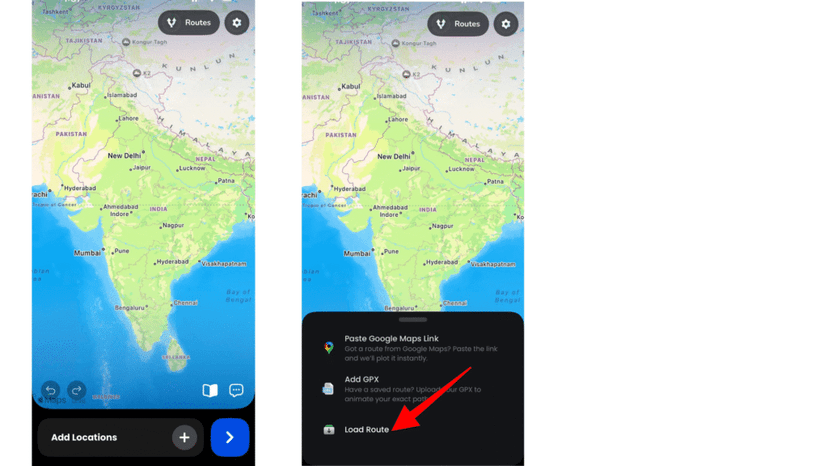
2. Tap on Add GPX and select your GPX file from your device.
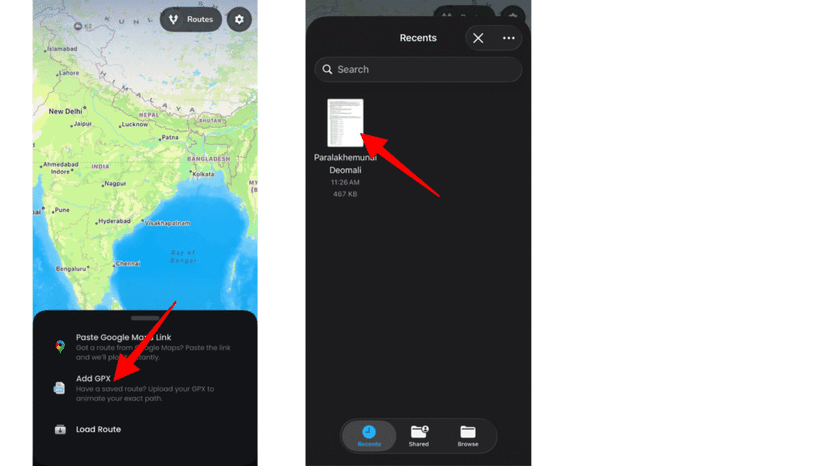
3. Once imported, the route will automatically appear on the map based on your recorded path.
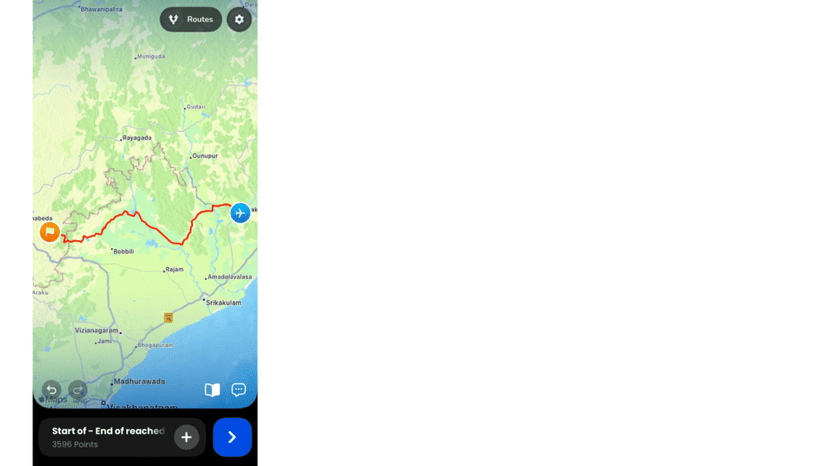
To Edit and Customize the GPX Route
- Zoom in to the maximum level on your route to see the route points.
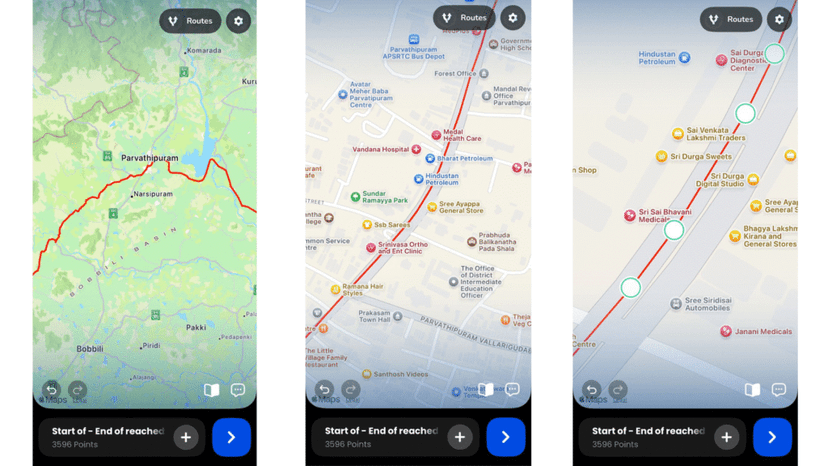
2. Long-press on any point to open the editing menu.
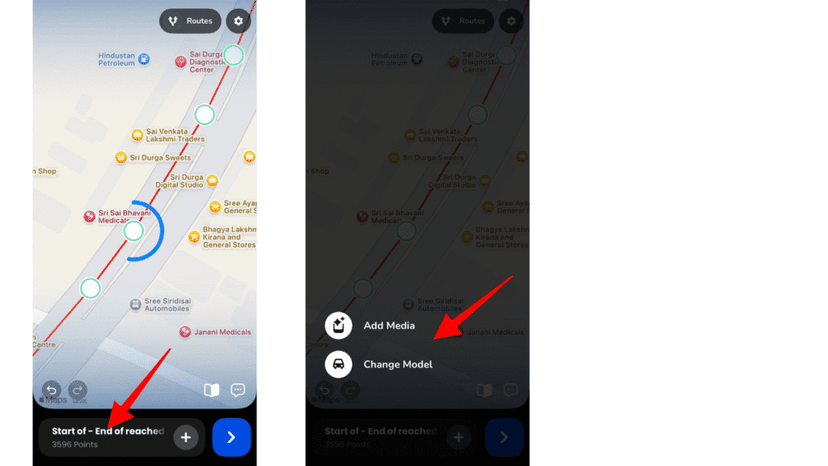
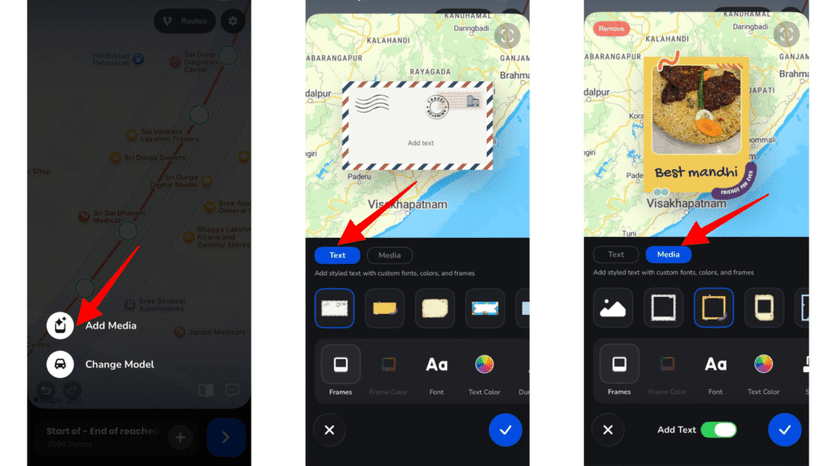
3. Go to Add Media to insert and customize text, images & videos at a specific point.
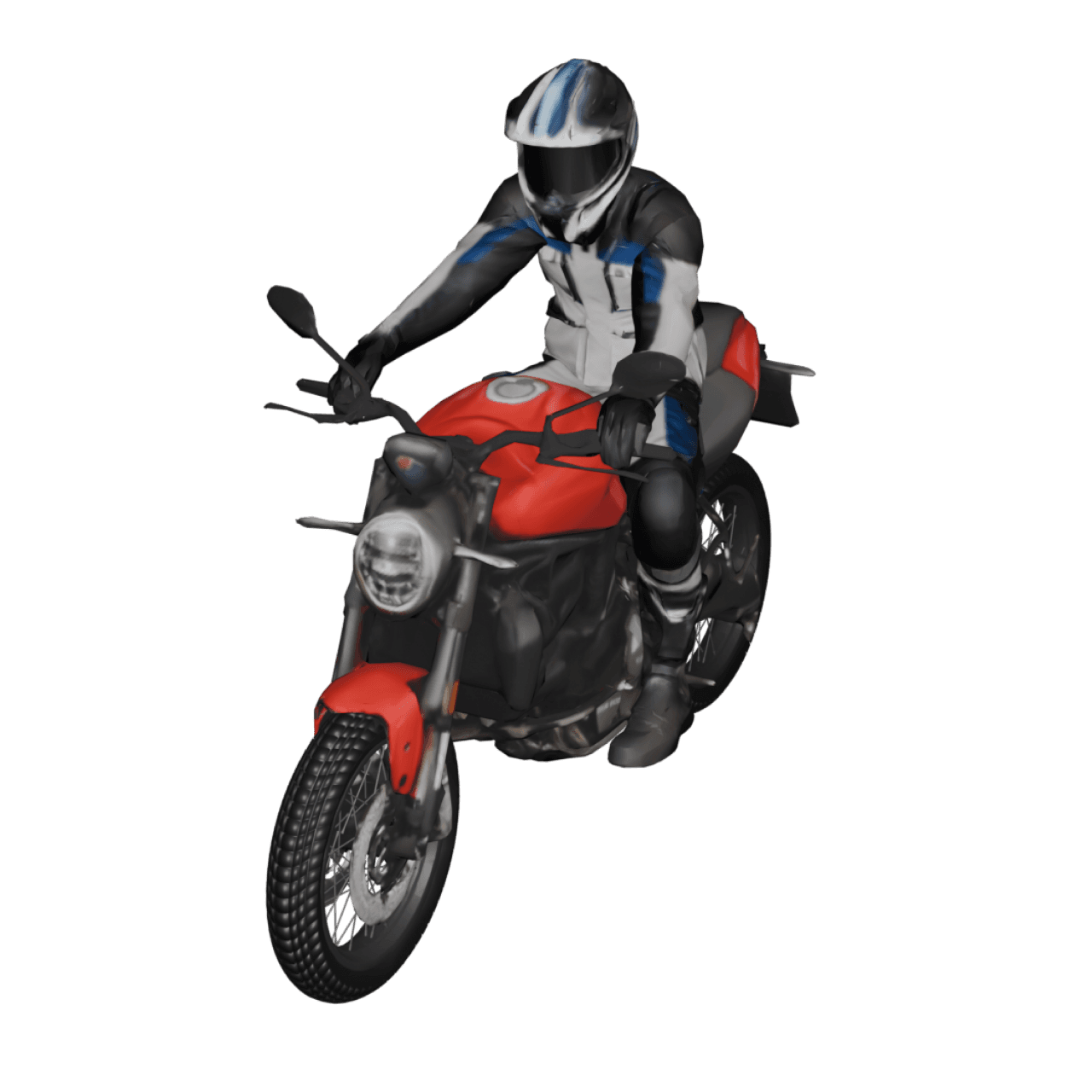
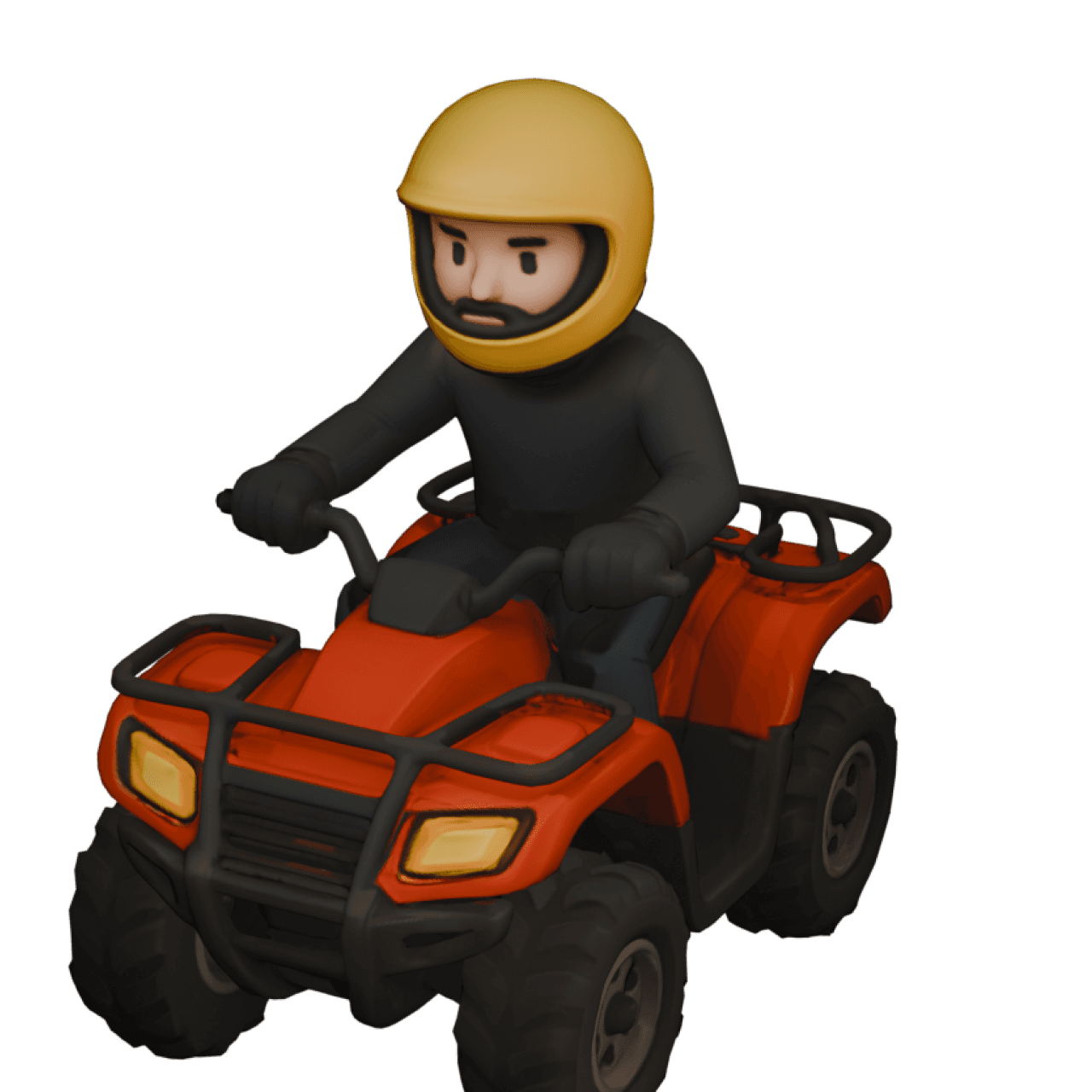
4. Tap Change Model to open the models menu with 300+ model options. You can change the most suitable model from there.
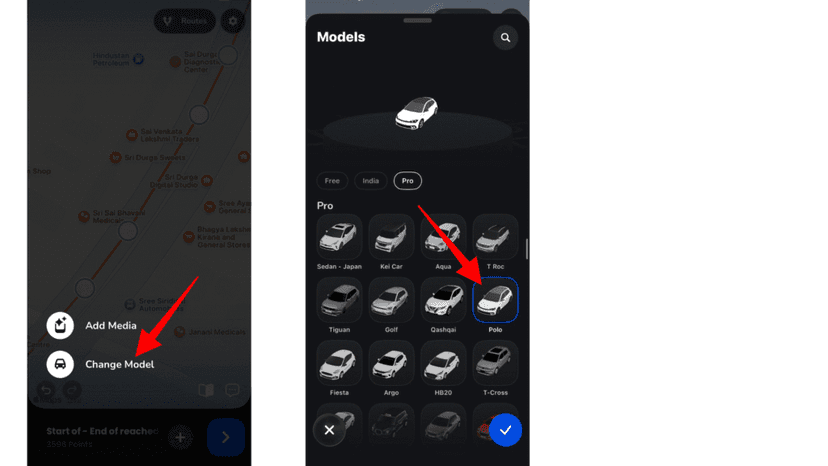
5. Repeat the process across different points of the route to enhance storytelling.
6. You can add more destinations by tapping the + button and enter location.
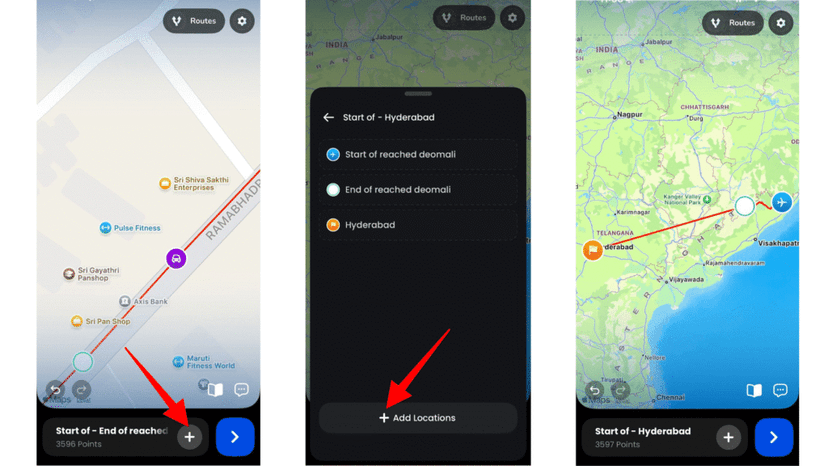
To Preview and Export the GPX Animation
- Preview your animation to check route flow.
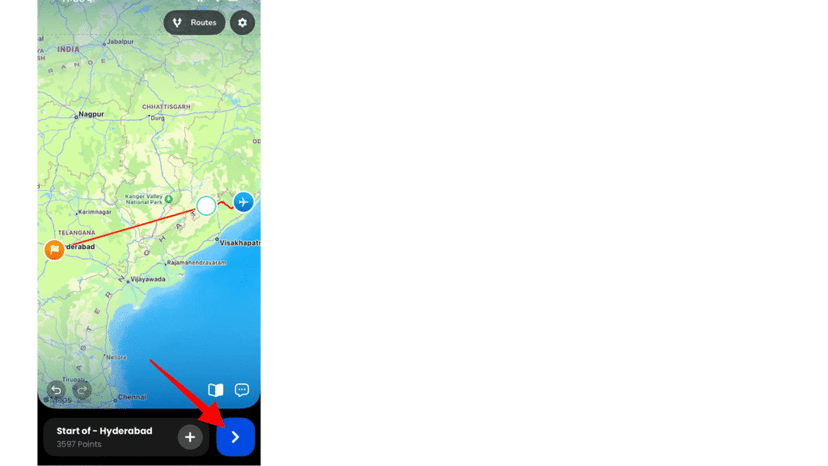
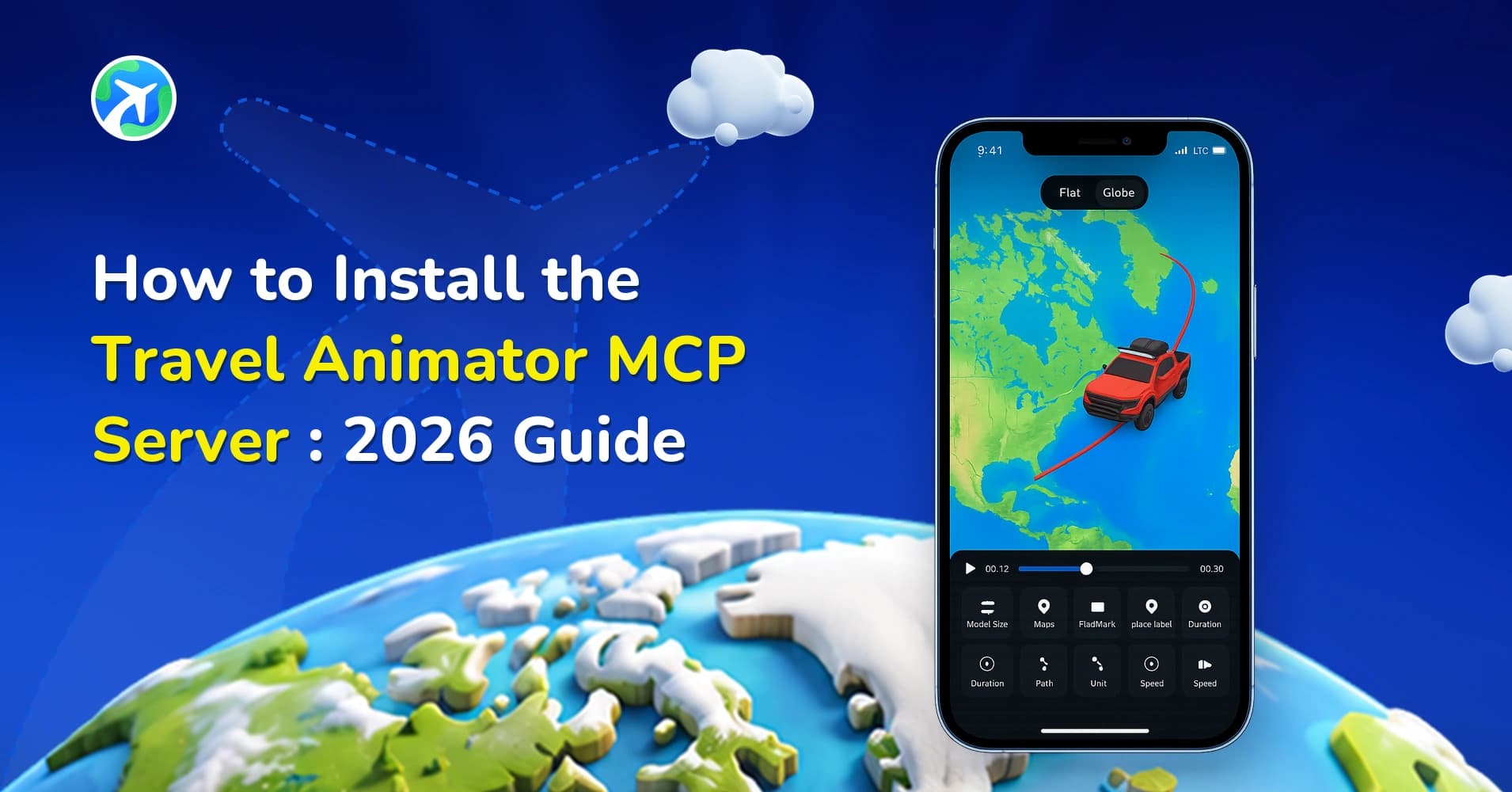
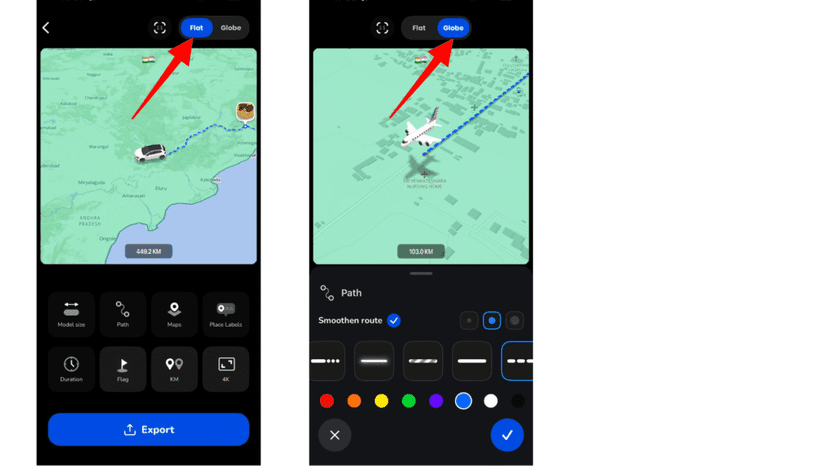
2. Adjust settings such as ratio, model size, path customization, map style, place labels, animation duration, flag, units, cover image, scene style and export quality.
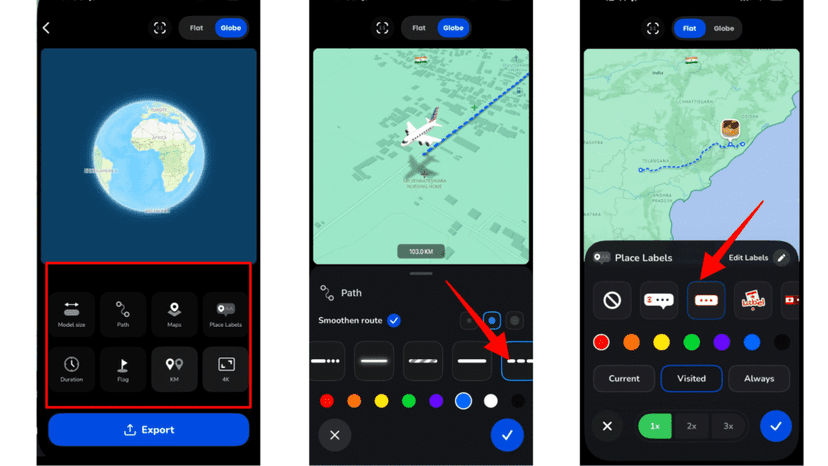
3. Choose between 2D and 3D map views depending on your visual preference.
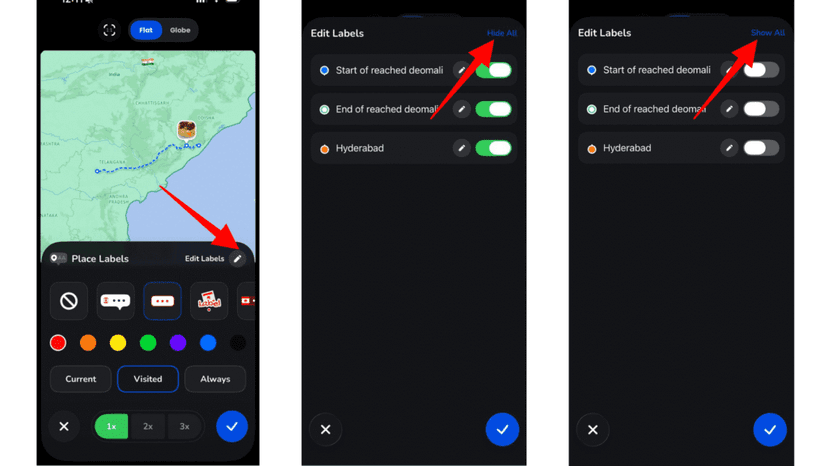
4. Toggle place labels on or off based on your content style from place labels customization.
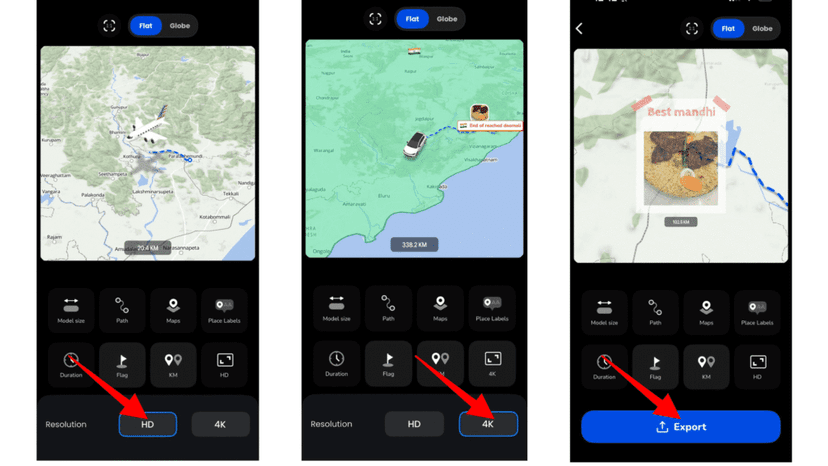
5. Export your video in HD or 4K for the best quality output.
Common Mistakes When Editing GPX Routes
- Avoid over-editing your route, as too many adjustments can distort the original path and reduce accuracy.
- Do not add too many labels or images, as this can clutter the animation and distract viewers.
- Make sure your route remains aligned with real paths to maintain authenticity.
- Always preview your animation before exporting to catch errors early.
- Avoid using oversized models that may block the route visibility.
- Choose a map style that matches your journey theme for better storytelling.
FAQs
Can I edit GPX route points in Travel Animator?
Yes, you can edit your GPX route by changing models and adding text, images & video. But you can’t adjust individual route points using the new editing features.
Can I add models to GPX routes in Travel Animator?
Yes, you can assign different models to different points of your GPX route.
Can I add images and labels to GPX routes in Travel Animator?
Yes, you can add both images and text to specific points for storytelling.
Is GPX better than Google Maps routes in Travel Animator?
GPX is better for getting an accurate route, while Google Maps is easier for quick route creation and for creating an original route.
Make Every GPX Route More Meaningful
Customizing GPX routes in the Travel Animator app allows you to turn raw GPS data into a visually engaging travel story. With features like zoom-based editing, model switching, and media integration, you can create animations that feel both accurate and expressive. The next time you import a GPX file, take a few extra minutes to refine it. Adjust the route, add labels, include images, and match models to your journey. These small enhancements can turn your route into a professional, shareable travel animation.
Start Creating Smarter GPX Animations today by downloading TravelAnimator from the App Store or the Play Store.