How to Customize the Google Maps Route in Travel Animator
 Jaseel S5 min read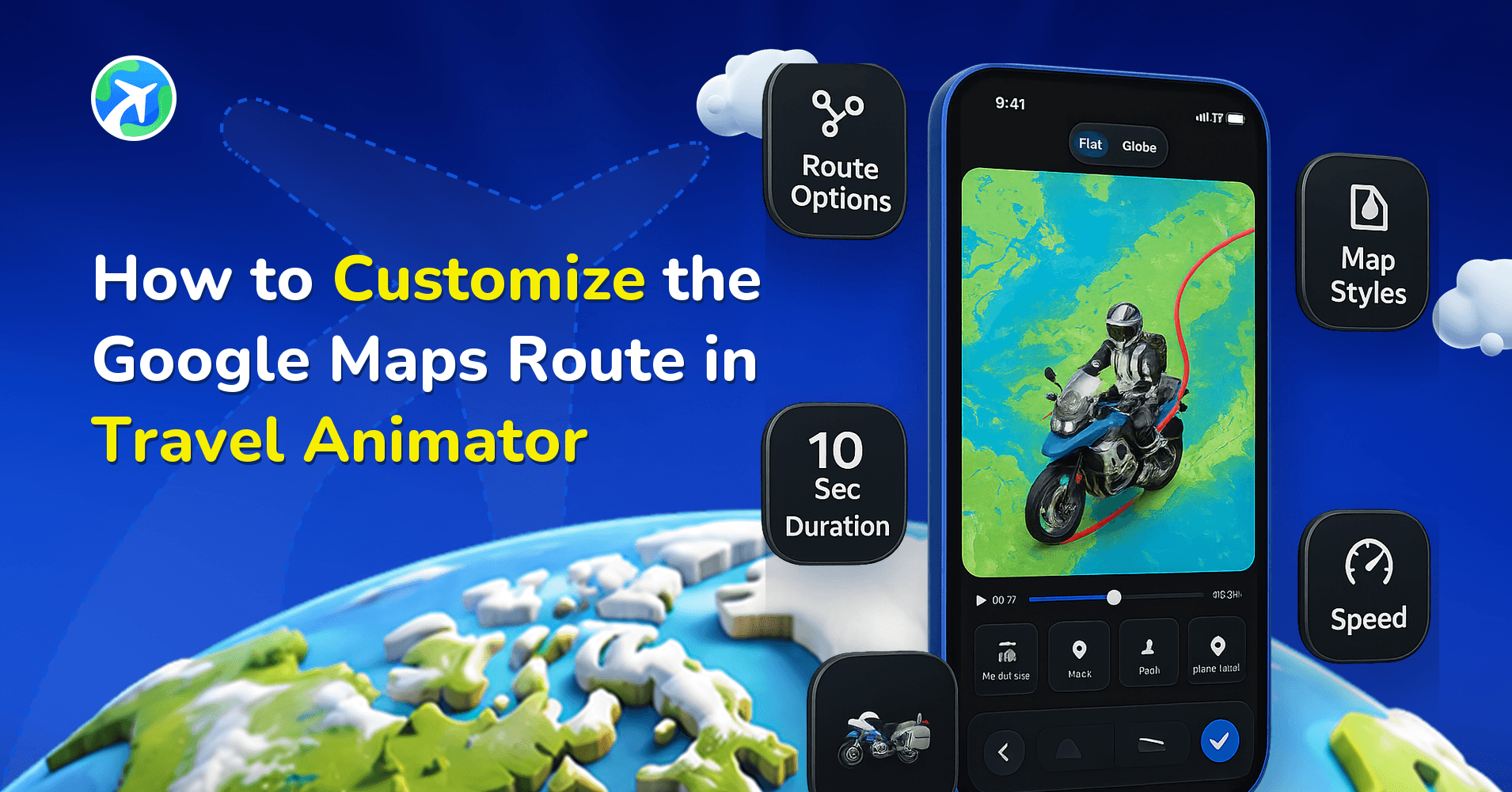
Travel Animator gives you full control over route customization. You’re not limited to the default Google Maps structure; you can smoothen your routes, rename points, change models, add labels, and even enhance visuals with images or background maps. What starts as a basic exported path quickly becomes a smooth, expressive, storytelling-friendly animation.
Importing a route from Google Maps into Travel Animator is fast and convenient, but the first draft often looks too familiar. It may ignore your personal images, models you used, or miss the natural flow of your journey.
This will guide you through the complete process of customizing your Google Maps route in Travel Animator. You’ll learn how to turn a standard imported route into a unique travel animation that feels accurate, personal, and visually engaging.
Why Should We Customize Google Maps Routes in TravelAnimator?
When you import a route from Google Maps into Travel Animator, the system automatically draws the most efficient path between your chosen locations. While this path is accurate, it often lacks the visual appeal and storytelling touch that make travel animations engaging.
Customizing your Google Maps route allows you to reshape it into something more realistic and expressive. You can choose the best alternative path, ensuring it accurately reflects your actual journey. It also helps you refine the look and feel of your animation by smoothing routes and creating a natural flow that feels natural rather than robotic.
Beyond accuracy, customization allows you to add personality to your video. By adding different models you’ve used, inserting text labels, or travel photos, you can transform your animation map into dynamic visuals. Each adjustment transforms your simple route into a story filled with emotion, creativity, and personal touch.
Step-by-step to Customize Google Maps Routes in TravelAnimator
To Plot the Route
- Copy the Google Map Link of your Google Maps routes.
- Open the Travel Animator app and go to the routes settings.
- Tap on the Paste Google Map Link and paste the link that you copied from Google Maps.
- Tap on Plot Route, and it automatically shows the exact route you take from Google Maps.
To Customize the Google Map Route
- If you are looking for an alternative route, tap the Alternate route button on the screen and choose the one you want to plot.
- You can toggle on or off the smoothen to smooth your routes.
- Long-press on the points where you need to add the models and images.
- Select the model you used while traveling or plan to use for travel.
- Add image and labels from the top right corner of the model menu.
Preview and Export the Google Map Route
- Preview your video to see how the route looks
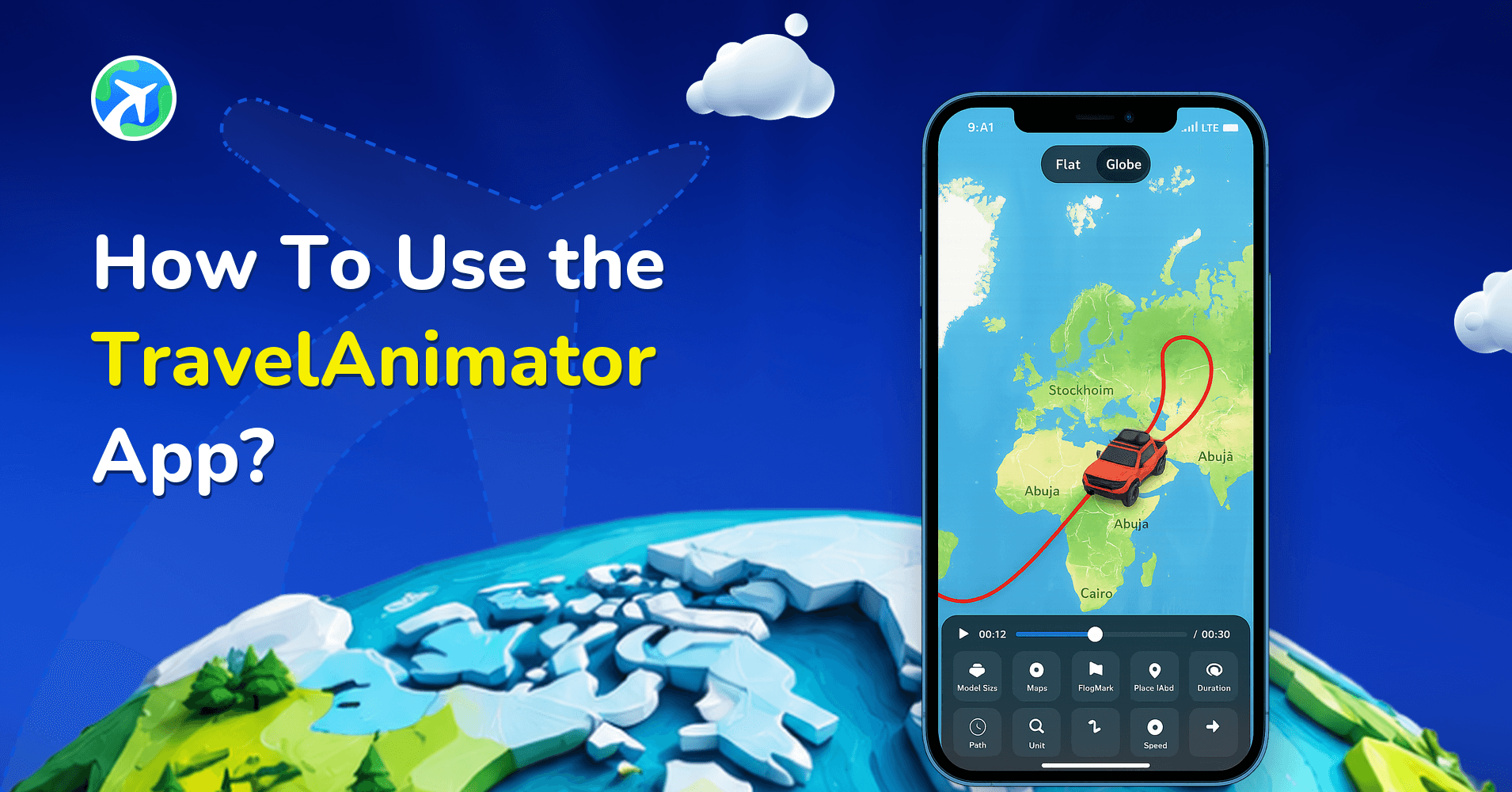
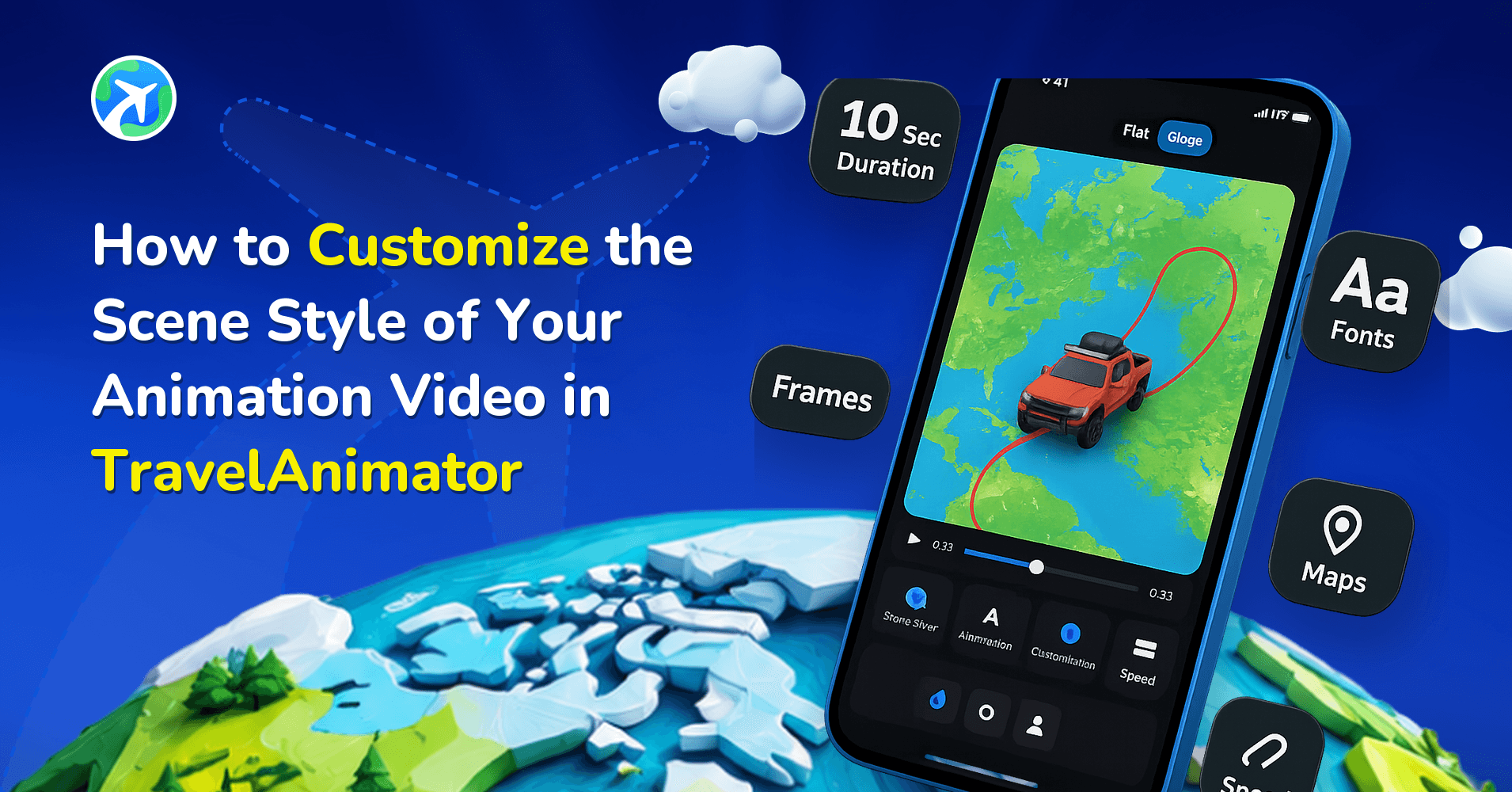
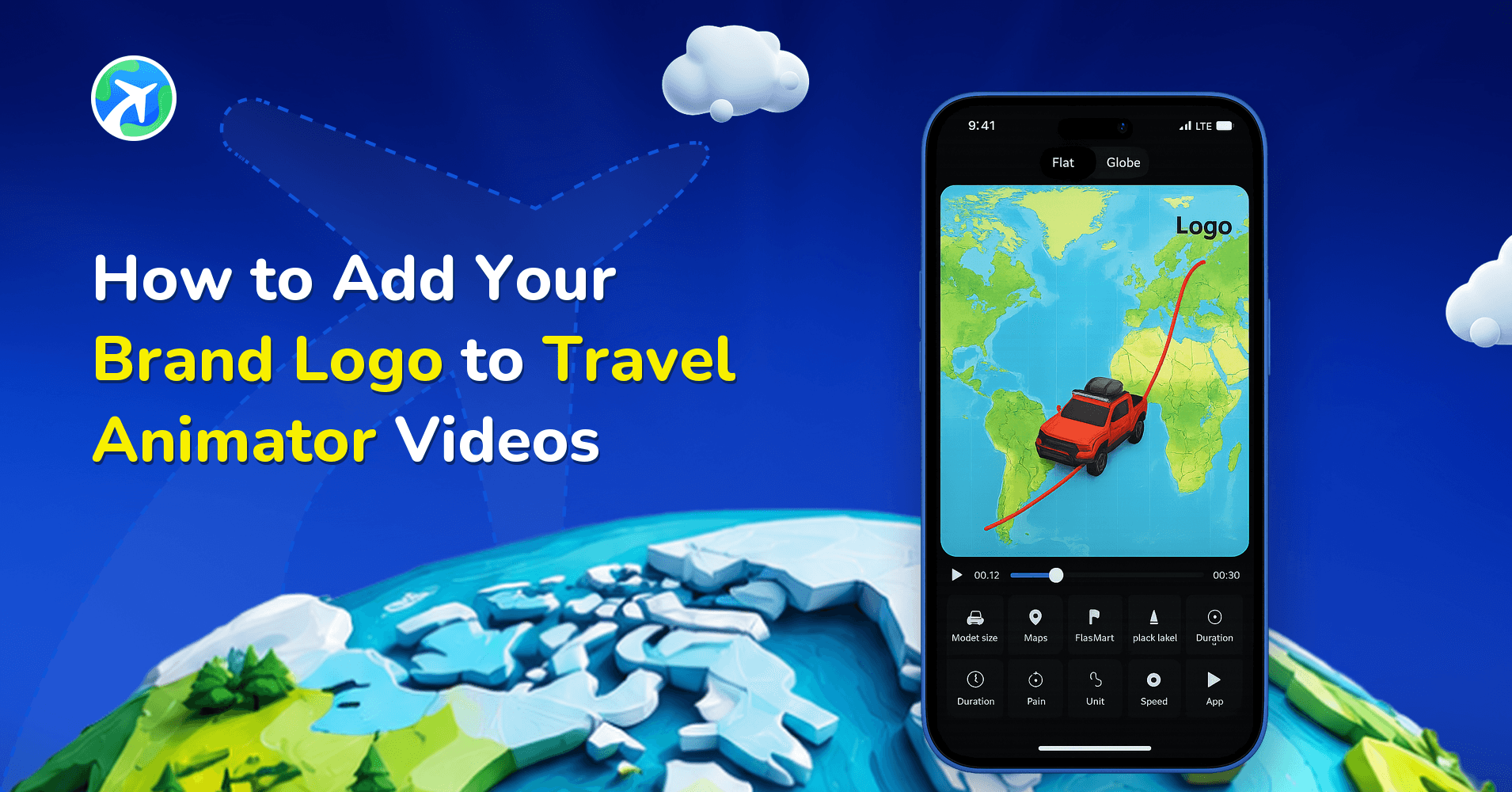
- Adjust the model size and video duration, then fine-tune other elements such as the ratio, path color, flag, and unit.
- Choose the most suitable map style and toggle place names on or off as needed.
- Select between the 2D or 3D map view, depending on what best fits your animation.
- Finally, export your video in HD or 4K quality for the best results.
Creative Ways to Customize Google Maps Routes in TravelAnimator
Instead of showing the whole route in a single video, break it into segments. Animate each section separately, for example, Day 1: Paris to Lyon, Day 2: Lyon to Milan. When you share it on social media together, it feels like chapters of your journey rather than one continuous animation.
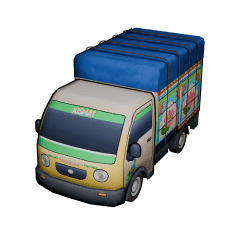
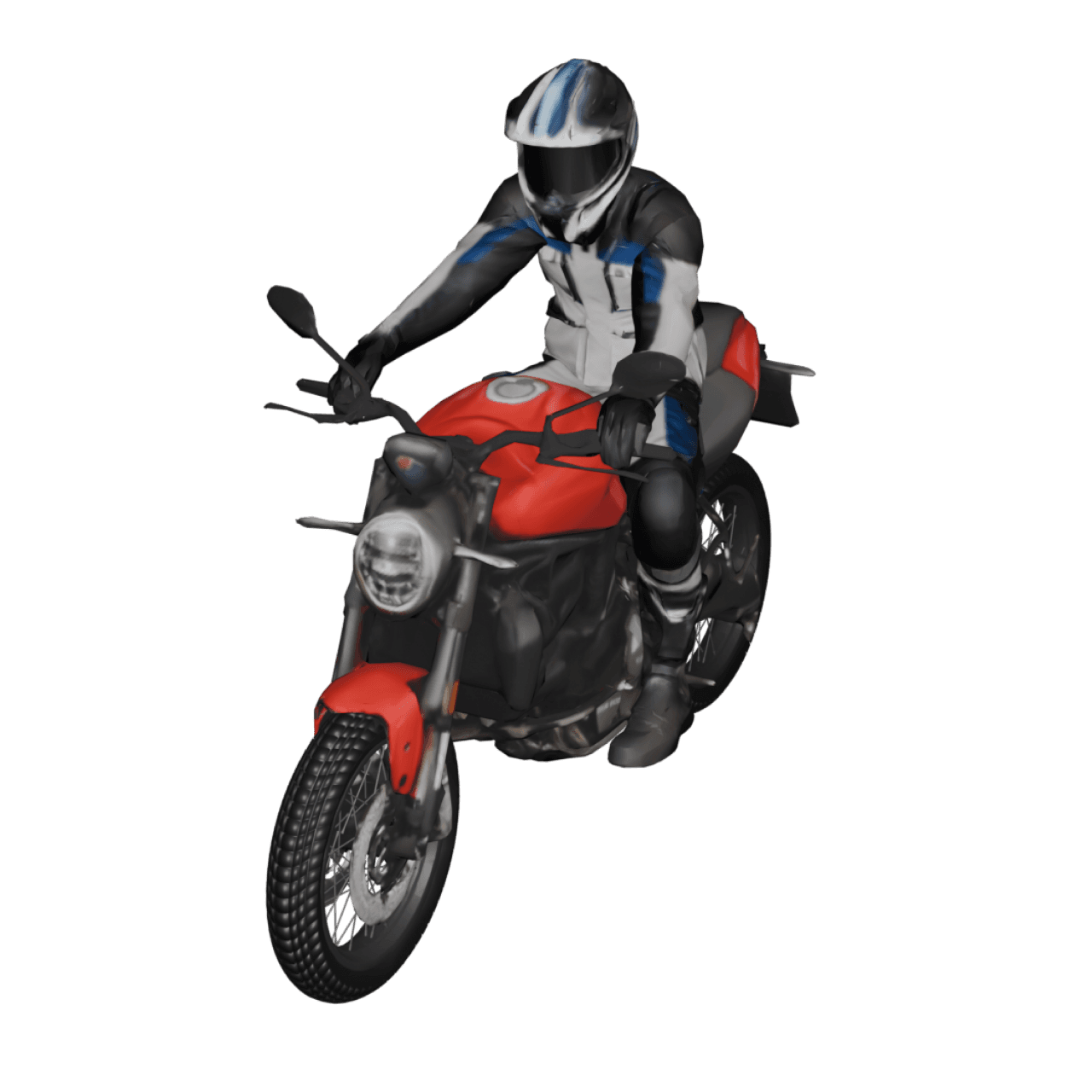
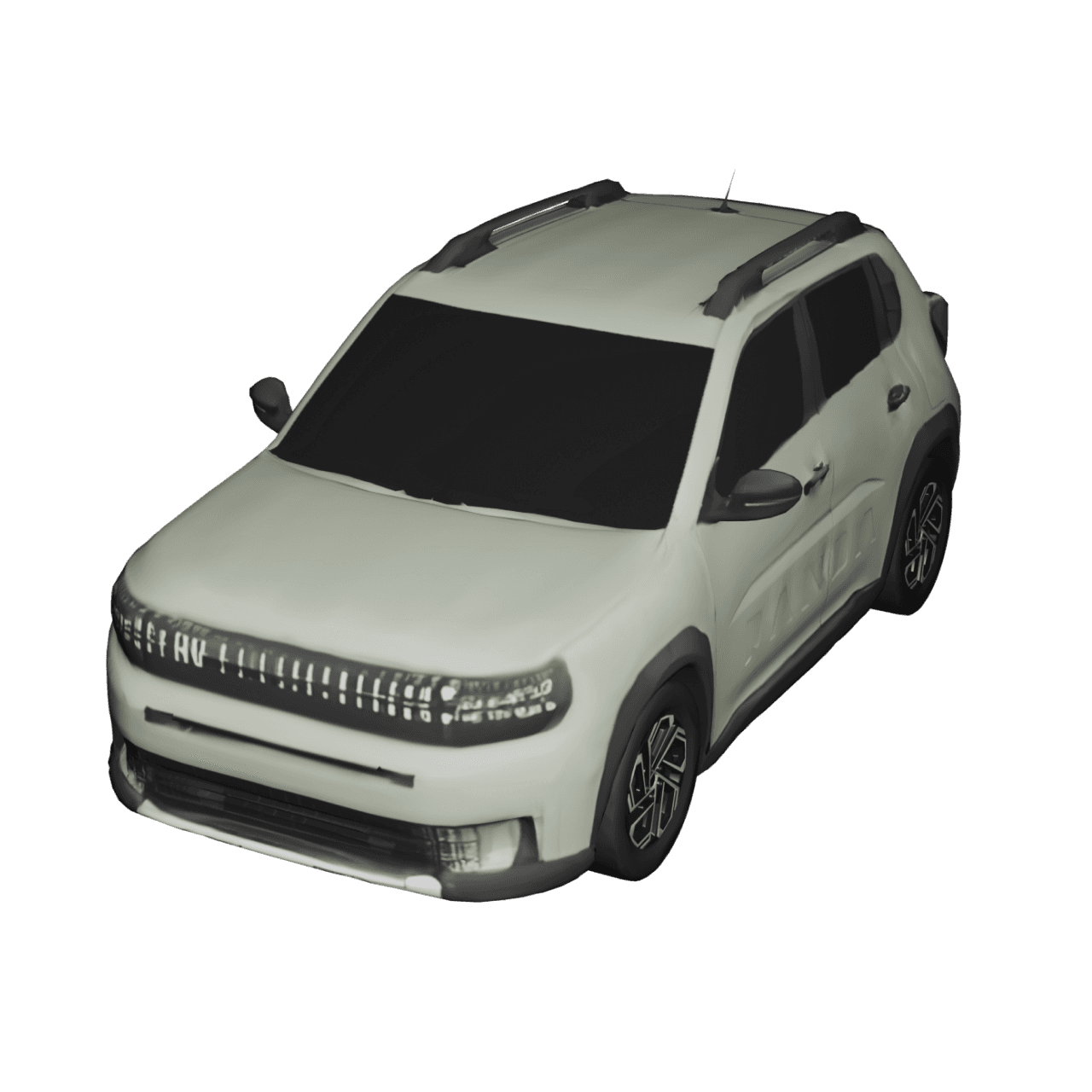
Adjust the models to match your actual or imagined travel mode. Use a car for road trips across cities or the countryside, a Plane for intercontinental flights, a Boat for island-hopping or cruise adventures, a Bike for local exploration or scenic routes, etc. You can even switch models mid-route by splitting paths for multi-mode travel stories.
Include memorable snapshots, such as city landmarks, travel companions, or favorite cafes, along your route. This gives viewers a sense of emotional connection and depth. Each image becomes a pause point in your travel story.
If you are planning to showcase your entire year of travel, import and edit multiple Google Maps routes to create a cinematic collection of all your journeys. Each route can give a unique map style or model icons for variety, allowing users to recall each travel memory through the animation.
Common Mistakes When Editing Google Maps Routes
Always preview your animation to ensure the route flows smoothly before exporting. A quick preview helps you catch errors, wrong paths, or misplaced points early.
Avoid adding too many models or labels, as they can make the map look cluttered and distract from the route. Keeping the design clean improves readability and visual appeal.
Make sure your points follow real roads or paths to maintain accuracy and authenticity. Proper alignment helps your animation feel real and professional.
Using the wrong ratio for different platforms can make your animation look unprofessional. Each social platform has its preferred aspect ratio, and choosing the wrong one may crop your route.
Increasing the model size too much can hide the path and make the route hard to follow. Oversized models can block important parts of the map, reducing clarity in your animation.
Choosing a map style that doesn’t match the theme of your route can confuse viewers. Using an unsuitable map, such as a bright map for a night journey or a winter map for a summer trip, weakens the storytelling.
Make Every Route Personalized and Unique
Customizing your Google Maps route in Travel Animator is about expressing your journey in a creative way. Every slight curve, model, and label transforms a static route into a memorable animation. So the next time you import a Google Maps link, take a few extra minutes to refine it. Smooth the curves, add labels, include a few images, and watch as your simple path becomes a worth-sharing travel story.
Open Travel Animator, import your favorite Google Maps route, and start crafting your next travel animation today.