How to Customize Text in TravelAnimator
 Jaseel S5 min read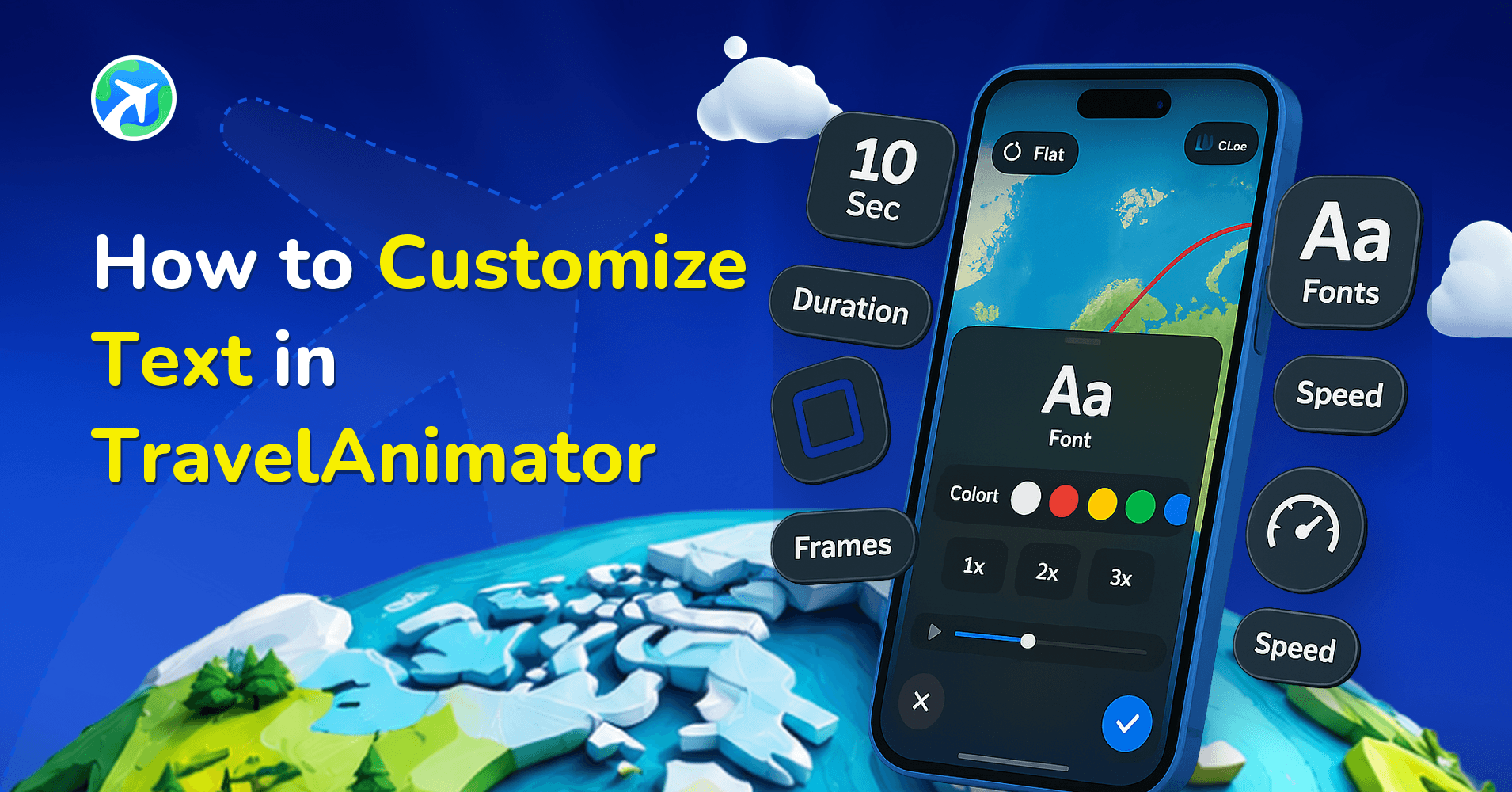
With the latest update, TravelAnimator introduces advanced text customization options that allow creators, travelers, and businesses to add clear, stylish, and engaging text overlays directly on their travel animations. For destination names, trip titles, dates, day numbers, and storytelling captions, text helps transform a simple route animation into a complete visual story.
Travel animations are no longer just about moving routes on a map. Today, storytelling plays a huge role in how travel content is consumed, especially on platforms like Instagram Reels, Stories, YouTube Shorts, and TikTok. Viewers want to understand where you are going, what each stop means, and how the journey progresses, all within a few seconds.
In this detailed guide, you’ll learn everything about the new text customization features in TravelAnimator, including what text labels are, where to use them, the customization options available, step-by-step instructions, best practices, and how they improve engagement on social media.
What are the Texts in TravelAnimator?
Texts in TravelAnimator are overlay elements that appear on top of your map animation. These elements allow you to add written information that complements your route, vehicle, and map visuals.
When you add text in TravelAnimator, it becomes part of the animation timeline. This means the text can appear and disappear at specific moments, making it easy to sync labels with different stages of your journey.
Text labels can be used to:
- Show destination or city names
- Highlight trip titles or themes
- Explain the travel steps, such as Day 1, Overnight Journey, or Flight Route.
- Add context such as distances, dates, or country names
- Provide branding or storytelling captions
Text Customization Options Available in TravelAnimator
The latest update in TravelAnimator significantly expands how users can design and control text labels. All customization options are accessible directly inside the app, with no need for external design software.
Text Frames and Styles
TravelAnimator provides a variety of pre-designed text frames that help text stand out clearly against map backgrounds. These include postcard-style frames, minimal cards, speech bubbles, decorative labels, and clean rectangles.
Frames help improve readability on busy maps, match different travel moods (casual, professional, funny), and create visually balanced compositions.
Users can choose a frame that matches the tone of their journey, whether it’s a relaxed vacation or a formal itinerary presentation.
Frame Color Control
In addition to text color, users can customize the frame color surrounding the text. This allows creators to align text labels with route lines, vehicle colors, or brand themes.
Frame color customization adds an extra layer of personalization and helps maintain visual consistency throughout the animation.
Font Customization
Fonts play a significant role in how text feels. TravelAnimator allows users to change font styles to suit the video’s theme.
For example:
- Clean fonts work well for professional travel guides.
- Rounded or playful fonts suit family trips or casual travel reels.
- Bold fonts help highlight important information like titles or destinations.
- Font selection ensures that text feels intentional rather than generic.
Text Color Customization
Text color can be customized using a color picker, allowing users to choose shades that contrast well with the map and background.
Choosing the right text color improves visibility on light or dark maps, helps match brand or route colors, and enhances overall video aesthetics.
High-contrast text is especially important for mobile viewing, where small screens can make text harder to read.
Text Duration Control
Every text label in TravelAnimator has a customizable duration, allowing you to control exactly how long the text appears on screen.
This is useful when highlighting a destination briefly without clutter, keeping titles visible longer, or syncing text appearance with route movement.
Controlling duration ensures that viewers have enough time to read without feeling overwhelmed.
Text Size Adjustment
Text size can be adjusted to make labels more prominent or more subtle, depending on their importance.
For example:
- Larger text works well for main titles and destinations.
- Smaller text is ideal for supporting details or notes.
- Proper sizing helps maintain balance and prevents text from overpowering the animation.
Step-by-Step Guide to Customize Text in TravelAnimator
- Open Your Project – Download the TravelAnimator app and open an existing project or create a new one by selecting your start and destination points.
- Add Your Route and Elements – Before adding text, finalize your route and models to understand where labels will fit best.
- Long-Press on the Point – From the screen, long-press on the point you need to add text, then tap on the Add Media to add a new text label to your animation.
- Enter Your Text – Type in your content, such as destination names, trip titles, or short descriptions.
- Choose a Text Frame – Select a frame style that suits your travel theme, such as a postcard, minimal card, or decorative label.
- Customize Font and Colors – Adjust the font style, text color, and frame color to improve readability and match your video’s aesthetic.
- Adjust Size and Duration – Resize the text and set its duration on the screen using the duration control.
- Preview the Animation – Preview the entire animation to ensure text appears at the right moments and flows naturally with the route.
- Customize Other Elements – Make changes to other elements, such as the ratio, map style, path line, etc., before exporting.
- Save or Export – Once satisfied, export your video in HD or 4K, or continue editing other elements.
Working in a right-to-left script? Creating maps in Arabic follows these same text steps.
Make Your Travel Stories More Beautiful with Text
The new text customization update in TravelAnimator adds a powerful storytelling layer to travel animations. By allowing users to control frames, fonts, colors, size, and duration, TravelAnimator ensures that every journey can be explained clearly and beautifully. Whether you are creating a quick Instagram Reel, a detailed travel itinerary, or an educational route animation, text helps your audience follow the story effortlessly.
If you want your travel videos to look more professional, engaging, and informative, start customizing text in TravelAnimator today and turn every route into a complete travel story.