How to Import Routes from Google My Maps into Travel Animator
 Jaseel S5 min read
In this article 8 sections
Planning a trip often starts with Google My Maps. Whether you’re mapping a road trip, saving must-visit spots, or designing a detailed travel itinerary, Google My Maps makes route planning simple and visual. But when it’s time to turn those planned routes into an animated travel video, many users wonder how to bring their Google My Maps routes into Travel Animator.
While Travel Animator doesn’t directly support Google My Maps files, there’s a simple and reliable workaround that lets you import your routes with complete accuracy.
In this guide, you’ll learn exactly how to import routes from Google My Maps into Travel Animator, step by step.
What Is Google My Maps?
Google My Maps is a custom map-making tool by Google that allows users to create personalized maps with routes, layers, and location markers. Different from regular Google Maps, My Maps lets you draw custom travel routes, add multiple destinations and stops, organize locations into layers, and save and share travel itineraries.
Travellers, educators, travel agencies, and content creators commonly use Google My Maps to plan journeys. However, Google My Maps is mainly built for planning and visualization, not for animation or video creation.
Can You Import Google My Maps Routes Directly into Travel Animator?
At the moment, Travel Animator does not support direct imports from Google My Maps. This means you can’t paste a My Maps link or upload a KML/KMZ file directly into the app.
Travel Animator fully supports GPX files, which are widely used for GPS routes and travel paths. Google My Maps allows you to export your routes as KML or KMZ files, which you can easily convert to GPX using free online tools.
So the process is simple: Google My Maps → Export as KML → Convert to GPX → Import into Travel Animator.
Supported File Formats in Travel Animator
Before diving into the steps, it’s important to understand which formats Travel Animator supports. Travel Animator supports GPX files, which are recommended for accurate route animation. Travel Animator does not directly support KML files or KMZ files.
GPX files are lightweight, accurate, and ideal for smooth animated paths. Once your route is converted to GPX, Travel Animator can instantly detect and animate the entire journey.
Step-by-Step Guide to Export Route from Google My Maps
- Open Google My Maps – Go to Google My Maps and open the map that contains your travel route.
- Select the Route or Layer – Make sure the route you want to animate is visible. If your map has multiple layers, you can choose to export a specific layer or the entire map.
- Export as KML/KMZ – Click on the three-dot menu next to the map name or layer, then choose Export to KML/KMZ.
- Download the File – Save the exported file to your device. This file contains all your route coordinates and destinations. Your route is now ready for conversion.
Convert Google My Maps KML to GPX
Since Travel Animator works with GPX files, the next step is to convert your exported KML/KMZ file to GPX format.
Google My Maps exports routes in KML format, while Travel Animator uses GPX to read and animate paths. Conversion does not reduce the accuracy of your route points, curves, or stops, which remain exact.
You can use any of the following trusted tools:
- GPS Visualizer – A popular free tool that converts routes quickly and accurately.
- MyGeodata Converter – Supports many formats and works well for complex routes.
- Atlas – Fast, simple, and perfect for GIS workflows.
- Aspos – Fast and accurate conversion, no more format compatibility concerns.
Upload your KML/KMZ file, select GPX as the output format, and download the converted file.
How to Import the GPX File into Travel Animator
- Open the Travel Animator app on your device and start a new project.
- Go to the routes settings icon and click on the Add GPX option.
- Choose the Import GPX option and upload your converted GPX file.
- Once uploaded, Travel Animator automatically places your entire route on the map, including all curves and stops.
- After importing the GPX file, you gain complete creative control over your animation.
- You can add vehicle models, images, and text labels, switch between 2D & 3Dmaps, customize the route line and flags, adjust animation duration and model size, and export in HD or 4K quality.
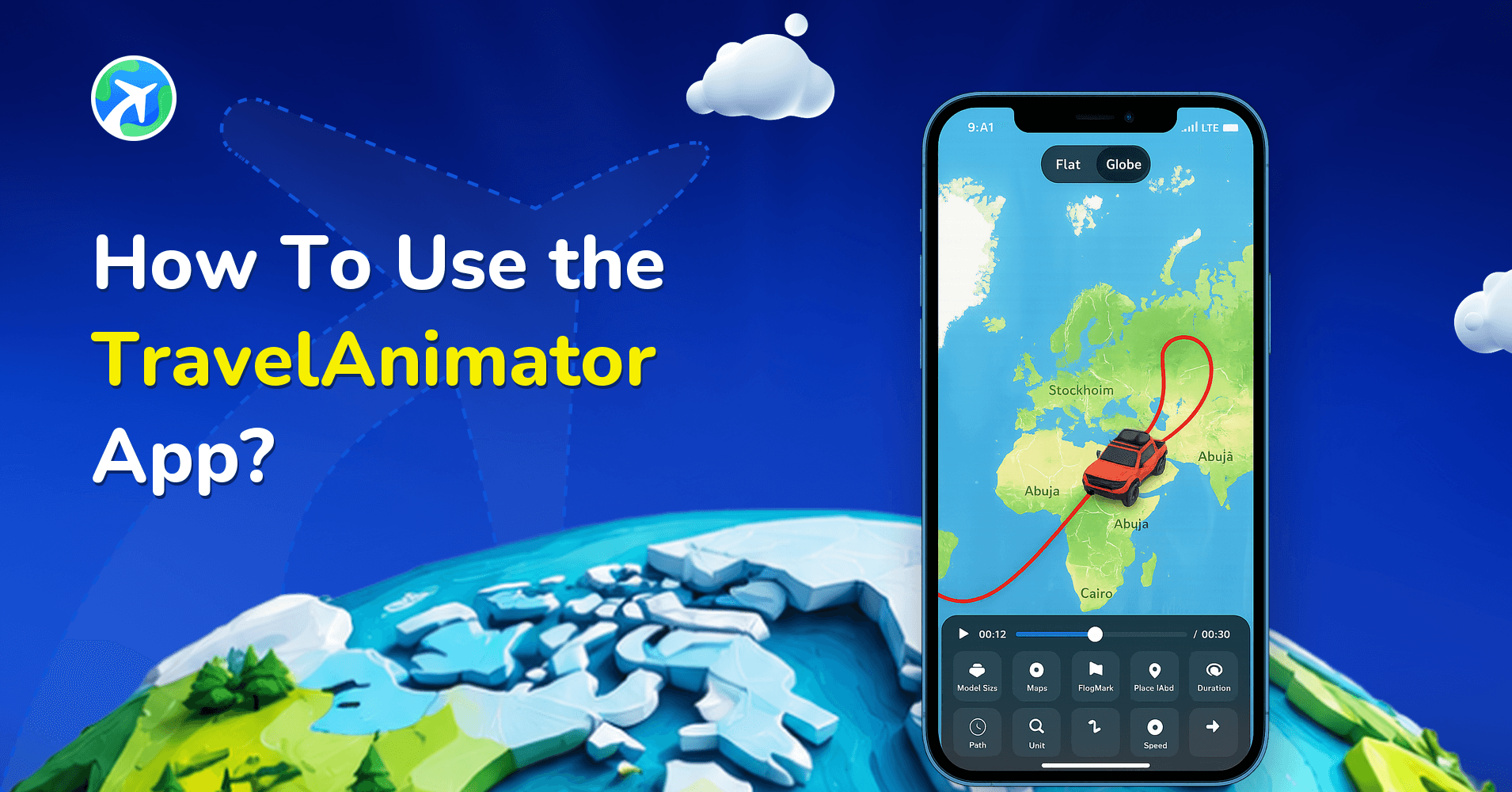
New to Travel Animator? Explore the complete guide to using the Travel Animator app to get familiar with everything from the basics to all features before importing routes.
Turn Your Google My Maps Routes into Travel Animations
If you’ve already planned your trip in Google My Maps, you’re just a few steps away from turning it into a professional travel animation. Export your route, convert it to GPX, and import it into Travel Animator to turn static planning into dynamic storytelling. Travel Animator makes it easy to visualize your journey, share it on social media, and keep your travel memories in a unique way.
Download Travel Animator from the App Store or the Play Store today. Open the app, import your Google My Maps route, and keep your journey lifelong.
Frequently Asked Questions
What Is Google My Maps?
Google My Maps is a custom map-making tool by Google that allows users to create personalized maps with routes, layers, and location markers. Different from regular Google Maps, My Maps lets you draw custom travel routes, add multiple destinations and stops, organize locations into layers, save and share travel itineraries.
Can You Import Google My Maps Routes Directly into TravelAnimator?
At the moment, TravelAnimator does not support direct imports from Google My Maps. This means you can’t paste a My Maps link or upload a KML/KMZ file directly into the app.
When Should You Use Google My Maps and TravelAnimator?
This combination is perfect when you want to plan first and animate later. Common use cases include: Road trips with multiple stops International travel itineraries Educational geography routes Tourism and city tours Business travel paths Group or family travel plans Google My Maps helps you design the journey, and TravelAnimator enables you to tell the story visually.