How to Use TravelAnimator for WhatsApp Status and Instagram Stories
To make a travel video for WhatsApp Status or Instagram Stories, build your route in Travel Animator, preview it in vertical 9:16 format, and export it to your device. Choose the saved video when creating a Status or Story and review it before posting.
 Jaseel S6 min read
In this article 10 sections
To make a travel video for WhatsApp Status or Instagram Stories, build your route in Travel Animator, preview it in vertical 9:16 format, and export it to your device. Then choose the saved video when creating a Status or Story and review it before posting.
A route animation gives viewers geographical context for your trip. Use a few stops and readable labels so the journey makes sense even when someone watches without sound.
The steps below cover route creation, vertical framing, export and upload, followed by fixes for cropping and quality problems.
Why Use Travel Animator for WhatsApp Status & Instagram Stories?

- Travel Animator helps to transform simple social media status updates into visually stunning videos in 3-4 simple steps.
- It gives a professional touch to your travel content without requiring advanced editing skills.
- It helps followers to engage with your travel content and become more shareable.
- Travel Animator is perfect for storytelling by showcasing your entire journey and experiences in a single video.
- It saves time by creating your travel animation in minutes. You do not have to spend hours editing.
Step-by-Step Guide to Creating Animated Travel Stories
- Download Travel Animator for iPhone or Android and start a route. Save any existing project before creating another.
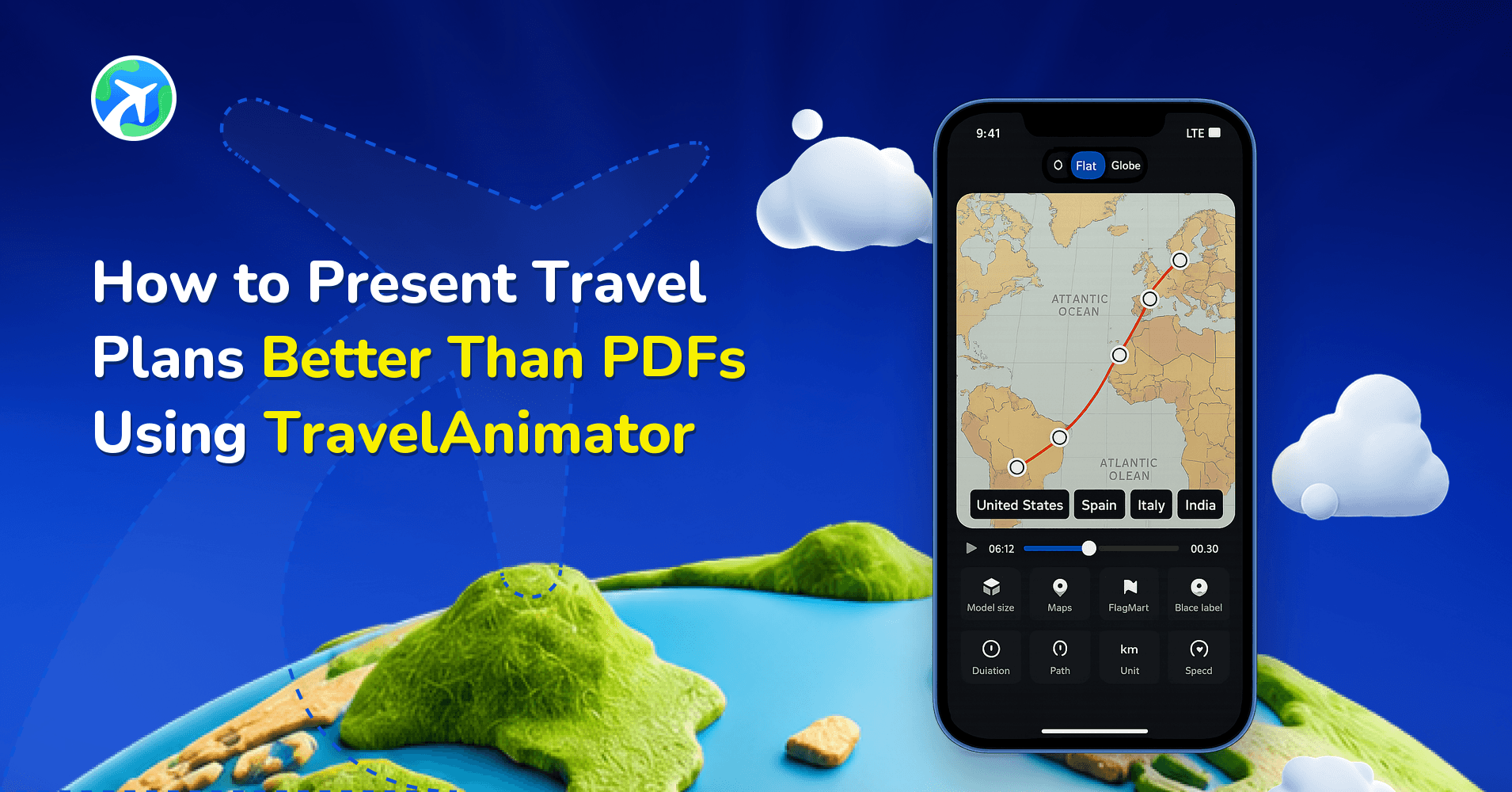
- Add your starting point, destination and intermediate stops. You can also use a Google Maps share link or a GPX file. Check the order and route shape before decorating it.
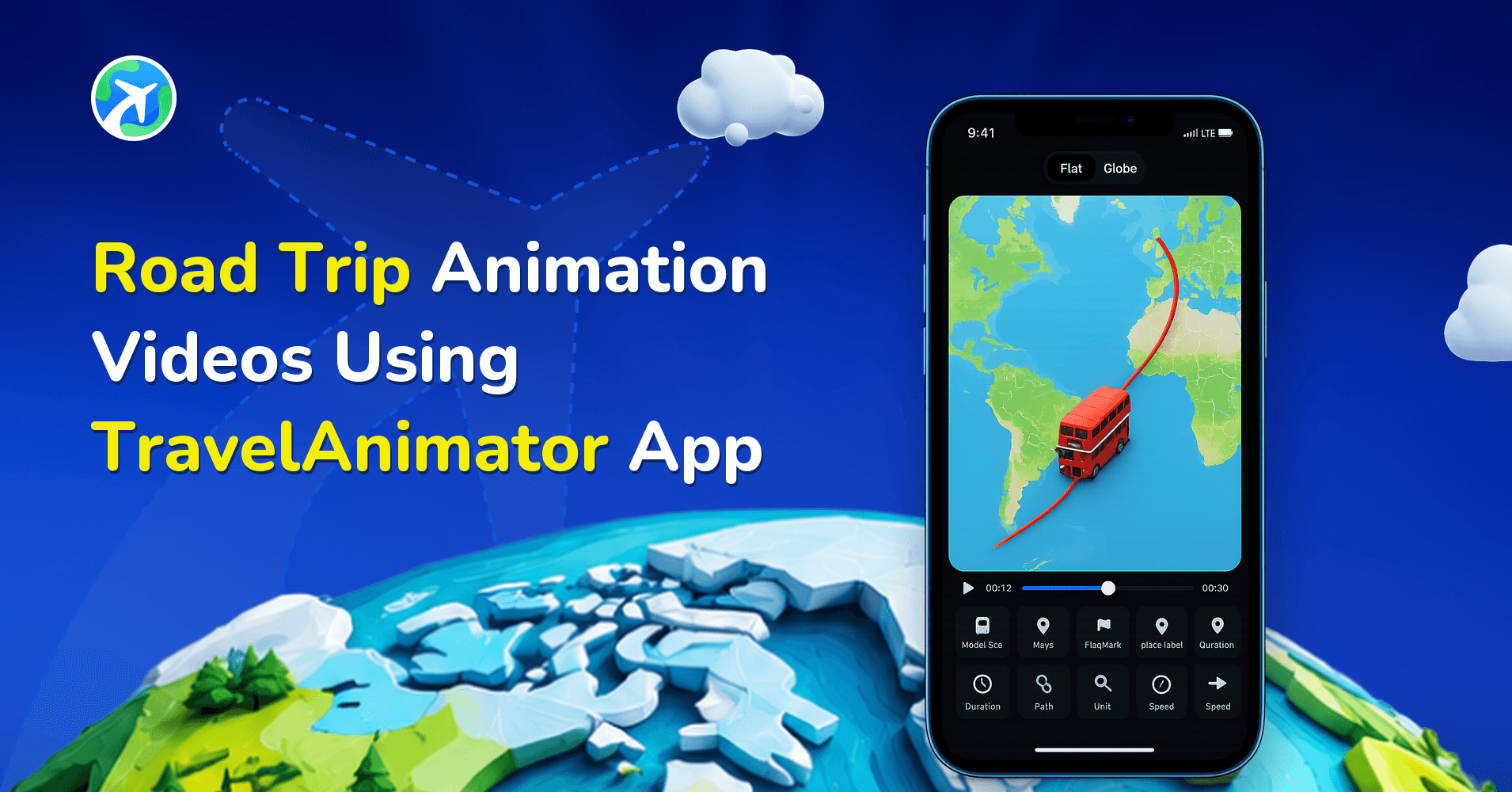
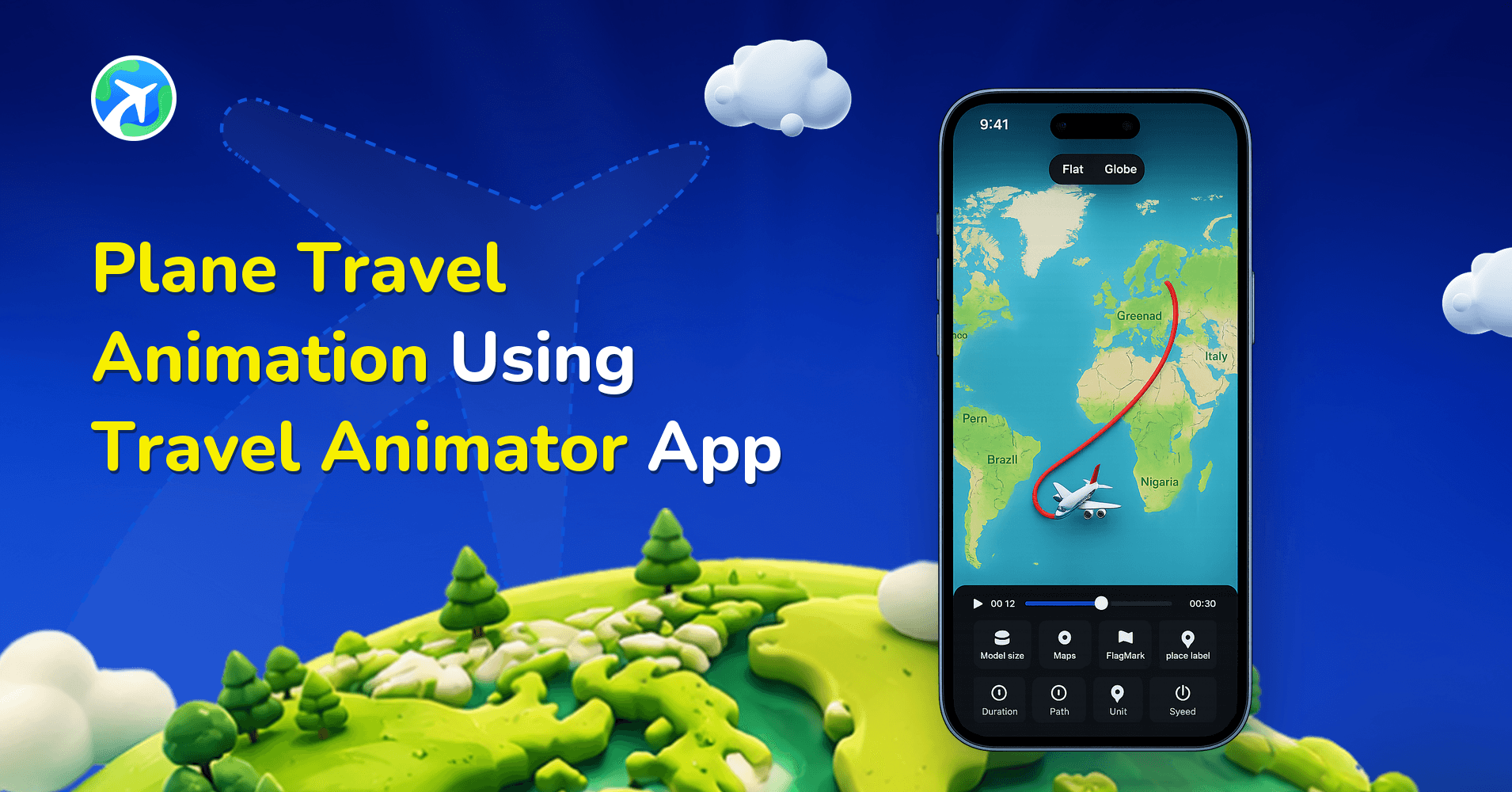
- Choose a vehicle that matches the journey. Add a few photos and short place labels so viewers can follow the route on a small phone screen.
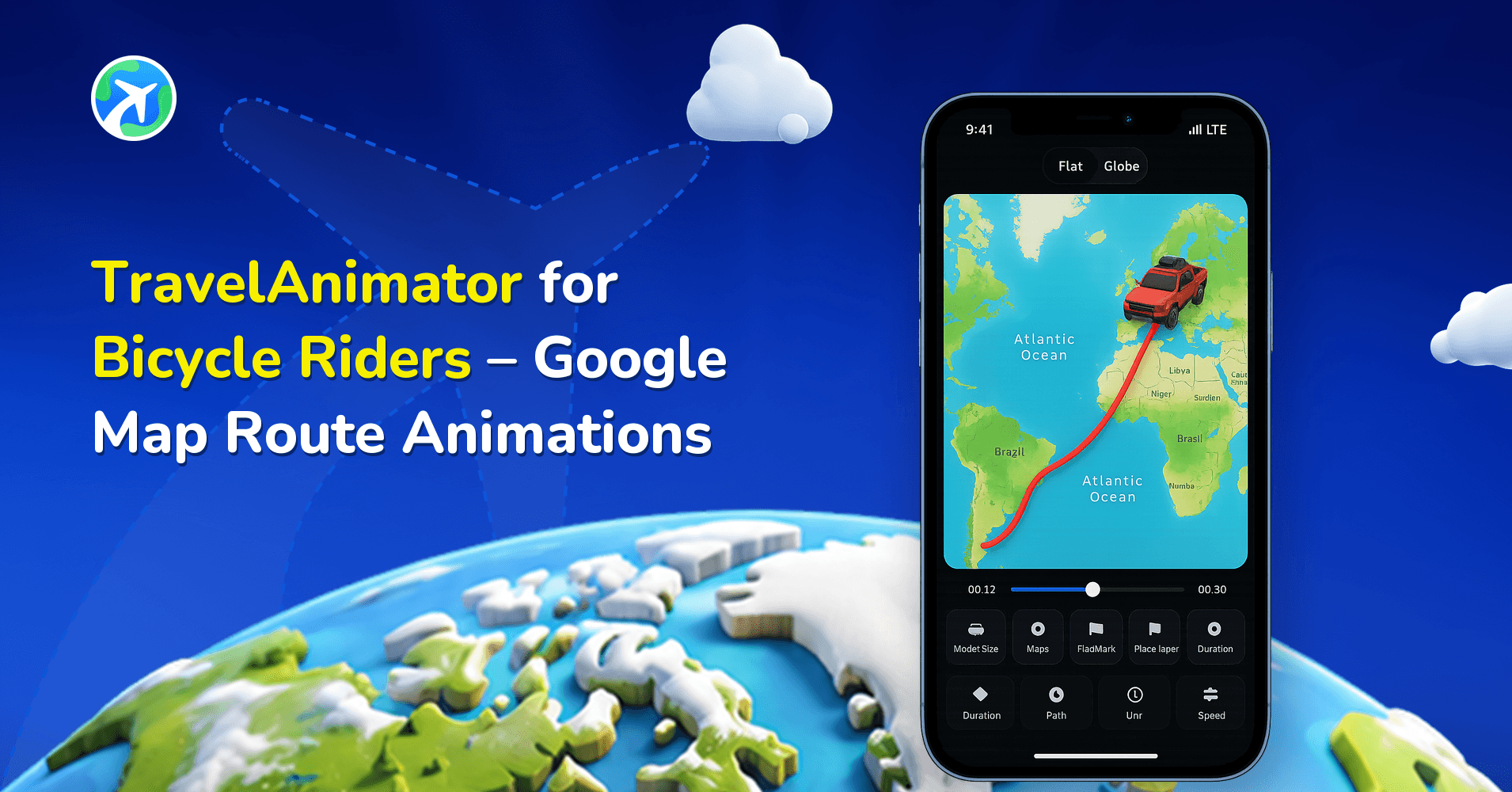
- Open Preview and choose the vertical 9:16 ratio. Adjust the map style, vehicle size and duration. Leave space around important labels for the social app’s buttons and captions.
- Watch the full animation, then export it. The Free plan includes HD video with a watermark; Pro adds 4K and watermark removal.
- Save the video to your device. Open WhatsApp or Instagram and select the exported video when creating a Status or Story. Review the social app’s preview before posting.
Tips for Clear Travel Stories
- Keep the route focused on the stops that matter to the story.
- Use a vehicle that matches the journey and a route colour that contrasts with the map.
- Allow enough time to read each destination label. Adjust the duration after watching the preview.
- Keep photos and labels clear of the edges, where social-app controls may cover them.
Story Ideas That Work in a Few Seconds
Stories are short and disappear in a day, so they suit small, timely updates more than full trip recaps. A few ideas:
- The countdown. A week before a trip, post the route you’re about to take. Friends love guessing the stops.
- Just landed. Animate the flight from your home airport to where you’ve arrived. You can search airports by IATA code, so typing DEL and DXB is enough.
- Today’s route. One day, three or four stops, a photo at the best one. A walking day in Rome or a scooter loop around Bali both work.
- The weekend ride. Import the GPX from your cycling app and post the loop with a photo from the café stop.
Add a Title Card or a Still Story
A title at the start tells viewers what they’re looking at before the route moves. In preview, open the Cover Image option, pick a layout, add a short title and turn on Use cover as video intro.
You can also download the cover on its own as a still image. That’s useful when you want to post a quick announcement Story, like “Road trip starts tomorrow”, and then follow it with the animated route later. Check the cover in 9:16 so the title isn’t hidden behind the reply bar or profile name.
Now it's time to post your engaging stories on WhatsApp and Instagram.
Your travel stories in WhatsApp status and Instagram Stories will no longer be boring, going beyond just plain text and location tags. With Travel Animator, your WhatsApp status and Instagram stories will become more interactive. It offers animated videos in various ratios for different platforms. Its advanced features are designed to create travel animation videos, making the video more stunning in a unique way. Start building your travel animated video now.
How do I post the exported video?
WhatsApp Status
Open WhatsApp’s Status creation controls, choose the saved video from your device, and check the preview. Trim or split it if prompted, add an optional caption, and select the audience before publishing. If Travel Animator’s share sheet offers WhatsApp, you can also use that shortcut; confirm that you are posting a Status rather than sending a chat message.
Instagram Stories
Start a new Story in Instagram and choose the exported video from your gallery. Check the crop and keep stickers away from route labels. Publish using the audience option you intend. Exporting in Travel Animator saves or shares a video; it does not automatically publish an Instagram Story.
A simple three-stop story
Try a home-to-airport-to-destination route with one photo at the last stop. Preview a short clip first and lengthen it if the place names are hard to read. There is no single duration that suits every itinerary; check how your social app handles the selected clip before posting.
Fix common upload problems
The video is missing from the gallery: confirm that export completed and the file plays on your device. Check photo or media access if the app requests it.
The map is cropped: return to Preview, select 9:16 and export again. Check the crop in the destination app as well.
The upload looks softer: compare the saved file with the posted version. Social apps may compress uploads, so a 4K export does not guarantee 4K playback. Prioritize readable labels and a clear route.
A watermark appears: this is included in Free exports. Compare Free and Pro if you need watermark removal.
Frequently Asked Questions
Why Use Travel Animator for WhatsApp Status & Instagram Stories?
Travel Animator helps to transform simple social media status updates into visually stunning videos in 3-4 simple steps. It gives a professional touch to your travel content without requiring advanced editing skills.
How do I create an animated travel story?
Add the key destinations, choose a matching model and include only the most useful photos or labels. Select a suitable vertical ratio, preview the crop and timing, then export and upload the video to the destination app.
How can I keep a travel story clear on a phone screen?
Keep the route focused on the stops that matter to the story. Use a vehicle that matches the journey and a route colour that contrasts with the map. Allow enough time to read each destination label. Adjust the duration after watching the preview. Keep photos and labels clear of the edges, where social-app controls may cover them.
What ratio should I use for WhatsApp Status videos?
Use the vertical 9:16 ratio. WhatsApp Status, like Instagram Stories, fills a tall phone screen, so a 9:16 export uses the whole frame without black bars. Choose it in Travel Animator’s preview before exporting, then keep photos and labels slightly away from the edges, where WhatsApp’s own text and controls can cover them.
Can I make a still image for my Story from a Travel Animator route?
Yes. The Cover Image option in preview lets you design a title card with a layout and text, and you can download it as a still image. Post it as a Story on its own, for example to announce an upcoming trip, then share the animated route video later. Preview the cover in 9:16 first so the title stays readable.