How to Customize the Image in TravelAnimator
 Jaseel S4 min read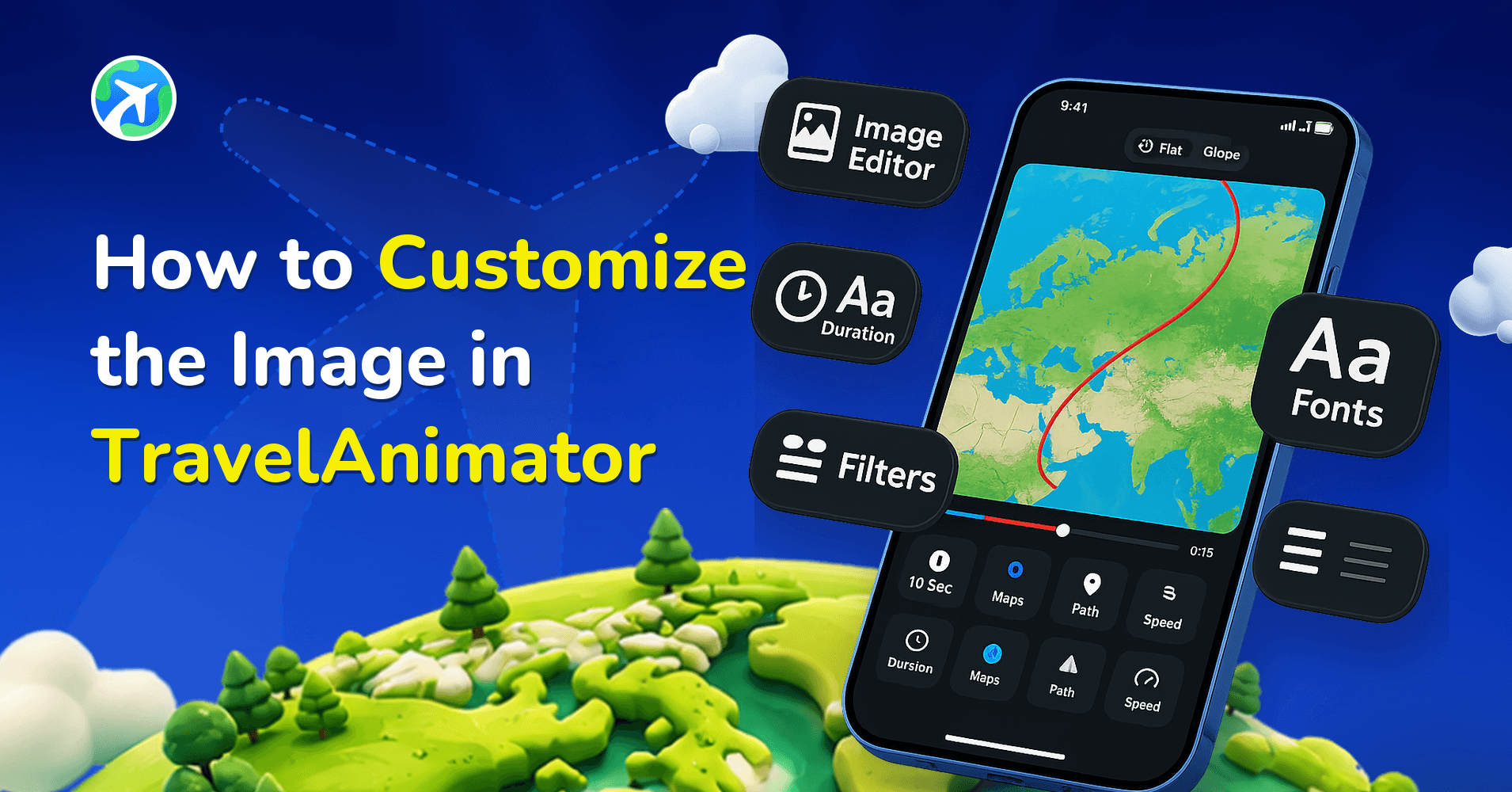
You can now style your added photos directly on your map with frames, control their size and duration, and visually highlight destinations in a way that feels personal and immersive.
Travel animations are no longer just about moving icons and route lines. Today, the most engaging travel videos combine animated routes with real images to tell a complete story. With the latest update in TravelAnimator, image customization has become more features, flexible, and creator-friendly.
In this guide, we’ll guide you through everything you need to know about image customization in TravelAnimator, including why images matter, where to find the image editor, all available customization options, step-by-step instructions, best practices, and real-world use cases.
Image Customization Options Available in TravelAnimator
The latest update introduces several image customization controls designed to keep things simple while offering creative flexibility. Let’s go through each option in detail.
Add Image
This is the starting point for image customization. Upload images directly from your device or replace images anytime without deleting the frame. You can add pictures at any stop of the animation. This allows you to experiment freely without worrying about mistakes.
Image Frames
Frames define the look and feel of your image on the map. TravelAnimator offers multiple frame styles, including clean square frames, decorative postcard-style frames, minimal modern borders, festive themed frames, and rounded and circular frames.
Frames help your image stand out from the map background and match the theme of your video, whether it’s professional, casual, festive, or storytelling-focused. You can change the frame or its color at any time, even after placing the image.
Add Text
Toggle the Add Text option at the bottom of the screen to add text under the image. Both images and text come together in the map make the animation more understandable. From there, you can also select the font style and font color of the text.
Image Duration
The duration setting controls how long the image appears during the animation. You can show pictures briefly in fast-paced videos and keep them longer for storytelling or explanations. This is especially useful when syncing images with the movement of your route or when highlighting essential moments. It can adjust the duration between 1 to 5 seconds.
Image Size
The size control lets you scale the image up or down. This is useful for highlighting key destinations, keeping the map visible and uncluttered, and balancing visuals on small mobile screens. A well-sized image ensures your video looks clean and professional, especially on vertical formats like 9:16.
Remove Image
If any mistakes happened, easily remove the image using the remove option and clean up your project without starting over. This makes editing stress-free and beginner-friendly.
Step-by-Step Guide to Add and Customize Images in TravelAnimator
Open TravelAnimator – Launch the app, and create a new project or open an existing one.
Add Your Route and Locations – Select your start point and destination. Add multiple stops if needed.
Add Your Image – Long-press the point and go to Add Media and upload a photo from your device.
Select a Frame – After adding the image, choose a frame style that matches your animation theme. Some frame styles also allow you to add or customize colors.
Add Text – Toggle the Add Text option to include text below the image. From there, you can select the font style and text color.
Set Image Duration – Choose how long the image should remain visible in the animation. You can adjust the duration between 1 to 5 seconds.
Adjust Size – Resize the image as needed. You can also select the map’s aspect ratio from this section.
Preview the Animation – Tap the blue tick button until you return to the map screen. Then, tap the blue arrow button to preview the animation and see how the image appears along the route.
Make Final Adjustments – Modify the frame, size, duration, or any other features until everything looks right.
Export and Share – Export your video in HD or 4K and share it on your preferred social media platforms.
Make Your Travel Stories More Visual
The new image customization update in TravelAnimator gives creators a powerful way to transform simple route animations into rich visual stories. With easy-to-use tools for adding images, choosing frames, adjusting size, controlling duration, and positioning visuals perfectly on the map, you don’t need any design or editing experience to create stunning travel videos. Whether you’re sharing memories, promoting destinations, or creating content for social media, image customization helps your videos feel more human, more engaging, and more memorable.
Download TravelAnimator today from the App Store or the Play Store. Open and start turning your routes into visual travel stories, using one image at a time.