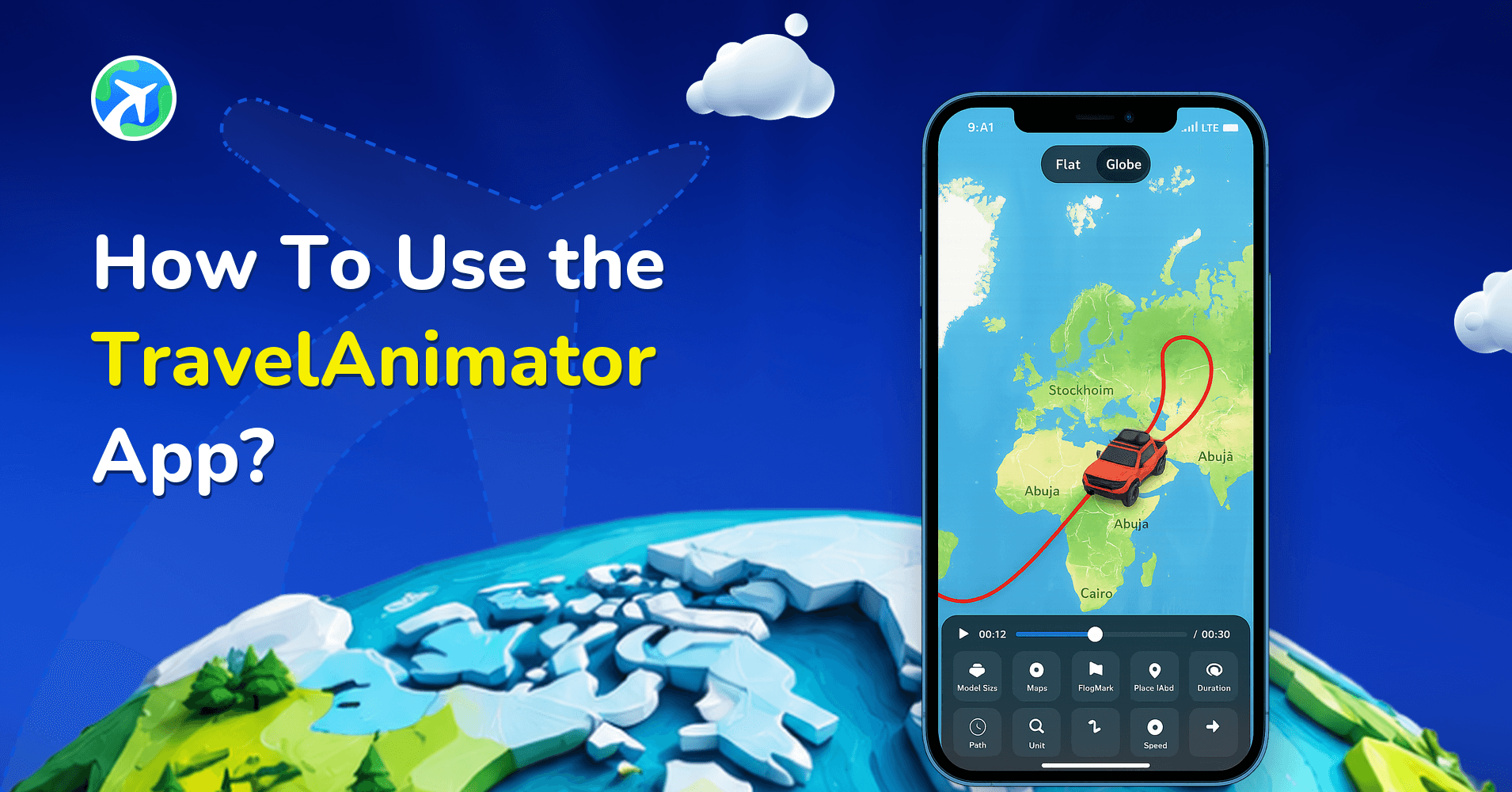
How to Resize an Image in Travel Animator
 Jaseel S6 min read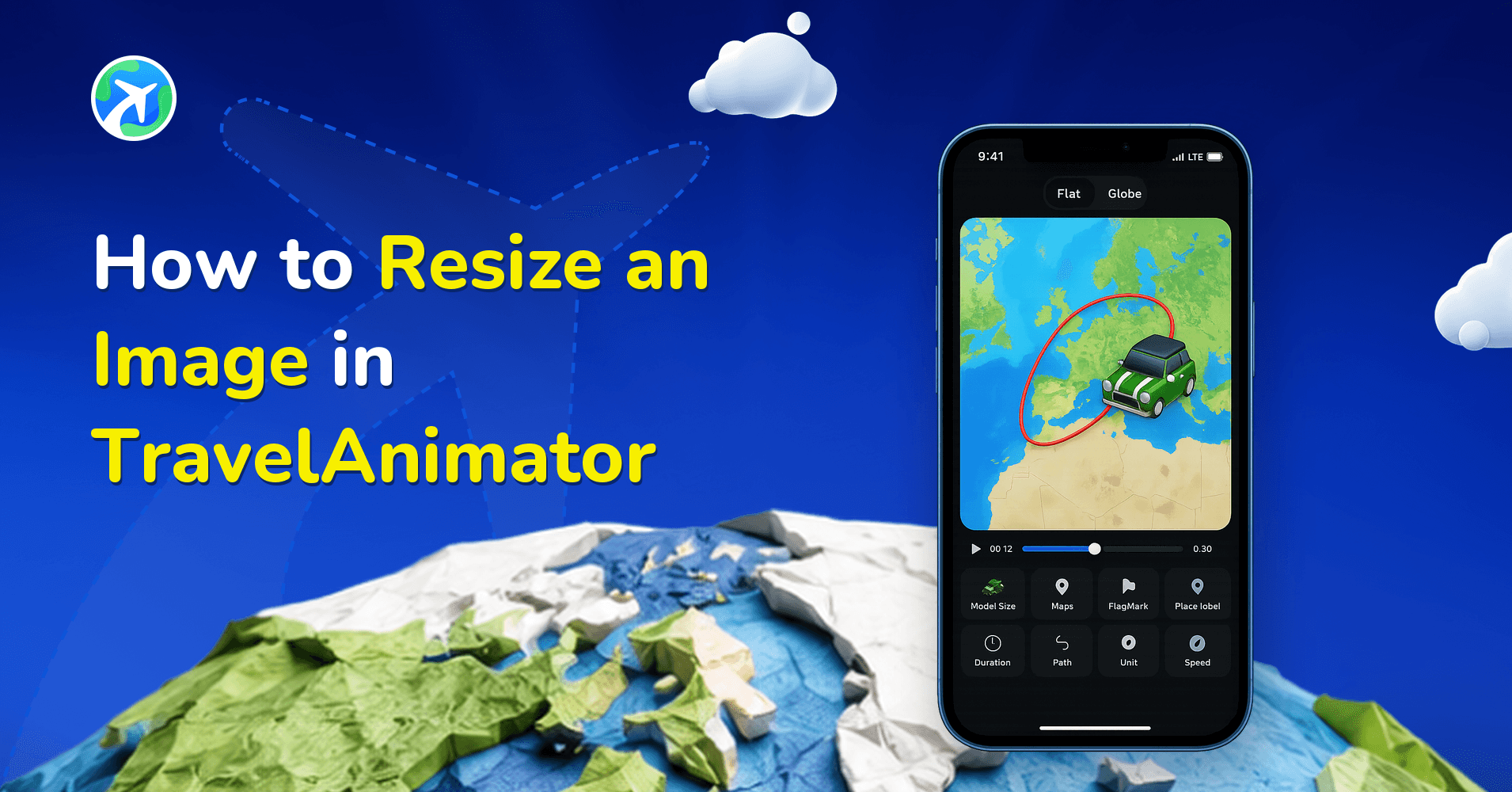
In this article 6 sections
Understanding how to resize an image in Travel Animator is an important part of creating clean, professional, and engaging travel animations.
Images make travel animations more personal, but if they’re too large or poorly sized, they can cover the route, hide destination labels, and clutter the map. Sized correctly, an image highlights a destination without overpowering the journey, and the viewer can still follow the route easily.
In this guide, you’ll learn how to resize an image in Travel Animator and which size works best for each video format.
Step-by-Step: How to Resize an Image in Travel Animator

- Open the Travel Animator app and open an existing project or create a new one by selecting your start point and destination on the map.
- Before adding images, make sure your route is set. Add multiple stops if your journey includes several destinations.
- Select the location where you want to add an image. Choose a photo from your device’s gallery. As soon as you select the image, Travel Animator shows you the image resizing options. This is the most essential step because this is the only time you can resize the image.
- Choose the Image Size Based on Video Ratio. You’ll see ratio options such as 1:1 (Square), 9:16 (Vertical) and 16:9 (Horizontal). Select the ratio that best matches your final video format and the level of map visibility you want to maintain. After this step, image resizing is no longer available. If you want a different size, you’ll need to remove the image and add it again.
- Once you tap the tick button to confirm, the image is placed into the animation at the chosen size. You can visually preview how the image fits on the screen.
- You can change the animation ratio to match the image ratio and adjust the image size, whether it needs to be big or small.
Tip: Decide your video ratio before you choose the image size, and check the size before you tap the tick, since resizing isn’t available after that.
Choosing the Right Image Size for Each Video Ratio
This is the most popular animation video format for Instagram Reels, TikTok, and YouTube Shorts.
For vertical videos, use smaller or medium-sized images, keep the screen clear for routes, and avoid oversized images that block the map vertically.
A well-sized 9:16 image ensures the route remains visible while still highlighting key destinations.
- 1:1 Square Videos
Square videos work well for Instagram posts and some feed-based platforms.
For 1:1 animation videos, images can be slightly larger than vertical formats. Don’t let the image cover the route, so use a balanced image-to-animation ratio. Also, keep enough space around the map for context.
- 16:9 Landscape Videos
Landscape videos are commonly used for YouTube and presentations.
For 16:9 animations, images can be wider without blocking routes. The horizontal space allows more flexibility while still ensuring the route remains the focal point.
Preparing Photos Before You Add Them
Most sizing problems start before the photo reaches Travel Animator. A wide shot of a crowded square looks like noise when it’s shrunk down to fit beside a route. A tight shot of one thing, like a pastel de nata in Lisbon or the clock tower in Munnar, still reads clearly at a small size.
A few minutes in your phone’s own photo editor helps:
- Crop close to the subject so it fills the frame.
- Crop to roughly the same shape as the ratio you’ll pick. A tall portrait photo forced into a horizontal slot loses its top and bottom.
- Skip very dark or low-contrast shots. They get harder to read once a frame and map sit behind them.
- Pick one strong photo per stop rather than several similar ones.
Because the size is set the moment you confirm the image, this prep is what lets you choose a smaller size with confidence and still have the photo look good.
Fixing an Image That Covers the Route
If the preview shows a photo sitting on top of the route line or hiding a label, you don’t need to rebuild anything. Long-press the stop, tap Add Media and open Media, then tap the red Remove option in the top-left corner. Your route, stop and text stay in place. Add the photo again and choose a smaller size before you tap the tick. The image removal guide walks through those taps in more detail.
Size isn’t the only fix. You can set how long an image stays on screen, from 1 to 5 seconds, so a photo that briefly overlaps the path may be fine at a shorter duration. A simple frame also helps a smaller image stand out from the map, and our guide to customizing images covers frames, text under the photo and duration together.
After each change, tap the blue arrow to preview the animation again on your phone, at the size most people will watch it.
Resize the Image and Tell Better Travel Stories
Travel Animator keeps image resizing simple, but you’re never restricted. You can resize images during selection, remove an image anytime, or replace it with a better one if your story changes. This flexibility helps you keep the map visible, highlight destinations clearly, and maintain a balanced layout throughout your animation.
Whether you want to make an image smaller to reveal more of the route, swap it for a new photo, or clean up the screen for a smoother flow, Travel Animator gives you the control you need without complicated editing tools.
Start creating more engaging travel stories today. Open Travel Animator, fine-tune your visuals, and turn your journey into a perfect travel animation worth sharing.
Frequently Asked Questions
When can I choose the image ratio?
Choose the image ratio when you select a photo from your device, before confirming it with the tick button. The available ratios include square, vertical and horizontal formats.
Can I choose a different image ratio after confirming the photo?
To choose a different ratio after confirmation, remove the image and add it again. Choose the new ratio during image selection.
How can I stop a photo from hiding the route?
Choose the intended video ratio before adding the photo, then preview it at a size that leaves room for the route and labels. Vertical videos generally need smaller photos to keep the map visible.
How long does an image stay on screen in Travel Animator?
You can set an image to appear for 1 to 5 seconds. Use shorter durations for fast social clips and longer ones when the photo needs time to tell the story, such as a client itinerary. If a photo briefly covers the route, a shorter duration can be enough without changing its size.
What kind of photos work best in a travel animation?
Close-up photos with one clear subject work best, because they stay readable at small sizes on a phone screen. Crop the photo to roughly match the ratio you plan to choose, avoid very dark shots, and use one strong image per stop instead of several similar ones.