How to Screen Record on Android for TravelAnimator Support
 Jaseel S7 min read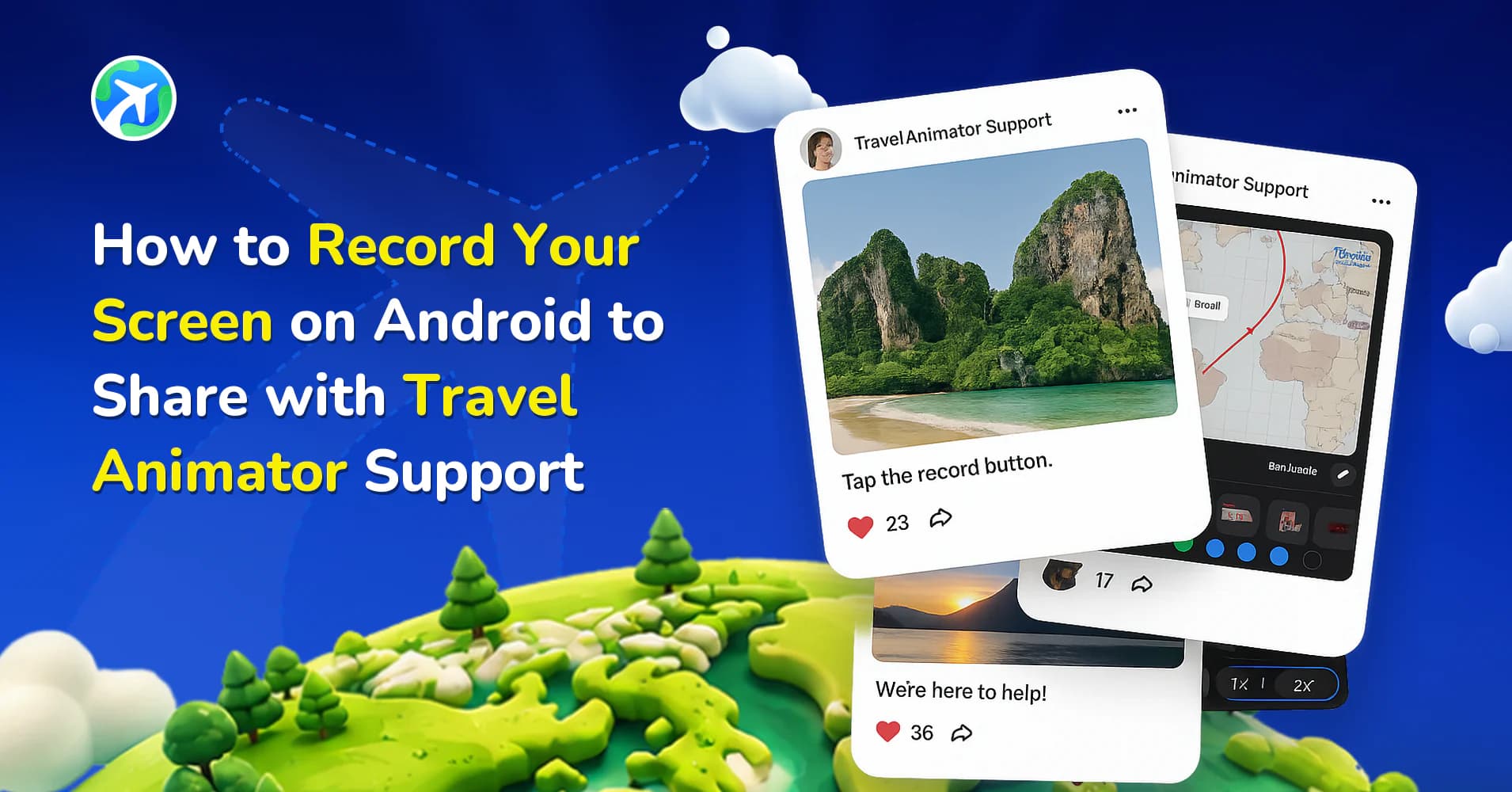
In this article 9 sections
When you encounter an issue with the Travel Animator app, the quickest way to explain it to the support team is by showing them exactly what happens on your screen. Describing the problem in words sometimes isn’t enough, especially when the issue involves animations, export settings, or app navigation. That’s where you can use screen recording.
Most modern Android devices come with a built-in screen recorder, making it easy to capture your problem in real time. By recording your screen and sharing it with Travel Animator support, you help the team quickly understand what went wrong and provide a faster solution.
In this guide, we will explore how to record your screen on Android to share with Travel Animator support, how to share it, and when you need a screen record.
When Do You Need a Screen Recording in a Travel Animator?
Screen recording helps us better understand the issue when users email the Travel Animator support team to report a bug/issue with the app. Whenever you need to report a problem via email, attaching a short screen recording ensures that your issue is understood clearly, without long back-and-forth explanations.
Some common scenarios where recording your screen is beneficial with mail are exporting issues, app crashes, route or animation problems, subscription or login errors, etc. It’s better to add a screen record for every issue when mailing.
How to Record Your Screen on Android in a Travel Animator?
- Swipe down from the top of the screen to open the Quick settings menu.
- Look for the option Screen Record or Screen Recorder.
- If you don’t see it right away, swipe again or tap the pencil/edit icon to customize and add it.
- Tap on the Screen record icon.
- You may see toggle options like Record system sound and Record microphone sound to turn on or off.
- Turn on the record microphone to communicate the issue while recording the problem on your screen.
- Tap Start recording to start.
- You can see that your screen is recording now.
- Open the Travel Animator and recreate your issue step-by-step.
- Once done, tap the record symbol and save by clicking the save icon, which is represented by a red and white square.
- The recording will be automatically saved in your phone’s gallery.
Android devices may exhibit slight differences across various brands.
Tips for Clear Screen Recordings in Travel Animator
- Record only what’s necessary to show the issue. A 30-60 second video is usually enough.
- Recreate the exact problem in the screen record so the support team can easily clear it.
- If you’re using a microphone to communicate the issue with the video, ensure you’re in a quiet environment.
- Double-check the video before sharing to ensure it captures everything correctly.
How to Share the Recording with Travel Animator Support
Open your gallery and make sure the recorded video is already there. It can be saved separately in a file named “Screen Recordings” or viewed through the screenshots.
Open your email and compose a new email to the Travel Animator support team.
Tap the attach file icon and select your recordings. Add it to the message.
Along with the screen recording, write a short explanation about the issue you are facing.
Once everything is ready, send the email to Travel Animator support.
If the Screen Recorder Won't Show Up or Start
Stock Android added a built-in screen recorder in Android 11, and many brands shipped their own around the same time, so a much older phone may not have one. You can check your version in Settings under About phone. On Samsung phones the tile is called Screen recorder and often sits on the second page of the Quick panel, so swipe sideways before you start editing tiles.
On recent Pixel phones and some other brands, Android asks whether to record one app or the entire screen. Recording just Travel Animator keeps notifications and other apps out of the clip. If the problem involves leaving the app, like the share sheet that opens after an export, record the entire screen instead.
If the recorder starts and then stops, check your free storage. Phones managed by a school or employer may block screen capture entirely.
Using an iPhone instead? The steps are different there, so follow our iPhone screen recording guide.
What a Useful Support Recording Shows
We can’t tap through your phone, so the recording has to tell the whole story. These habits make the biggest difference:
- Start one step before the problem. If an export fails, begin on the preview screen so we can see the ratio, map style and quality you picked.
- Tap slowly and pause for a second after each tap. Fast swipes are hard to follow on playback.
- If an error message appears, leave it on screen for a few seconds before you close it.
- If the issue only happens in one project, open that project with Load Route rather than starting a fresh one.
- Stop once the problem has shown up. Anything after that is extra footage to scroll through.
In the email, add your Travel Animator User ID, the app version from About Us in the main settings, and your phone’s brand and model. Android behaves a little differently from brand to brand, so “Samsung Galaxy A54, Android 14” helps far more than “my Android phone”.
Sending a Large Recording From Android
Screen recordings get big quickly. Gmail allows attachments up to 25 MB and offers to send a Google Drive link for anything larger. That works fine, but when Gmail asks about sharing, make sure the link can be opened by the recipient, or the support team will only see a request-access page.
To keep the file small, trim the video first. Google Photos and most gallery apps have a trim tool under Edit. Samsung’s screen recorder also lets you choose a lower video quality in its settings, which is still more than clear enough to show a glitch.
Facing any Issues in Travel Animator?
Share a screen recording with your email to the Travel Animator support team to help us quickly understand and resolve your issue. Instead of explaining long paragraphs, a short video that shows exactly what went wrong will save both users and teams time. With Android’s built-in screen recorder, capturing and sharing your issue only takes a minute.
The next time, you can just record it and send it if you’re facing any problems, such as a glitch, export failure, subscription error, or anything else. Let the support team handle the rest.
Frequently Asked Questions
When Do You Need a Screen Recording in a Travel Animator?
Screen recording helps us better understand the issue when users email the Travel Animator support team to report a bug/issue with the app. Whenever you need to report a problem via email, attaching a short screen recording ensures that your issue is understood clearly, without long back-and-forth explanations.
How to Record Your Screen on Android in a Travel Animator?
Swipe down from the top of the screen to open the Quick settings menu. Look for the option Screen Record or Screen Recorder. If you don’t see it right away, swipe again or tap the pencil/edit icon to customize and add it. Tap on the Screen record icon. You may see toggle options like Record system sound and Record microphone sound to turn on or off. Turn on the record microphone to communicate the issue while recording the problem on your screen. Tap Start recording to start. You can see that your screen is recording now. Open the Travel Animator and recreate your issue step-by-step. Once done, tap the record symbol and save by clicking the save icon, which is represented by a red and white square. The recording will be automatically saved in your phone’s gallery. Android devices may exhibit slight differences across various brands.
Why send a screen recording with an Android support request?
A short recording shows the taps and on-screen behavior that led to the problem. This gives the support team more context than a description of the final error alone.
Why is there no Screen record option in my Android Quick Settings?
The tile may simply be hidden. Swipe down twice to open the full Quick Settings, then tap the pencil or edit icon and drag Screen record (Screen recorder on Samsung) into your active tiles. If it isn’t in the list at all, your phone may be running a version older than Android 11, or the manufacturer may not include a built-in recorder.
Why does my Android screen recording have no sound?
Audio is chosen before each recording starts. When you tap the Screen record tile, look for the sound options and pick one that includes the microphone if you want to narrate the problem. The wording differs by brand, such as Record audio on Pixel or Media sounds and mic on Samsung. Record in a quiet room so your explanation is easy to hear.