How to Make a Flight Map Recap Video (2026 Trend Guide)
 Jumana9 min read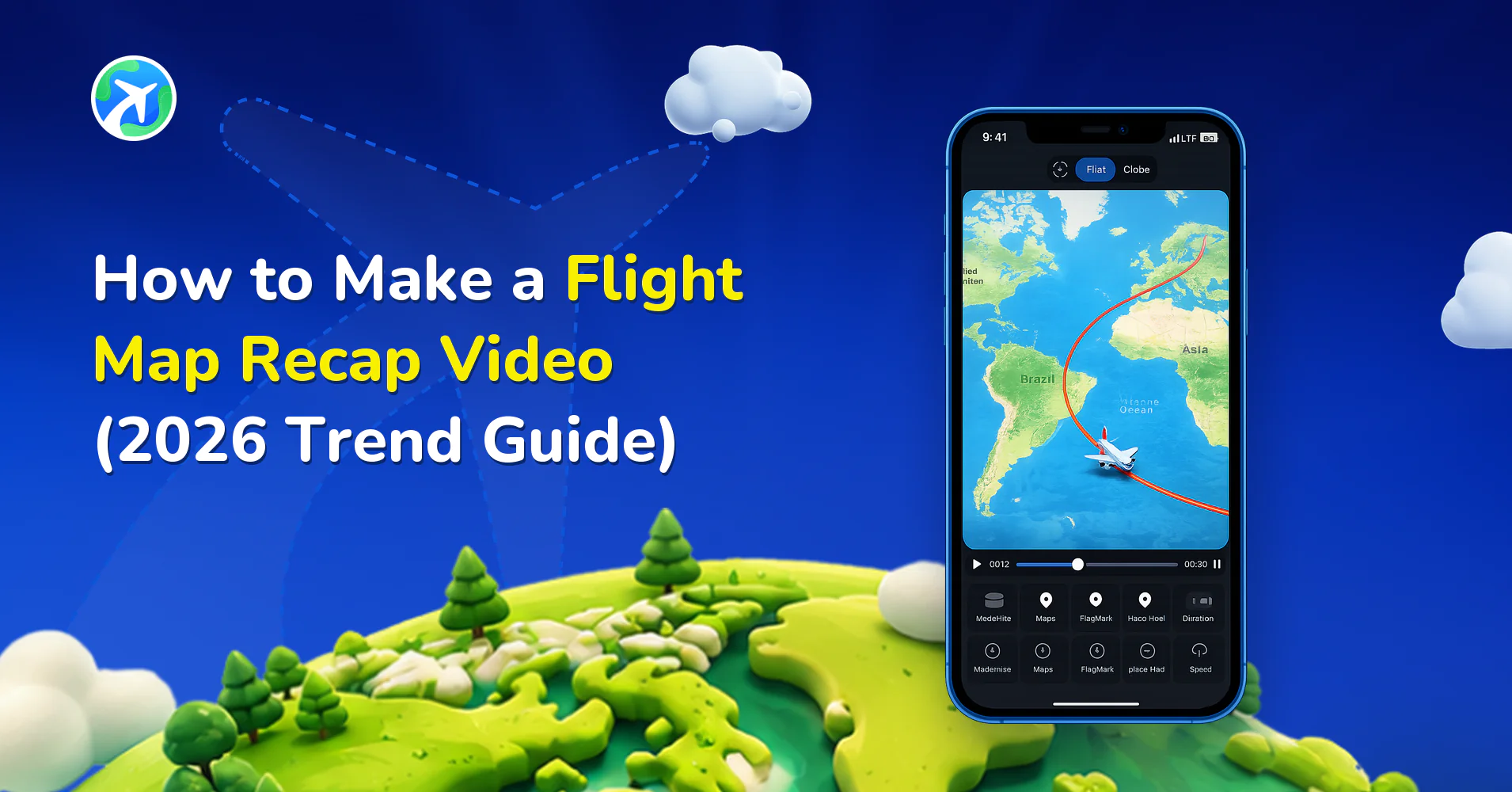
In this article 8 sections
Every December, social media fills with videos showing a small plane flying from city to city on a map or globe. These videos show all the flights someone took during the year, usually with a trending song. This is the flight map recap trend.
You can make your own recap with Travel Animator on your phone. Add your flights, animate them on a map, and export a video for Instagram Reels or TikTok.
In this guide, you’ll learn how to prepare your flight list, create your animation, choose the right format, and add music. You don’t need video editing skills to get started.
What Is the Flight Map Recap Trend?
A flight map recap is a short vertical video that shows all the flights you took during a year. It usually lasts 10 to 30 seconds and displays your flights in the order you took them. A plane moves between cities, stops at each destination, and ends by showing your complete route for the year.
This trend is popular on social media because it tells the story of an entire year of travel in one simple video. You don’t need to show your face or collect hundreds of travel clips. The animated map gives viewers a quick look at the places you’ve visited and can start conversations about your trips.
Creators often share these videos from late December through January, using hashtags such as #2026recap, #travelwrapped, and #flightmap.
What You Need Before You Start
Spend about five minutes collecting your travel details before creating the video. Having everything ready will make the process faster.
- Your flight list
Start by finding every flight you took during the year. You can check:
- Your email inbox — Search for terms such as “boarding pass,” “e-ticket,” or “itinerary.”
- Airline apps — Check your booking history or past trips.
- Flight-logging apps — If you use one to track your flights, look through your saved records.
- The order of your flights
Arrange your flights by date, from the first trip of the year to the last. Include your return flights too. This helps the animation show how you moved between destinations throughout the year.
- One photo for each destination (optional)
Choose one good photo from each city you visited. You can add these photos to your stops to make the video more personal. If you don’t have photos ready, you can still create a recap using location pins.
- Your song
Choose the music before you start building the animation. The song helps you decide how fast the plane should move and how long the video should be. For example, if your video is 20 seconds long and includes eight flights, each flight will have about two seconds of screen time.
Plan Your Flights Before Animating
Use this simple table to organize your flights. Replace the example destinations with your own travel details.
| # | Month | From | To | Photo picked? |
|---|---|---|---|---|
| 1 | Jan | Kochi | Dubai | ✅ |
| 2 | Jan | Dubai | Kochi | — |
| 3 | Apr | … | … | … |
Tip: If you took more than 15 flights, consider leaving out short domestic trips or connecting flights. The goal is to make a recap that people can follow and enjoy, rather than showing every single flight.
How to Make a Flight Map Recap in Travel Animator
1. Add Your Cities in the Order You Flew
Start a new trip in Travel Animator and add each city or airport from your flight planner in the order you visited them.
For a round trip, add your home city again as the next stop so the animation shows the flight back. Check the order before moving to the next step, especially if you visited several cities during one trip.
2. Choose an Airplane Model and Map Style
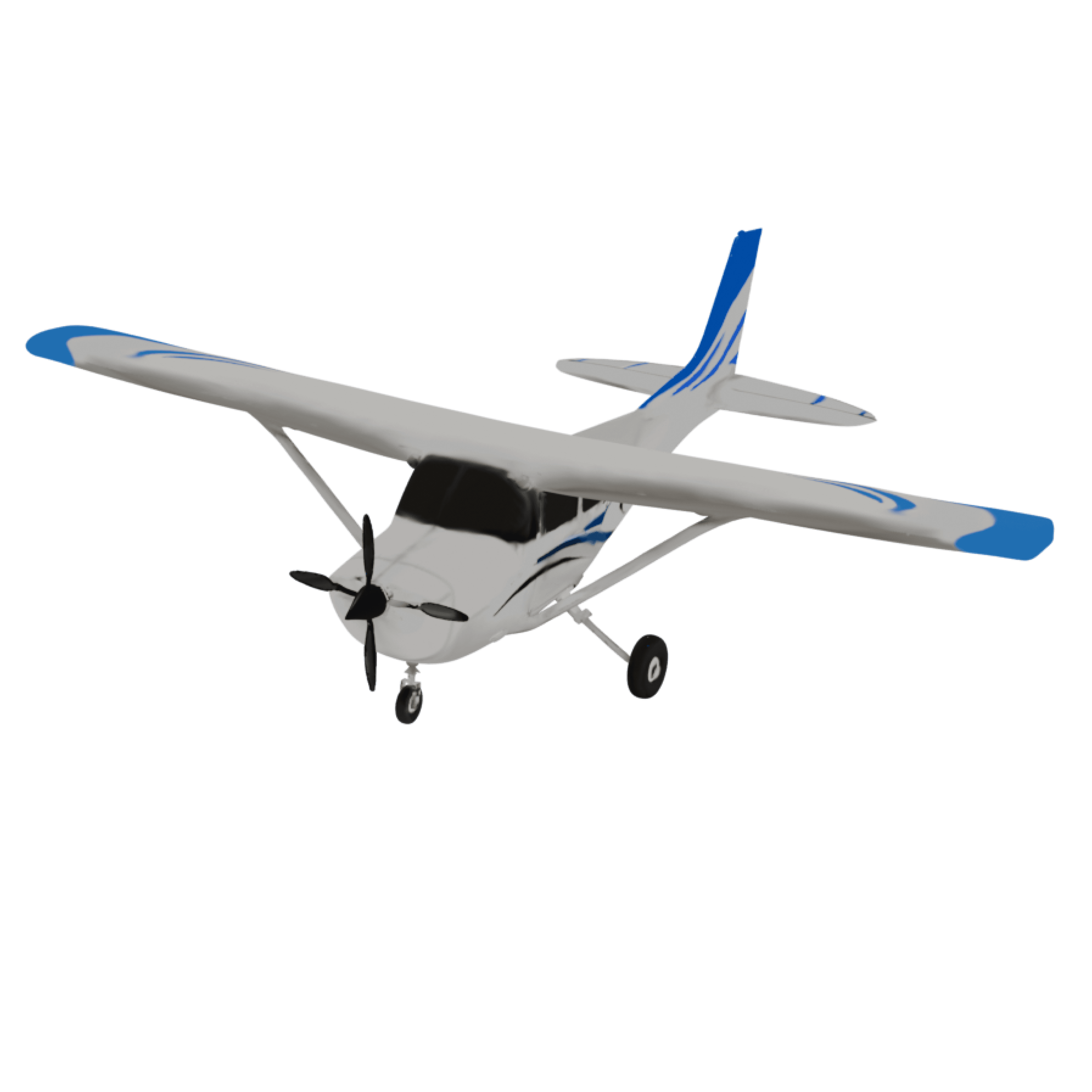
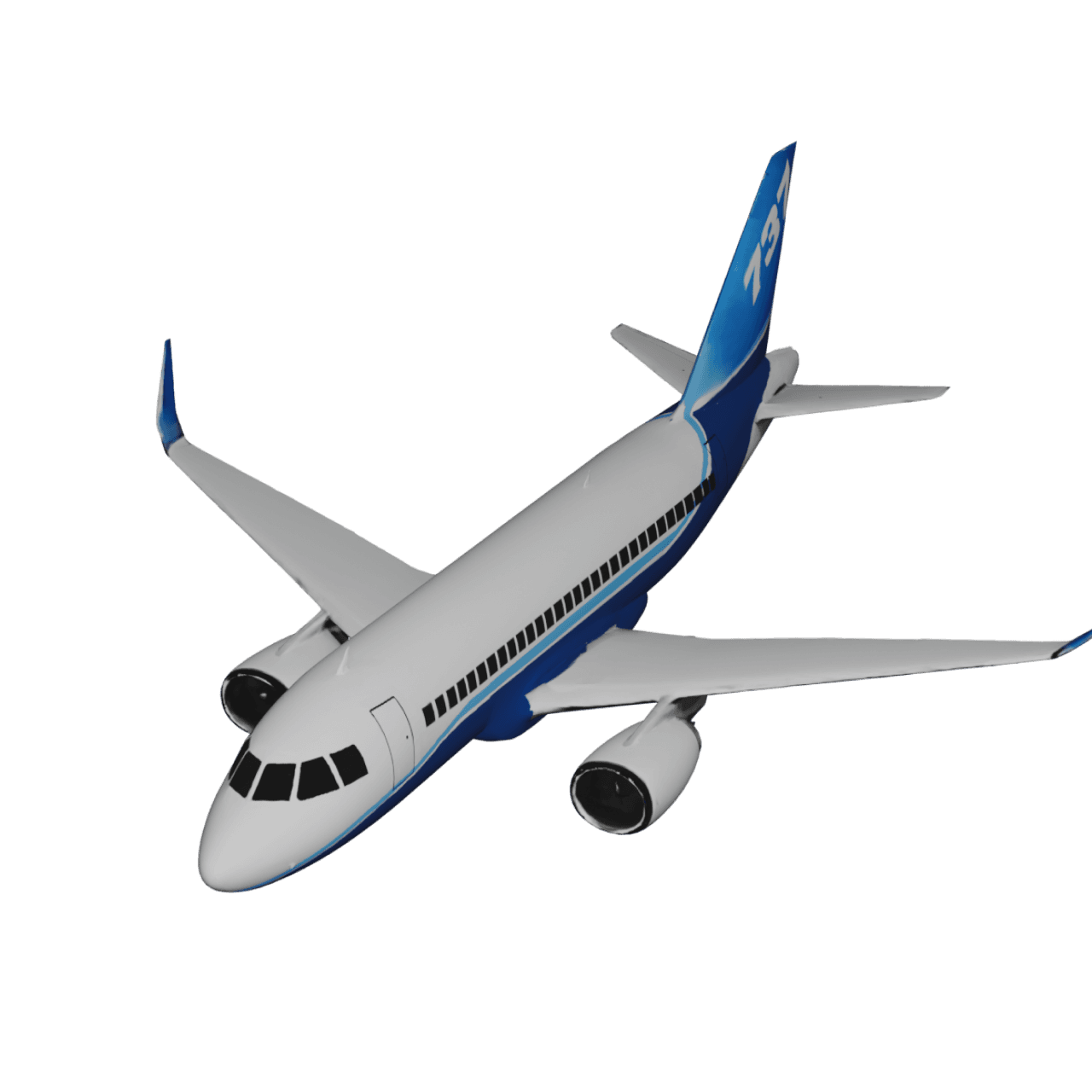
Choose an airplane model for your flight animation, then select the map or globe style that best fits your trip.
- 3D globe — Works well for long-distance and international flights. The globe makes routes across continents look more dramatic.
- 2D map — A good option for shorter regional flights, where the destinations are closer together.
Try a few styles and preview the route to see which one makes your flights easiest to follow. You can also choose a look that matches the mood of your recap.
3. Add Photos or Pins at Each Stop
Add the photo you selected for each destination to its stop in the animation. When the plane reaches a city, the photo can help viewers see what the place looks like and make your recap feel more personal.
Don’t have photos for every destination? That’s fine. Use location pins to highlight each city so viewers can still follow your journey.
Keep the number of photos manageable. A short recap should show the highlights of your year without feeling crowded.
4. Export in Vertical Format for Reels and TikTok
Preview the full animation before exporting. Check that the plane follows the correct route, each stop is easy to see, and the video moves at a comfortable pace.
Next, choose the vertical 9:16 format for Instagram Reels, TikTok, and YouTube Shorts. This format is designed for phone screens and helps your video fit these platforms without needing to crop it.
Once you’re happy with the result, export the video and get it ready to share.
5 Ways to Make Your Flight Map Recap Stand Out
- Use a seasonal map style – A winter-themed map suits a December post and sets your recap apart from the default look most people use.
- Hold the final frame – Start the video by showing the full route for the year. Keep this view on screen for a few seconds, so viewers have time to see all the destinations. You can use any suitable template from the options.
- Hook in the first second – Add a text overlay such as “Every flight I took in 2026 ✈️” or “12 flights, 7 countries.” A clear opening helps viewers understand the video quickly and gives them a reason to keep watching.
- End with a question – Give viewers an easy way to join the conversation. You could end your caption with a question such as, “Where should I fly in 2027?” Questions can encourage people to comment with travel ideas, destinations, or their own flight recaps.
How to Add Trending Audio to Your Flight Map Recap
Travel Animator does not include built-in audio in exported videos, so you’ll need to add music after exporting. You have two main options.
- Inside Instagram or TikTok – Upload your video as a Reel or TikTok, open the audio option, and choose a song from the available music library. This is usually the quickest way to add music, and using a sound that’s currently trending may help your video reach more viewers.
- In an editor like CapCut or InShot – Choose this option if you want the plane’s arrivals to match specific beats in the music. Import your exported video into the editor, add your track, and adjust the timing until the main moments match the song.
To find what’s trending, browse Reels and look for sounds with the trending arrow next to the audio name, or check TikTok’s Creative Center.
Free vs Pro for recap videos
| Feature | Free | Pro |
|---|---|---|
| Vehicle models | 10+ | 300+ |
| Map styles | Default 2D Map | 30+ 2D and 3D Maps |
| Export quality | HD | 4K |
| Watermark | Yes | No |
| Custom branding/logo | No | Yes |
The free plan is enough to create and share a flight recap, but the exported video includes a Travel Animator watermark. Pro is worth considering if you want a clean video without the watermark or want more map styles for your recap.
Check the Travel Animator plans and pricing to see which option fits your needs.
Frequently Asked Questions
How do I make a flight map recap for free?
Download Travel Animator for iOS or Android, add your flights in order, choose an airplane and map style, and export the video in 9:16 format. The free plan lets you export HD videos, but they include a watermark.
What app do people use for the flight map trend?
Creators use several map animation tools. TravelAnimator is built for this kind of video on iOS and Android, with 3D globe views, airplane models and photo stops.
How long should a flight map recap be?
Aim for a video that lasts between 10 and 30 seconds. For many creators, a video under 20 seconds is a good starting point because it’s quick to watch and easy to replay. Choose a length that gives viewers enough time to follow your main flights.
Can I include road trips and train journeys too?
Yes. You can create a recap that includes more than flights if you want to show your whole year of travel. Read our Travel Wrapped guide to learn how to turn different trips into one animated map video.
Can I use the same video on Instagram, TikTok and YouTube Shorts?
Yes. A 9:16 export fits all three without cropping. Add the audio separately on each platform.
Make Your 2026 Flight Map Recap Today
Your flight details are probably already in your email inbox or airline apps. With a little planning, you can turn those flights into a short video that shows where you went throughout the year.
Collect your flights, add your destinations in Travel Animator, choose an airplane and map style, and export your recap. Then add music and share your year of travel with friends and followers.