The Best Free Alternative to Canva for Travel Map Animation in 2026
Travel Animator is a free-to-start mobile alternative to manually building travel route animations in Canva. Add locations or import a route, choose a vehicle and export a map video. Some models, map styles and export options require Pro.
 Jaseel S9 min read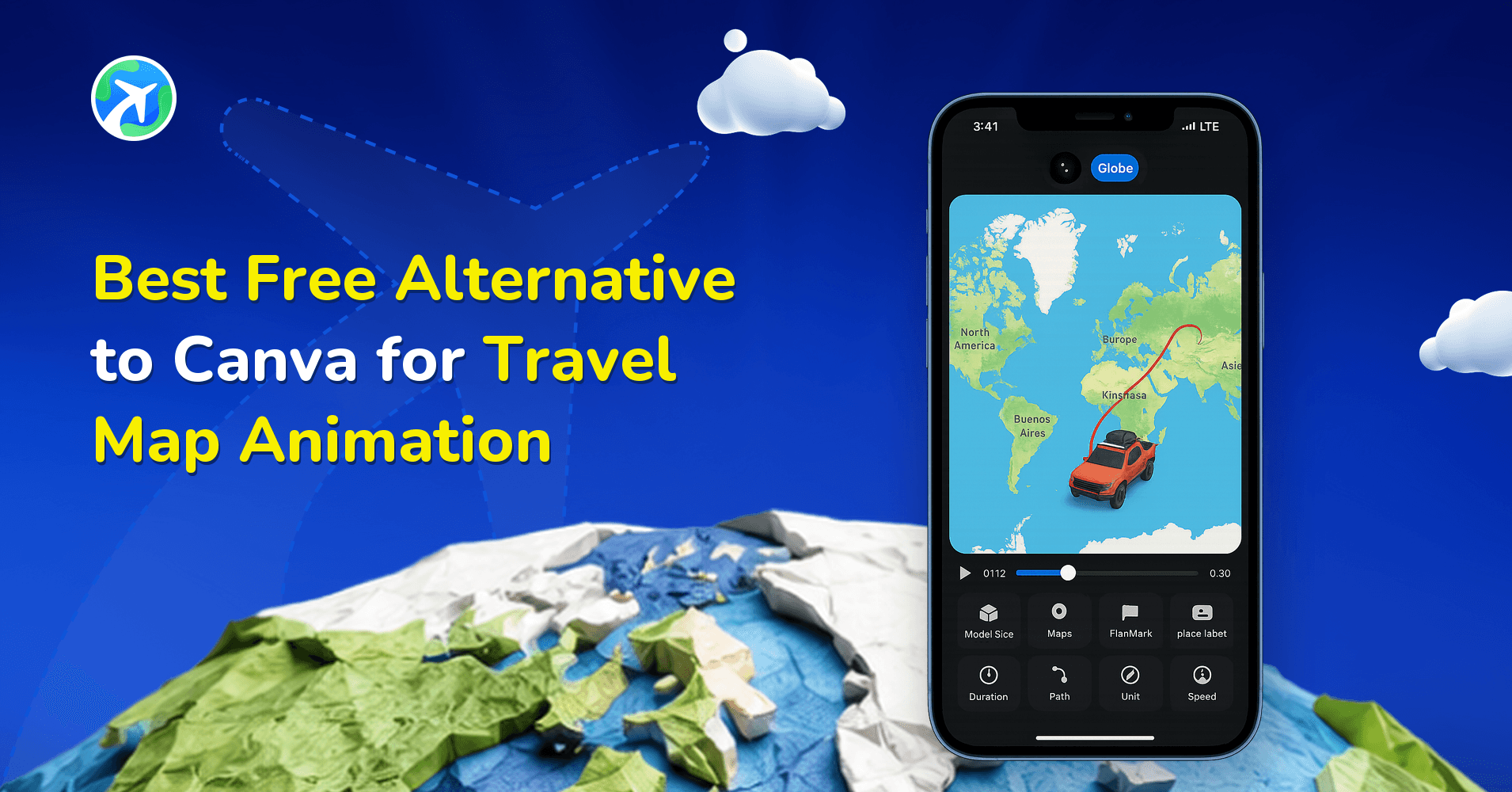
In this article 7 sections
You’ve just returned from a trip and want to turn your journey into a short animated video showing your route from start to finish. While Canva is a popular and easy-to-use tool for content, creating a true animated route in it often requires manually moving icons like planes or cars across the map, which can get time-consuming.
Travel Animator makes this process much simpler. It’s a dedicated travel map animation app where you can add your route, choose a vehicle, pick a map style, and instantly generate a smooth animated travel video without building it frame by frame.
In this guide, we will look at the free alternative to canva for travel map animation, explain how Canva can be used for travel map videos, and show why Travel Animator may be a better choice when the main goal is to create an animated travel route video.
If Canva is not the only editor on your shortlist, the travel animation app comparisons examine other tools and the workflows each one suits.
Publisher disclosure: This guide is published by the team behind Travel Animator. It compares our product with alternatives and is not an independent review. Availability and purchase options can vary by app version, device and region.
Can You Make a Travel Map Animation in Canva?
Yes, you can create a travel-themed video in Canva using its video editor, templates, animations, and design elements. Its drag-and-drop interface makes it easy to build general travel content like reels, slideshows, or promotional videos.
However, Canva is not built for true travel route animation. If you want a moving vehicle following a route (like New York → Boston → Montreal), you would need to manually design and animate each step yourself using multiple elements and keyframes, which can take extra time and effort.
To animate a route in Canva, you typically need to:
- Import or draw a static map as a background image
- Place a vehicle icon (plane, car, ship) at each stop along the route
- Duplicate that layer for every position the vehicle needs to move through
- Adjust the icon’s position, rotation, and timing on each duplicated frame
- Stitch the frames together so the movement looks smooth
This can work for a simple animation, but it gets harder as you add more stops. A two-location route is easy to build manually, but a multi-city trip requires adjusting every movement and timing. Canva is a strong general design tool for travel videos, photos, text, and templates, but it is not built specifically for route animation.
The key difference is that Canva is a design platform, while Travel Animator is focused on travel routes and map animations. If you want an easy alternative to Canva for travel map videos, a dedicated tool like Travel Animator saves a lot of manual work.
Travel Animator vs. Canva: Quick Comparison
| Feature | Travel Animator | Canva |
|---|---|---|
| Purpose | Purpose-built for travel route animation | General design & video platform |
| Route Input | Google Maps link, GPX import, or manual plotting | Manual layer placement only |
| Vehicle Models | 300+ animated 3D models (Pro), with a set included on Free | Static icons/elements that can be manually animated |
| Map Styles | 30+ styles (2D, 3D globe, seasonal) | Depends on uploaded/found map image |
| Export Quality | HD (Free), 4K (Pro) | Depends on Canva plan and export settings |
| Editing Time | Can take 3-5 minutes with drag-and-drop features | Can take longer when building a route manually |
| Platform | Native mobile app (iOS & Android) | Web-based, with desktop and mobile apps |
| Price | Free forever, Pro from $5.99/month | Free forever and Pro starts from $18/month |
Both tools are capable for their own purpose. If you’re already designing a broader travel-themed graphic or reel and want to drop in a route as one small element, Canva’s travel video templates can work as a starting point. If the animated route itself is the whole point of the video, TravelAnimator gets you there faster because that’s the one thing it’s designed to do.
Why Travel Animator Is Built Specifically for Travel Route Animation
The key difference between Canva and Travel Animator is route creation. With general design tools, you build the movement yourself. Travel Animator handles route creation automatically.
- Automatic route generation — Paste a Google Maps link, import a GPX file from an app like Strava or Google My Maps, or search and drop pins manually. The app plots the path and animates the movement itself.
- 300+ vehicle models — Travel Animator includes moving cars, bikes, planes, trains, ships, and seasonal characters that match how you actually travelled, rather than a generic static icon.
- 30+ map styles — It offers various map styles including 2D, 3D globe views, and seasonal themes, so the animation matches the mood of the trip.
- HD and 4K export — HD is available on the free plan and 4K is a Pro feature for sharper social posts.
- Designed for Mobile — Travel Animator doesn’t require design software, layers, or desktop skills required. You can create full route animations directly on iOS or Android while you’re still travelling or when you want quick results.
Step-by-Step: Create Your Travel Map Video for Free
- Open Travel Animator on your mobile device and create a new project. You can begin with a new route or work on an existing project.
- Add the route you want to show. You can search for locations, add points manually, paste a Google Maps link, or import a GPX file if you have one. If you have a saved GPS route from another app, GPX import can be especially useful because you can use the actual route instead of recreating it manually. This is one of the biggest differences between Canva travel map animation and a dedicated route animation workflow.
- Choose a vehicle model that matches how you travelled (car, plane, train, and more are available on free plans). The moving model helps make the map animation easier to understand because viewers can immediately see what type of journey you are showing.
- Choose a map style that works with your video. On the free plan, you get access to a default map style. To explore more map styles like 3D, globe, or seasonal designs, you will need the Pro plan. The important thing is to choose a map that keeps the route easy to see.
- Add photos, text, or elements at specific stops to personalize the journey. For example, if you travelled through three cities, you can show a photo from each city as the route reaches that location. This turns a simple map into a travel story.
- Preview the animation and adjust any stop before exporting. Watch how the vehicle moves from one point to another. Check whether the route looks correct and whether the map stays focused on the important parts of your journey. If you need to make changes, do so before exporting.
- Customize the animation with Travel Animator’s built-in features, such as ratio, map view, model size, maps, path, place labels, highlight, duration, scene style, unit, flag, cover image, etc.
- Export your video in HD (with no watermark on 4K export), with no ads, and no credit card for free.
Who Should Use Travel Animator Instead of Canva?
- Travel bloggers and content creators who want a route animation without spending time on manual layout work
- Casual travellers documenting a trip who want something shareable in minutes, not hours
- Students and educators building a simple visual for a presentation or class project
- Travel agencies and small businesses that need to visualize an itinerary or tour route without hiring an editor
If you’re already deep into Canva for a broader design project and just need one small route graphic, Canva can still work. If the route animation is the deliverable itself, Travel Animator is the more direct path.
Free vs. Pro: What You Get Without Paying
Travel Animator’s free plan isn’t a limited trial; it’s free forever, like Canva. On Free, you get unlimited HD video exports, GPX import, Google Maps route plotting, manual plotting, photos, videos and elements added along your route, a set of animated models and map styles, undo/redo, and full preview before export.
Travel Animator Pro plan starts at $5.99/month or $24.99/year and adds features to make your animation more professional. It adds the full library of 300+ premium 3D models, 30+ map styles, 4K export, no watermark, custom logo adding, unlimited saved routes, and more. Most casual creators can make and share plenty of videos without upgrading. But travellers upgrade to Pro to get the best output.
FAQs About Canva and Travel Map Animation
Is Canva good for travel map animation?
Canva can be used to build a travel map animation, but you’ll need to manually place and animate a vehicle icon at each stop since there’s no built-in route tool. It works better as a general design and video platform than as a dedicated route animator.
Is there a free way to animate a travel route without Canva?
Yes. Travel Animator is free to use, with no time limit or credit card required, and it generates the route animation automatically from a Google Maps link, GPX file, or manual plotting.
Does Travel Animator work on desktop like Canva?
No. Travel Animator is a native mobile app for iOS and Android. If you specifically need a browser-based tool, Canva remains an option, though it doesn’t offer automated route plotting.
For the broader question of which travel-animation software to choose, browse the software-selection questions in our FAQ before settling on an editor.
Can I import a GPX file into Canva?
No. Canva doesn’t support GPX import. Route data has to be recreated manually using layers and positioned icons. Travel Animator supports direct GPX import.
Is Travel Animator really free to use?
Yes. The free plan includes unlimited HD video exports, with no trial period and no credit card required to get started.
Conclusion
The real difference is how each tool works. Canva starts with a blank canvas, while TravelAnimator starts with your actual journey—using a Google Maps link, GPX file, or stops to create the animation.
So, if the route is just one part of a larger design, Canva works well. But if the animated route is the main video, TravelAnimator, a free alternative to Canva for travel map animation, saves you the manual work and gets you to the finished video faster.
Download Travel Animator and turn your next trip into an animated route video in minutes, or see how it stacks up against other travel animation apps.