How to Get an Invoice for Your TravelAnimator Subscription
 Jaseel S6 min read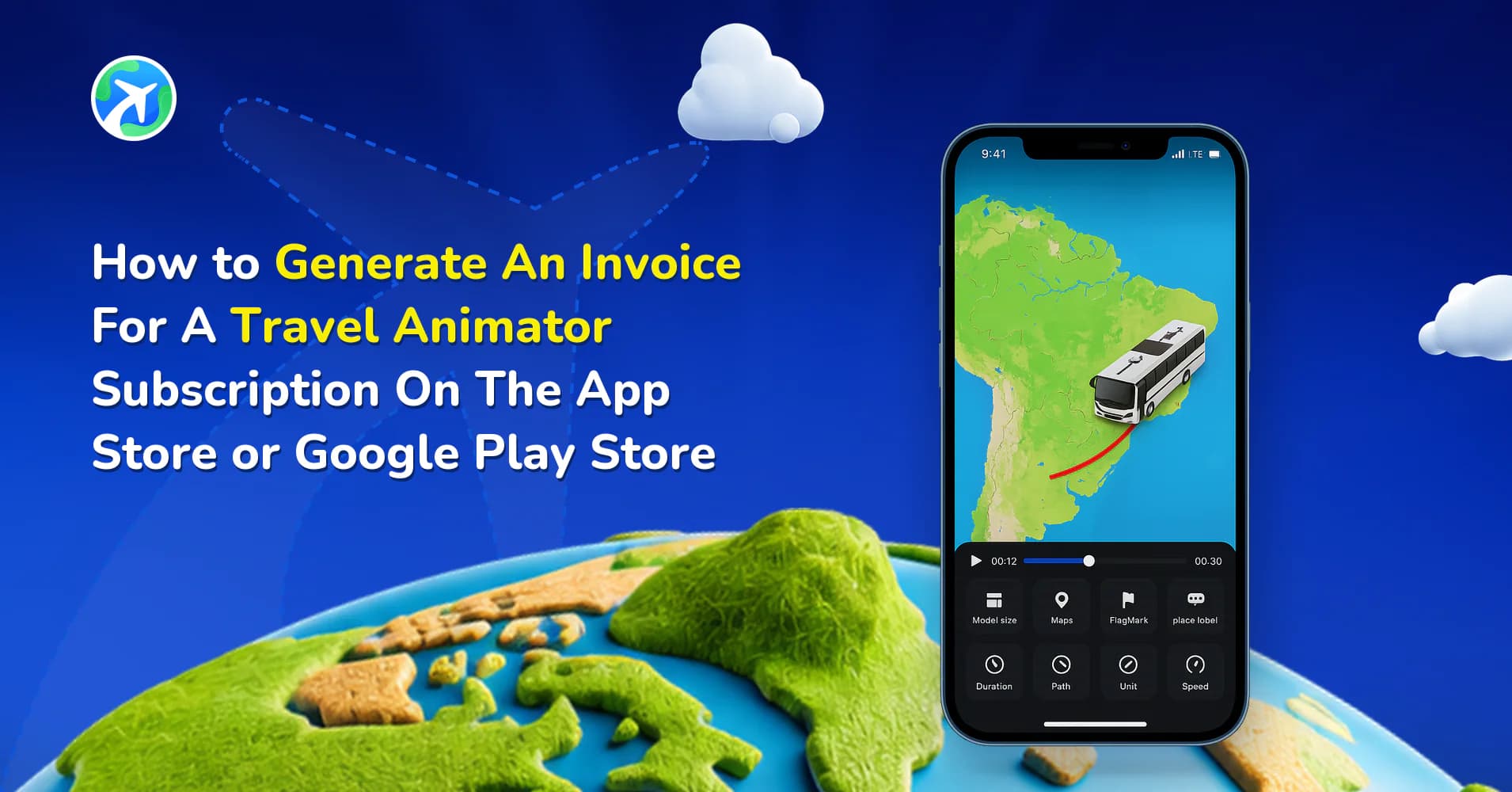
In this article 9 sections
App Store and Google Play Store provide an invoice for the subscription to the Travel Animator App.
Generating an invoice for the Travel Animator subscription is sometimes essential to show their expense in their budgeting report.
This will guide you through generating an invoice for Travel Animator Subscription on the App Store and Google Play Store.
How to Generate an Invoice on the App Store–step-by-step procedure
- Open the settings on your iPhone or iPad.
- At the top of the settings menu, tap your name or Apple ID.
- Go to Media & Purchase and tap on “View account”.
- Scroll down and tap on “Purchase history”.
- Select the relevant date or year and find the transaction related to your Travel Animator Subscription.
- Look for the “download invoice” option. While Apple doesn’t provide a direct “download invoice” option, you can take a screenshot of the transaction details or share the information.
Apple may also send you a receipt directly via email.
How to Generate an Invoice on the Google Play Store–step-by-step procedure
- Go to google.pay.com in a web browser.
- Sign in to the Google account you used to subscribe to the Travel Animator app.
- Click on “Activity” on the left-hand side menu.
- Locate the transaction for your Travel Animator Subscription. You can filter by date or search for “Travel Animator” to narrow down the results.
- Click on the transaction to view the details.
- Use the browser option to print or save the result as a PDF.
Quicker Ways to Find the Receipt on Your Phone
The steps above work, but there are shortcuts if you just need the transaction details fast.
On iPhone or iPad
Apple’s Report a Problem page lists your recent App Store purchases once you sign in with your Apple ID, subscription renewals included, and it works in any web browser. Apple may also email a receipt to your Apple ID address when you’re charged, so searching your inbox for “Travel Animator” is often the fastest option.
On Android
In the Play Store app, tap your profile icon, go to Payments & subscriptions, then Budget & history. Your Travel Animator charges are listed there with their dates. Google usually emails an order receipt to the account that paid as well.
Why do users need an invoice?
When you subscribe to the Travel Animator App, you will likely pay for a specific period, like monthly or yearly. That makes your subscription a financial transaction, and you’ll want an invoice, just like with every other transaction.
Here are a few reasons you need an invoice for the Travel Animator Subscription.
- Businesses can track their expenses to better manage their budget.
- Content creators and digital entrepreneurs can claim subscription costs as tax-deductible expenses.
- A detailed invoice helps to submit proof of purchase to employers or clients.
- Tracking subscription expenses allows users to manage their budget and subscriptions.
Common Issues and Solutions
Q. Didn’t receive the invoice
- Ensure you check the correct email address linked to your App Store or Play Store.
- Ensure you have checked the email address associated with your App Store or Google Play Store. Sometimes, the invoice may end up in your spam or junk folder.
- Sometimes, the invoice may take a few hours to receive. Contact Apple Support or Google Play Support for assistance.
Q. Can’t find the subscription in history
- Ensure you’re looking into the correct date range in your purchase history.
- Double-check which Apple ID or Google account you used for the subscription.
Need Further Help?
If you’ve followed the steps but still can’t find your invoice or are unsure which account you used for the subscription, we’re here to help.
- You can ask in Travel Animator’s forum https://support.travelanimator.com
- In app: Go to the Travel Animator app and chat directly to our team through the chatbox option.
Tips for Expense Reports and Tax Records
A subscription renews on its own, and each renewal is a separate charge with its own record. On a monthly plan that’s twelve receipts a year, not one. Save each as it arrives instead of hunting for them at tax time.
- Save the PDF or screenshot with a clear file name, such as “TravelAnimator-2026-03.pdf”.
- Note which Apple ID or Google account paid. If you pay a work expense from a personal account, your accountant may ask.
- Receipts come from Apple or Google, because they process the payment. If your employer needs a formal invoice with company details, ask whether a store receipt is acceptable before you subscribe.
- If you cancel, you keep premium features until the end of the period you paid for, so your last receipt covers that final stretch.
Are you keeping your invoice organized?
Keeping your invoice for the Travel Animator subscription is a minor detail. But it can save you time, money, and confusion in the long run. Whether you’re using Travel Animator for personal or professional use, having an invoice helps you to calculate the budget. Following these steps, you can easily access and manage your invoices, simplifying your budget tracking.
If you have faced any issues while generating your receipt, our support team is available from Apple, Google, and the Travel Animator team.
Frequently Asked Questions
Where should I look for my Travel Animator purchase receipt?
Check the purchase history and receipt email for the Apple or Google account used to subscribe. Store-billed purchases are recorded by the store that processed the payment.
What should I check if I cannot find the subscription receipt?
Check the account used for the purchase, the transaction date range and the receipt email’s spam or junk folder. If it is still missing, contact the store’s support team for help locating the transaction.
Can a purchase receipt help with a support request?
Yes. The receipt identifies the store transaction and helps establish which account made the purchase. Keep a copy for your records and share the relevant transaction details when support requests them.
Why does my Travel Animator receipt come from Apple or Google?
Subscriptions bought in the app are processed by the App Store or Google Play, so the store issues the receipt and holds the transaction record. The receipt still lists the Travel Animator subscription, the date and the amount. Keep it as your proof of purchase, and use the store’s purchase history if you need to find it again.
Do I get a new receipt every time my Travel Animator subscription renews?
Each renewal is a separate transaction, so it shows up as its own entry in your App Store purchase history or Google Play budget and history, usually with its own email receipt. On a monthly plan you’ll have one per month, and on a yearly plan one per year. Save each one if you’re tracking the expense.