How to Check the Version Number of the Travel Animator App?
 Jaseel S5 min read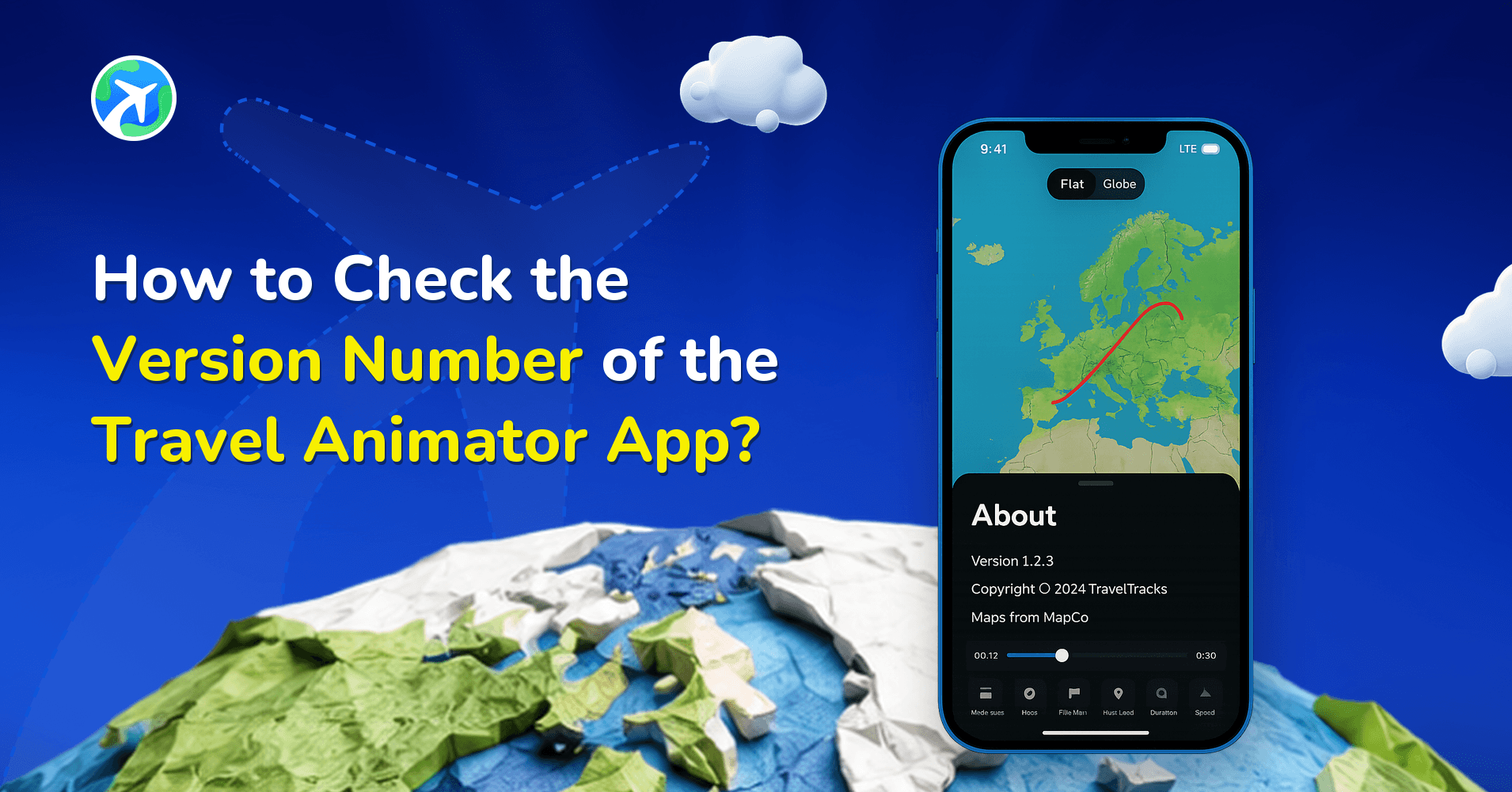
In this article 7 sections
Travel Animator can find the app version of the Travel Animator App to get the latest version of the app for smoother performance, access to features, and better support of the app.
Imagine you’re creating a travel animation video and suddenly some features are not showing as expected. You ask the chatbot for help, and it asks your app version. You’re confused about how to check the app feature and which is the latest version released by the app.
This guide will help you find the version number of your Travel Animator app, the latest version released by Travel Animator, and the importance of knowing your app version.
Where Can You Find the Version Number in the Travel Animator?
There are two simple ways to find the version number of the Travel Animator App.
Check your latest version of the Travel Animator App
- Open the Travel Animator App and go to main settings from the right side of the screen.
- Click on the “About Us” under Account.
- You can see the version number of the app at the bottom of the content.
Check the latest version released by the Travel Animator App
- Open the App Store or Play Store and search for the Travel Animator App.
- Once you have found the app, tap on “What’s New”.
- You can see the latest version released by the app there. In Android, scroll down slightly to view the version number.
- Make sure the app on your device is the same version as the App Store or Play Store.
Why Is It Important to Know Your App Version?
- If you ever face a glitch or unexpected behaviour in Travel Animator and you take the chatbot support, it may ask about your app version. At that time, knowing it helps to identify whether the issue is related to an older version or a bug in the current version.
- Features and layouts may change with updates. So if you don’t get any features or models, check the version number within the app and update to the latest version.
- Using different versions of the app on multiple devices may lead to inconsistent functionality. Ensuring the same versions in all devices helps to avoid these problems.
- The first thing the support will ask is your app version. Before contacting support, make sure you are updated to the latest version of the app.
Tips to Stay Up to Date with the Latest Version
- Enable auto update in your app store settings. Then Travel Animator will update whenever a new version is released, to get up-to-date.
- If you have no auto-updates on, you can manually check the update status occasionally, especially if you’re experiencing any issues or bugs.
- Stay connected by subscribing to Travel Animator’s newsletter through the website, logging in to the app to get the new feature notifications, or checking the latest blog to hear about the new features.
What to Send Support Along With Your Version
The version number is one piece of the picture. Sending everything in your first message saves a round of back-and-forth:
- The app version from About Us.
- Your User ID, at the bottom of the main settings screen. Tap the clipboard icon to copy it.
- Your device model, and whether it’s an iPhone, iPad or Android device.
- What you were doing when it went wrong, step by step. “Exported a 9:16 video in 4K and it stopped partway” is far more useful than “export broken”.
- A screenshot or short screen recording. Here’s how to screen record on Android for support.
You can send all of this through the in-app chatbot. If it can’t solve the problem itself, it points you to the team at connect@travelanimator.com.
If a Feature Is Still Missing After You Update
Updated and still can’t find the new model or map style? Run through these before reporting it.
- Compare the numbers again. Check About Us once more and make sure it matches the version in the App Store or Play Store. If the store still offers an update, it hasn’t finished installing.
- Check whether it’s a Pro feature. Many Pro models and map styles show up in the free version but can’t be used until you upgrade. Seeing a GET PRO prompt doesn’t mean the update failed.
- Check which account you’re signed in to. A Pro model you claimed for free stays with the account you claimed it on.
- Check your other devices. If something works on your phone but not your tablet, the tablet is probably on an older version.
Is It Necessary to Know Your App Version?
Whether you’re working on your next travel animation or reaching out to chatbot support, having the correct version ensures a smooth and efficient experience. Knowing your travel animator app version helps to stay updated with the latest improvements and features. So update your Travel Animator App today.
Frequently Asked Questions
Where Can You Find the Version Number in the Travel Animator?
Open the app’s main settings, choose About Us under Account and look for the version number at the bottom. Include that number when reporting an issue.
Why Is It Important to Know Your App Version?
If you ever face a glitch or unexpected behaviour in Travel Animator and you take the chatbot support, it may ask about your app version. At that time, knowing it helps to identify whether the issue is related to an older version or a bug in the current version.
How do I check whether a newer app version is available?
Find Travel Animator in the App Store or Google Play and review the version or What’s New information. Compare it with the version installed on your device and update if an update is offered.
Does reinstalling Travel Animator change my User ID?
Yes. The User ID is tied to each app install, so it changes when you delete and reinstall the app, while it stays the same for the same email across devices. If you reinstall in the middle of a support conversation, send the new User ID along with your app version so the team checks the right account.
How do I keep my saved routes safe when updating or reinstalling Travel Animator?
Make sure you’re logged in and that the route is saved in the app, not just exported as a video. Saved routes are linked to your Travel Animator account, which is why they can open on another device. After updating or reinstalling, sign back in with the same email and your saved routes should appear in Load Route.