How to Delete an Image in Travel Animator
 Jaseel S6 min read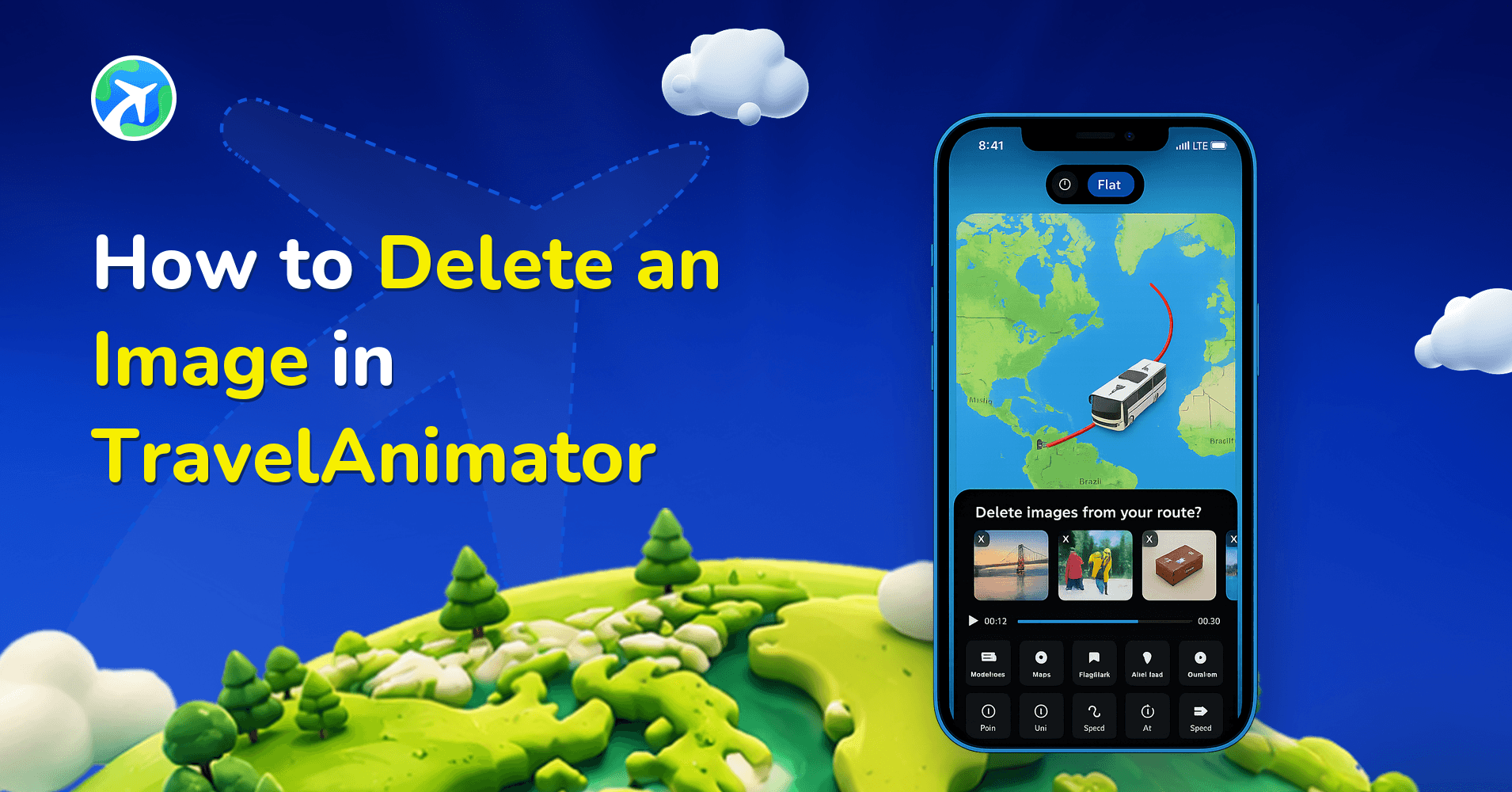
In this article 7 sections
Travel Animator lets you remove images without deleting the whole route when you accidentally place them in the wrong place.
Creating a travel animation is meant to be a fun, creative process, but mistakes can happen along the way. Maybe you added the wrong image to a location, uploaded a photo just for testing, or changed your mind about how you want your story to look. The good news is that Travel Animator makes image editing simple.
In this guide, you’ll learn how to delete an image in Travel Animator, when and why you might need to remove an image, and how this feature helps you refine your travel animation without starting over.
Step-by-Step Guide to Remove an Image in Travel Animator

- Open the Travel Animator app and open the project you’re working on.
- Navigate to the location or stop where the image is added, then long-press the stop.
- Tap the Add Media from the available options, then go to Media to see the image you already added.
- Look for the red Remove option in the top-left corner of the screen.
- Tap the Remove button to delete the image instantly.
- You can add another image there or go back and continue editing your animation.
What to Know Before You Remove an Image in Travel Animator?
- Only the image is deleted – Your route, map, other images and text stay exactly as they were, and the stop remains active so you can add a new photo to it at any time.
- Removed images can’t be restored automatically – To bring one back, upload the same photo from your device again.
- Try adjusting first – Sometimes an image feels wrong only because of its size or duration, so try changing those before you delete it.
Deleting an image takes a single tap and doesn’t affect the rest of your project. So you can experiment freely, clean up your animation, and keep building your story.
Remove, Replace or Restyle: Pick the Right Fix
Deleting isn’t always the answer. Before you tap Remove, think about what’s actually wrong with the photo.
- Wrong photo, right stop: you can replace an image without deleting its frame, so your frame style and text stay as they are.
- Right photo, wrong look: change the frame, the frame colour, the caption font or how long the image stays on screen (anywhere from 1 to 5 seconds). The image customization guide walks through each option.
- Wrong shape: the image ratio (square, vertical or horizontal) is chosen when you first select the photo. If you picked the wrong one, removing the image and adding it again is the way to choose a new ratio.
- The stop doesn’t need a photo at all: that’s when Remove is the right call.
How Removing a Photo Changes Your Animation's Pacing
Here’s something people don’t expect. In Travel Animator, images and text at a stop create a short reading pause. The vehicle slows and holds while the photo is on screen, which gives viewers time to look at it.
So when you delete a photo, that pause goes with it. On a five-stop Rajasthan road trip, removing the Jaipur photo means the car rolls through Jaipur without stopping. Sometimes that’s exactly what you want, especially if the video felt slow. If it now feels rushed, add a short text label at that stop to bring back a small pause, or lengthen the overall video duration in preview.
Always play the full preview after removing images. Pacing problems are much easier to spot when you watch the whole route rather than one stop.
If the Image Still Shows Up
A few things to check when a photo seems to survive the delete:
- You may have opened the wrong stop. Stops can sit close together on a zoomed-out map, so long-press the exact point and look at its Media list.
- That stop may have more than one photo. You can add multiple photos to a single stop, so remove each one you don’t want.
- You’re looking at an older export. Videos you exported before deleting the image won’t change. Export a fresh copy.
If what you really want is to get rid of the whole stop, not just its picture, that’s a different action. Our guide to deleting points covers it.
Clean Up Your Travel Animation in Seconds
Mistakes are a natural part of any creative process. Whether you added the wrong photo, changed your mind, or simply want a cleaner look, Travel Animator makes deleting images quick and effortless.
With a single tap on the Remove option, you can clean up your project, refine your story, and move forward without stress, without resets, and without losing your progress.
Travel Animator is built to support creativity. So experiment freely, adjust confidently, and know that every part of your animation, including images, remains entirely under your control.
Frequently Asked Questions
Will removing a photo delete its route stop?
No. Removing the image leaves the route, map, stop, other images and text in place. You can add a different photo to the same stop.
Where is the Remove button for a route image?
Long-press the stop containing the image, tap Add Media and open Media. The red Remove option is in the top-left corner of that screen.
How can I bring back a removed image?
Upload the same photo from your device again. The guide does not describe an automatic restore option for removed images.
Does deleting an image in Travel Animator delete it from my phone?
No. Removing an image only takes it out of your Travel Animator project. The original photo is still in your phone’s gallery, which is why you can bring it back by uploading the same photo from your device again. Your route, stop and any other images on the map stay untouched.
Why does my animation feel faster after removing a photo?
Photos and text at a stop create a short reading pause, where the vehicle slows and holds so viewers can look. When you remove the image, that pause disappears, so the vehicle moves through the stop without holding. Add a text label at that stop or adjust the video duration in preview if the pacing now feels rushed.
Can I swap a photo without removing it first?
Yes. Travel Animator lets you replace an image at a stop without deleting its frame, so you keep the frame style and any caption you’ve already set up. Long-press the stop and open Add Media to change the photo. Use Remove only when you want that stop to have no image at all.