How To Delete Points in TravelAnimator?
 Jaseel S6 min read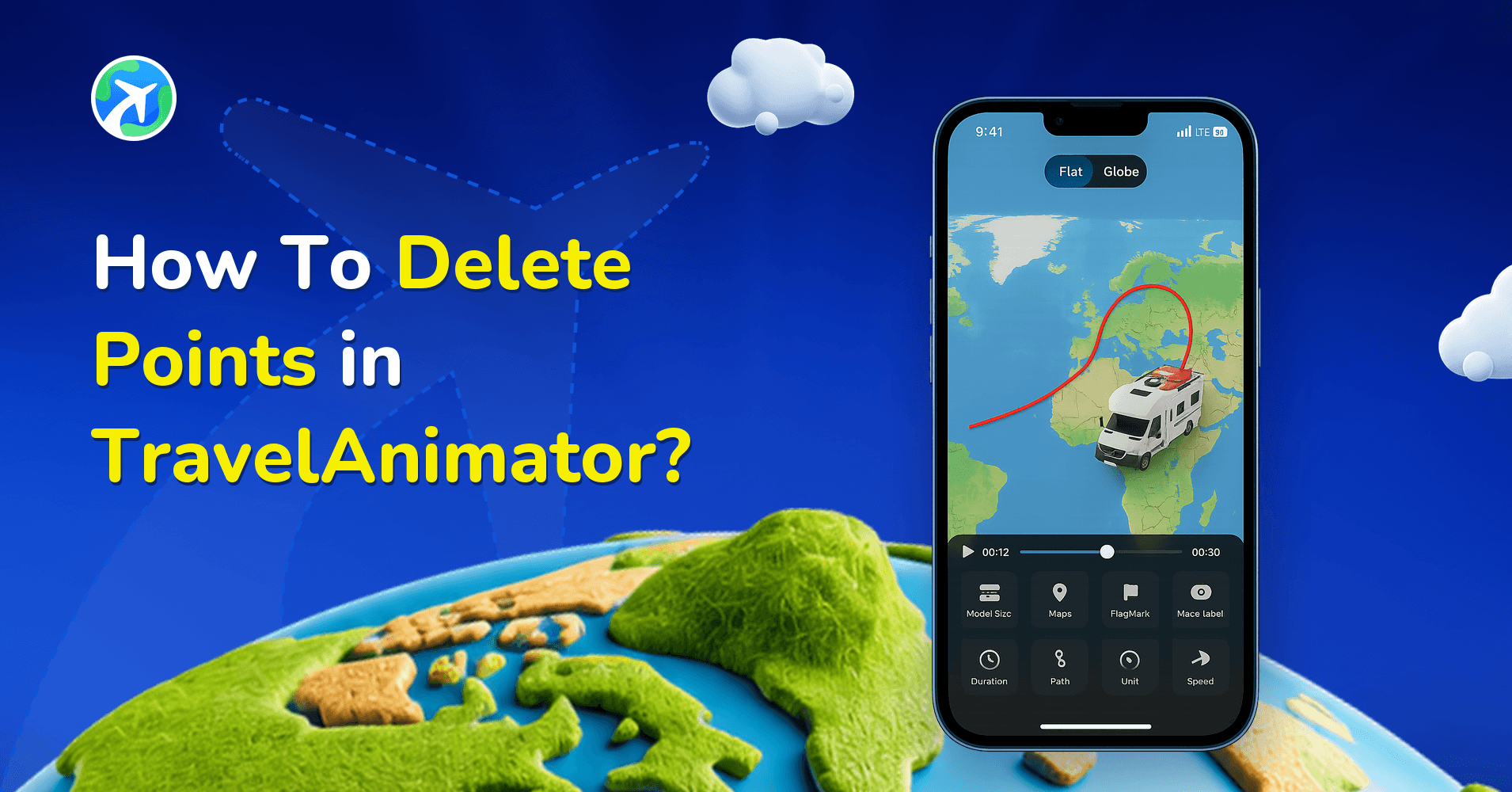
In this article 8 sections
You are creating your travel video using Travel Animator and accidentally placed a point in the wrong spot. You want to delete or change that point but are confused about how to do so. You can delete such points in Travel Animator.
Let’s explain how to delete points or curves very easily.
How to delete points in Travel Animator?
While adding points to create your journey, there may be some instances when you need to delete curves to correct an error or make a smooth transition. Removing a point is very easy as Double-tap,
- Open your travel animation video.
- Find the point you want to remove.
- Double-tap the point to remove the point on the map.
Another Way to Delete a Point, and What Happens Next
Double-tap is the quickest way, but if you long-press a point instead, a small menu opens with options like Enable Real Route, Add Image, Change Model and Delete Point. That’s handy when points sit close together, say on a winding coastal road, because you can see which point you’ve selected before anything is removed.
Either way, Travel Animator reconnects the remaining points on its own. You don’t have to redraw anything.
Deleting a midpoint changes the shape of that stretch. Say you drew a Lisbon to Porto road trip and added a point near Coimbra to bend the line inland. Remove it and the path snaps back toward a direct line between its neighbours. If the route now cuts across the sea, drag the next point slightly off the line to bring a gentle curve back.
- Leave your start and end points alone. They anchor the route. If one is misplaced, drag it rather than deleting it.
- Deleted the wrong one? The undo and redo controls on the route editing screen bring it back exactly as it was.
- Points with models or photos can still be deleted or moved, and the animation updates automatically.
- Zoom in first on a dense route, so you don’t tap the line and add a new point by accident.
Play the preview when you’re done. A route can look fine on the editing screen and still feel abrupt in motion.
What represents “points” in Travel Animator and how can you add them effectively?
In Travel Animator, points represent the spot or destination between your journeys. Each point represents a stop or curve in animation.
Suppose you are creating your travel video with Travel Animator. You started your journey from New York City to Washington, stopping in Philadelphia. You can add that stop using the “point” feature available in Travel Animator. Like this, you can add multiple points that are needed in your journey.
- Plan your routes and spots before placing points in the video.
- Preview your route and set points to make the animation better.
- Start with the main locations and adjust the route as needed.
Benefits of adding points in Travel Animator
- Points help to control the flow of movement with curves.
- Enhance the accuracy of your travel route by adding points.
- Improving the visual appeal of the journey helps to better storytelling.
- Highlighting key spots and locations to showcase your journey step-by-step.
Cleaning Up GPX and Google Maps Routes
Imported routes work differently from ones you draw by hand. With a GPX file or a Google Maps link, the path comes from that data, and you can’t drag its points to reshape the curve. Zooming in to the maximum level reveals points along the track, but those are mainly there for attaching models, images and text.
So if an imported route has a messy section, deleting points isn’t usually the fix. A GPS track from a 12 km ridge hike can be full of tiny zigzags. Turn on the Smoothen Route toggle (see how to smoothen GPX routes), or fix the route in the source app and import it again. For Google Maps routes, the Alternate route button lets you pick a different path.
Worked Example: Tidying a Kerala Route Before Export
Say you’ve built Kochi → Alleppey → Kumarakom → Munnar. While shaping the curves you tapped the line a few extra times, and now there are eleven points: two bunched together outside Alleppey, one floating in the backwaters, and a bend near Kottayam that looks like a zigzag.
Clean it up in this order:
- Zoom out and look at the whole route. Decide which points are real stops and which are only there to bend the line.
- Zoom into each messy spot and double-tap the strays. Start with the duplicates near Alleppey, since one point there is enough.
- Keep the points that carry something. If the Alleppey point holds your houseboat photo or the switch to a boat model, drag it into place rather than deleting it, so the photo and model stay where you set them.
- Fix the zigzag with fewer points. One well-placed midpoint usually gives a smoother bend than three cramped ones.
- Play the preview. Watch the climb to Munnar in particular, because winding hill roads are where leftover points show up as jerky turns.
Excited to see more features?
Travel Animator provides many features to create your perfect travel itineraries. Deleting points is as easy as double-tap. In the same way, you can make travel animation videos within minutes with less effort.
Explore our guide to learn more about creating travel videos using every feature.
Frequently Asked Questions
How to delete points in Travel Animator?
While adding points to create your journey, there may be some instances when you need to delete curves to correct an error or make a smooth transition. Removing a point is very easy as Double-tap, Open your travel animation video. Find the point you want to remove. Double-tap the point to remove the point on the map.
What represents “points” in Travel Animator and how can you add them effectively?
In Travel Animator, points represent the spot or destination between your journeys. Each point represents a stop or curve in animation.
How should I check the route after removing a point?
Preview the path to see how it now connects the remaining points. Adjust nearby curves or stops if the removed point changes the shape of the journey.
Why isn't double-tap deleting my point in TravelAnimator?
Usually the tap is landing on the route line instead of the point itself, and tapping the line adds a point rather than removing one. Zoom in on the map so the point is easier to hit, then double-tap it directly. If points are packed closely together, long-press the point instead and choose Delete Point from the menu.
Can I get a deleted point back in TravelAnimator?
Yes. Tap the Undo icon, the backward curved arrow on the route editing screen, and the most recent change is reversed, including a deleted point. If you undo too far, Redo restores it. You can also simply tap the route line again to add a new point and drag it into place.
How do I make a curved route straight again?
Either drag the midpoint back onto the straight line between its neighbours until the curve flattens, or double-tap the extra points to delete them. TravelAnimator reconnects what’s left with a direct line. Straight lines suit flight routes and simple city-to-city animations, while road and sea routes usually look better with a gentle curve.