How to Add Reading Pauses to Your Map Animations in TravelAnimator
 Jaseel S4 min read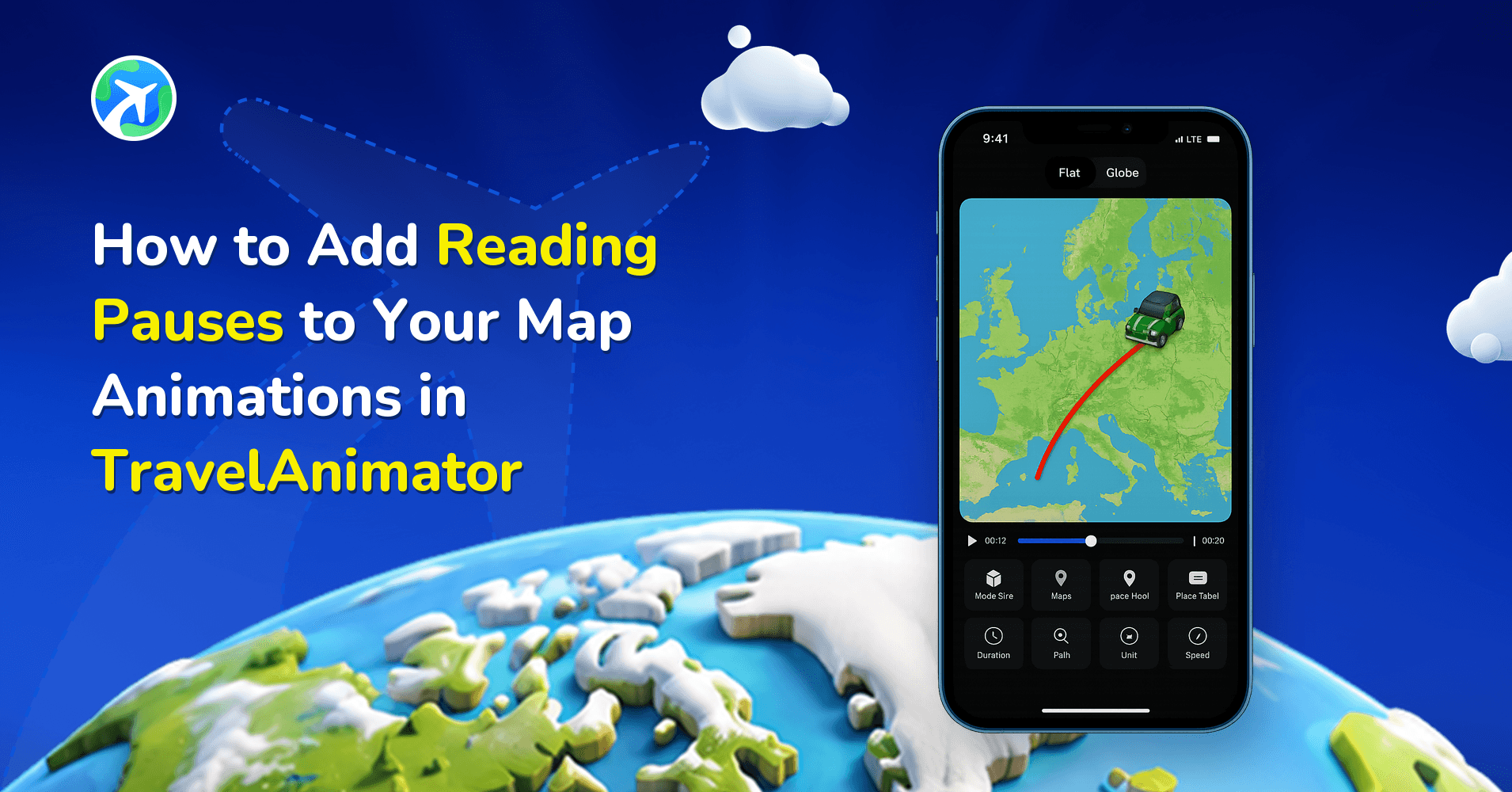
In TravelAnimator, reading pauses help your audience slow down, absorb information, and connect with each part of your journey. Whether you’re adding images, writing captions, or highlighting important destinations, these pauses make your animation easier to follow and more engaging.
Travel animations are meant to guide viewers through a journey. But even a beautifully animated route can feel overwhelming if everything moves too quickly. The model keeps traveling, the map keeps shifting, and viewers don’t get enough time to read the text or understand what each stop represents. That’s where reading pauses come in.
In this guide, you’ll learn what reading pauses mean in travel animations, why they are important, and how to create them naturally in TravelAnimator without complications.
What Is a Reading Pause in Travel Animation and How Does TravelAnimator Create One?
A reading pause is a moment in your animation where movement slows down and gently pauses so viewers can read text, view images, or understand a destination. In traditional video editing tools, creators often insert manual pauses or keyframes. TravelAnimator takes a simpler approach. Instead of adding a separate pause button, the app creates reading pauses automatically when you add images or text at specific stops. When an image or text appears, the model slows down and momentarily holds. Then the viewer’s attention shifts to the content, and the journey feels more natural and story-driven.
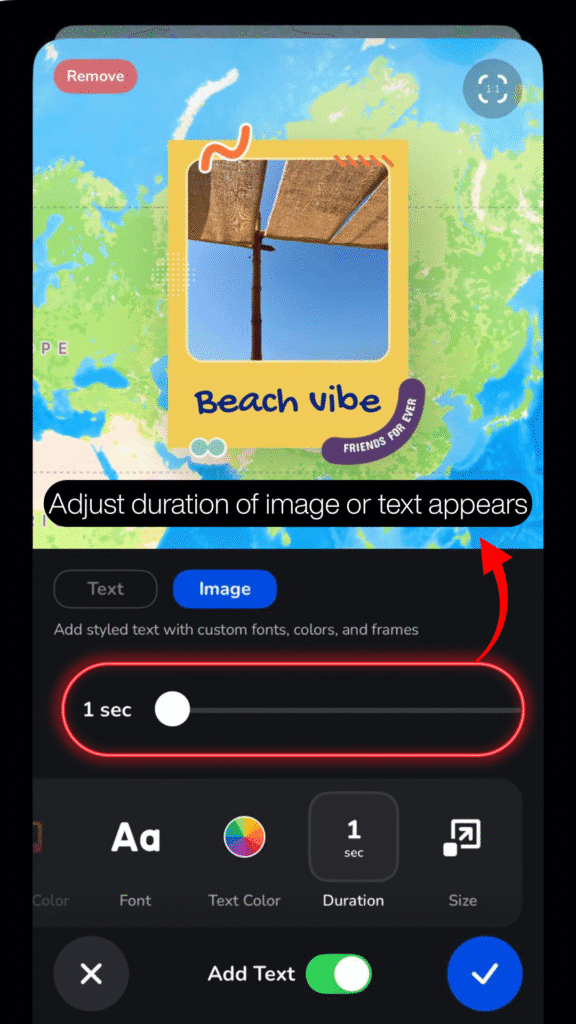
TravelAnimator doesn’t use a separate pause control or timeline editor. When you add text at a stop, the animation slows slightly so viewers can read it, and when you add an image, the animation holds longer to allow visual focus. By default, both text and images appear for 1 second, creating a short reading pause at each stop. You can increase or decrease this duration to control how long the pause feels, keeping the app beginner-friendly while still giving creators enough control to guide viewer attention.
Without reading pauses, animations can feel rushed, even if everything else looks perfect. They help viewers read location names and captions comfortably, understand why a stop is important, and follow the journey without feeling overwhelmed. For creators, reading pauses improve storytelling flow, reduce confusion in multi-stop routes, and make animations feel more professional and polished — especially valuable for travel recap videos, educational content, itineraries, and social media posts where attention spans are short.
Step-by-Step: How to Add Reading Pauses in TravelAnimator
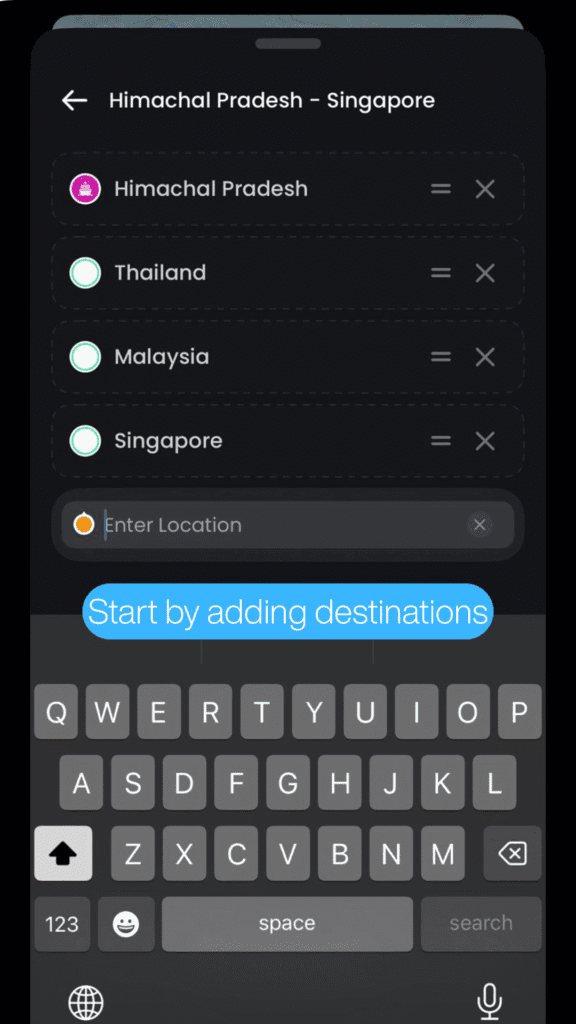
1. Start by adding your starting point and destination. You can search locations by name or coordinates, import GPX files, use Google Maps links, or add multiple stops manually.
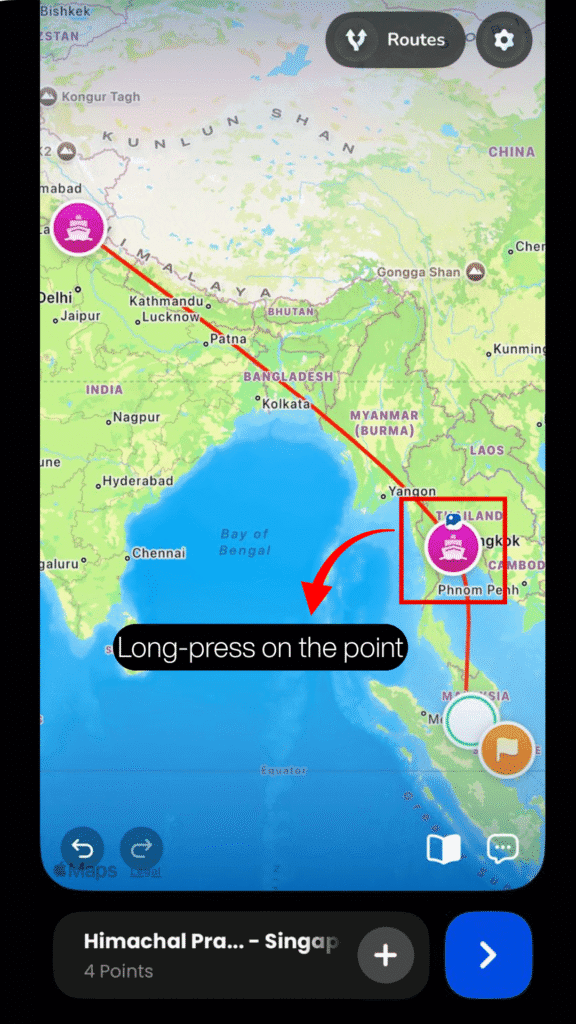
2. Long-press on any point along your route where you want viewers to slow down and focus.
3. Go to Add Media from the option menu.
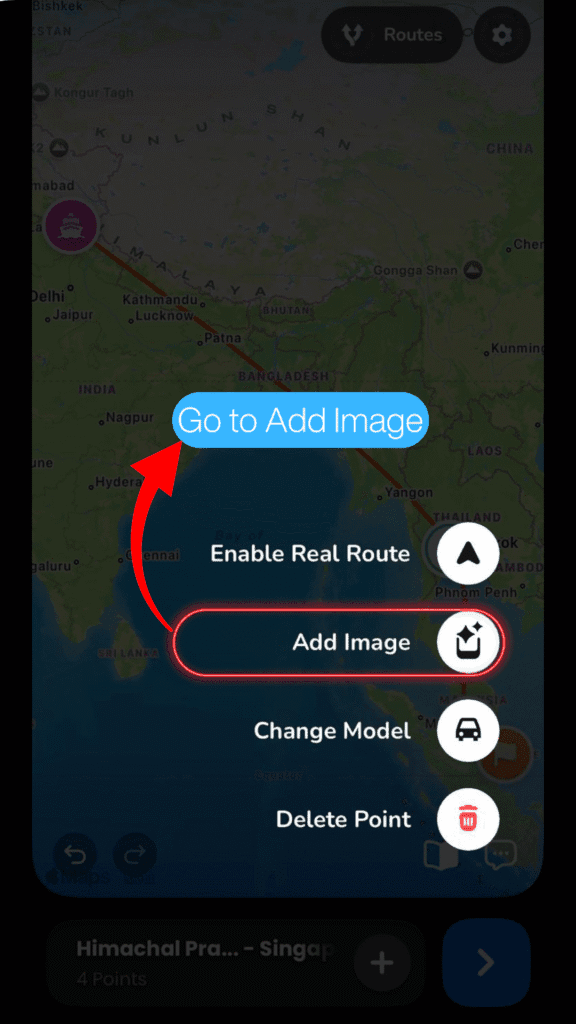
4. Add text to display place names, notes, or captions, or add an image to showcase landmarks, memories, or highlights. This is the key step that creates the reading pause.
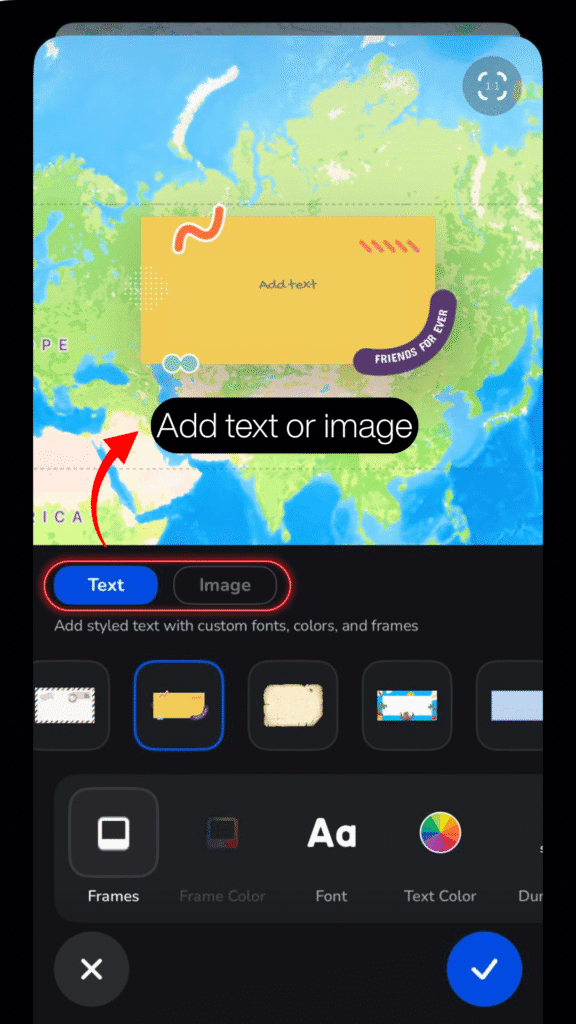
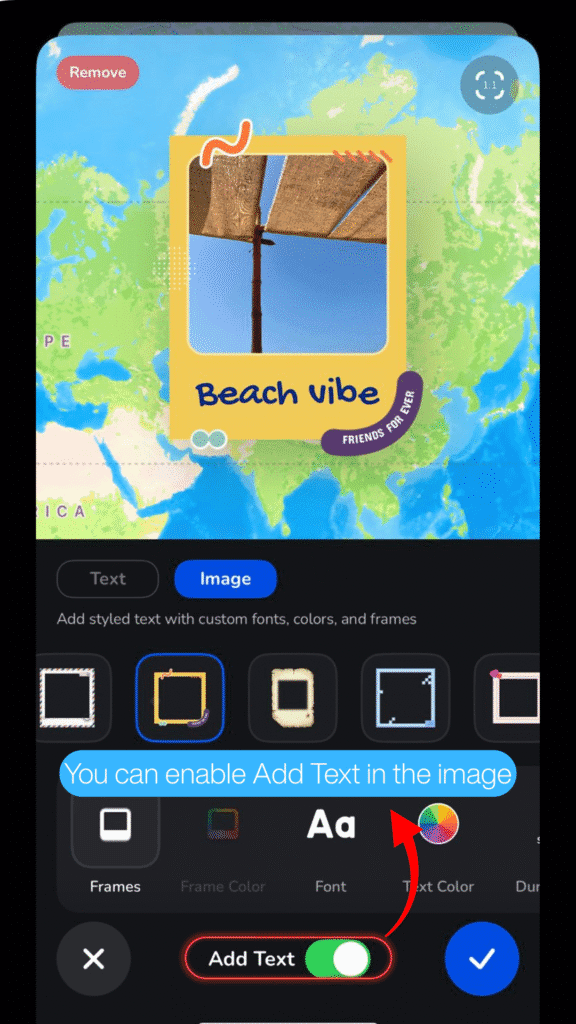
5. You can enable Add Text in the image to add a caption, so both are in one destination.
6. Adjust how long the image or text appears. Longer durations create longer pauses and confirm the edit by clicking the blue tick icon.
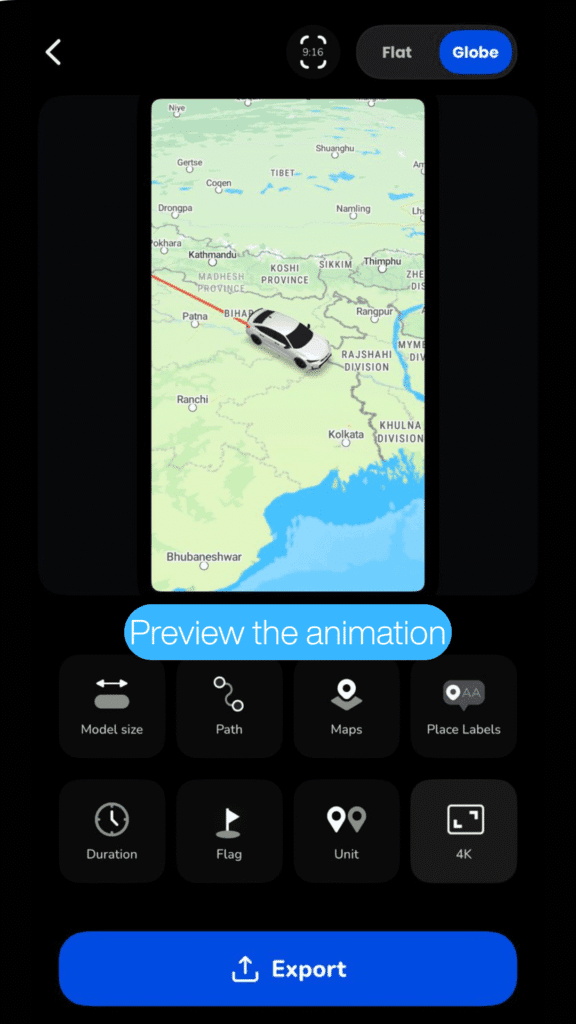
7. Tap preview to see how the pause looks in the animation. If it feels too fast or too slow, adjust the duration and preview again.
Common Mistakes When Adding Reading Pauses
- Not adding any images or text, causing the animation to move too fast
- Using very short durations, making the content unreadable
- Overloading every stop with long pauses, making the animation feel slow
- Skipping preview, leading to rectifying issues in the final export
- Adding pauses at unimportant stops can distract viewers from the key moments of the journey and reduce the storytelling impact.
- Using the same pause length for every stop makes the animation feel repetitive instead of dynamic and intentional.
- Forgetting to match pause timing with platform type, where longer pauses may work for YouTube or presentations but feel slow on Instagram Reels or Stories.
Tips for Natural, Smooth Reading Pauses
- Use longer pauses only for important stops, and others keep them short
- Keep short and readable texts to easily grab between animations
- Mix images and text for different stops, or use a mix of images and text
- Preview your animation before exporting
- Adjust durations until movements feel natural
Let Your Map Animations Pause a Moment
Reading pauses are one of the simplest ways to improve your travel animations, and TravelAnimator makes them effortless. By adding images and text at key stops, you naturally slow the animation, guide the viewer’s attention, and make your story easier to follow. Whether you’re creating a travel recap, a social media reel, or an educational route, reading pauses help your animation breathe and connect.
Download TravelAnimator from the App Store or the Play Store. Open it, add your content thoughtfully, preview your animation, and let your journey move at the perfect speed.