How to Log in to a Travel Animator App?
To log in to Travel Animator, open the app, tap the settings icon at the top right, choose Sign in and continue with your Google account. You can sign in without a paid plan.
 Jaseel S6 min read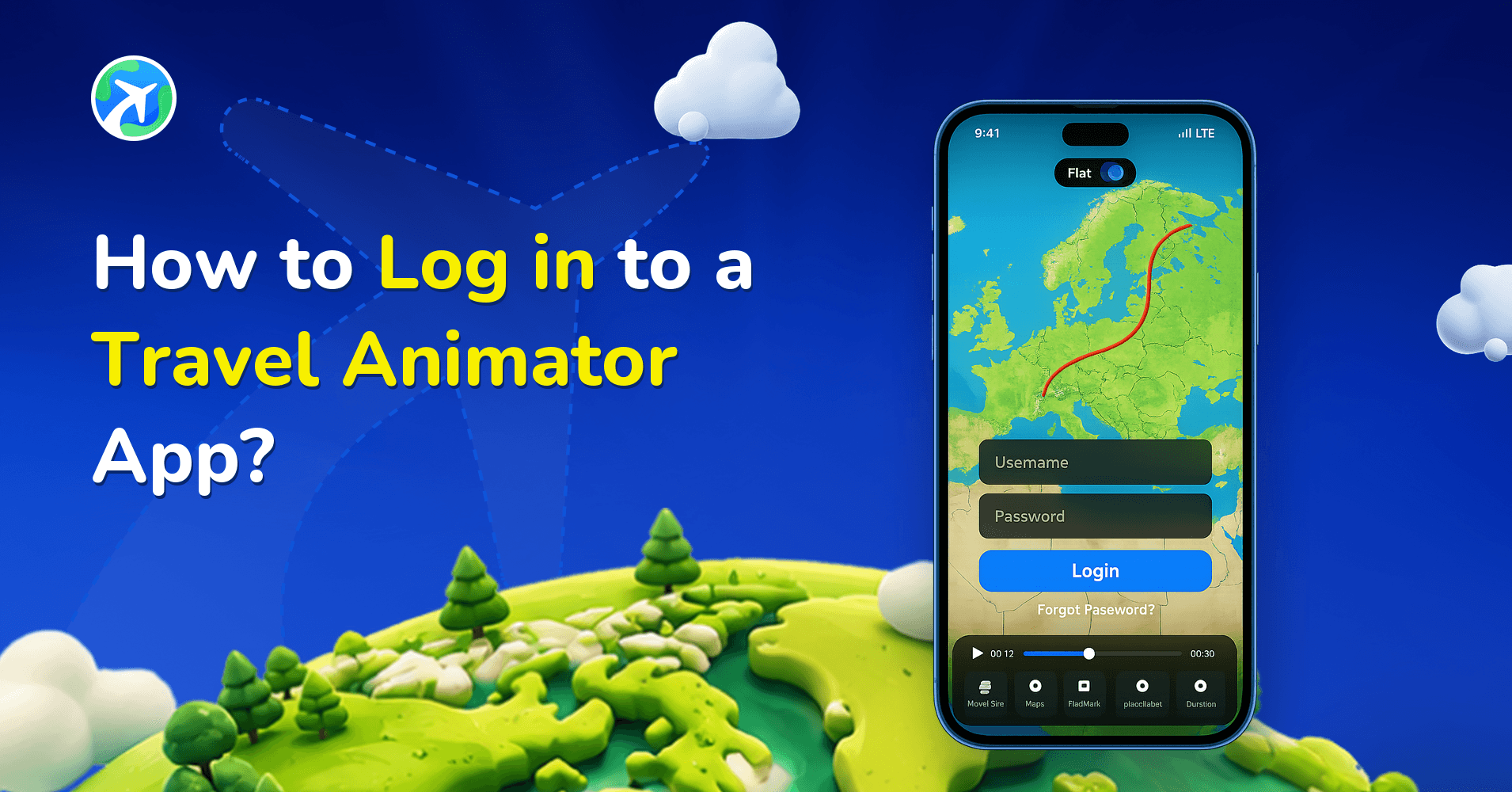
In this article 10 sections
Travel Animator can sign in with just your Google account, giving you quick access to your travel animation projects anytime, anywhere.
Imagine you start creating your travel animation during your lunch break, planning to finish it later that night. But if you haven’t logged in, there’s no way to save your progress. All your effort could be lost once you close the browser or switch devices. Logging in ensures your work is saved and ready whenever you return.
This guide will show you how to log in to the Travel Animator App and explain whether it is necessary to log in to create animation videos.
Do You Need an Account to Use a Travel Animator?
You don’t need an account to start using Travel Animator. It is designed to be beginner-friendly and flexible. You can explore features like destinations, models, images, and even build a travel video without logging in. But there are certain things you can’t do without logging in.
Why is Login Important in Travel Animator?
- When you’re logged in, you can save your animated videos. You can’t save the routes without logging in.
- To open your saved video or watch your favourite travel route in the future, you’ll need to log in to the app first.
- Loading your saved projects requires a login through the email that you used before.
- Only logged-in users can activate Travel Animator Pro to get different map styles and premium models.
Steps to Log in to the Travel Animator App
- Download the Travel Animator from the App Store or Play Store.
- Open the app and tap Get started.
- Select the primary industry and continue, or skip the step.
- You can see the premium plan screen. Subscribe to the plan or close the tab.
- Click on the settings icon in the top right of the main page.
- Go to Sign in and continue with your Google account.
- Start creating your first video after signing in.
Can You Use the Same Login Across Devices?
You can use the same login across multiple devices. However, you didn’t receive saved routes or a premium subscription across all devices using the same email. Your saved routes and premium subscription are tied to the specific device where they were originally created or purchased, even if you use the same email.
Is Travel Animator Login Safe and Secure?
Travel Animator respects every user’s privacy. We do not collect any personally identifiable information, such as email addresses or other personal details. We store non-personal data to enhance user experience, including app usage statistics, video properties, and subscription plan details.
Do You Need a Paid Plan to Log In?
You don’t need a paid plan to log in. You can log in and use the Travel Animator for free. To access your projects, previous routes, and unlock premium features if you’ve subscribed, you need to log in.
What Happens the First Time You Sign In
Your first sign-in is the one moment worth slowing down for. New users get a pop-up offering one Pro model for free, and it only shows up during that first login flow. Tap Claim model, pick the model, and it stays on your account for good, even if you never subscribe.
A few things catch people out:
- You get one claim, and you can’t swap it later. If you mostly make road-trip reels, a car or van you’ll reuse beats a novelty model you’ll use once.
- Guest users can’t claim it. You have to be signed in.
- If you close the pop-up without choosing, it may not come back.
The full rules and some picking tips are in our guide to claiming a Pro model for free. If you’re in Bangladesh or the Philippines, the login step during setup is also what gets you free lifetime Pro access, so don’t skip it there.
If Sign-In Isn't Working or Your Projects Are Missing
Most login problems come down to one of these, so check them in order before reinstalling anything.
- You’re looking in the wrong place. Sign in lives under the settings icon in the top right of the main screen, not on the editing screen.
- You picked a different Google account. Phones often have two or three. Signing in with a different email won’t open the original account’s projects, so make sure it’s the one you used before.
- The route was never saved. There’s no auto-save. A route only comes back after login if you saved it through the route settings icon with Save Route. An exported video is a finished file, not an editable project.
- Pro isn’t showing. Confirm you’re on the account you upgraded with, then try Restore Purchase in settings.
Signed in with the wrong account by accident? Our guide on logging out and switching accounts walks you through getting back to the right one.
Are You Ready to Log in and Start Creating?
Now, it’s easy to log in to Travel Animator. Whether you’re a traveler, content creator, or someone casually creating videos, logging in gives you the full creative potential of the app. If you’ve subscribed to the app, it makes your travel videos more unique and attractive with advanced features. Log in to activate Travel Animator Pro and explore every feature to personalize your travel experience.
Frequently Asked Questions
Do You Need an Account to Use a Travel Animator?
You don’t need an account to start using Travel Animator. It is designed to be beginner-friendly and flexible.
Why is Login Important in Travel Animator?
Signing in links saved routes and account access to your login. This is useful when you want to save work and return to the project later.
Can I access saved routes on another device with the same login?
Yes. Save the route while signed in, then use the same account on the other device to access it. This follows the newer cross-device saved-route workflow described in the hub.
Why didn't I get the free Pro model offer after logging in to TravelAnimator?
The free Pro model offer appears during your first sign-in, and most users only see it then. If you closed it without choosing, it may not come back. It also won’t show for guest users, so make sure you actually completed the Google sign-in from settings. Each account gets a single claim, and the model you choose can’t be swapped afterwards.
Does TravelAnimator save my route automatically once I'm logged in?
No. Logging in links your saved routes to your account, but you still have to save each route yourself. Open the route settings icon near the main settings icon, tap Save Route and give it a clear name. The free version keeps one saved route at a time, while Pro lets you save multiple routes.
What should I send support if I can't log in to TravelAnimator?
Start with the in-app chat icon, which can answer most sign-in questions. If you still need a person, email connect@travelanimator.com with your User ID (copy it from the bottom of the main settings screen), your device, the app version and a short screen recording of what happens when you tap Sign in. Never send your password.