What Does The Purple Line Around Land Mean in Travel Animator?
 Jaseel S6 min read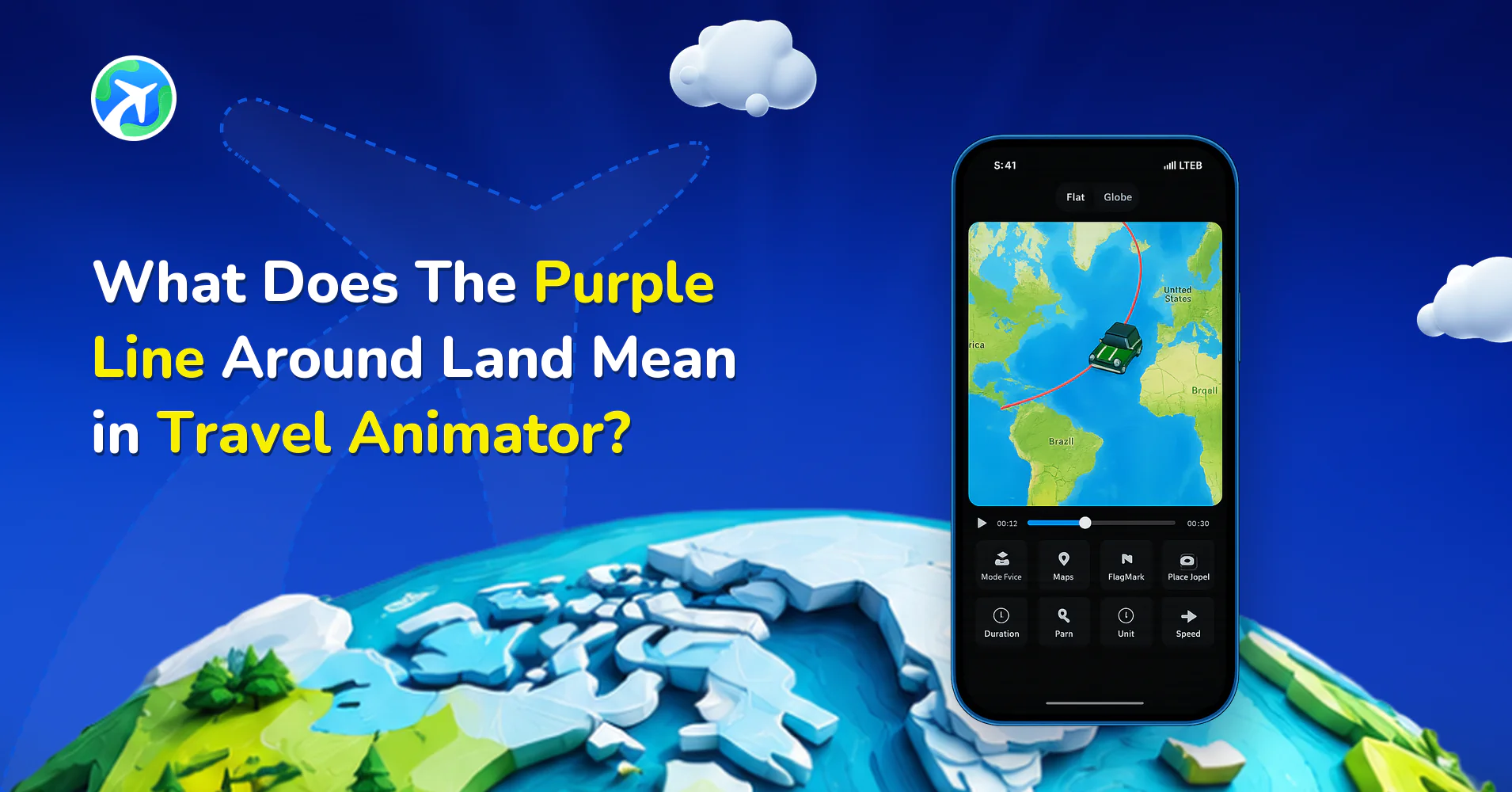
In this article 9 sections
You’re creating travel animation videos using Travel Animator. You have noticed that a purple line outlines the land areas on the map, and you’re confused about this purple line and why it’s there.
This blog will explain what the purple line means in the Travel Animator video, how to add it, and why it’s useful.
What is the Purple Line shown in Travel Animator?
The purple line around the land in Travel animator is used to highlight the country border on the map. It outlines the edges, helping you to understand the shape and boundaries of different countries.
Without the line, the audience of the content may be confused about which country they are traveling to, how much country they covered, etc.
How to add a purple line?
- Open the Travel Animator app and start creating your animations.
- After customization is done, tap “Preview page” for more customization options.
- On the preview page, there is a feature to show the country flag. Activate the flag feature to highlight the countries covered in your map journey.
- At the top of your travel animation video, you can see a purple color filled in the visited country, and a list of flags of countries you covered.
- Save and export the video for personal or professional use. You can directly share on social media.
Why is the Purple Line Important?
- It helps users identify countries easily.
- The animation is neat and organized. By that, it separates the countries and creates a clean structure.
- Without the purple outline, your animation should look flat and straightforward. The purple line gives the video a more stylish and professional touch.
How the purple line helps animation - some use cases with example
- You can animate your solo trip between countries, like a European trip from France to Italy to Switzerland. The purple line around each country makes it easy to see your destinations. The viewers can still recognize which country you’re in and which countries you’ve crossed by seeing the list of country flags.
- If you’re creating a family’s world tour video, these purple outlines make it stand out on a large world map.
- Designing a quick Instagram reel showing your backpacking journey. The purple outline helps the audience instantly see the countries covered. It also makes the reel visually engaging without many edits.
If the Purple Outline Doesn't Appear
The outline comes from the flag setting on the preview screen, so you won’t see it while you’re still placing points. Tap Preview and check that the Flag button at the bottom of the screen is switched on. Tapping it again switches it off, which is also the quickest way to hide the outline when you don’t want it.
Next, look at where your points actually sit. A stop placed on a border town, or a coastal city pinned slightly out at sea, can end up counted in the wrong place. Zoom in and drag the point onto land in the right country, then preview again.
If you can’t find the Flag option at all, your app may be out of date. Our guide on checking your Travel Animator version shows how to compare yours with the latest release.
Changing the Color, Fill or Border Thickness
Purple is what the flag view gives you, but you have more control than that. The Highlight option on the preview screen lets you decide how areas are marked:
- Highlight by Country or State. A Kerala and Tamil Nadu road trip can show just those two states instead of all of India.
- Pick a solid or gradient color from the palette.
- Add a dotted or grid pattern, or turn on Solid for a full fill.
- Choose one of three border thicknesses.
- Use the Visited or Current toggle, then preview to see which suits your story.
Tap the confirm button to apply your choices, then play the preview from the start.
Keeping the Outline Readable on Any Map Style
A border that stands out on a light map can vanish on a dark one. Every time you switch map styles, preview the outline again and pick a color that’s clearly different from both the map and your route line. On a busy route through five or six countries, a strong filled highlight can also make place labels harder to read, so a lighter pattern often works better than a solid fill.
Remember that the outline is styling, not route data. Highlighting a country doesn’t add a stop or change your path, so get the points right first and style the borders last.
Do you want to mention the countries you visited in your journey?
Travel Animator offers features to outline the countries in the animation video. Along with that, it helps to mention the country flags you visited and create your travel animation route engagingly. Travel Animator also offers features to attach images and text of the countries you have visited.
Download Travel Animator and explore its advanced features for customizing the animation videos of your travel journeys.
Frequently Asked Questions
What is the Purple Line shown in Travel Animator?
The purple line around the land in Travel animator is used to highlight the country border on the map. It outlines the edges, helping you to understand the shape and boundaries of different countries.
How to add a purple line?
Open the Travel Animator app and start creating your animations. After customization is done, tap “Preview page” for more customization options. On the preview page, there is a feature to show the country flag. Activate the flag feature to highlight the countries covered in your map journey. At the top of your travel animation video, you can see a purple color filled in the visited country, and a list of flags of countries you covered. Save and export the video for personal or professional use. You can directly share on social media.
Why is the Purple Line Important?
It helps users identify countries easily. The animation is neat and organized.
Can I change the purple border color in Travel Animator?
Yes. Open the preview screen and tap the Highlight option. From there you can choose Country or State, pick a solid or gradient color, add a dotted or grid pattern, and select one of three border thicknesses. Tap the confirm button to apply it, then preview the animation to check the new color stands out from the map and your route line.
How do I remove the purple line from my Travel Animator video?
Go to the preview screen and tap the Flag button to switch it off. The flag list and the purple country fill are tied to that setting, so turning it off removes both. If you also added a highlight from the Highlight panel, open it and change or clear that styling too, then preview before you export.
Can I highlight a state instead of a whole country in Travel Animator?
Yes. In the Highlight panel on the preview screen, choose State instead of Country. This is handy for trips inside one country, such as a drive through Kerala and Tamil Nadu, where outlining all of India would tell viewers very little. Pick a color that contrasts with the map, confirm, and preview the result.