How to Invert a Route in TravelAnimator
 Jaseel S7 min read
In this article 8 sections
With the latest update in TravelAnimator, the new Invert Route feature allows you to invert the direction of your travel route instantly with a single tap.
Travel routes don’t always stay the same. Sometimes you create an animation that starts from one city and ends in another, but later you want to show the journey in the opposite direction. For example, you may have created a route from Kochi to Delhi, but now you want to show the return journey from Delhi to Kochi.
In earlier workflows, reversing a route often meant deleting the existing route and manually recreating the entire path in reverse order. This could be time-consuming, especially if your animation included multiple stops along the way.
In this guide, you will learn how the Invert Route feature works, when you should use it, and how to invert a route in TravelAnimator step by step.
What Does the Invert Route Feature Do?
The Invert Route feature automatically reverses the order of your travel route. Instead of manually rearranging stops, the app instantly swaps the direction of the entire route.
When you use the invert route option:
- The starting point becomes the ending point.
- The ending destination becomes the starting point.
- All intermediate stops are rearranged in reverse order.
For example, imagine you created the following route for your travel animation: Kochi – Bengaluru – Hyderabad – Delhi
After using the Invert Route feature, the route will automatically become: Delhi – Hyderabad – Bengaluru – Kochi
The route path remains the same, but the direction of travel changes. This means your animation will now begin from the previous destination and move toward the original starting point. This feature is especially useful when you want to reuse an existing route without rebuilding it manually.
Step-by-Step: How to Invert a Route in TravelAnimator
Inverting a route in TravelAnimator is a quick process. You do not need to manually rearrange stops or recreate the path.
Follow these steps to invert your travel route.
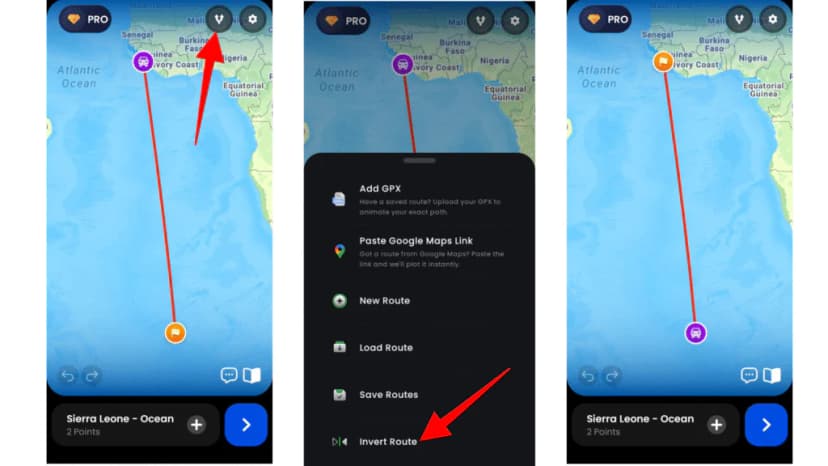
- Open the TravelAnimator app – Open the animation containing the route you want to reverse. Your route should already display the starting point, destination, and any stops you added.
- Go to the Route Menu – This menu contains several route management options, including saving and loading routes, importing GPX files, and managing route settings.
- Locate the Invert Route Option – This button reverses the direction of your current route.
- Tap the Invert Route Button – TravelAnimator will automatically reverse the order of all locations in your route. Your previous starting point will now become the final destination, and the route will be rearranged accordingly.
- Preview the Animation – After reversing the route, tap the Preview button to see how the animation looks. The travel model will now move along the same path but in the opposite direction.
- If needed, you can adjust other settings such as video duration, map style, model size, or aspect ratio before exporting the final animation.
Explore this article to learn how to use the TravelAnimator app.
How the Animation Changes After Inverting a Route
When a route is inverted, the overall path of the journey remains exactly the same. However, the animation direction changes.
Instead of beginning from the original starting point, the animation now begins from the previous destination. The travel model moves backward along the route until it reaches the original starting location.
All stops appear in reverse order as well. This allows you to quickly create a second animation that represents the return journey without building the route again.
Tips for Using the Invert Route Feature
Reversing routes becomes especially useful when creating return journey videos. Instead of building two separate routes, you can create the outbound route once and then reverse it for the return trip. You can also combine the invert route feature with Real Routes to ensure the path follows actual roads or travel routes in both directions.
Always preview the animation after reversing the route to confirm that the movement and timing look correct. If the reversed route appears longer or faster than expected, you can adjust the animation duration accordingly. These small adjustments help maintain smooth and professional-looking travel animations.
What to Check After You Invert
The path stays the same, but the story now runs the other way, so a few details may need a quick look before you export.
- Text that mentions direction. Custom labels like “Day 1”, “Start” or “Heading north” won’t update by themselves. Rename them so they match the new order.
- Photos and vehicles at each stop. Play the preview and make sure each image and model appears where you want it on the return leg. A plane photo meant for the flight out may not suit the flight back.
- Real Route segments. If you’d enabled Real Routes, check that each road section still looks right in the new direction.
- The very first frame. The animation now opens on your old destination, so check that the opening view makes sense to someone who hasn’t seen the outbound video.
Changed your mind? Tap Invert Route again to put the stops back in their original order. For other edits, the undo and redo arrows on the map screen step back through recent changes.
Keeping Both the Outbound and Return Versions
Inverting changes the route you’re working on, so plan ahead if you want both directions. The simplest order is: finish and export the outbound video, then invert the route, adjust the labels and export the return video.
If you want to keep editing both later, save each version as its own route, with clear names like “Kochi to Delhi” and “Delhi to Kochi”. The free version keeps one saved route at a time, while Pro lets you save several.
Paired videos work well in a few situations. A travel vlogger can post the outbound route at the start of a trip and the return at the end. A travel agency can send a client both legs of an itinerary. A student explaining a historical expedition can show the journey out and the journey home as two short clips instead of one crowded map.
FAQs
Does reversing a route remove my stops?
No. The invert route feature simply rearranges the order of your existing stops. None of your destinations are deleted.
Does the map path change when I reverse a route?
No. The physical path of the route remains the same. Only the direction of travel is reversed.
Do I need to recreate the route manually?
No. The Invert Route button automatically reverses the entire route with a single tap.
Can I reverse routes that have multiple stops?
Yes. The feature works for routes with any number of stops. All locations will automatically be rearranged in reverse order.
Can I reverse the GPX exported or Google Map imported routes?
Yes, you can reverse GPX, Google Maps routes, and manual routes.
How do I undo an inverted route in TravelAnimator?
Open the route menu and tap Invert Route again. The stops return to their original order, with the same path and stops as before. Preview the animation afterwards to confirm the direction is the one you want, and check any custom labels you renamed for the reversed version.
Can I keep both the original and reversed route?
Yes. Export or save the original route first, then invert it and save the reversed version under a different name. Free users can save one route at a time, so export the first video before inverting. Pro users can save both versions and reopen either one from Load Route.
Turn Any Route Into a Return Journey
The Invert Route feature makes route editing faster and more flexible in TravelAnimator. Instead of rebuilding your entire travel path, you can instantly reverse the direction with a single tap. This feature is especially helpful for return journeys, round-trip travel animations, and correcting routes created in the wrong direction. It saves time and allows creators to reuse the same route for different storytelling purposes.
Whether you are creating travel recap videos, itinerary animations, or route explanations, reversing a route can add more versatility to your travel content. With TravelAnimator, you can build your route once and easily flip the direction whenever you need. Start experimenting with the Invert Route feature and turn any travel route into a return journey in seconds.