Pixel Map in Travel Animator
 Jaseel S6 min read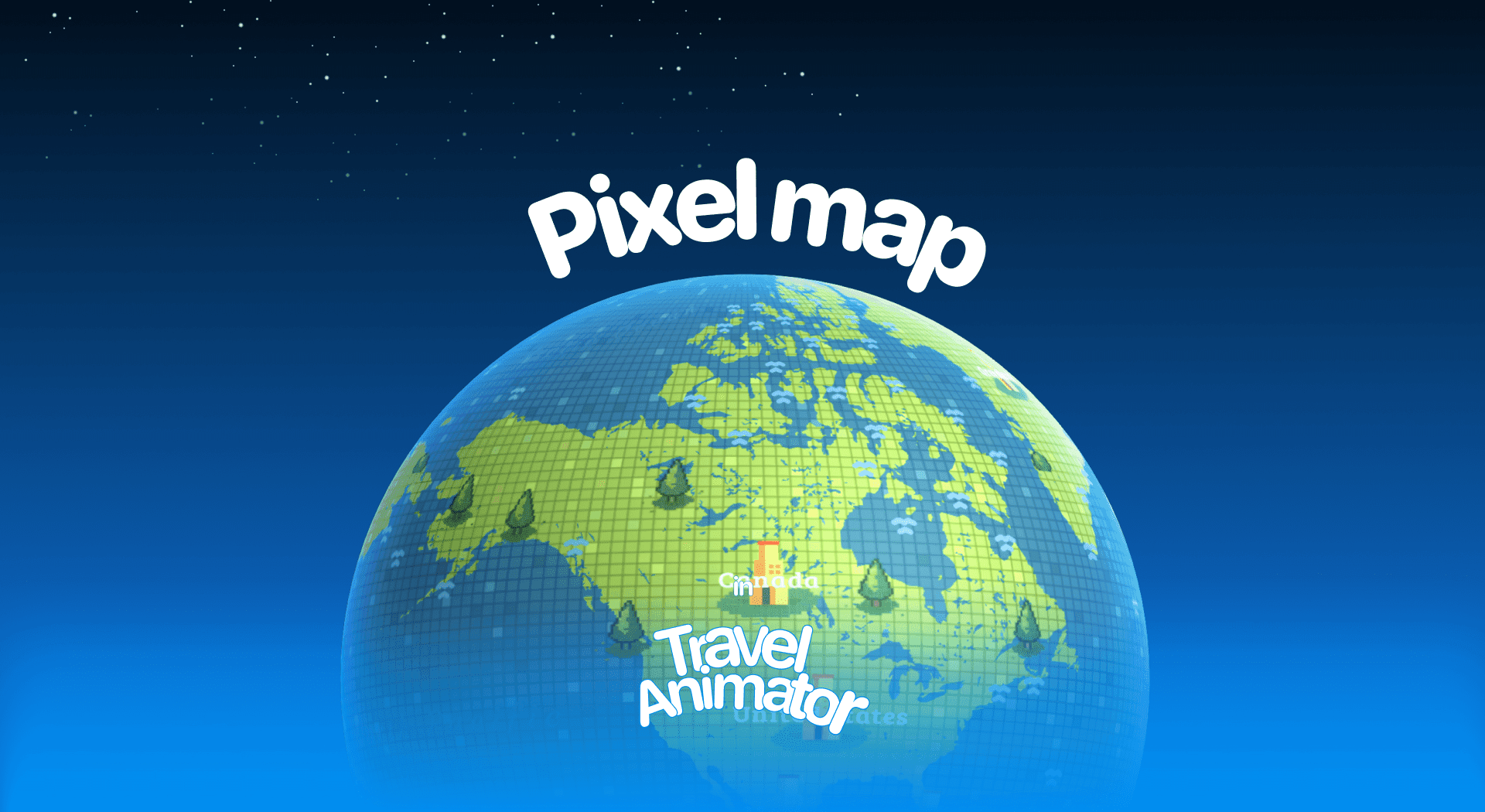
In this article 8 sections
Pixel Map is a new map style, built specially for gamers and students who need to recreate their travel experience in a gaming environment. Whether you’re designing a school project, sharing a virtual trip, or creating content that feels like part of a video game, Pixel Map brings a playful yet detailed touch to your travel animations.
Imagine creating a travel animation where the map feels like it belongs in a video game. The routes, locations, and movements appear in a playful block-style environment, instantly turning a simple journey into something fun, immersive, and visually striking.
Explore the guide about the Pixel Map Style, its use cases, and how to use it for creating your travel videos.
For a sharper digital look, the Terminal map style trades pixels for neon.
What Is the Pixel Map Style in Travel Animator?
Pixel Map Style is a newly released map design that features countries, oceans, and landmarks in bright, pixelated blocks. This map is designed to transform a standard travel path into an exciting, game-like adventure. It makes the audience feel like they are on the digital path.
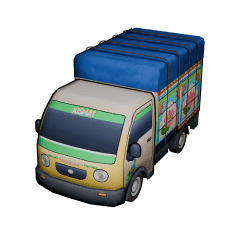
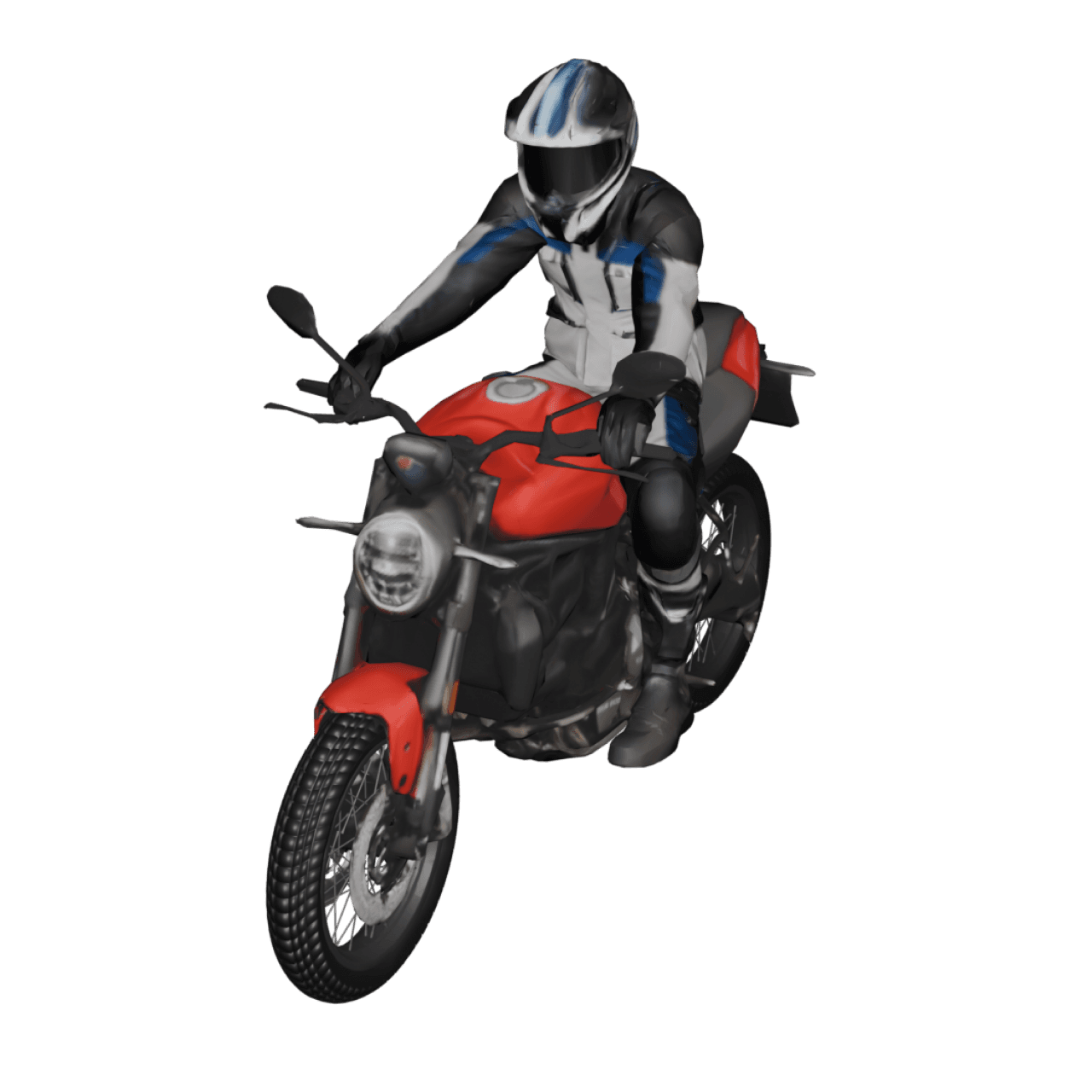
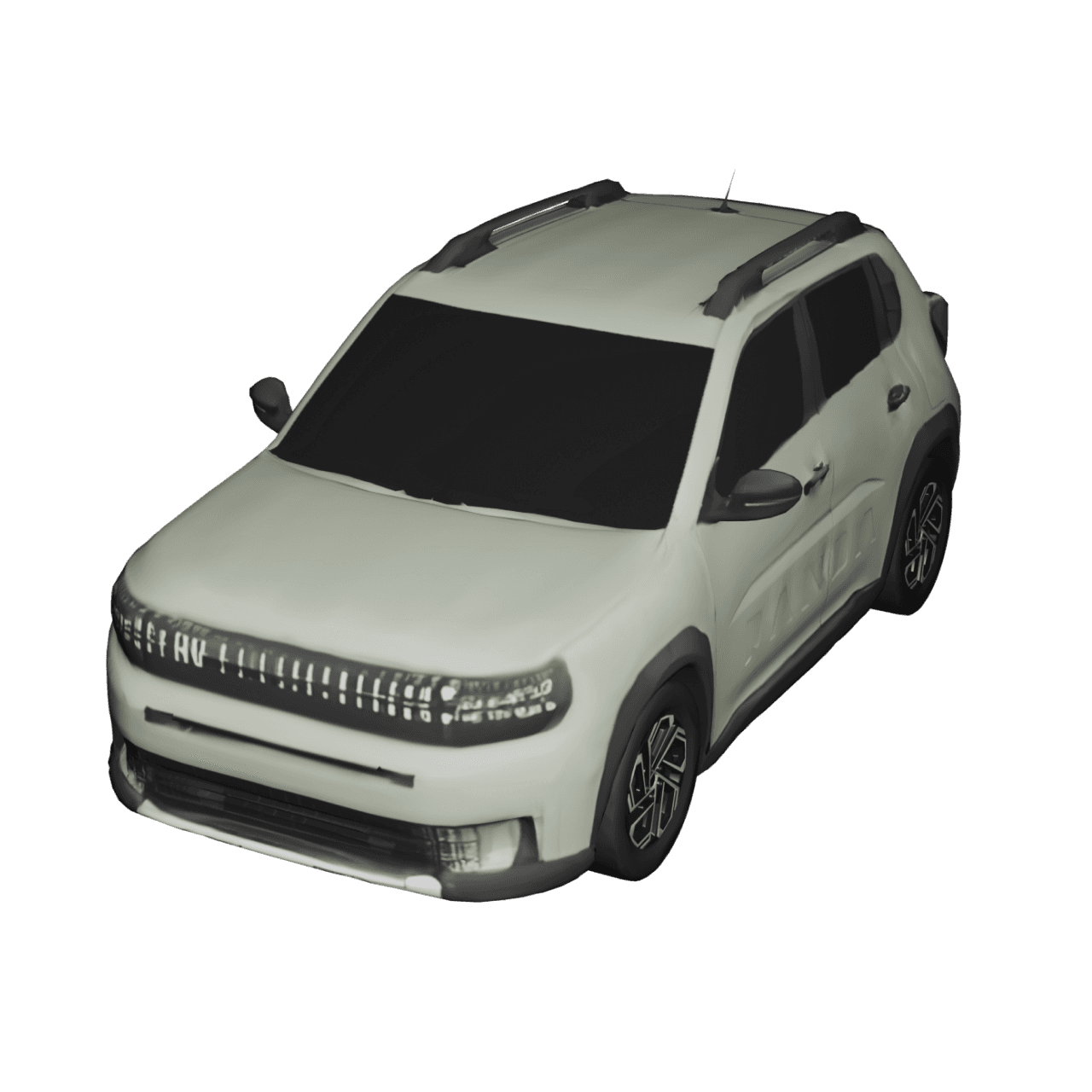
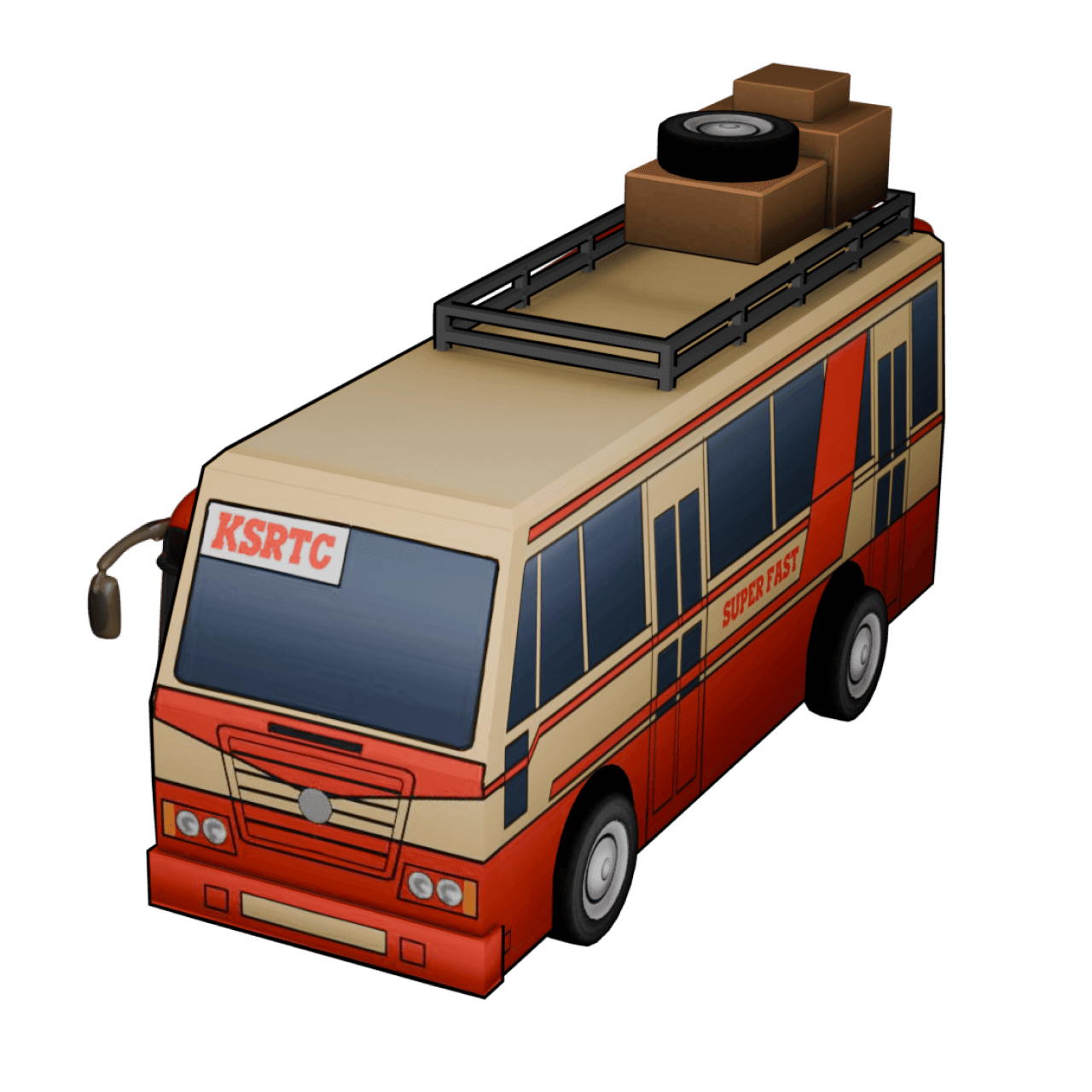
This map is developed for creators who try different content styles, like showing their travel experiences in a playful or nostalgic vibe in their animation. Use different models with a pixel map to get interesting game-like videos to showcase.
Is the Pixel Map Style Free or Premium?
Pixel Map Style comes under the premium version of Travel Animator. It unlocks every advanced feature with Pixel Map while upgrading. It makes the final output perfect and professional with various advanced models and 4K quality exports.
Now, Pixel Map is available for free for the first 30 days from the release day. It only unlocks a specific map and does not provide access to other premium features for stunning output.
How to Use the Pixel Map Style in Your Project - Step-by-step Procedure
- Open Travel Animator and upgrade to the premium version.
- Sign in before upgrading. Because signing in is mandatory for upgrading.
- Next, create your route animation by adding destinations and stops.
You can use different models, images, and labels for each destination. - Preview the video and tap on the Maps.
- Select the Pixel Map to use it in your travel video.
- You can toggle the Place Labels to display or hide the place name on the map.
- Adjust other elements, such as model size, video duration, and ratio.
- Export the animation video in HD or 4K quality and share it on social media.
Making a Pixel Map Video Feel Like a Game
The map sets the scene, but the small choices around it decide whether the video feels like a game or just a colourful map. These are the settings we reach for first.
- Write your labels like levels. Short text such as “Level 1: Tokyo” or “World 3: Kyoto” instantly fits the theme. Keep them to a few words so they stay readable on a phone. Our guide to customizing text covers fonts and colours.
- Choose a route line with character. Dotted and striped line styles suit the blocky look better than a plain thin line, and a bright colour keeps the path visible against the pixel tiles.
- Swap vehicles between stops. Long-press a stop and use Change Model to move from a car to a plane to a boat. On a game-style map, each switch feels like reaching a new stage.
- Add your avatar. A photo avatar riding along with the vehicle turns the route into “your character’s” path, which works especially well for kids’ content.
Try both 2D and 3D before exporting. A flat view keeps the retro feel, while 3D gives the blocks more depth for intros and YouTube clips.
Who Should Use the Pixel Map Style?
- Gaming content creators can add pixel maps to match game-themed travel vlogs or any content.
- Youtubers and travelers can make their intros and travel clips more fun and visually unique with pixel map style.
- Showcase children’s park destinations using pixel maps to attract and connect with the audience easily.
- Pixel Maps make geography or travel-related lessons more engaging for students.
- Highlight gaming event and destination with a pixel theme that resonates with the audience.
- Perfect for fun, cartoon-like animation content for a young audience.
Pixel Map Ideas for Classrooms and Creators
A Pixel Map gets attention from younger viewers in a way a standard map rarely does, which makes it useful well beyond gaming channels.
For a school geography project, a student could animate an ancient trade route city by city, with a short label and one image at each stop. A teacher might map last term’s field trip so the class can see where they went. For a family channel, a theme-park holiday told as a set of “levels” makes a fun recap the kids will actually want to watch.
Creators covering gaming events can show the trip from home to the venue as an opening sequence. Keep it short, around 10 to 15 seconds, and let the main video carry the rest.
Why Choose the Pixel Map Style?
Pixel Map is perfect for users who want their travel videos to have a playful and game-inspired theme. It takes the audience on a journey inside an adventure, gaming world, making it attractive for creating storytellers, gamers, and students. Upgrade the Travel Animation and use the 3D Pixel Map animation to give your animation a dynamic three-dimensional feel.
Frequently Asked Questions
What Is the Pixel Map Style in Travel Animator?
Pixel Map Style is a map design that features countries, oceans, and landmarks in bright, pixelated blocks. This map is designed to transform a standard travel path into an exciting, game-like adventure.
Is the Pixel Map Style Free or Premium?
Pixel Map Style comes under the premium version of Travel Animator. It unlocks every advanced feature with Pixel Map while upgrading.
Who Should Use the Pixel Map Style?
Gaming content creators can add pixel maps to match game-themed travel vlogs or any content. Youtubers and travelers can make their intros and travel clips more fun and visually unique with pixel map style.
Is the Pixel Map still free to use?
The free access described here ran for 30 days from the map’s release date, not from the day you install the app. After that window, Pixel Map is part of Travel Animator Pro. Open the map style menu in the preview screen to see whether it’s currently available on your account.
Can I use different vehicles on a Pixel Map route?
Yes. The map style doesn’t limit your models. Long-press any stop and tap Change Model to pick a car, plane, boat or another vehicle for that part of the route. Mixing vehicles on a Pixel Map is a simple way to make each leg feel like a new stage of a game.