Luminar Map in Travel Animator
 Jaseel S6 min read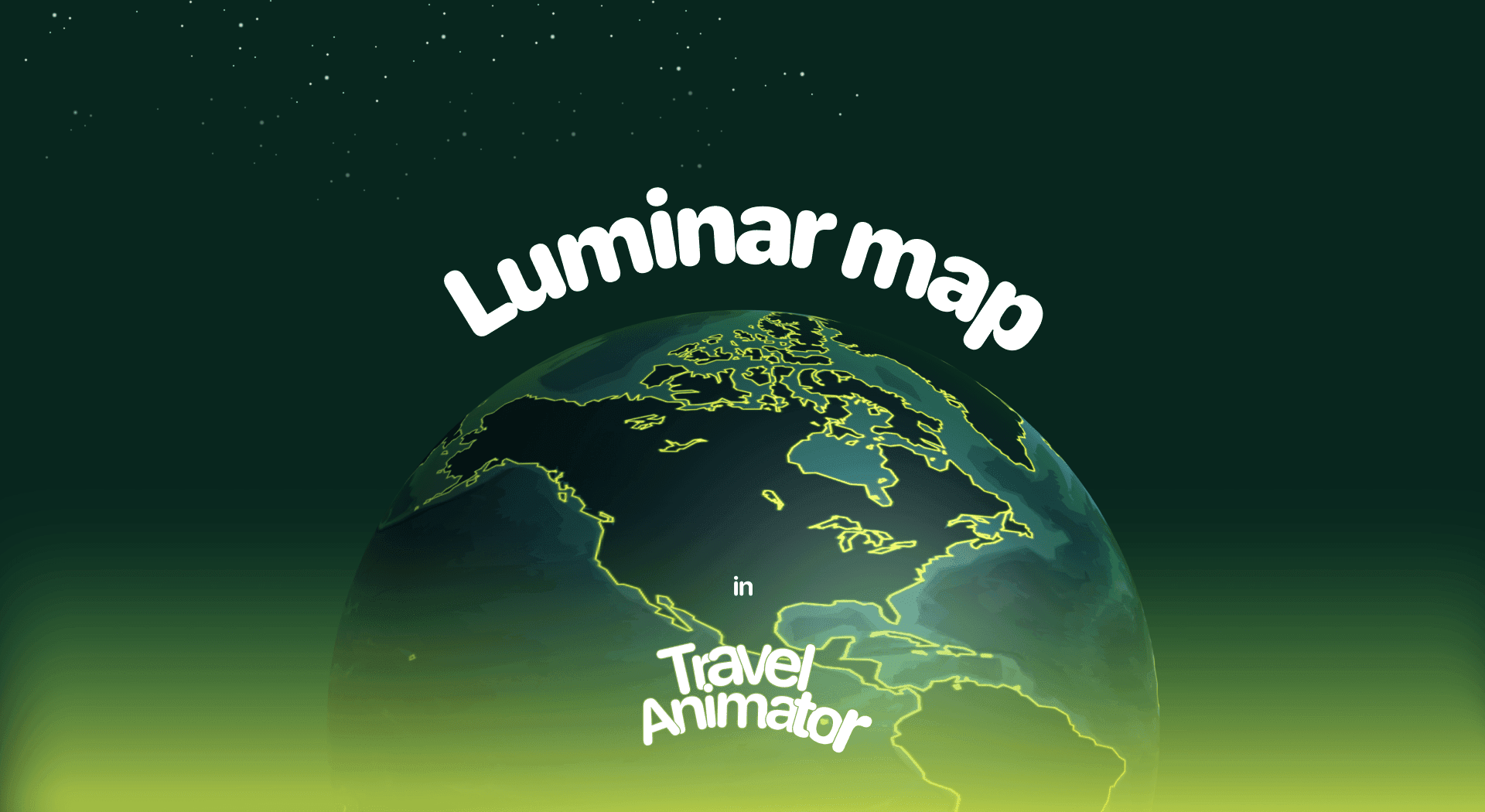
In this article 9 sections
Luminar Map is a newly released map style that gives your animation a distinctive look with glowing outlines and a rich, ocean-blue background, making the routes stand out.
Imagine you are creating a video to showcase a luxury cruise route across multiple countries. You are looking for a way to highlight the port with a glowing point to catch the viewer’s attention instantly.
Explore the newly released Luminar Map Style, its use cases, and how to use it in your Travel Animation Video.
For a brighter, bolder take on the same glow, try the Nova map style.
What Is the Luminar Map Style in a Travel Animator?
The Luminar Map Style in Travel Animator is a newly released map that gives your travel route highlights luminous outlines and points with a dark ocean blue background. This style creates a visually stunning and attractive look.
This map is designed for creators who want their travel animations with a night sky inspired by nightlight satellite, making it perfect for showing global routes, long-distance travel with glowing city lights, and deep blue oceans.
Is the Luminar Map Style Free or Premium?
You will get the Luminar Map Style for free for the first thirty days from the release of the map. However, you won’t have access to other premium features, such as premium models, premium maps (which don’t come with a free trial), and high-quality exports without watermarks.
Luminar map style is included in the premium version of Travel Animator. You will need an active premium subscription to use Luminar Map in your animation videos. It also activates other premium features. So, if you’re planning to create professional content, be ready to subscribe.
How to Use the Luminar Map Style in Your Project - Step-by-step Procedure
- Open the Travel Animator App and sign up using an email account.
- Upgrade to Travel Animator Pro to activate Luminar Map. You will get 30 days of free trial from the day it is released.
- Start creating your travel video by adding destinations, models, images, and labels.
- Preview your video and choose the Map style to use the Luminar Map.
- Select the Luminar from the map menu, then toggle the Place Labels on or off to choose whether place names are displayed.
- You can switch between 2D and 3D views based on your preference.
- Adjust other features, export the video in HD or 4K format, and share it with your audience.
Who Should Use the Luminar Map Style - Use Cases
- Travel Vloggers can create night travel videos for YouTube and Instagram.
- Tour operators can visually showcase tour routes in their promotional videos.
- Perfect for mapping marathons, road trips, and travel paths.
- Travelers can add this map to their trip videos to look stunning.
- It is great for presentations at educational institutions that require a professional, modern-looking map.
Making Your Route Glow on Luminar
Luminar’s deep blue background does a lot of the work, but your settings decide whether the route actually pops.
- Route colour: warm or bright colours like gold, white or light pink stand out against the ocean blue. A dark blue line will sink into the background.
- Line style: the glowing route style matches Luminar’s night-light feel. Go Medium or Thick if the video is for Reels or Shorts.
- Place labels: use a bright text colour so names don’t get lost on the dark map. You can change label colours from the place label settings.
- Photo frames: a light frame colour separates your photos from the background. Dark frames tend to blend in.
Example: A Night-Themed Mediterranean Cruise
Say you’re making a promo for a seven-night cruise from Barcelona to Marseille, Genoa and Civitavecchia for Rome. Luminar fits because the ports light up against the dark sea, which is exactly the effect a cruise video wants.
Add the four ports as stops and pick a ship model. Ships rarely sail in straight lines, so drag the route between ports to add gentle curves that follow the coastline. Put one photo at each port, keep the captions short, and switch to 3D for a global view as the route crosses the sea. Export in 16:9 for YouTube or your website, and do a second 9:16 export for a Reel teaser.
Small Mistakes That Dull the Glow
The most common one is packing in too many stops. On a dark map, every label and photo adds a bright spot, and twenty of them turn the glow into clutter. Keep the stops that matter to the story.
Another is setting the duration too short for a long route. A London to Sydney flight squeezed into 10 seconds moves so fast that viewers miss the glow. Give long-distance routes a bit more time in the duration setting and preview the whole thing before exporting.
Is Luminar Map the Best Choice for Your Travel Animation?
If you want your night travel animation to look vibrant and stunning, Luminar Map is the best choice. Its combination of rich colours and visuals makes it perfect for global routes. Use the Luminar Map for 30 days, before the free trial ends, to test the map and see how it enhances your storytelling.
Frequently Asked Questions
What Is the Luminar Map Style in a Travel Animator?
The Luminar Map Style in Travel Animator is a map that gives your travel route highlights luminous outlines and points with a dark ocean blue background. This style creates a visually stunning and attractive look.
Is the Luminar Map Style Free or Premium?
The article describes a 30-day introductory offer measured from the map’s release date, not a fresh trial for each user. Check the map’s current availability and access requirement in the app before using it.
Is Luminar Map the Best Choice for Your Travel Animation?
If you want your night travel animation to look vibrant and stunning, Luminar Map is the best choice. Its combination of rich colours and visuals makes it perfect for global routes.
What route line colour works best on the Luminar map?
Bright, warm colours work best because Luminar has a dark ocean-blue background. Gold, white, yellow or light pink lines stand out clearly, while dark blue or navy lines blend in. Pair the colour with the glowing line style and a Medium or Thick line, then preview on your phone to check it’s easy to follow.
Can I use the Luminar map for a road trip?
Yes. Luminar suits road trips, especially ones you want to show as a night drive. Add your stops, turn on Real Routes for each segment so the line follows actual roads instead of straight jumps, and choose a car model. Bright route colours and labels keep the drive readable against the dark map.